Pay an invoice
Pay an invoice by card with Pay now when the company accepts online payments, or by bank transfer using the details printed on the invoice.
You can pay an invoice in one of two ways, depending on what the company has set up: by card through Pay now, or by bank transfer using the payment details printed at the bottom of the invoice. Both are explained below.
Find the invoice
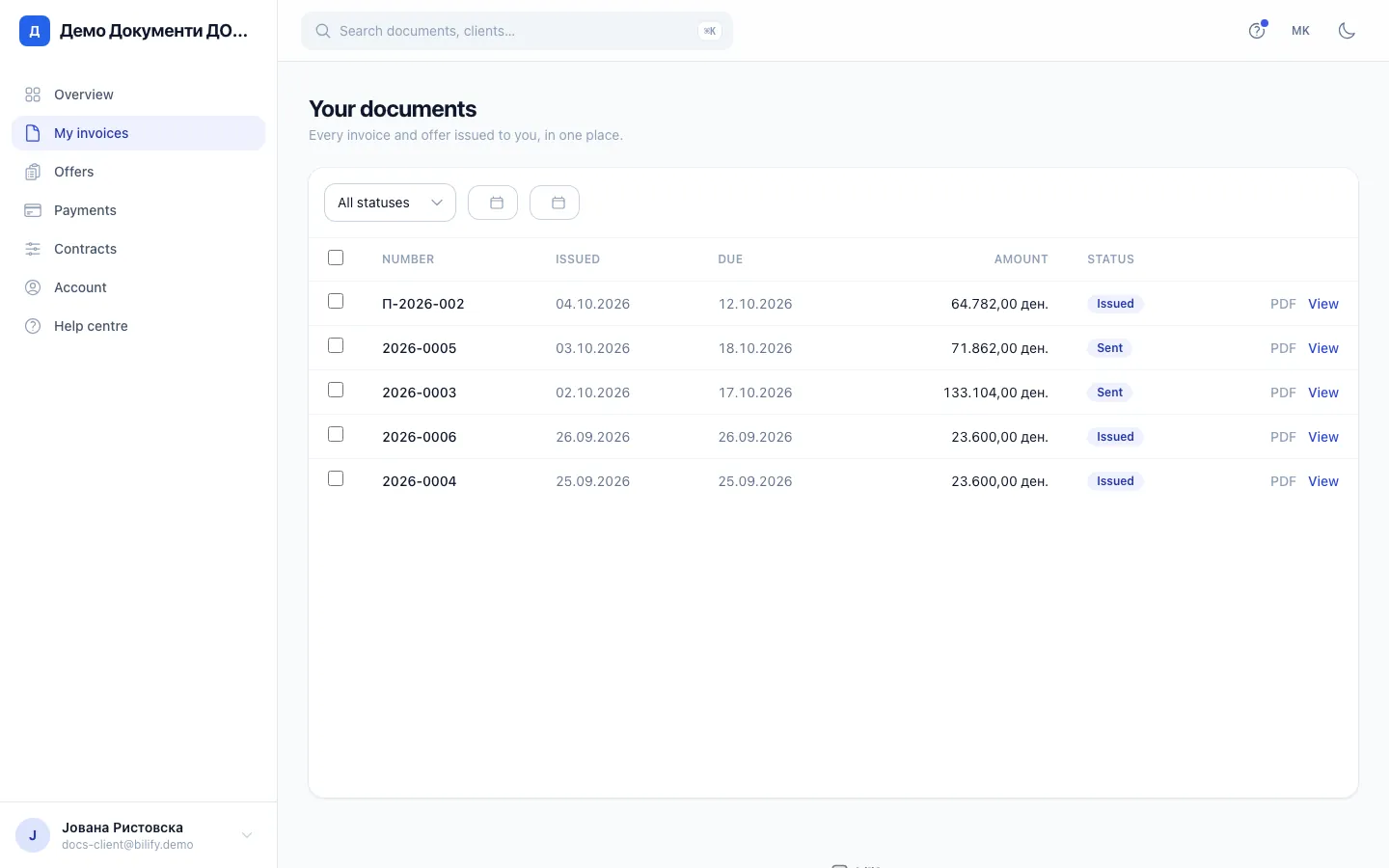
- Step 1: Unpaid invoices show Issued, Sent, Seen, Partially paid or Overdue.
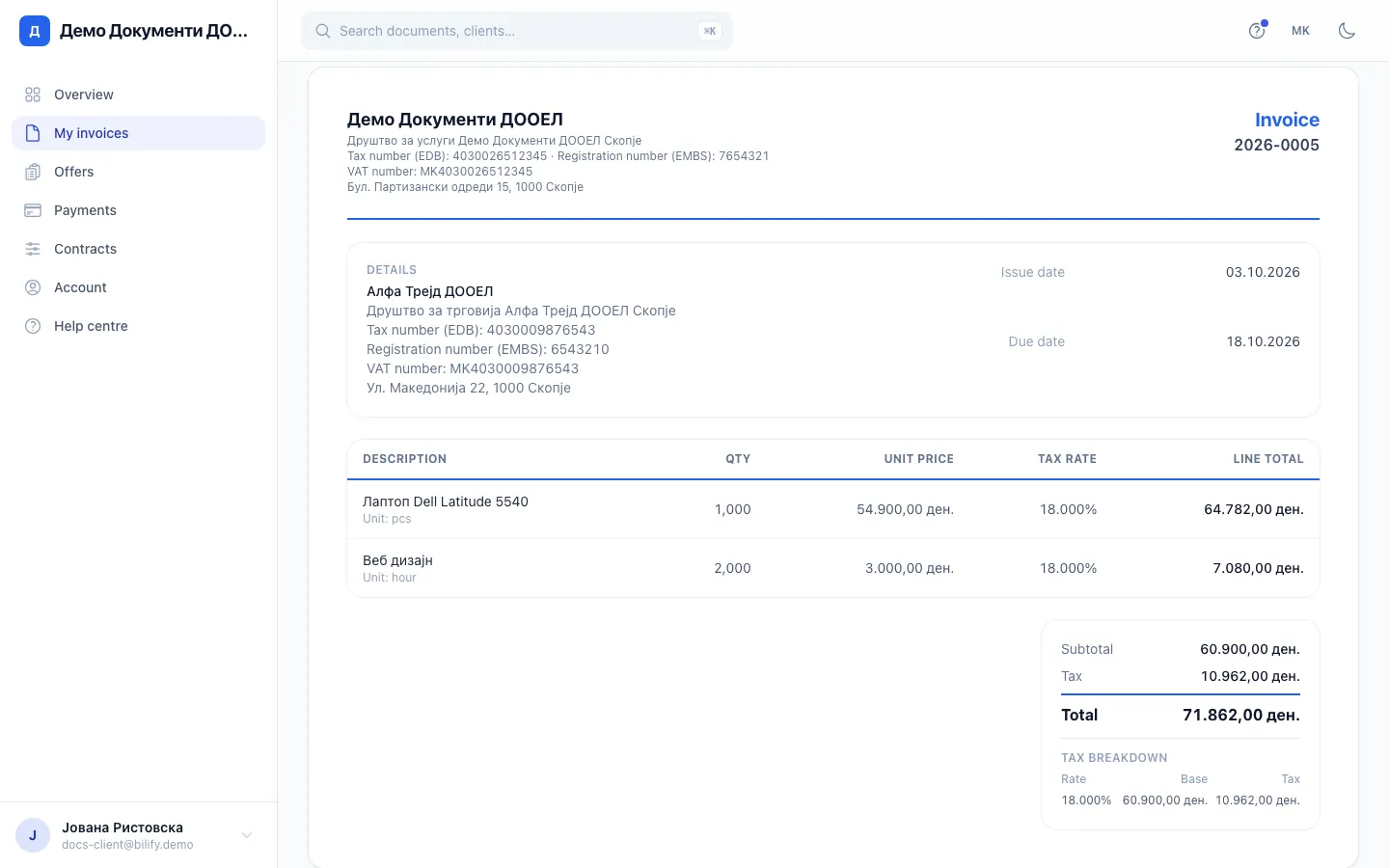
- Step 2: Check the amount, the due date and the payment details at the bottom of the invoice.
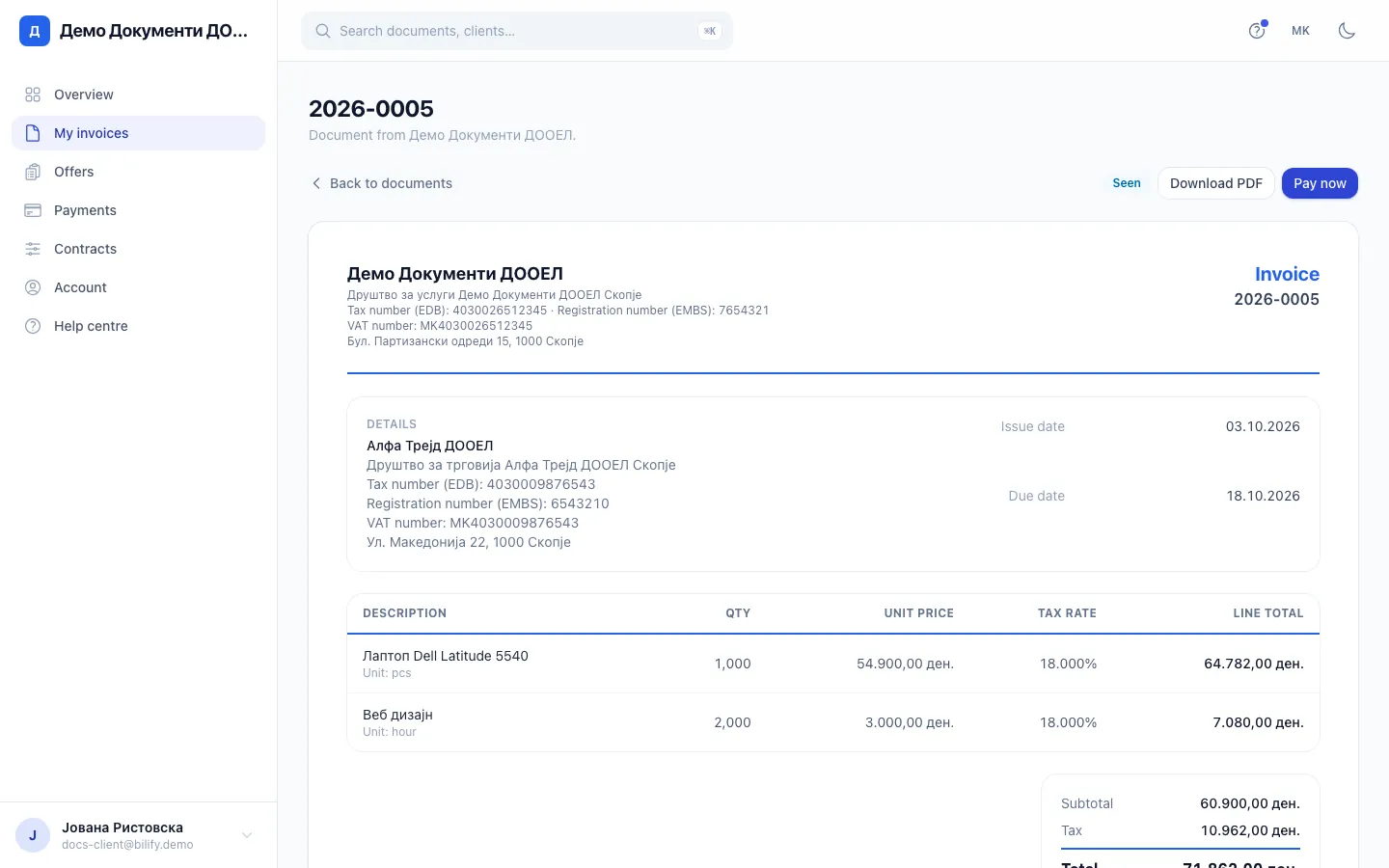
- Step 3: Keep a PDF copy for your records if you need one.
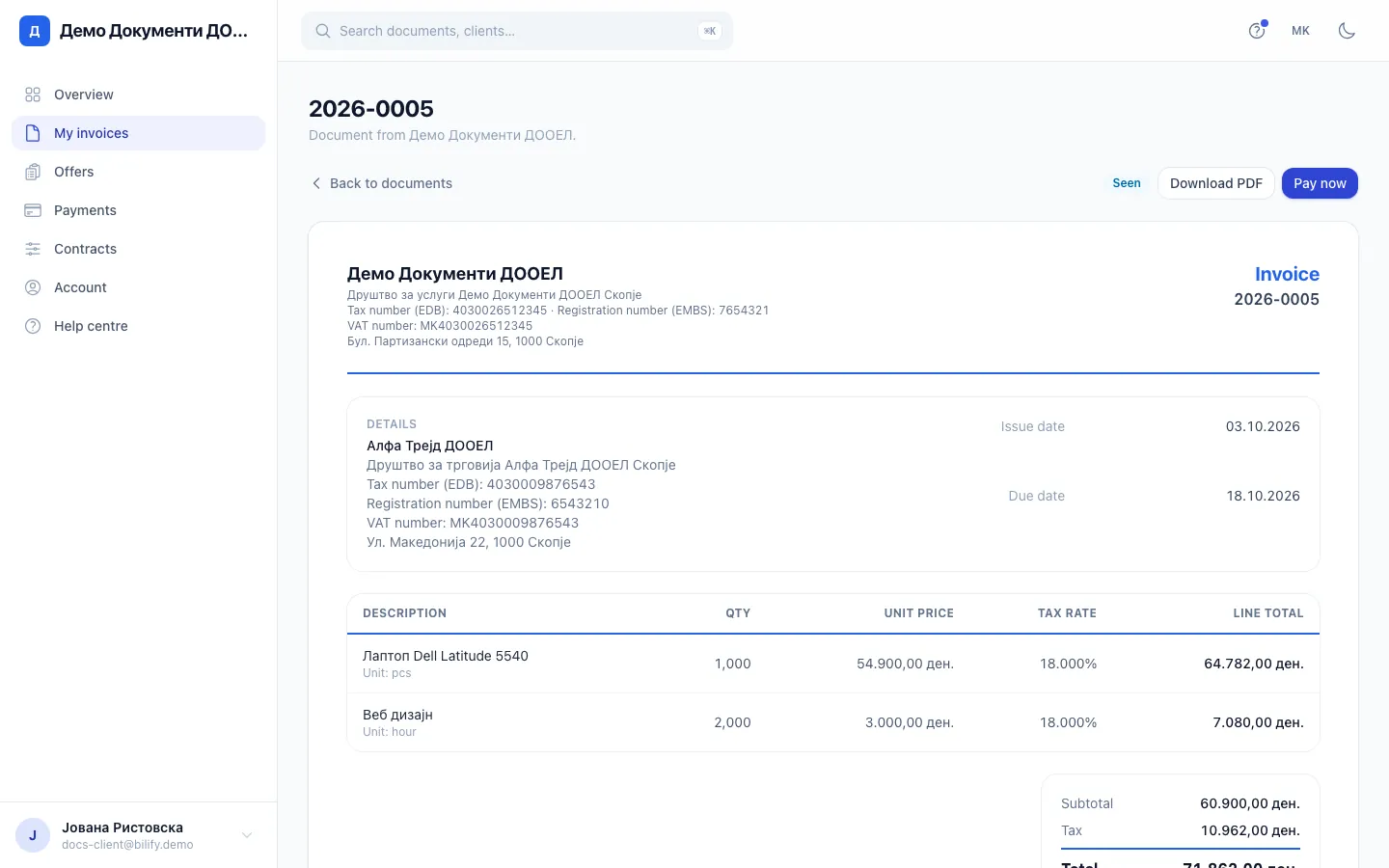
- Step 4: Pay now opens a secure card payment page when the company accepts cards, or points you to the bank details.
- Sign in to the portal.
- Open My invoices. Invoices that still need paying have the status Issued, Sent, Seen, Partially paid or Overdue. The Overview page also lists them, with a Pay now button next to each. Pro-forma invoices and offers are not paid in the portal; you pay the invoice the company issues for them.
- Click the invoice number to open it.
- Check the amount, the due date and the payment details at the bottom of the invoice.
Pay by card
Requires: Online payments (Stripe Connect)
When the company accepts card payments for this invoice:
- Click Pay now at the top of the invoice.
- A secure payment page from Stripe, the company's payment provider, opens. Enter your card details there and confirm.
- After paying you are taken back to the invoice in the portal.
Your card details are entered on Stripe's page only. Neither the company nor the portal sees or stores them.
The payment is recorded on the invoice automatically once Stripe confirms it, usually shortly after you pay. Reload the page to see the status change to Paid.
Partly paid already? Pay now always asks only for the amount still owed, so you can pay the rest by card once the company has recorded your earlier payment.
If Pay now shows "Online payment is not set up for this company yet. Please use the payment details on the document.", this invoice can only be paid by bank transfer. If it shows "We could not open the payment page right now...", wait a few minutes and try again, or pay by bank transfer.
Pay by bank transfer
The bank details are printed at the bottom of every invoice, for example the bank name, account holder, account number or IBAN and SWIFT/BIC.
- Open the invoice, or download its PDF.
- Make the transfer from your bank for the amount shown.
- Put the invoice number in the payment description so the company can match your payment quickly.
The portal does not register bank transfers by itself. The company records them when the money arrives, and only then does the invoice change to Partially paid or Paid. This can take a few working days.
See what you have paid
Open Payments in the menu to see every payment the company has recorded for you: the date, the invoice it belongs to, the method and the amount. The tiles at the top show Total paid, the number of Payments and what is Still outstanding.
Paid, but the invoice still shows as unpaid?
For a card payment, wait a few minutes and reload. For a bank transfer, the company has to record it first. If it still looks wrong after a few days, send the company a message from Account > Message us with the date and amount of your payment.
Was this page helpful?
Related articles
Still stuck?
Write to us and we will get back to you within one working day.