Record an expense
Record a business cost with its category, vendor, amount, date and receipts, and find, edit or delete it later.
Recording your costs in Bilify puts them next to your income on the dashboard and in reports. It takes a description, an amount and a date; everything else is optional.
Record an expense
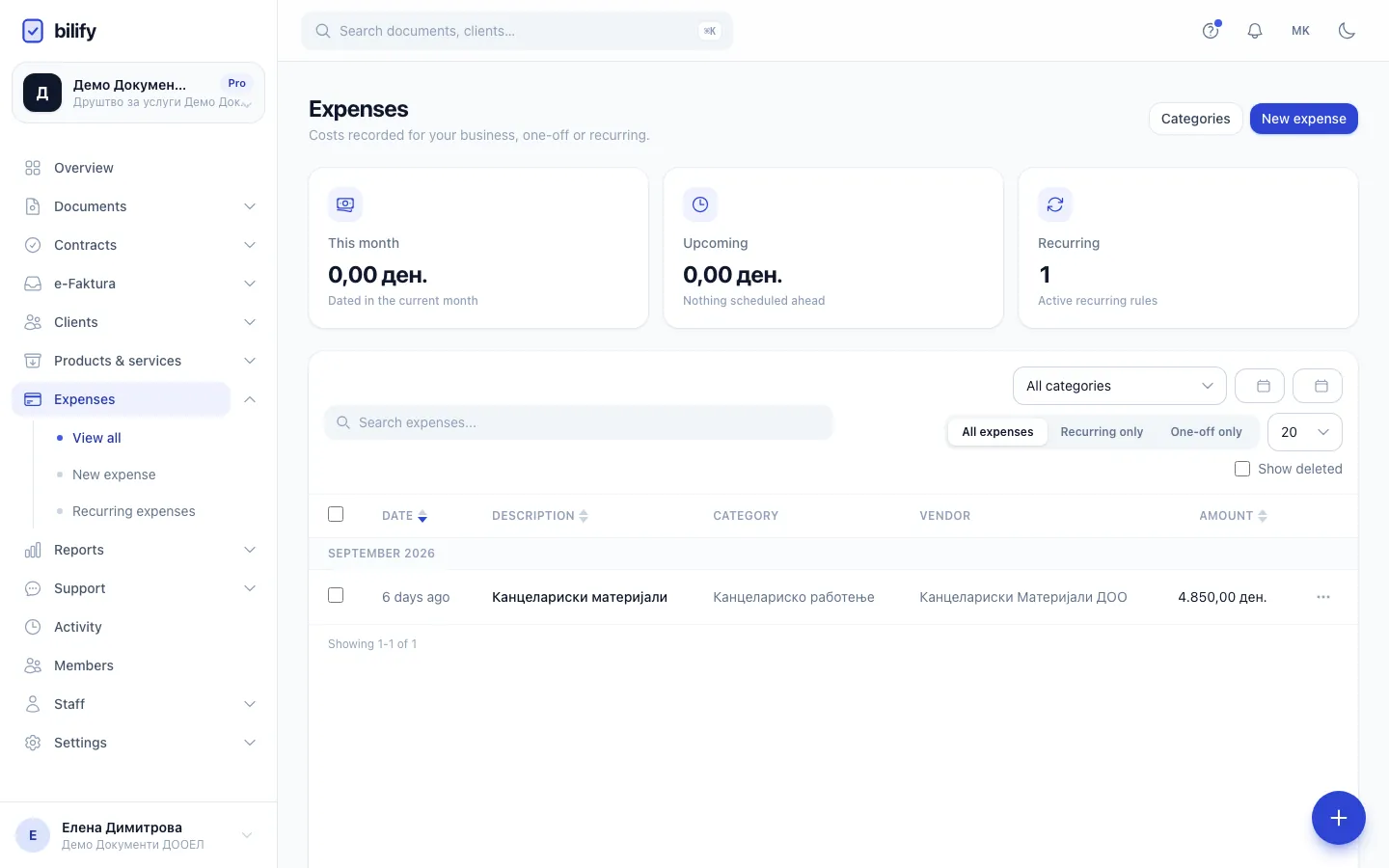
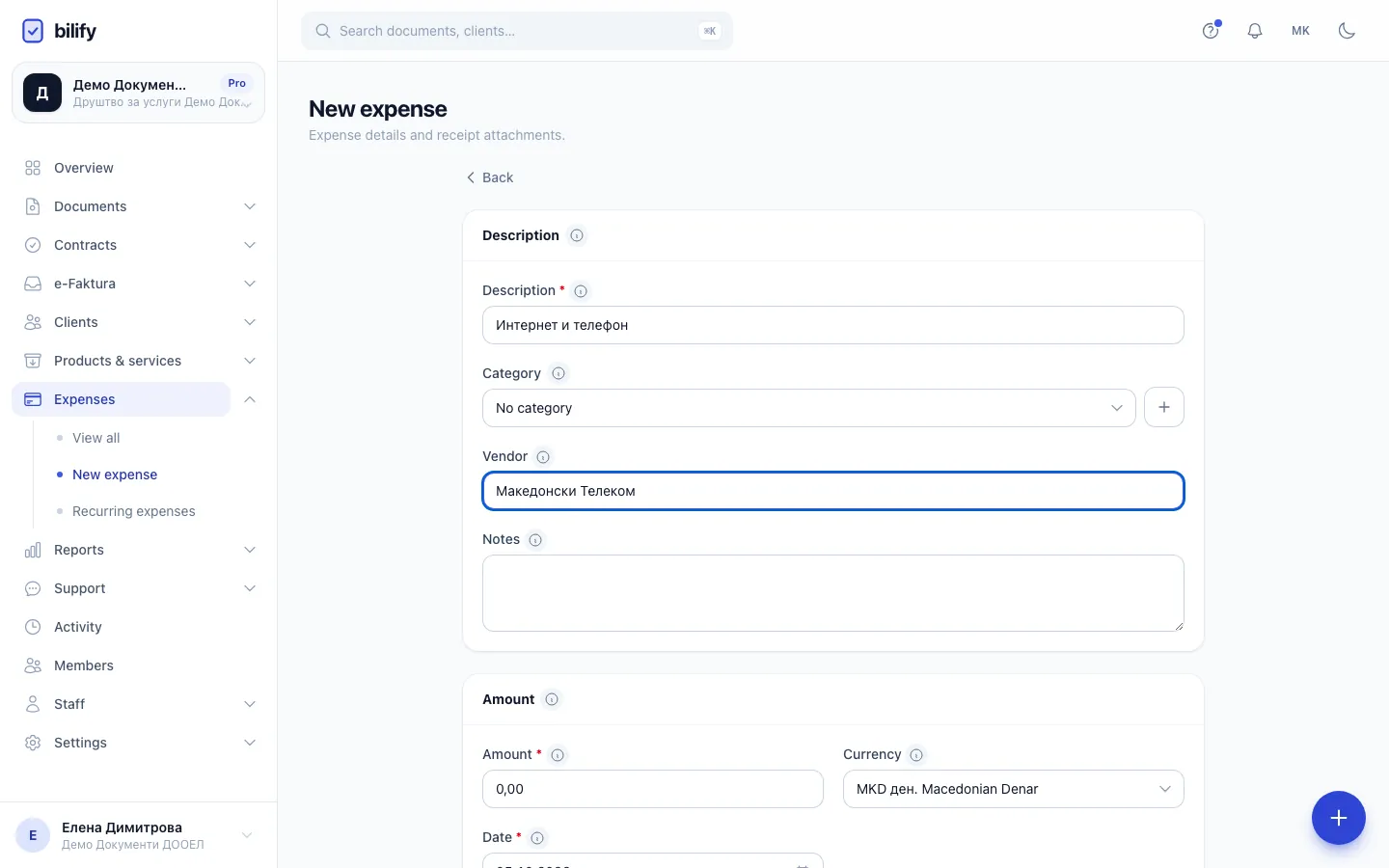
- Step 1: On the Expenses page, click New expense.
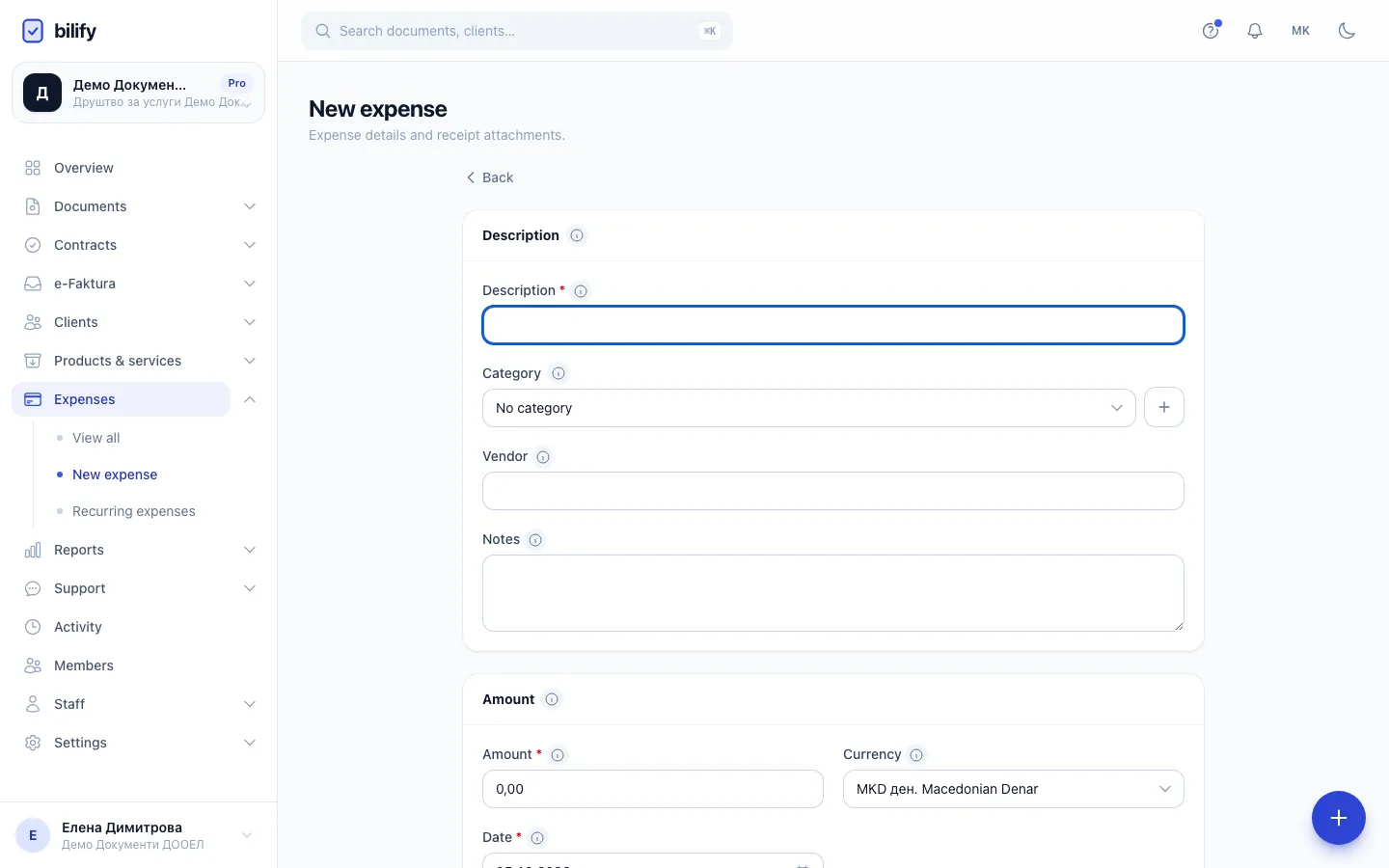
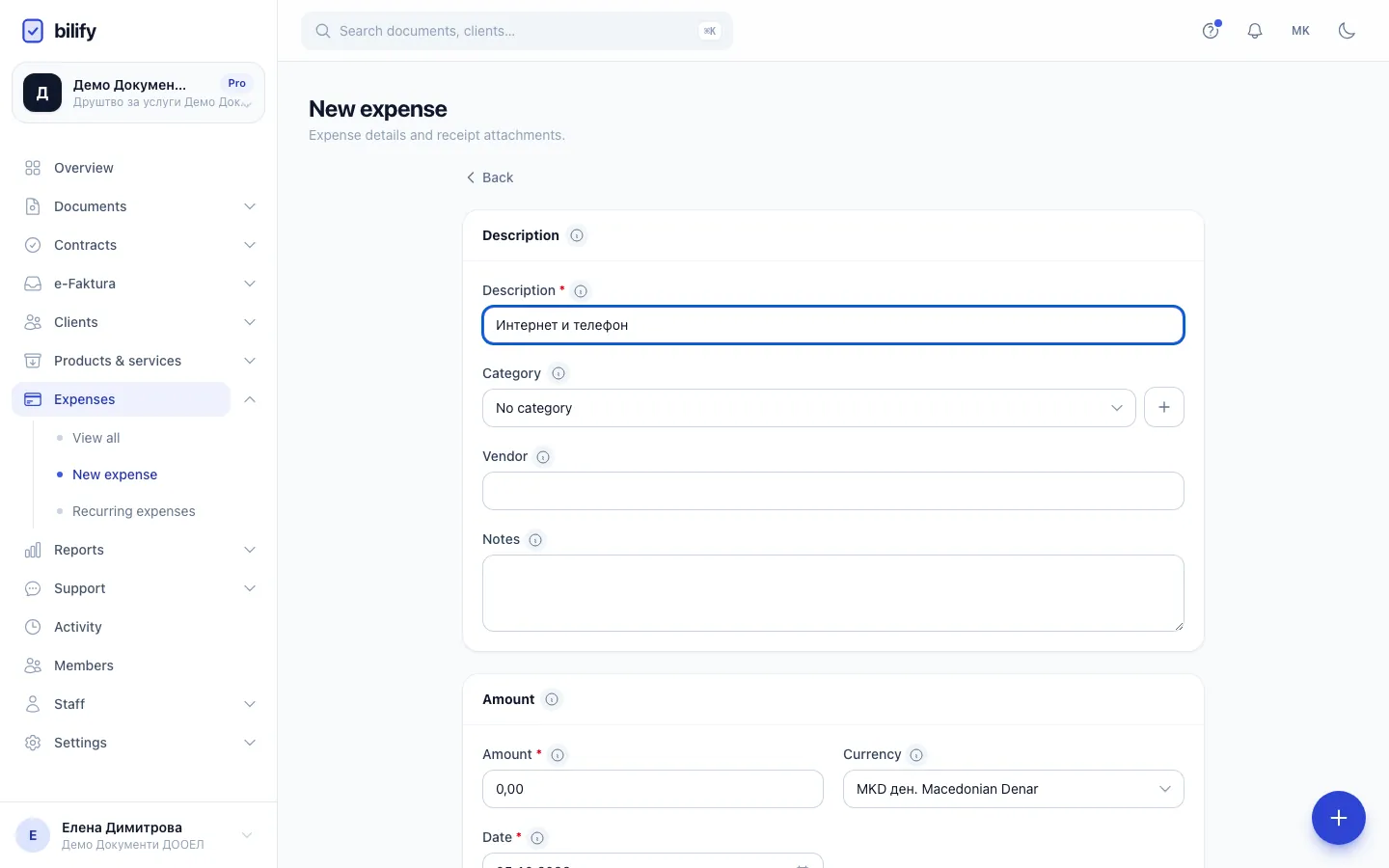
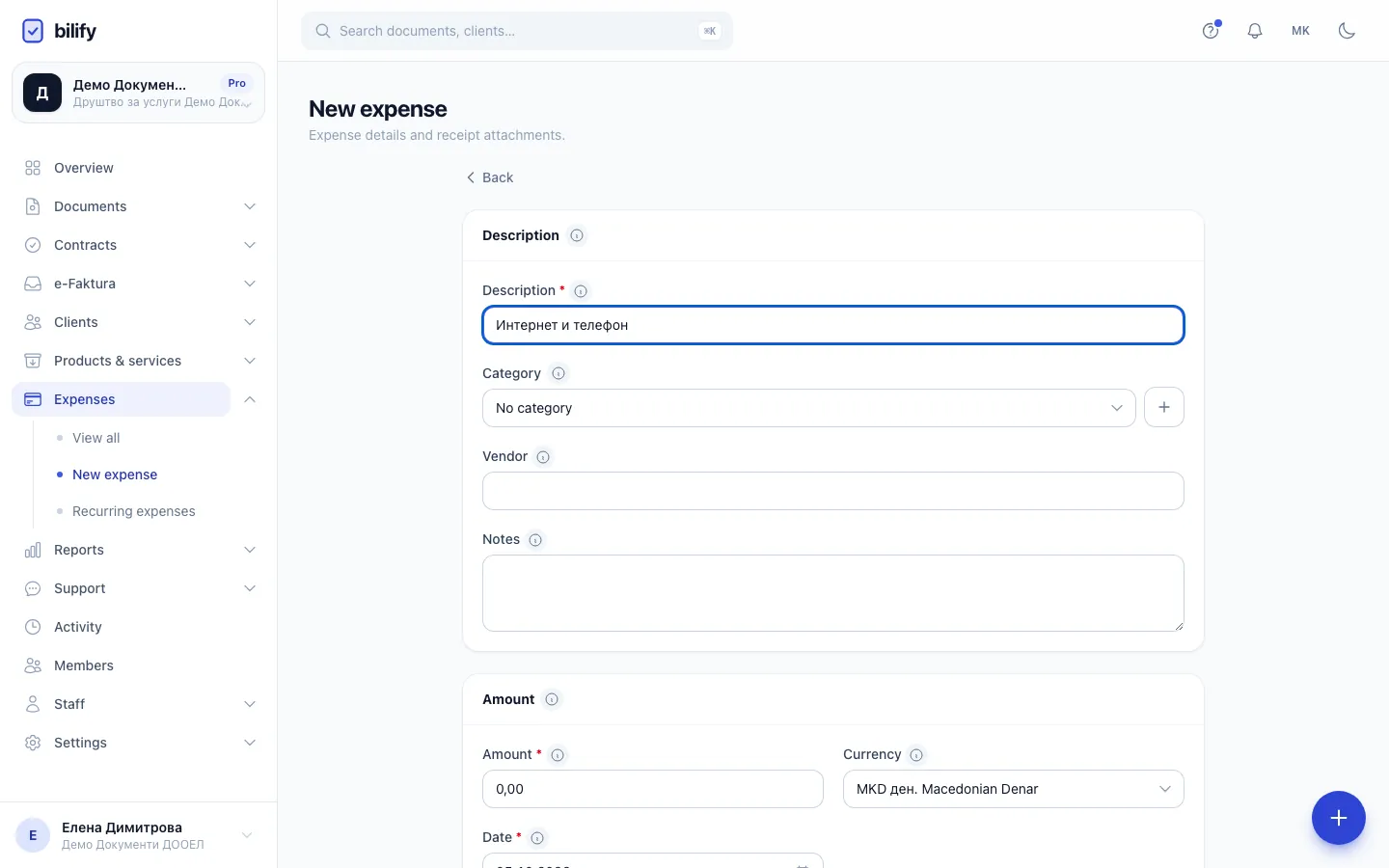
- Step 2: Describe the cost. The description is the only text field you must fill in.
- Step 3: Pick a category, or click + to create one, so you can filter and report by it later.
- Step 4: Optionally enter the vendor you paid.
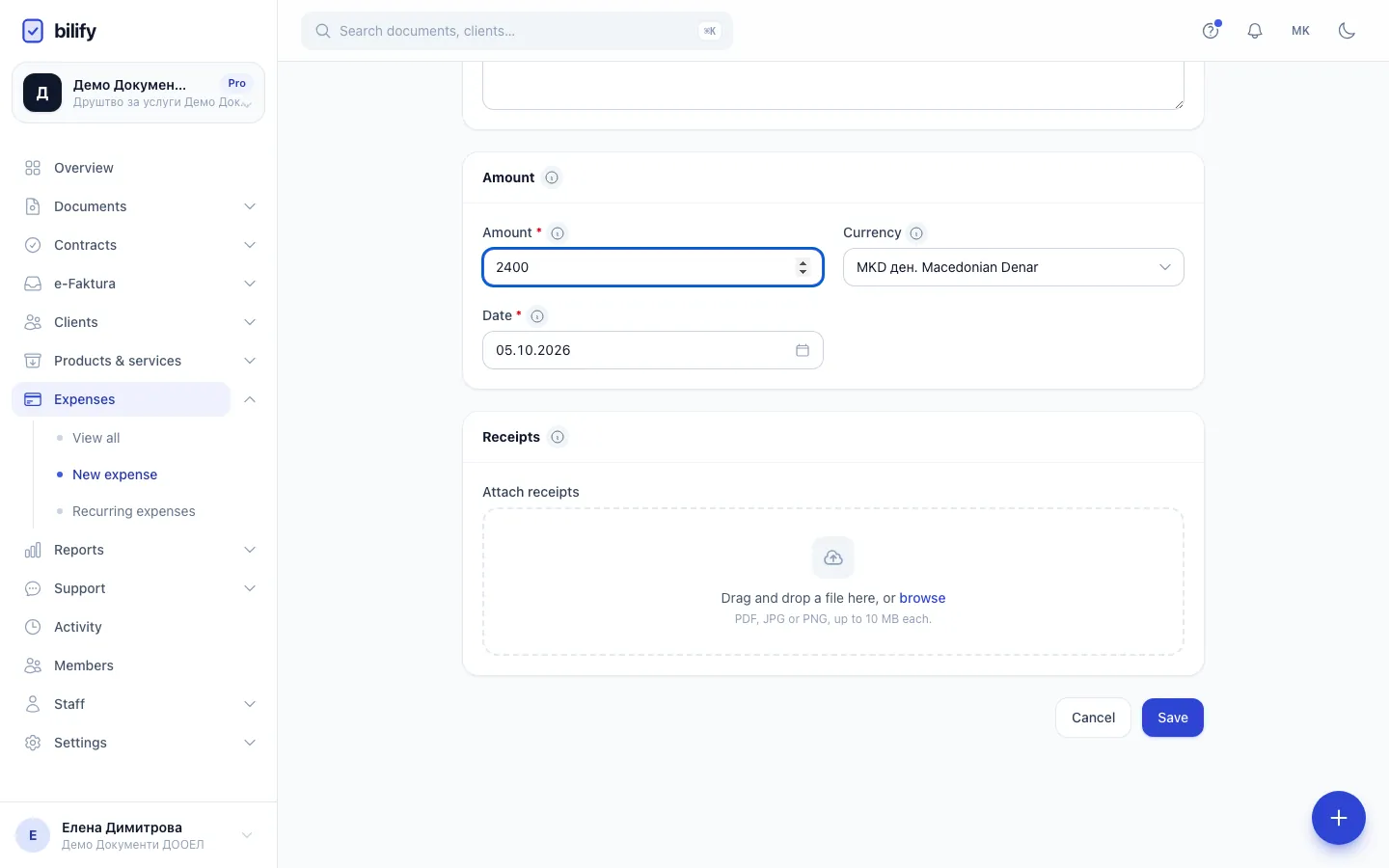
- Step 5: Enter the amount. Check the currency and the date, which start as your currency and today.
- Step 6: Attach receipts if you have them, PDF, JPG or PNG up to 10 MB each.
- Step 7: Click Save. You return to the list with the new expense in it.
- Open Expenses in the menu and click New expense.
- Type a Description, for example "Office supplies".
- Optional: choose a Category. Click + next to it to create a new category without leaving the form.
- Optional: type the Vendor (who you paid) and any Notes.
- Enter the Amount and check the Currency. It starts as your company currency.
- Check the Date. It starts as today; change it to the date of the cost.
- Optional: under Receipts, click Attach receipts and add one or more files. PDF, JPG or PNG, up to 10 MB each.
- Click Save. You return to the list and see Expense recorded.
Expenses in another currency
If you record an expense in a currency other than your company's, Bilify stores the exchange rate for the expense date, so totals on the dashboard and in reports are converted correctly. If no rate is available for that currency and date, saving stops with a message asking you to choose a different date.
The expenses list
The list groups expenses by month. At the top, three tiles summarise:
- This month: the total of expenses dated in the current month,
- Upcoming: expenses dated after today,
- Recurring: how many active recurring rules you have.
Click a tile to filter the list by it; click it again to clear the filter. You can also search by description or vendor, filter by category and by a From and To date, and switch between All expenses, Recurring only and One-off only.
Edit an expense
Click the expense's description (or Edit in its row menu), change what you need and click Save. In the edit form you can also open or remove receipts already attached.
If the expense was created by a recurring rule, a note at the top says so. Your changes apply to that one occurrence only, and its Date is locked. To change all future occurrences, click Edit the rule instead. See Recurring expenses.
Delete or skip an expense
- For a one-off expense, choose Delete in its row menu.
- For an occurrence of a recurring expense, the menu says Skip. A skipped occurrence stops counting in totals and reports, and the rule will not create it again.
Deleted and skipped expenses are not gone for good. Tick Show deleted to see them (skipped ones carry the Skipped badge) and use Restore to bring one back. You can also select several expenses with the checkboxes and delete or restore them together.
Categories
Click Categories at the top of the list to add, rename, recolour or delete expense categories. A category that is still used by an expense or a recurring expense cannot be deleted.
Who can do what
With the default roles, owners, admins and accountants can record, edit, delete and restore expenses. Employees can see the list and record new expenses, but cannot change or delete them afterwards.
Was this page helpful?
Related articles
Still stuck?
Write to us and we will get back to you within one working day.