Recurring invoices
Let Bilify issue the same invoice automatically every week, month, quarter or year, to one client or several, and email it on the day.
A recurring invoice is a rule: "issue this invoice to these clients on this schedule". Bilify then issues each invoice on the day, with its own number, and can email it to the client. Use it for subscriptions, rent, maintenance or hosting.
1. Prepare a draft as the template
The rule copies its content from a saved draft.
- Create a document as usual: type, client, currency, payment method and lines. See Create an invoice.
- Click Save draft. Do not issue it.
The draft's dates do not matter; the rule sets them on every invoice.
2. Create the rule
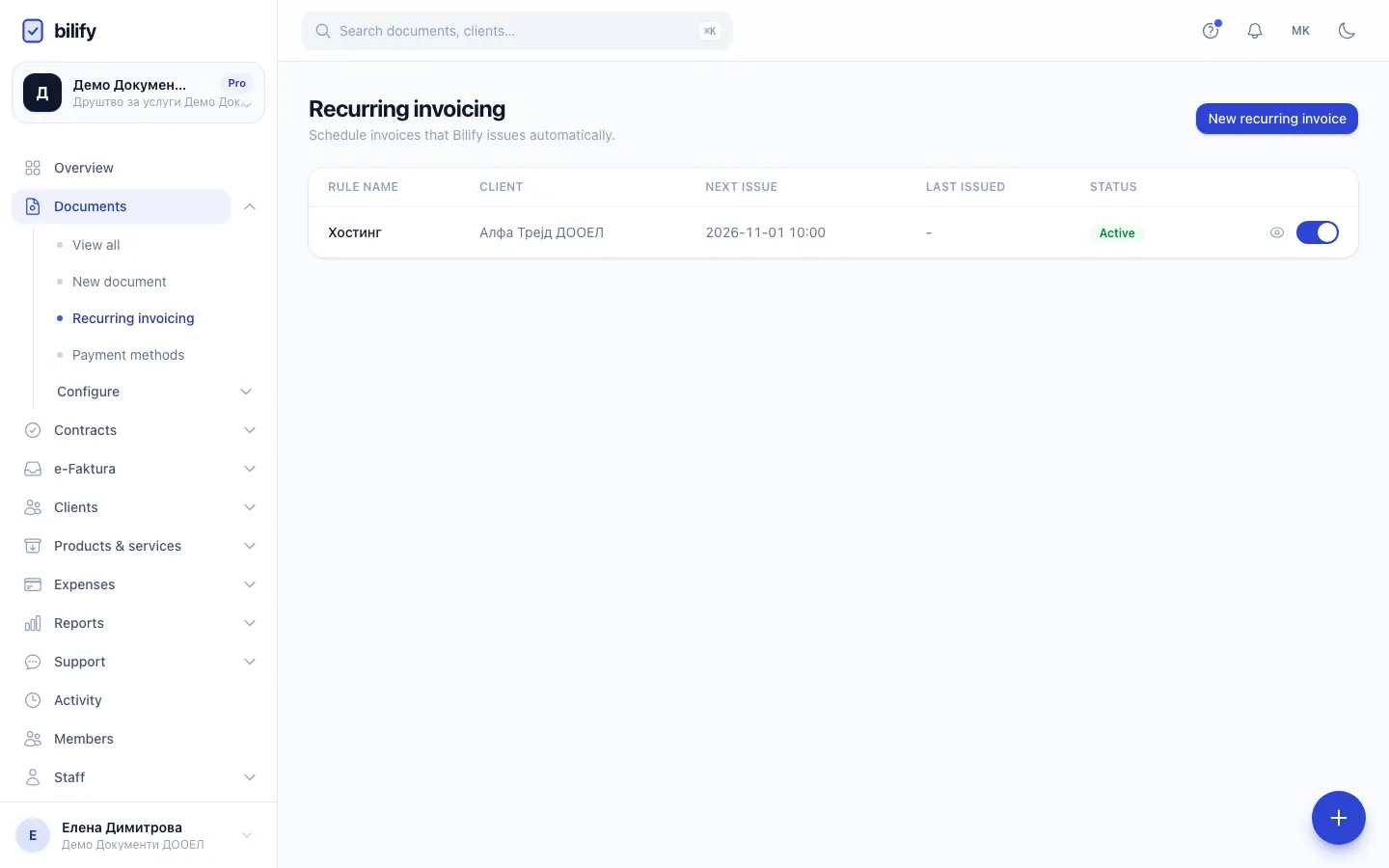
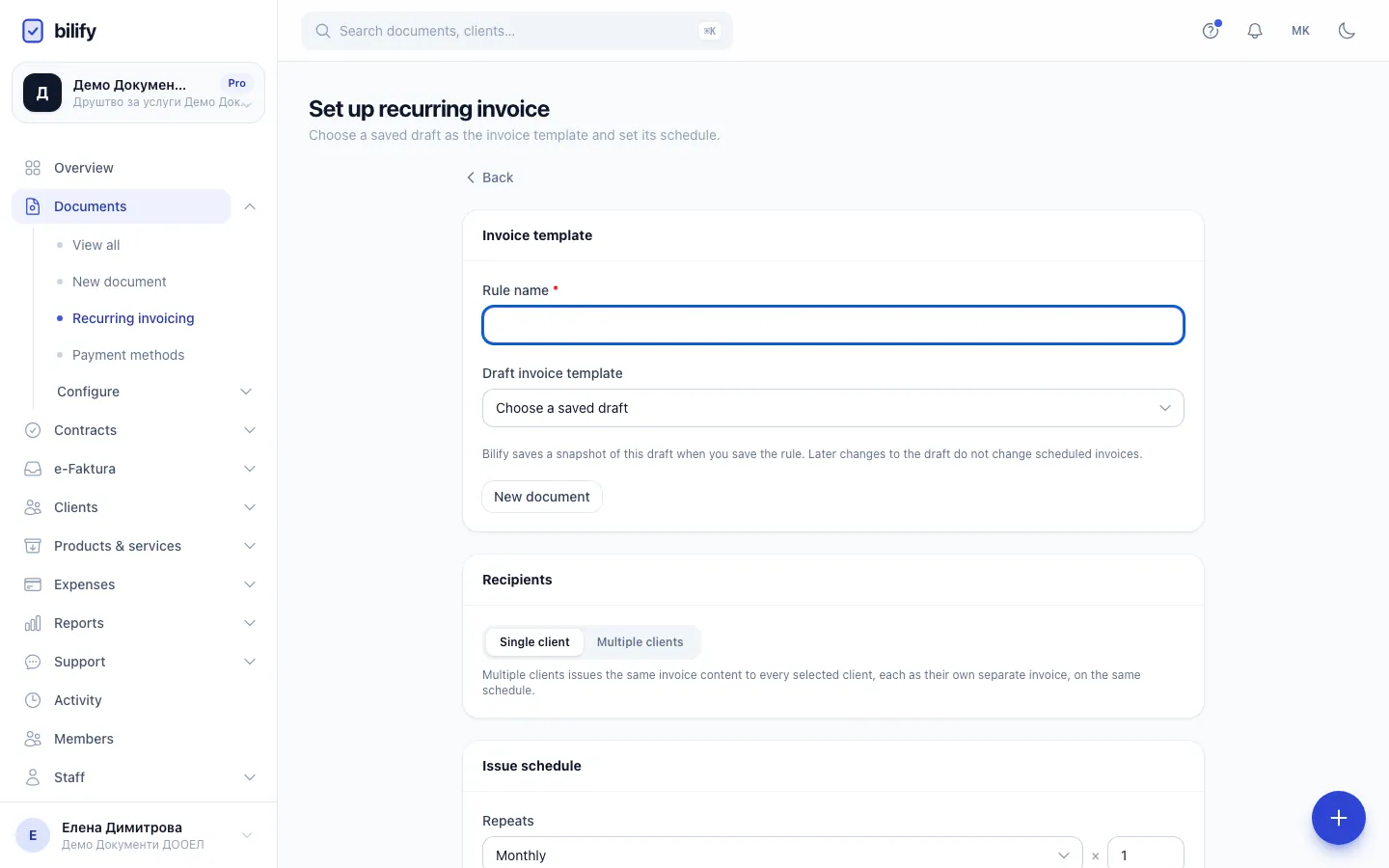
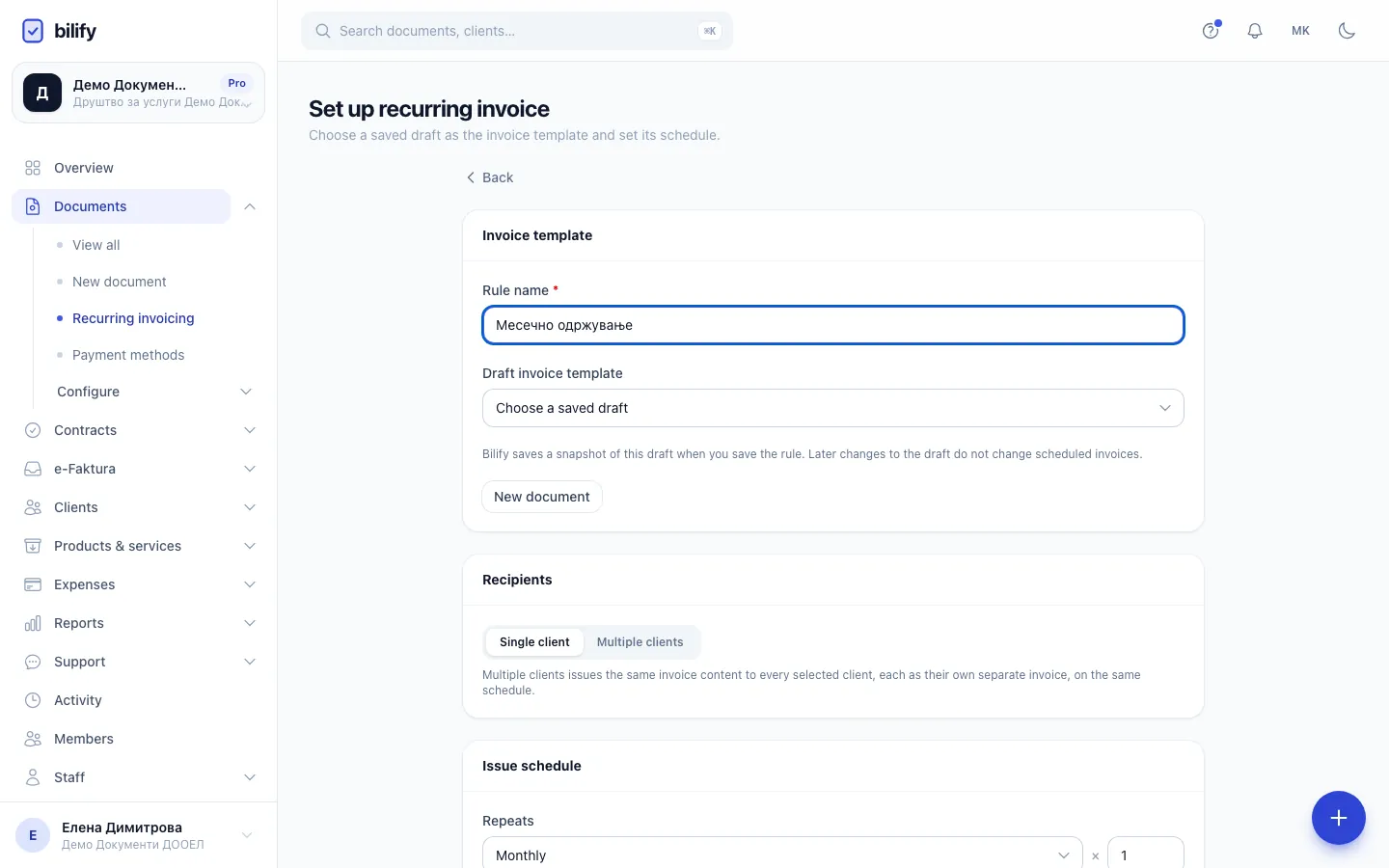
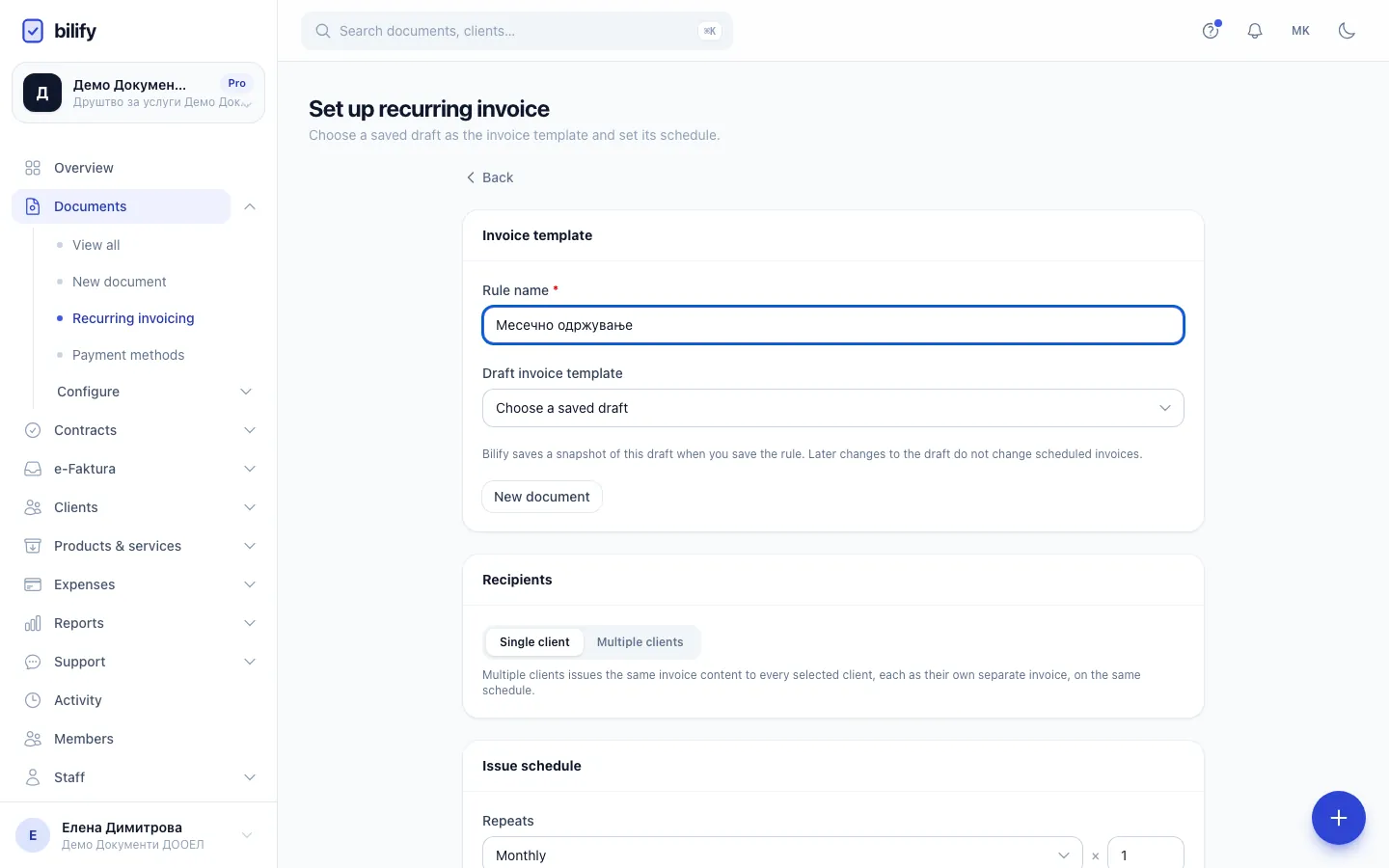
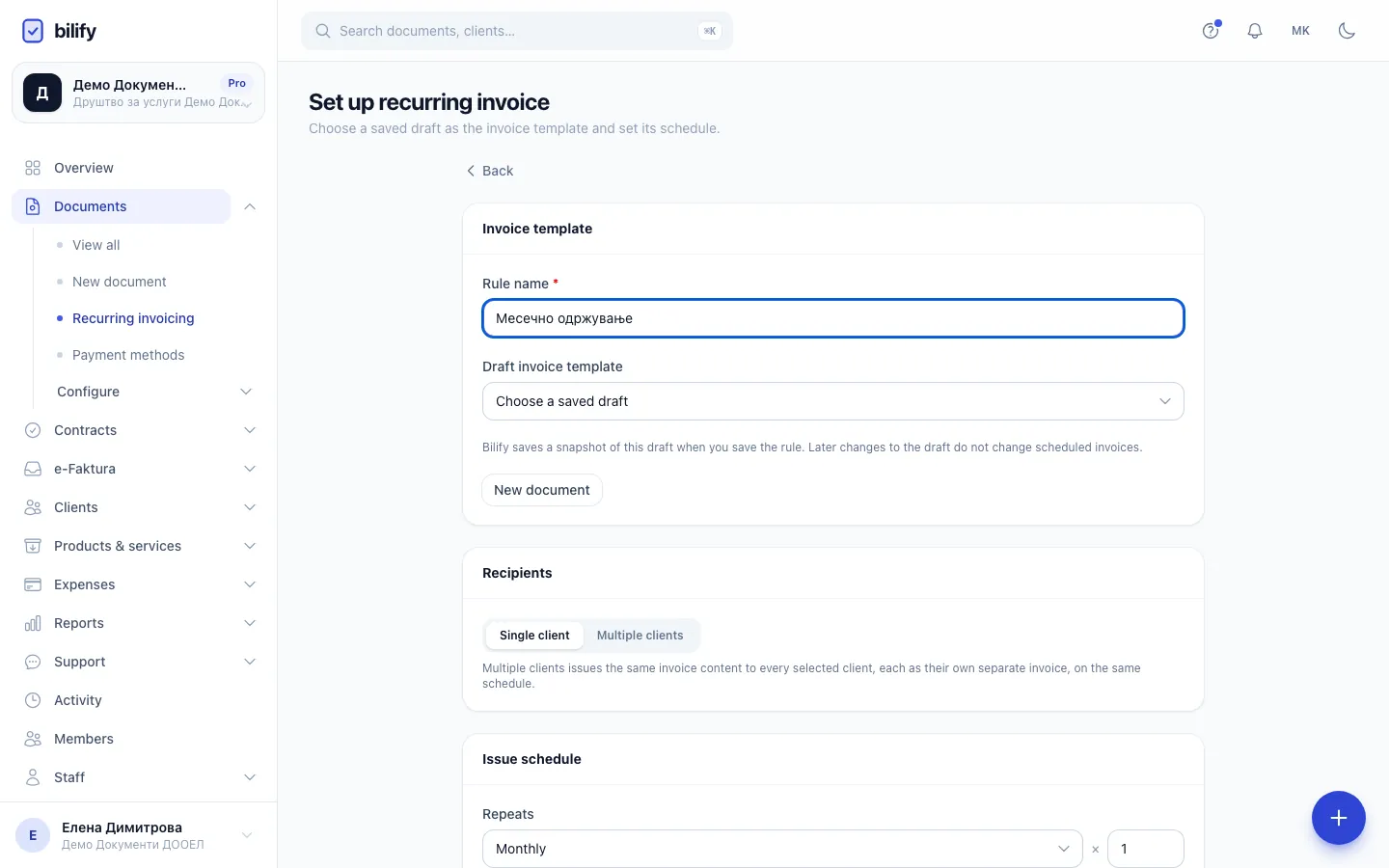
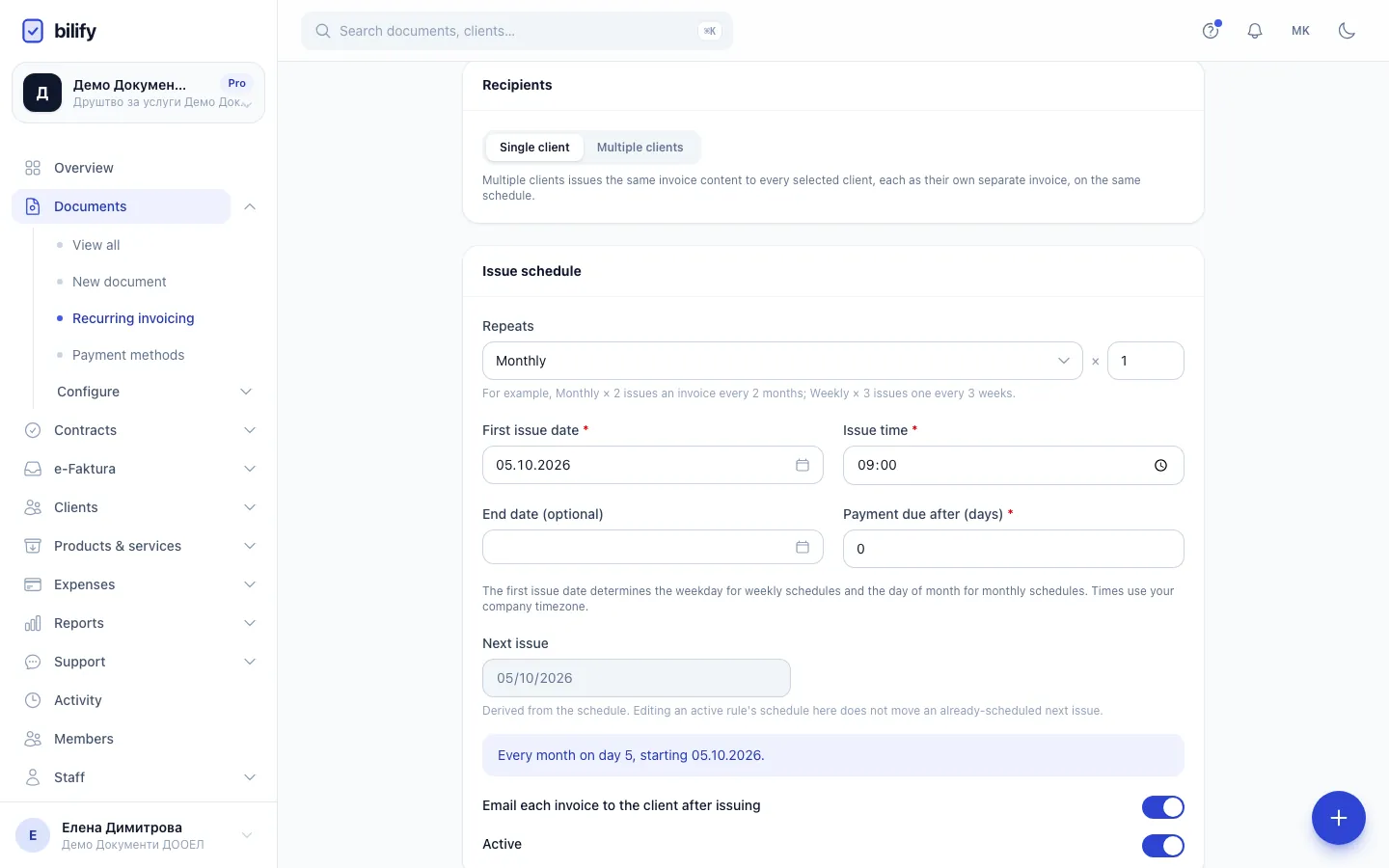
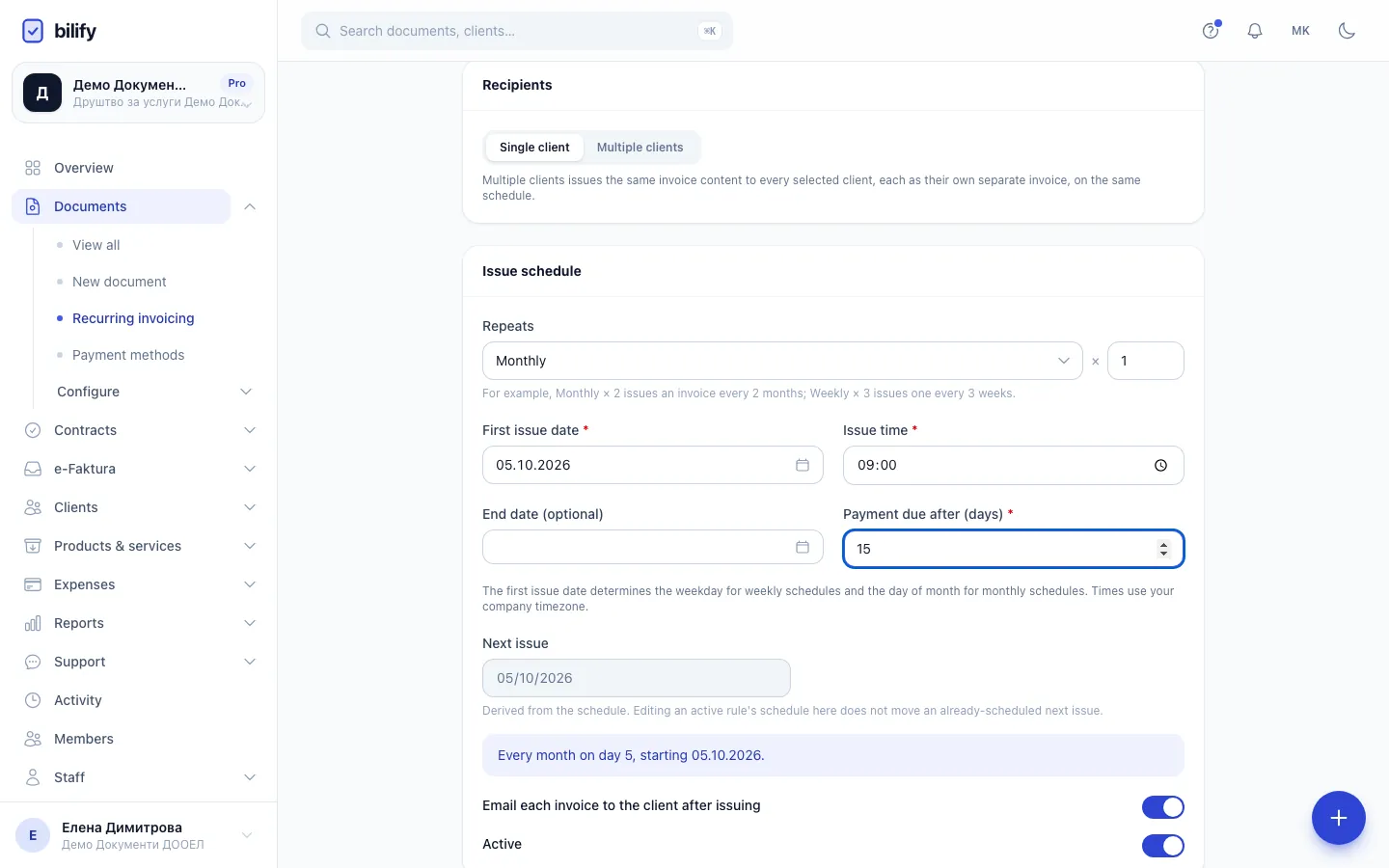
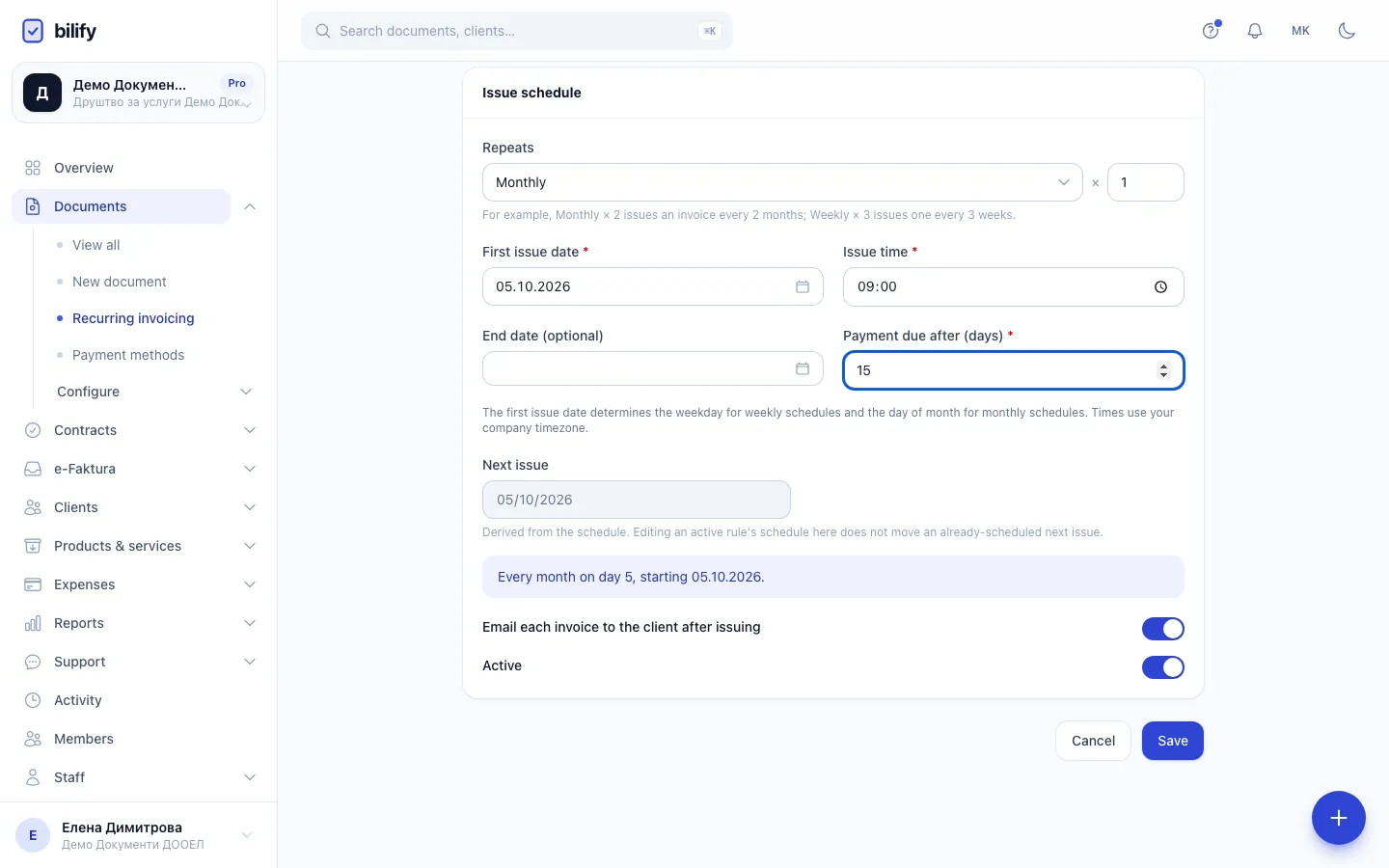
- Step 1: On Recurring invoicing, click New recurring invoice.
- Step 2: Give the rule a name you will recognise in the list.
- Step 3: Choose the saved draft whose client and lines every invoice should copy.
- Step 4: Single client invoices the draft's client. Multiple clients sends a separate invoice to each one.
- Step 5: Choose how often to issue, and the repeat count next to it.
- Step 6: The first issue date also fixes the weekday or day of the month for later invoices.
- Step 7: Set how many days after issue each invoice is due.
- Step 8: Keep this on to email every invoice to the client when it is issued.
- Step 9: Save the rule. Bilify takes a snapshot of the draft and issues on schedule.
Who can set up rules
A rule issues invoices on its own, so creating, editing or switching on a rule needs permission to issue documents as well (Owners, Admins and Accountants by default). Employees can see the rules but not change them.
- Open Documents and click Recurring invoices, then New recurring invoice.
- Enter a Rule name, for example "Хостинг".
- Under Draft invoice template, choose your draft. Drafts are listed as client, type and the date they were created.
- Under Recipients, choose Single client to invoice the draft's client, or Multiple clients to send the same invoice to several clients. With Multiple clients, search and click each client to add them.
- Under Issue schedule, set Repeats (Weekly, Biweekly, Monthly, Quarterly or Annually) and the repeat count next to it. Monthly × 2 issues every two months.
- Set the First issue date and the Issue time. The first date also fixes the weekday (weekly) or the day of the month (monthly). Times are in your company's timezone.
- Optionally set an End date (optional).
- Set Payment due after (days). 0 means due on the issue date.
- Leave Email each invoice to the client after issuing on if the client should get each invoice by email.
- Keep Active on and click Save.
The summary box under the schedule describes the rule in words, and Next issue shows when the first invoice will go out.
The rule keeps a copy of the draft
When you save, Bilify takes a snapshot of the draft. Later changes to the draft do not change the scheduled invoices. To change the content, edit the draft, then open the rule and click Save again: saving takes a fresh snapshot. The template must still be a draft at that moment.
What happens on the day
At the scheduled time Bilify, for each client on the rule:
- creates the invoice from the snapshot, with the issue date and delivery date set to that day and the due date that many days later;
- issues it with the next number from the series, exactly as if you had clicked Issue (the person who created the rule is recorded as the issuer);
- emails it to the client's primary contact (or the client's email) if the email option is on. See what the client receives.
With Multiple clients, every client gets a separate invoice with its own number.
Follow up on a rule
The Recurring invoicing list shows each rule's Next issue, Last issued and status. Use the eye icon (Preview) to see the schedule and the Issued invoices, each with View invoice. Use the switch at the end of a row to pause or resume a rule.
When something goes wrong, the rule shows Failed (hover it to read the reason):
- Missing setup, such as no numbering series for the type or a tax rate that is no longer valid: nothing is issued and Bilify keeps trying until you fix it.
- Monthly document limit reached: that client's invoice is skipped for that date and shows as Failed in the preview. Issue it by hand if needed. See Usage limits.
When the End date passes, the rule switches itself off. To resume it, set a later end date (or remove it), switch Active on and save. It continues from the next scheduled date, not from the past.
Changing the schedule of an active rule
Editing the schedule does not move a Next issue that is already scheduled. The new schedule applies from the invoice after that.
Was this page helpful?
Related articles
Still stuck?
Write to us and we will get back to you within one working day.