Advance invoices
Issue an Авансна Фактура for a prepayment with VAT included, then deduct it on the final invoice so the client pays only the amount due.
An Advance Invoice documents a prepayment you receive before you deliver. It is a fiscal document with its own number, like a Invoice, but its amounts work differently: you enter the amount received, VAT included, and Bilify works out the VAT inside it.
Issue an advance invoice
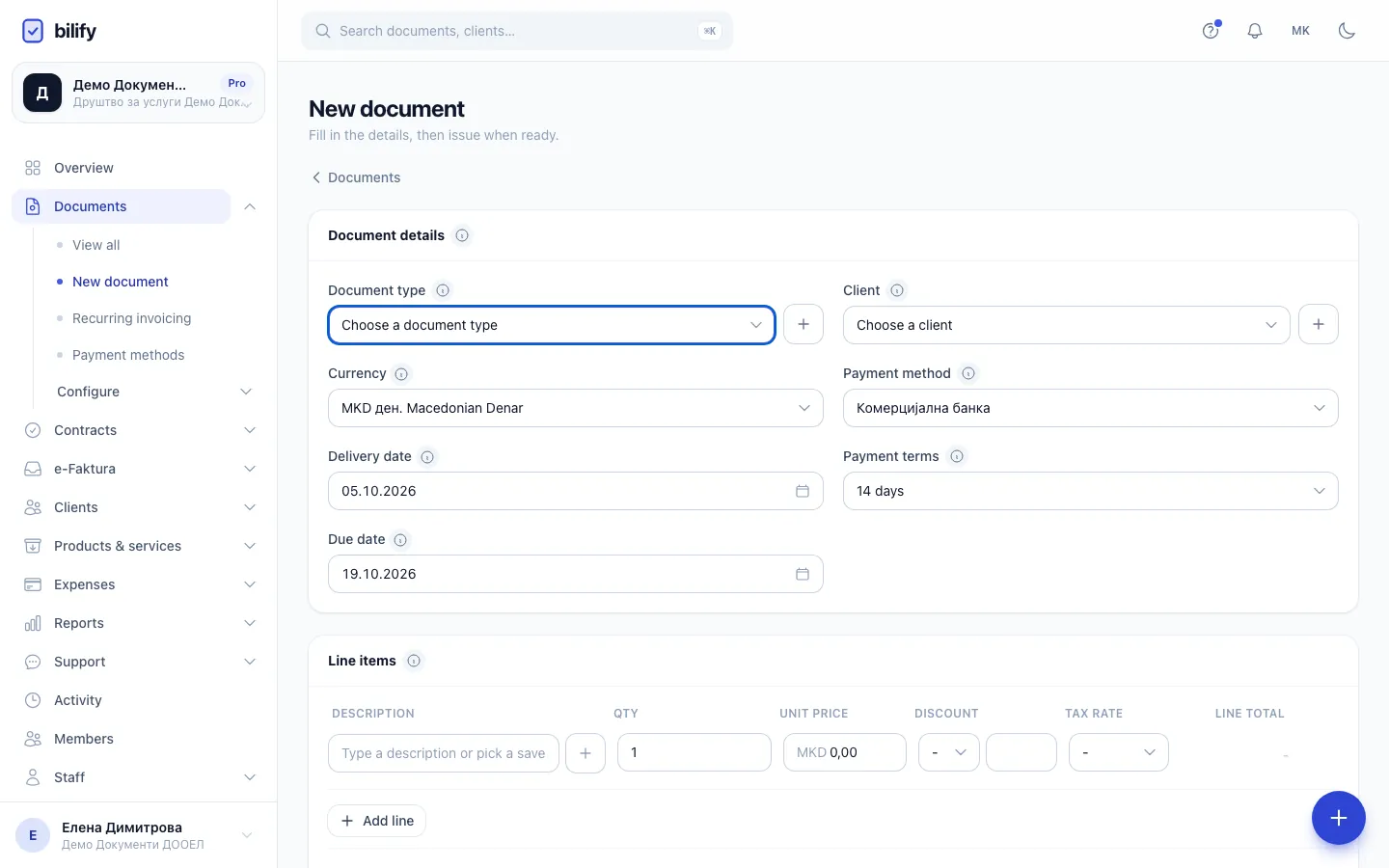
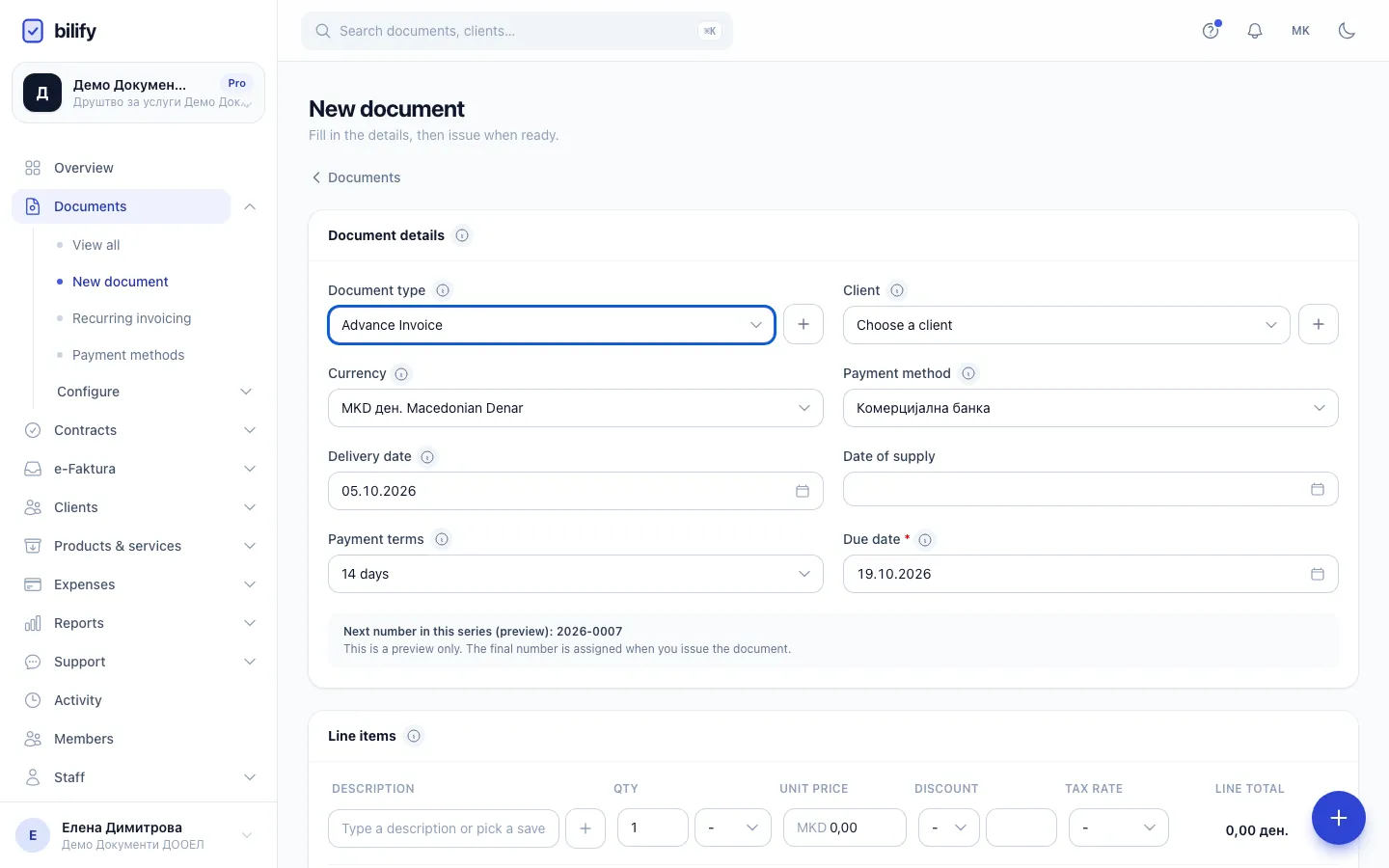
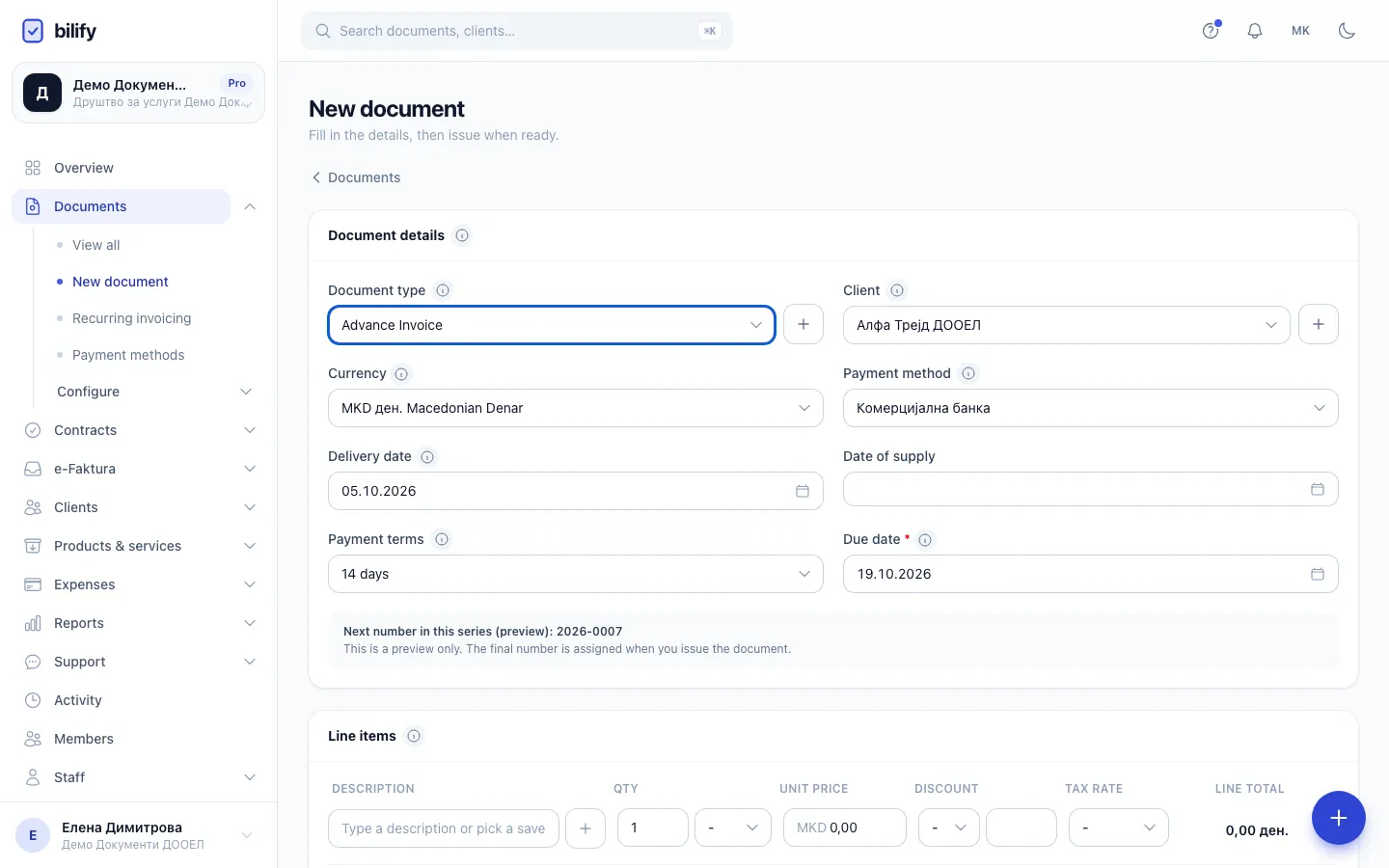
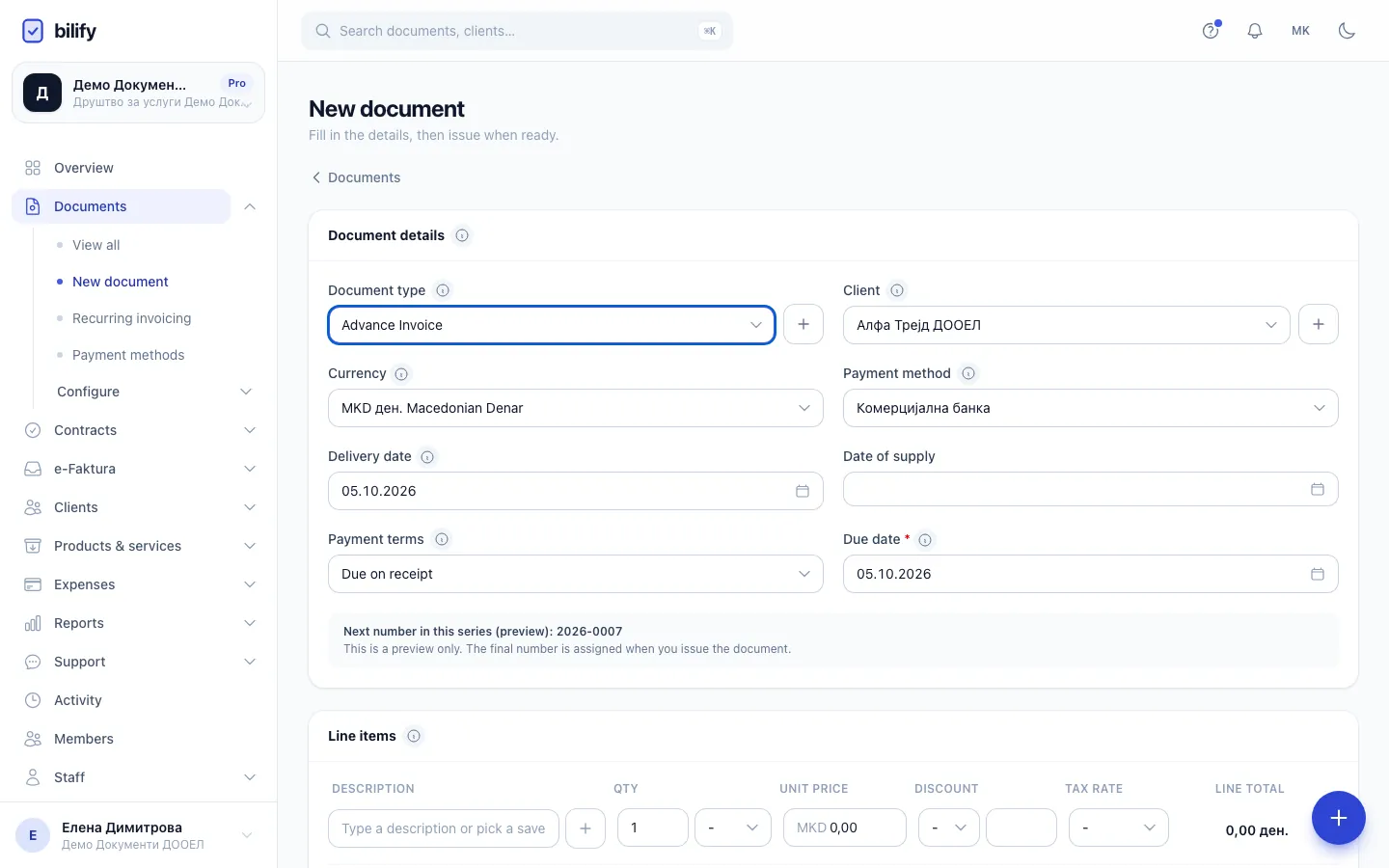
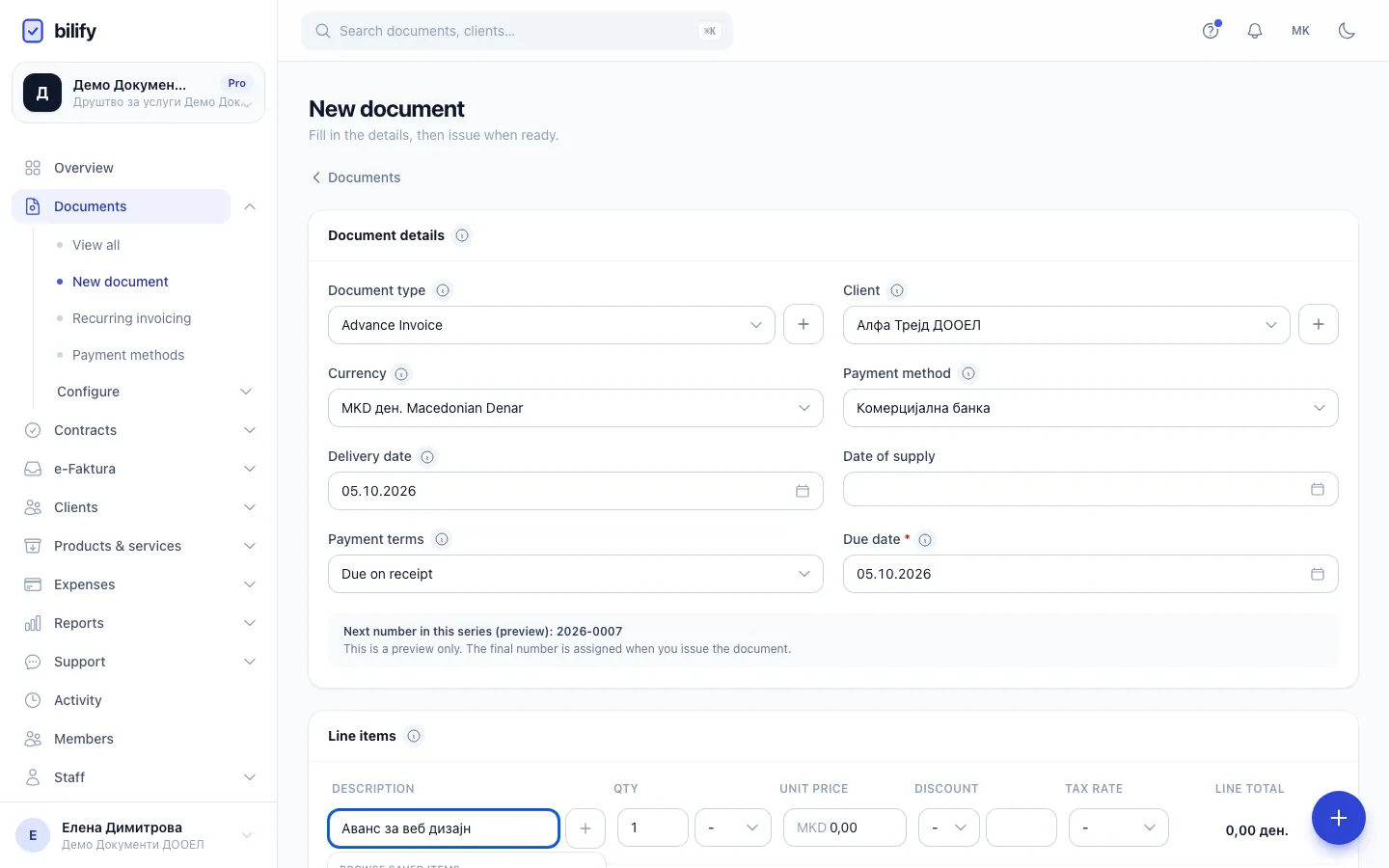
- Step 1: Choose Advance Invoice as the document type.
- Step 2: Choose the client who paid the advance.
- Step 3: An advance invoice needs a due date. Due on receipt is common when the money has arrived.
- Step 4: Describe what the advance is for.
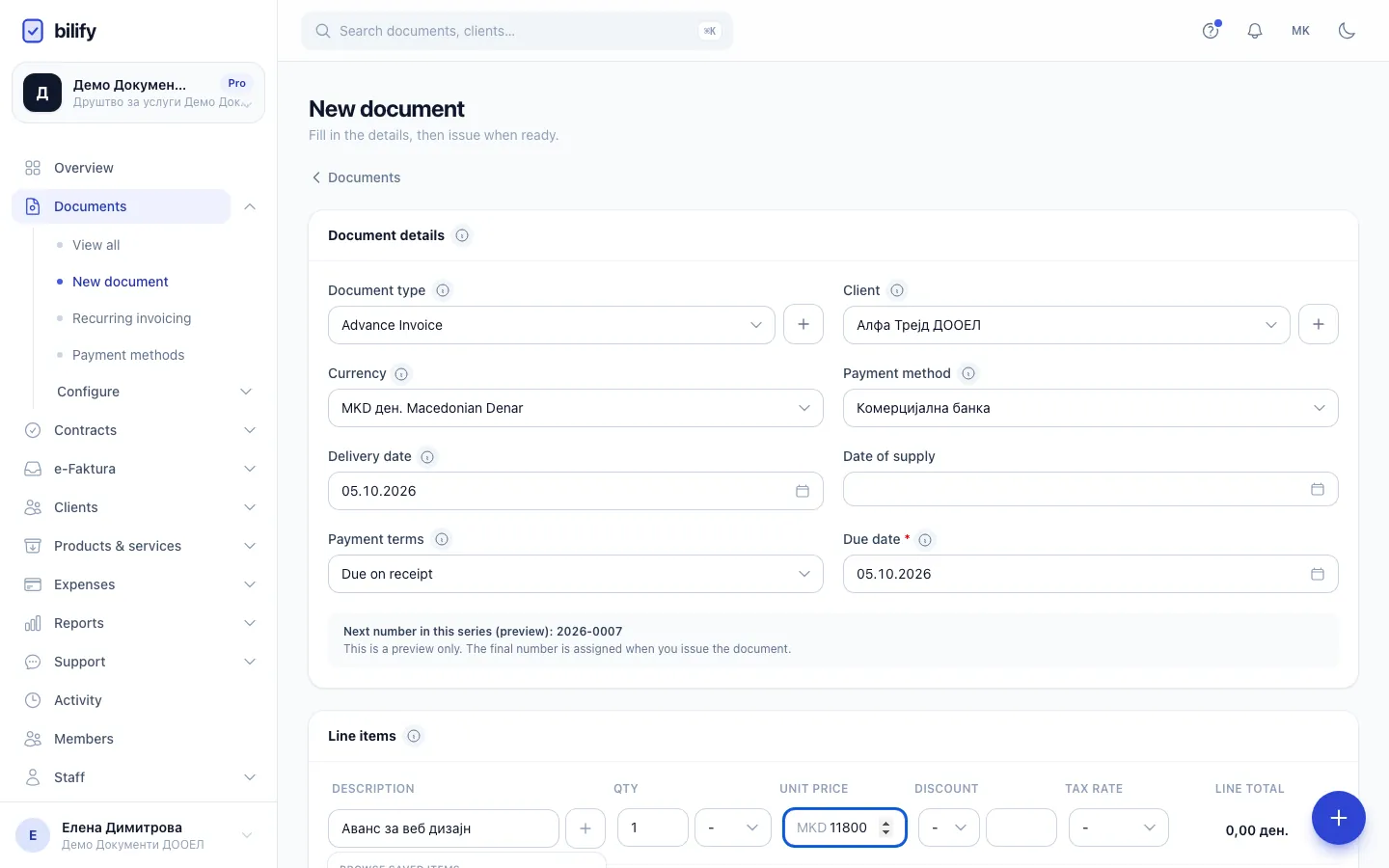
- Step 5: Enter the full advance including VAT. Bilify works out the VAT inside this amount.
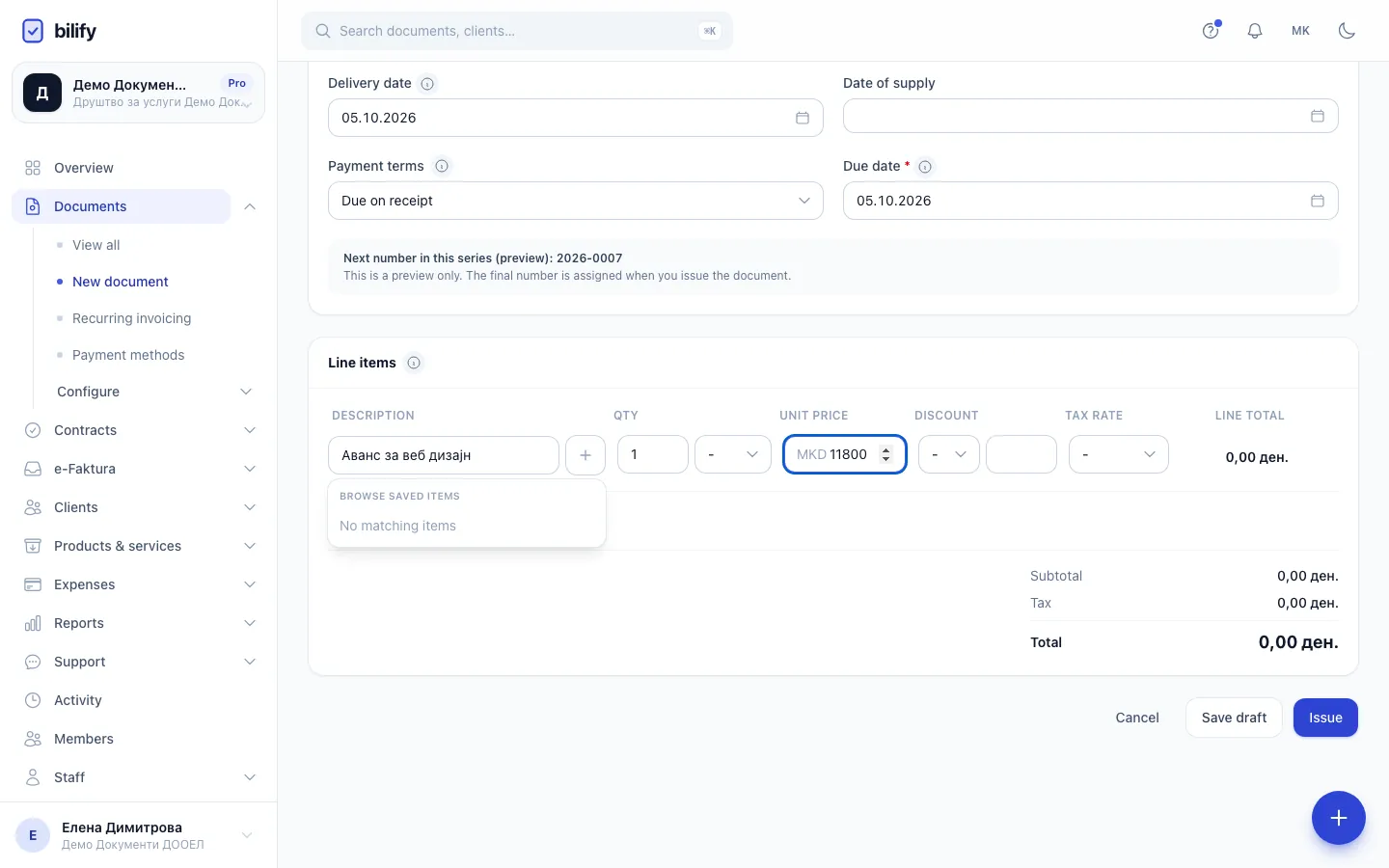
- Step 6: Choose the VAT rate of the delivery the advance is for.
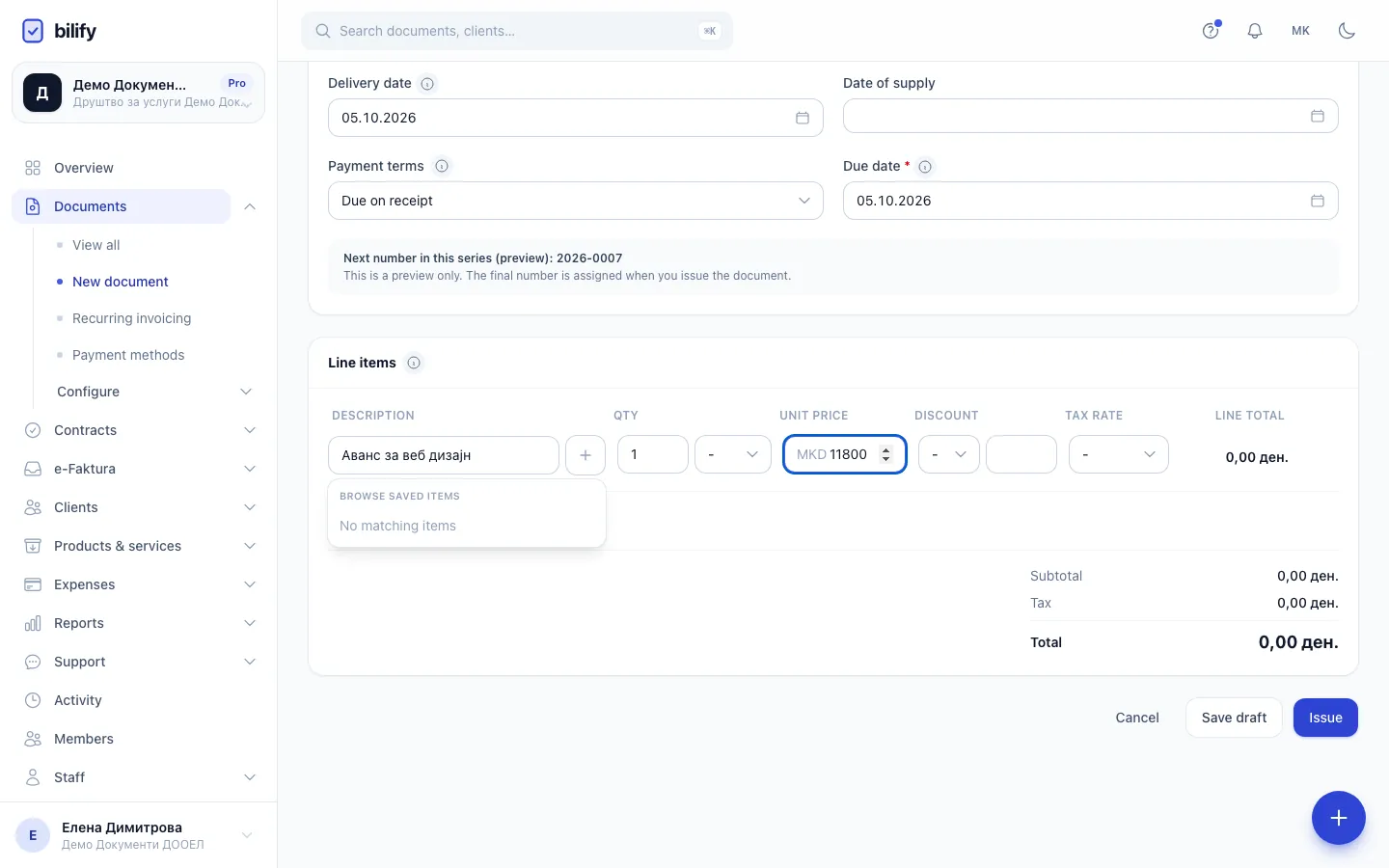
- Step 7: The total stays equal to the amount you entered; the subtotal and tax are split out of it.
- Step 8: Issue it like any invoice. It gets its own number from the series.
- Open Documents and click New document.
- Choose Advance Invoice as the Document type (Advance Invoice in English).
- Choose the Client and the Payment method.
- Set the Due date or the Payment terms. A due date is required.
- In Line items, describe the advance, for example "Аванс за веб дизајн", with quantity 1.
- In Unit price, enter the full amount of the advance including VAT.
- Choose the Tax rate that applies to the delivery the advance is for.
- Check the totals, then click Issue.
How the amounts work
Bilify takes the VAT out of the amount instead of adding it on top. With an advance of 11,800 MKD at 18%:
| Amount | |
|---|---|
| Subtotal (base) | 10,000.00 |
| Tax | 1,800.00 |
| Total | 11,800.00 |
The total always equals what you entered. Discounts reduce the amount before the VAT is worked out.
The advance invoice is numbered from its numbering series, locked when issued, and can be paid and recorded like any invoice. When the client pays, record the payment on the advance invoice. See Record a payment.
Requires: UJP e-Faktura integration
Like an Invoice, an issued advance invoice can be sent to UJP through e-Faktura. Bilify sends its prices to UJP net of VAT. See Send invoices to UJP.
Settling the advance on the final invoice
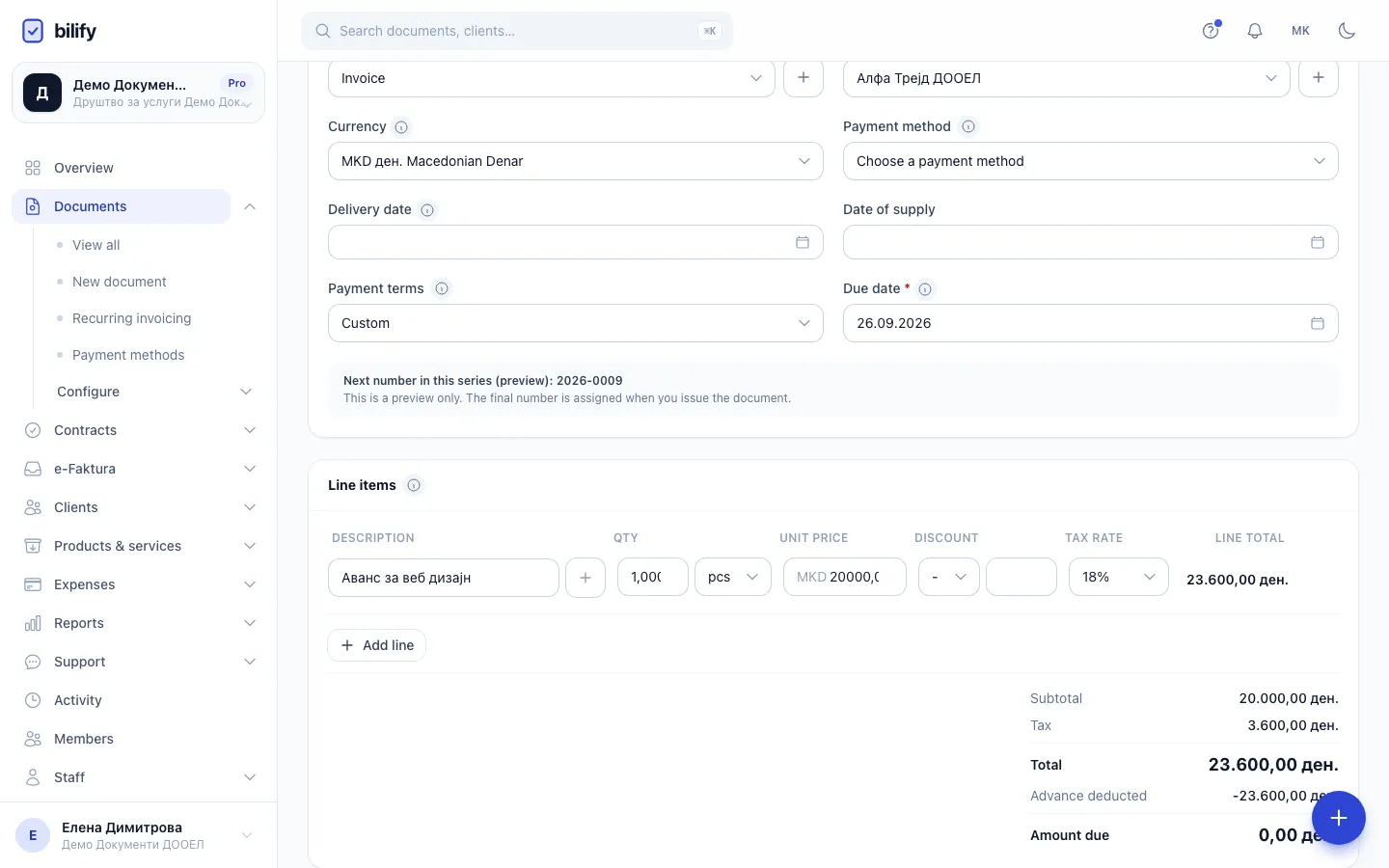
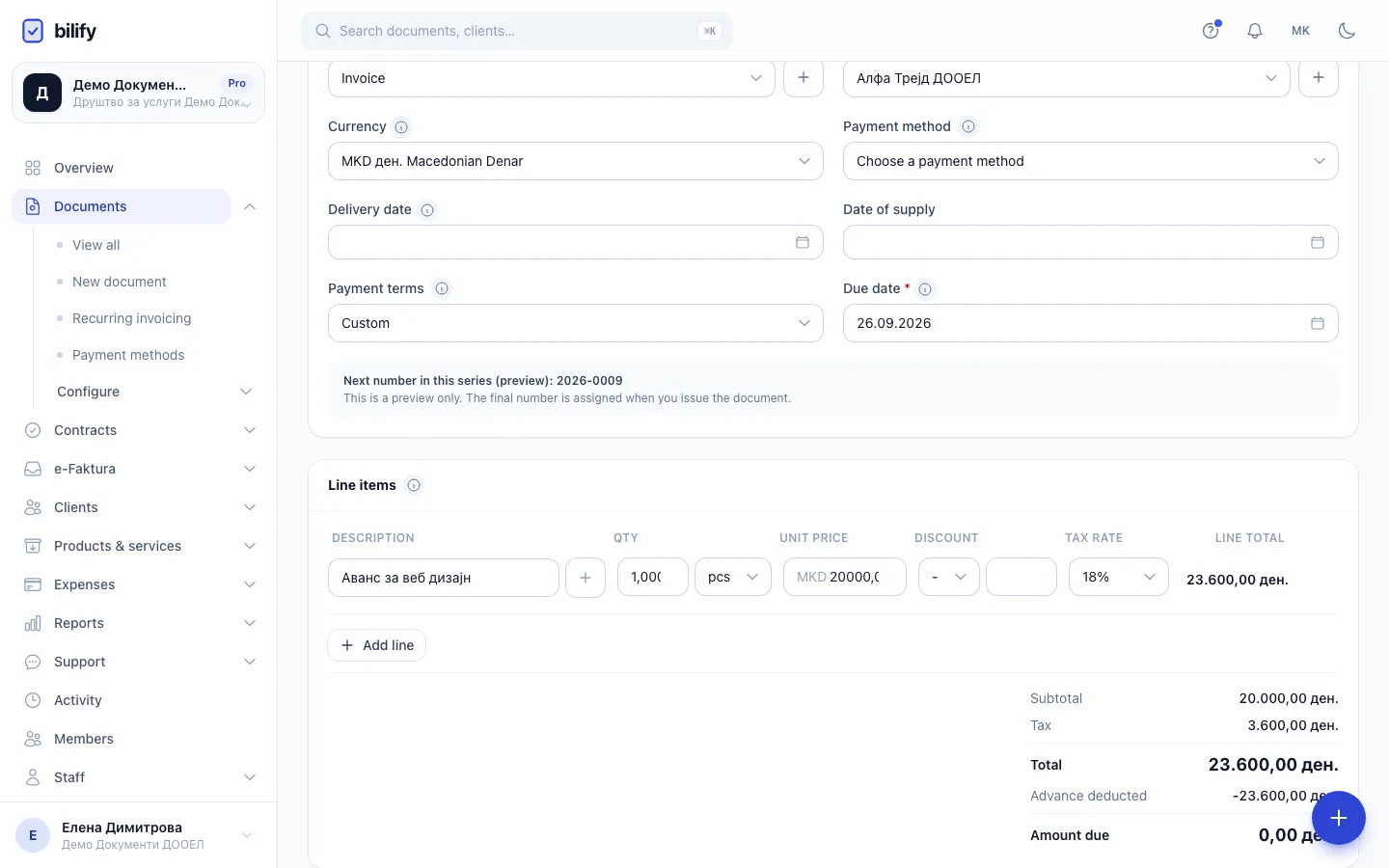
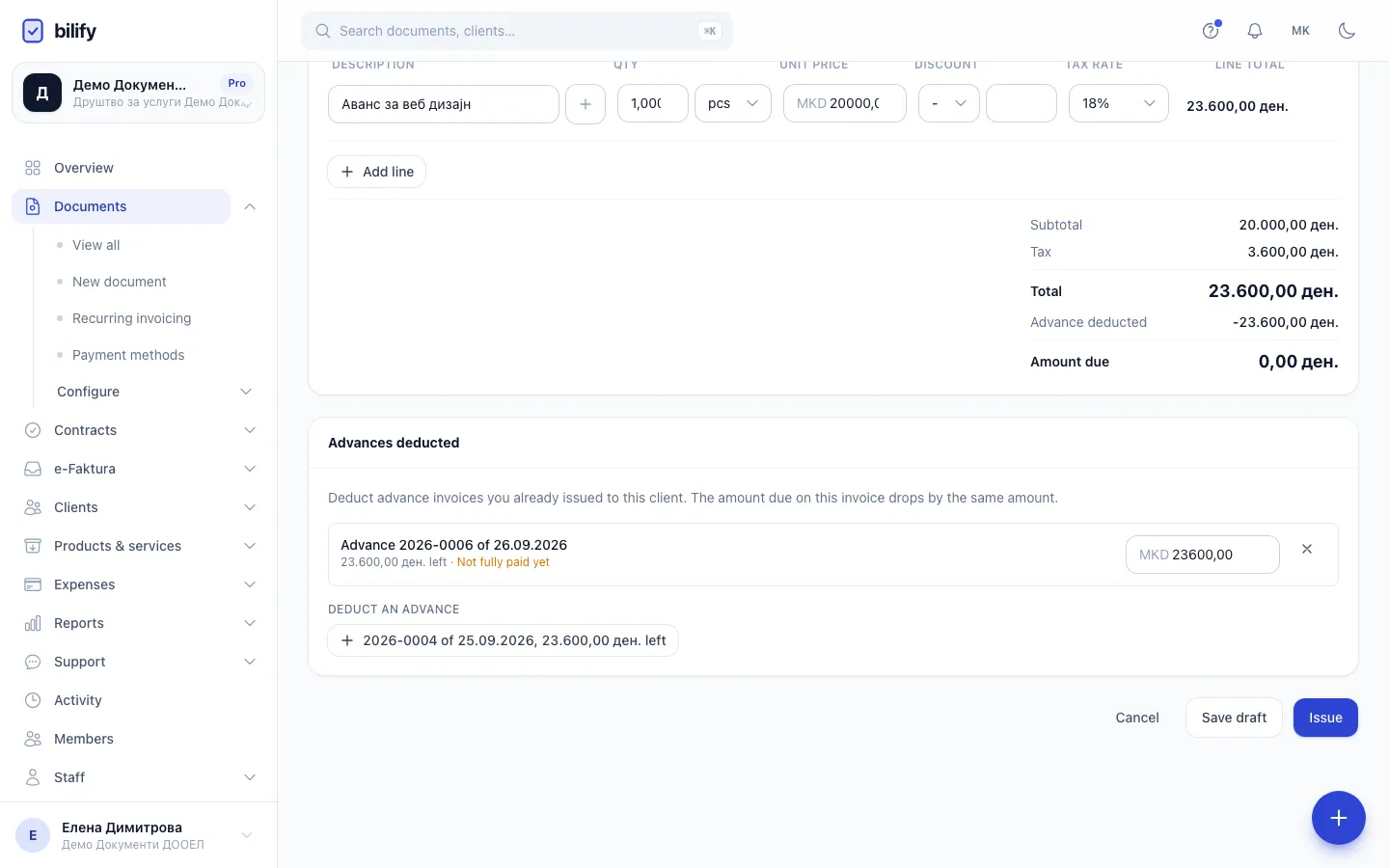
When you deliver, you issue a normal Invoice for the full real supply: its lines carry net prices and the full VAT. The advance is not a line on it. It is deducted in a separate Advances deducted block, and the client pays the difference:
Amount due = invoice total minus the advances deducted.
There are two ways to do it.
Convert the advance into the invoice
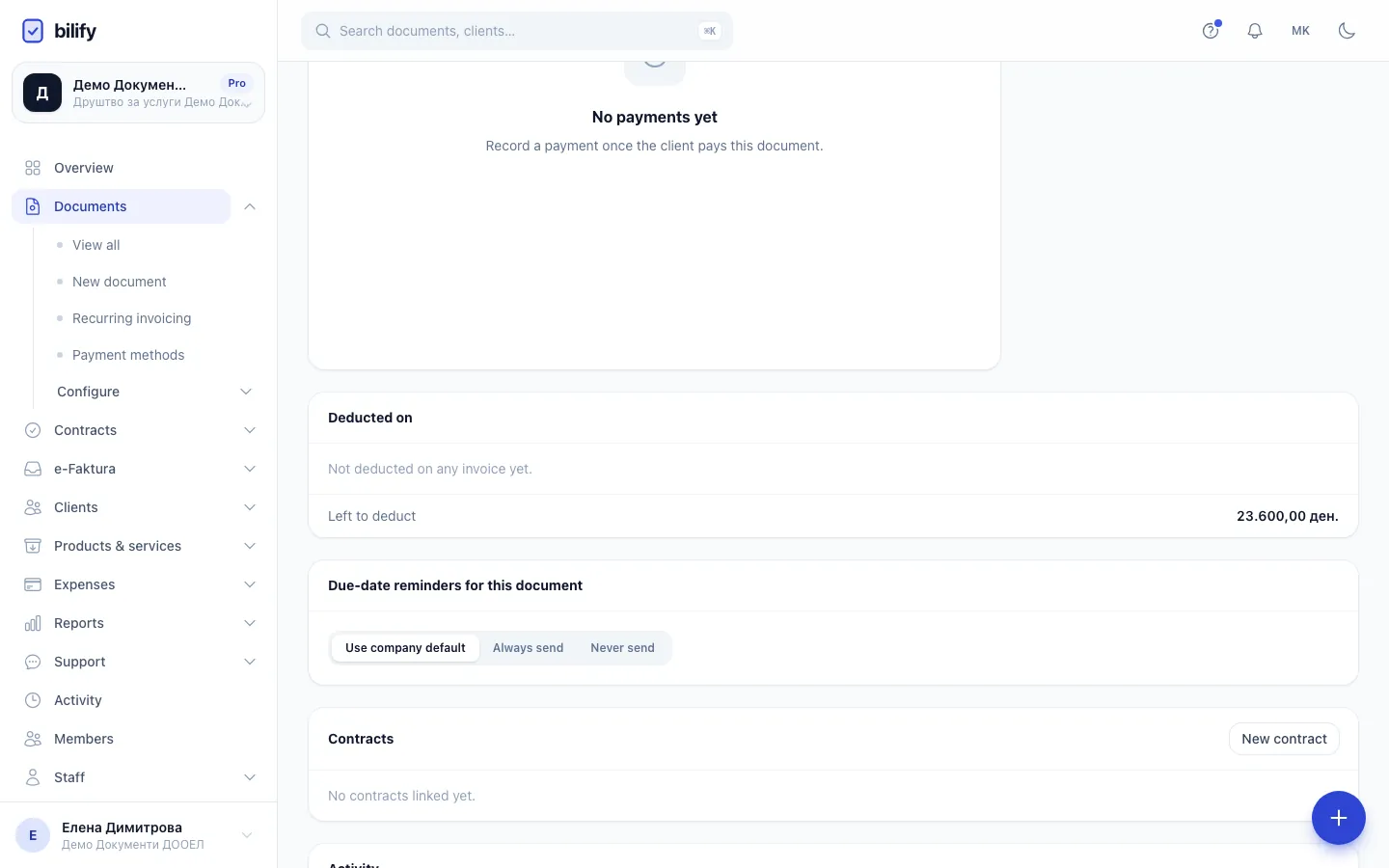
- Step 1: The advance's page shows which invoices deduct it and how much is left to deduct.
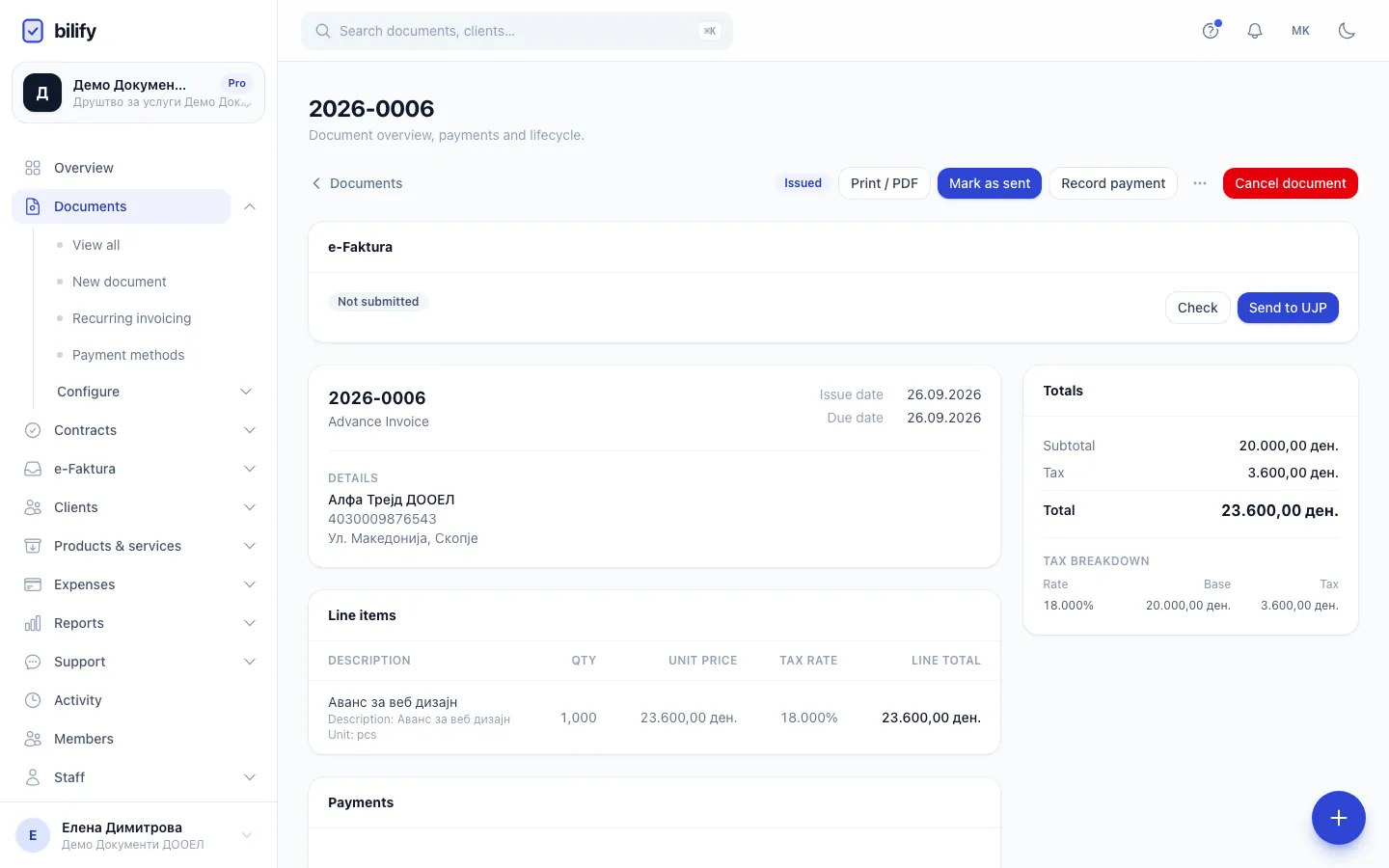
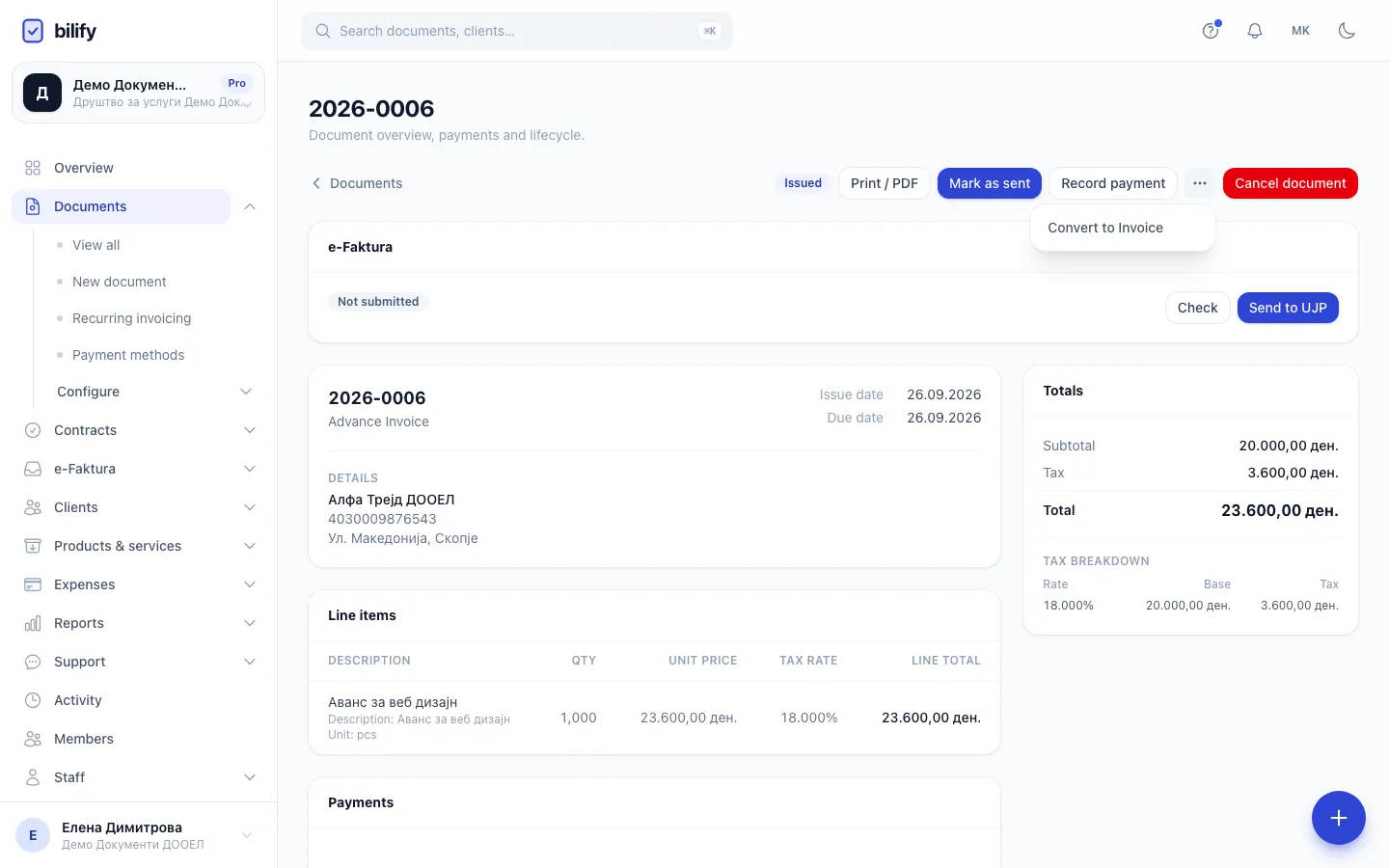
- Step 2: When the work is done, open the actions menu next to the buttons at the top.
- Step 3: Choose Convert to Invoice.
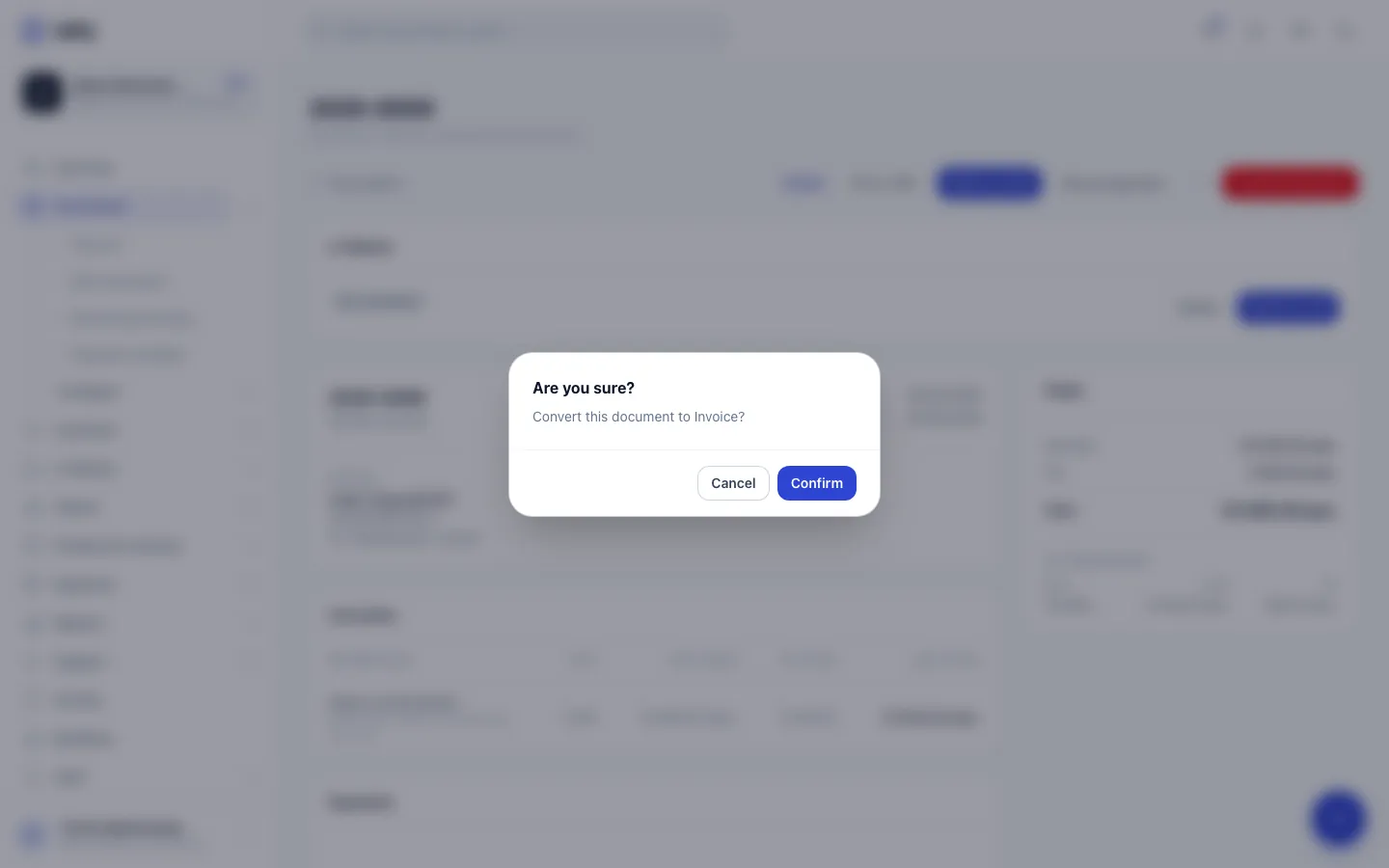
- Step 4: Confirm. Bilify creates a draft invoice and leaves the advance unchanged.
- Step 5: The lines come across net of VAT. Change them to the real delivery; the invoice carries its full VAT.
- Step 6: Under the total you see the advance deducted and the amount the client still has to pay.
- Step 7: The advance is already deducted for what it has left. Lower the amount to deduct only part of it, or add another advance of this client.
- Step 8: Issue the invoice. If the advances cover it in full, it is issued as paid.
- Open the issued advance invoice. Only an issued advance offers this.
- Click the actions menu (...) and choose Convert to Invoice, then confirm. Bilify creates an Invoice draft; the advance itself stays unchanged.
- The lines come across net of VAT, and the advance is already deducted for the amount it has left. Change the lines to the real delivery and its prices.
- Check the totals: under the total you see Advance deducted and Amount due.
- Click Issue.
Deduct advances on a new invoice
- Create a new Invoice and choose the Client and the currency.
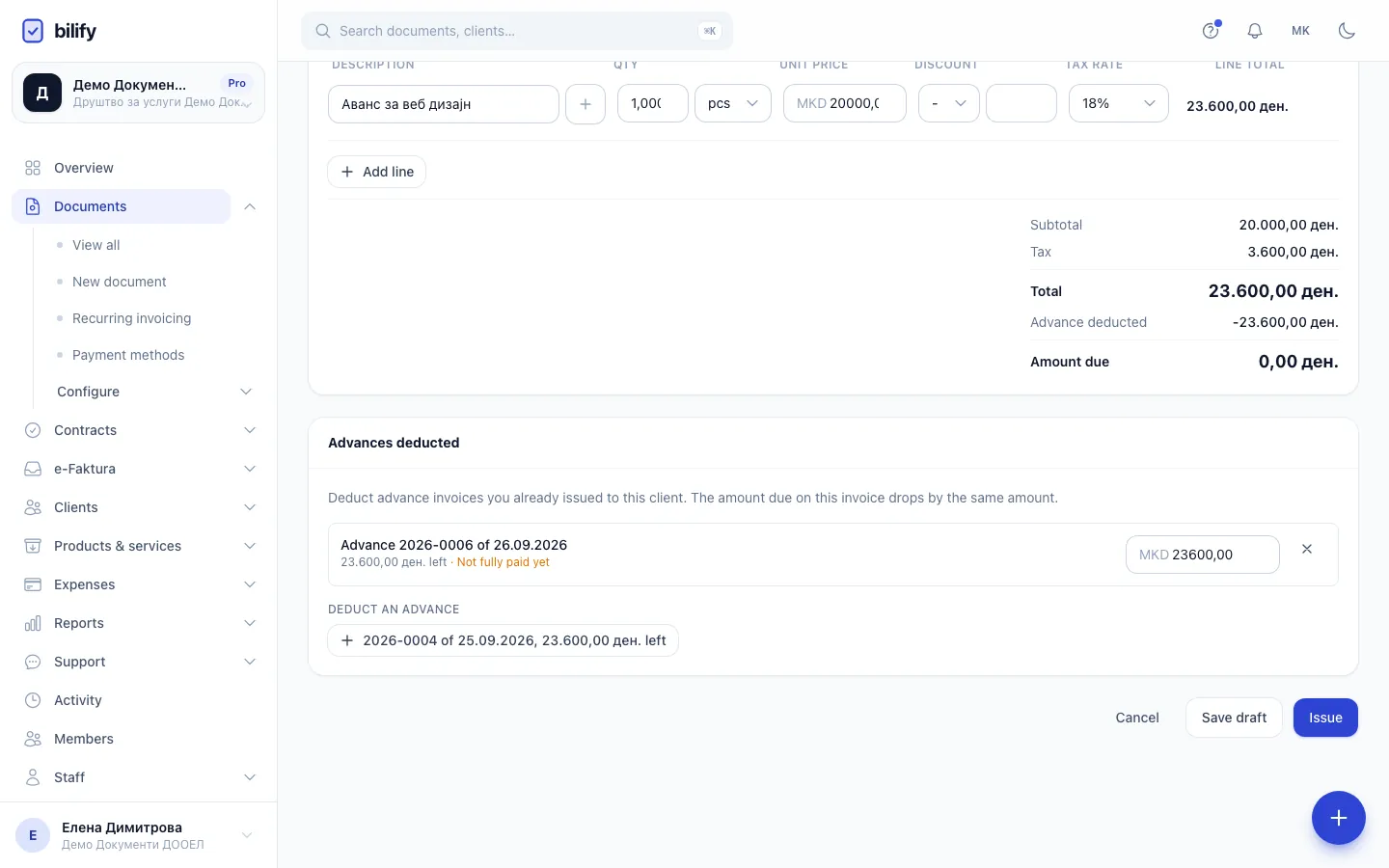
- The Advances deducted card lists that client's issued advance invoices in that currency that still have an amount left. Under Deduct an advance, click the one you want.
- The amount defaults to what the advance has left, capped at what the invoice still has open. Lower it to deduct only part.
- Repeat for more advances if needed, then click Issue.
Good to know:
- One advance can be split across several invoices, but never deducted for more than it has left.
- An advance that is not paid yet can still be deducted; it is marked Not fully paid yet.
- If nothing qualifies, the card says This client has no issued advance invoices in this currency with an amount left.
- The card appears only on an Invoice (not on offers, pro-formas or advance invoices) and only once a client is chosen. Changing the client or the currency clears the advances you picked.
- The live totals on the form show Advance deducted and Amount due under the total.
Checks when you issue
Bilify refuses to issue the invoice when an advance is not issued or was cancelled, belongs to another client or currency, or is dated after the invoice, or when the advances add up to more than the invoice total. The message names the advance, for example Advance ... is dated after this invoice.
What the client sees and pays
The printed invoice, the PDF, the document page and the client portal list each advance with its number and date and the amount deducted, followed by Amount due. Payments, the overdue status, reminders, payment links and the portal all work with the amount due. An invoice fully covered by advances is issued directly as Paid.
On the advance's own page, the Deducted on card lists the invoices that deduct it, with Left to deduct.
Requires: UJP e-Faktura integration
The final invoice is reported to UJP with the advance amount, the advance date and description, and the final amount (the total minus the advance).
Reports
The VAT summary and Financial summary reports count a settled advance only once: the final invoice is counted net of the advances it deducts.
Cancelling
An advance that is still deducted on a live invoice cannot be cancelled. Bilify answers This advance is deducted on [invoice number]. Cancel or reverse that invoice first. Cancel the invoice (or issue a storno for it, if it is registered with UJP); that frees the advance, and it can be deducted again.
Requires: UJP e-Faktura integration
An invoice that deducts advances cannot be corrected through e-Faktura. Undo it with a storno, which gives the advances back, and issue a new invoice. See Storno and correction.
Was this page helpful?
Related articles
Still stuck?
Write to us and we will get back to you within one working day.