Automatic or manual e-Faktura
Choose which exchanges with UJP run by themselves: sending at issue, status refresh, fetching received invoices and their PDFs.
Every exchange with UJP is manual by default: nothing happens until someone clicks a button. In the Automatic or manual card of Settings > e-Faktura you choose what should happen by itself. The buttons stay available either way.
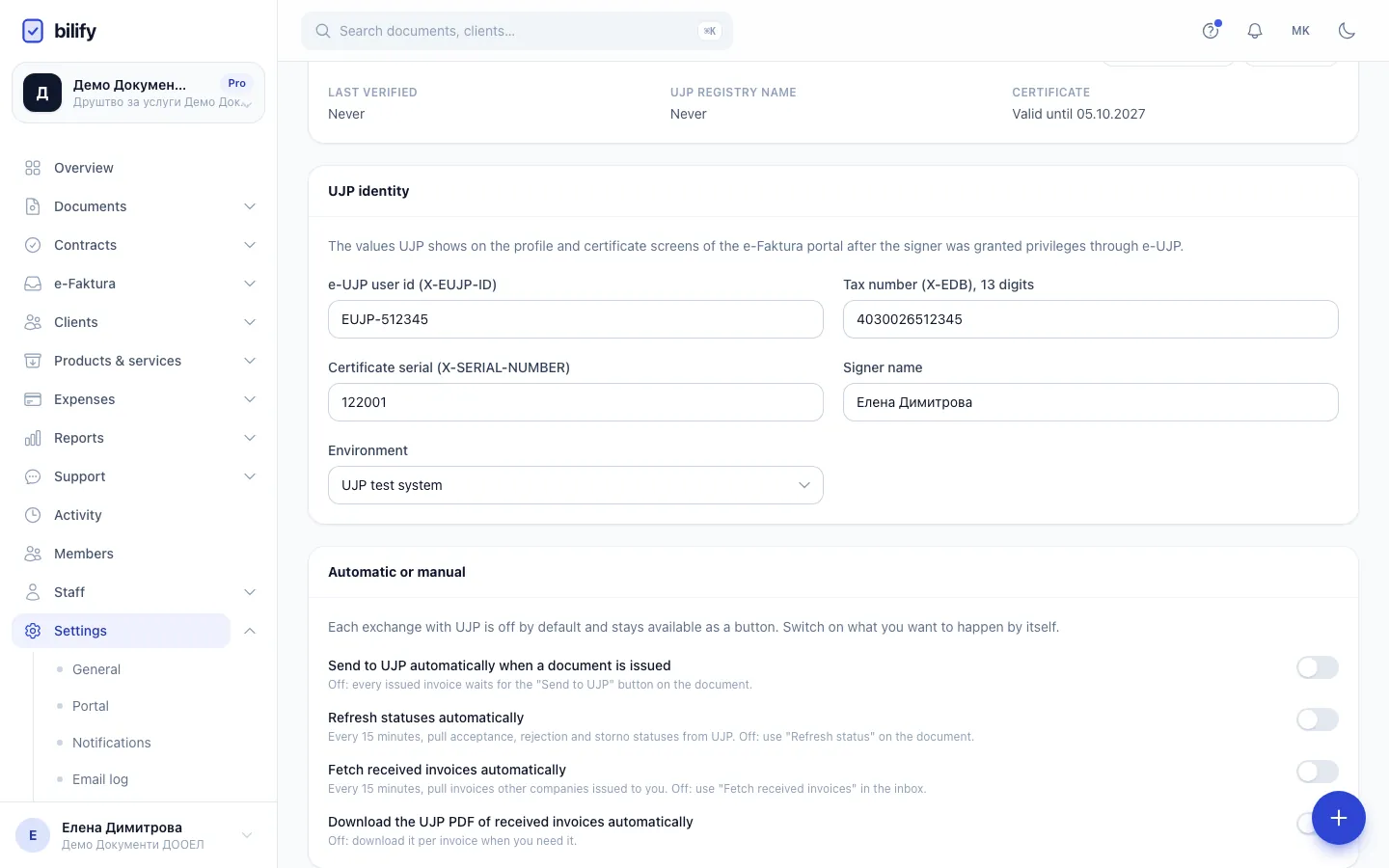
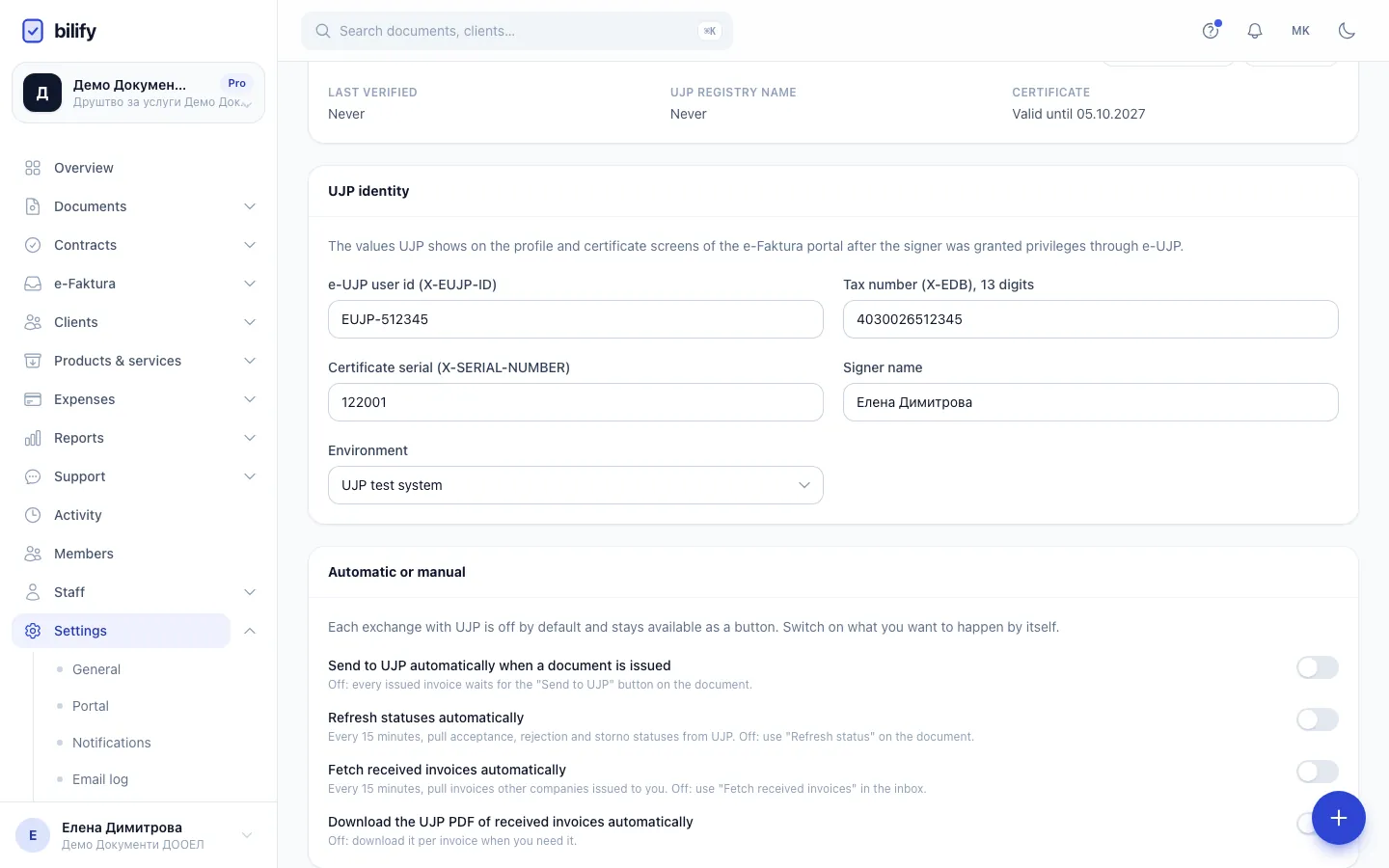
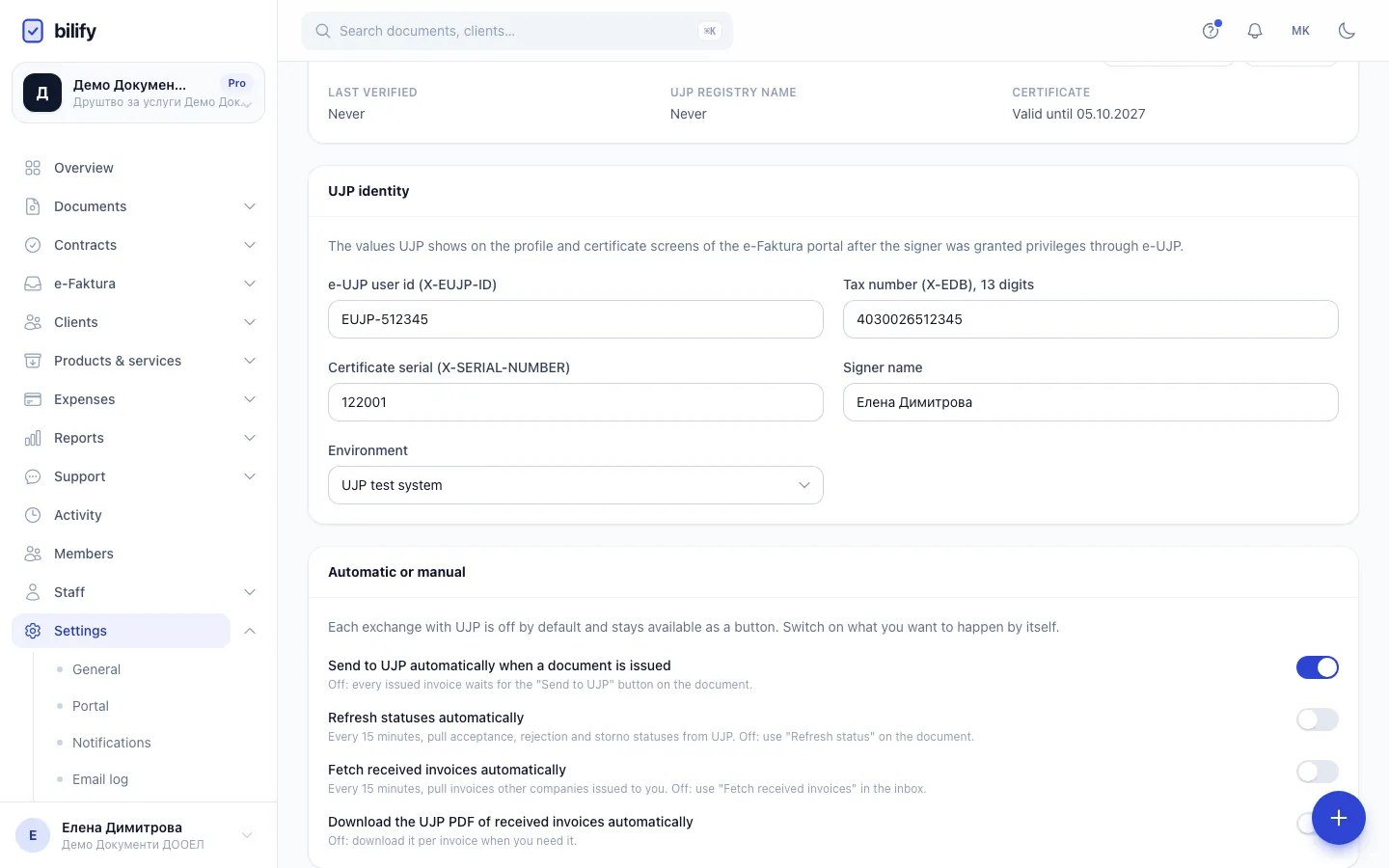
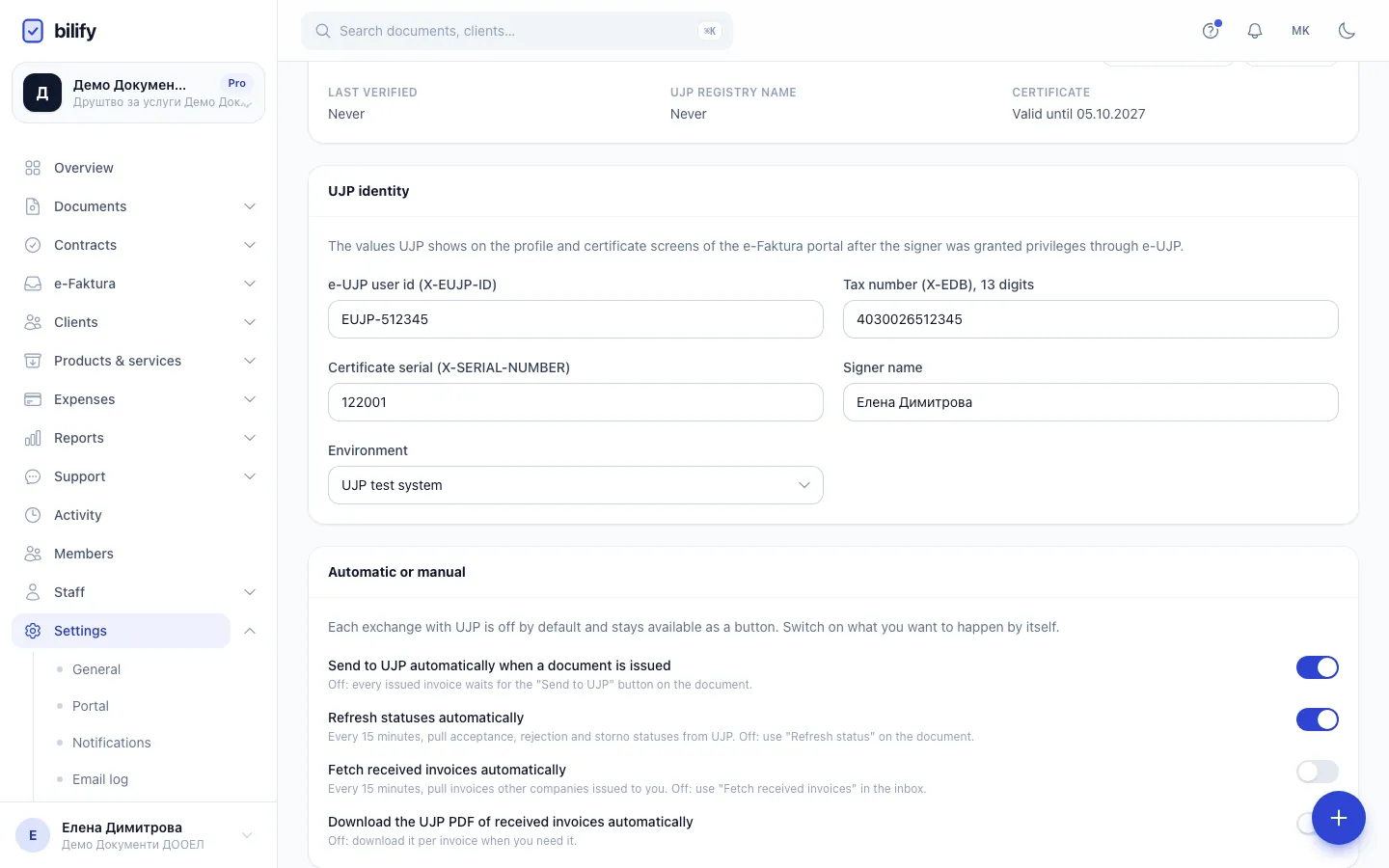
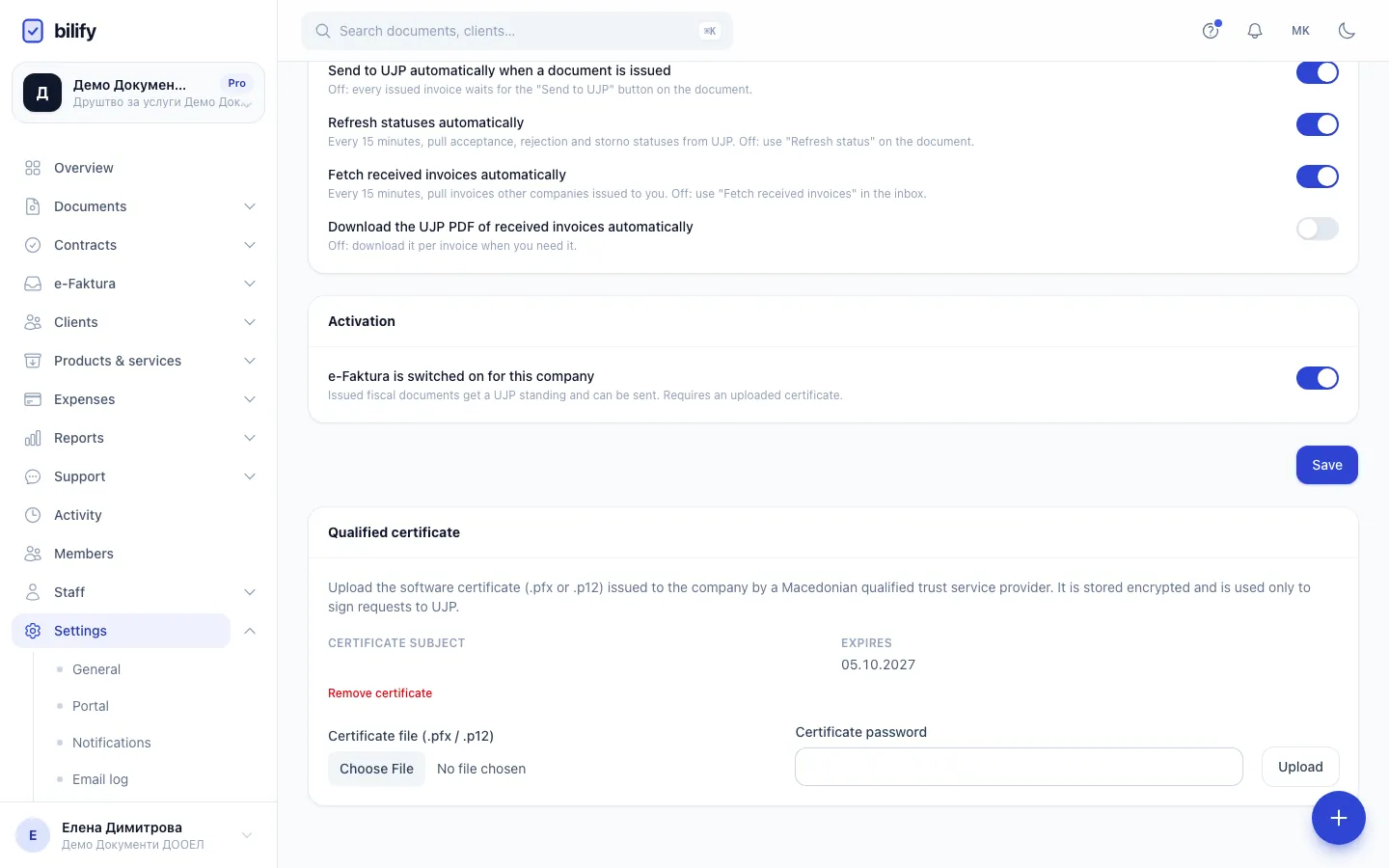
- Step 1: Every exchange with UJP is manual until you switch it on here. The buttons stay available either way.
- Step 2: Send each fiscal invoice to UJP right after you issue it.
- Step 3: Pull acceptance, rejection and storno statuses from UJP every 15 minutes.
- Step 4: Fetch invoices other companies issued to you every 15 minutes, so the inbox stays current.
- Step 5: Save. The schedules only run while e-Faktura is switched on and the certificate is valid.
The four switches
| Switch | When on | When off, use |
|---|---|---|
| Send to UJP automatically when a document is issued | Each fiscal invoice is queued for UJP right after you click Issue. | Send to UJP on the invoice page. |
| Refresh statuses automatically | Every 15 minutes Bilify pulls acceptance, rejection and storno statuses from UJP for your registered invoices. | Refresh status on the invoice page. |
| Fetch received invoices automatically | Every 15 minutes Bilify pulls invoices other companies issued to you into Received invoices. | Fetch received invoices in the inbox. |
| Download the UJP PDF of received invoices automatically | UJP's PDF is stored with each newly fetched received invoice. | Fetch UJP PDF on each received invoice. |
To change them:
- Open Settings > e-Faktura.
- In Automatic or manual, turn the switches on or off.
- Click Save. You see e-Faktura settings saved.
Scheduled work only runs when e-Faktura is switched on
The 15 minute schedules skip companies where e-Faktura is switched on for this company is off, and they only do anything when the connection is ready (identity filled in, certificate uploaded and not expired). The PDF switch only matters when received invoices are fetched, by hand or automatically.
Things to know
- Storno and correction ignore the send switch. They are always sent to UJP as soon as they are issued, because you started them on purpose. See Storno and correction.
- Automatic sending skips silently when e-Faktura is not ready. If the certificate expired or was removed, issued invoices stay Not submitted. Watch the dashboard card e-Faktura needs attention (Issued, not sent) and the settings page.
- Status refresh covers invoices UJP changed today or yesterday, plus up to 25 older invoices still Sent to UJP that were not checked in the last 24 hours, per run.
- Automatic fetching looks back from the last fetch. The first fetch covers the last three days; one fetch never covers more than 31 days.
- Sandbox workspaces always use the simulator and are skipped by the automatic schedules; use the buttons there.
- There is no automatic accept or reject for received invoices. If you do not decide by the deadline, UJP accepts the invoice automatically on its side.
Simulator
Until the production connection is live, automatic sending and syncing run against Bilify's built-in simulator. See What is e-Faktura.
What to switch on
- If every issued invoice should be registered immediately, switch on automatic sending and status refresh. Use Check on the first invoice to each new client before you rely on it.
- If someone reviews invoices before they reach UJP, leave sending manual and use the dashboard card to see what is waiting.
- Switch on automatic fetching of received invoices if you want the inbox and the menu badge to stay current without anyone clicking, so the 10th-of-the-month deadline is not missed.
Was this page helpful?
Related articles
Still stuck?
Write to us and we will get back to you within one working day.