Export expenses
Download selected expenses as CSV or Excel, or have the file emailed to you, and when to use the Expenses export report instead.
Need your costs in a spreadsheet for your accountant? Select the expenses in the list and export them as a CSV or Excel file.
Export selected expenses
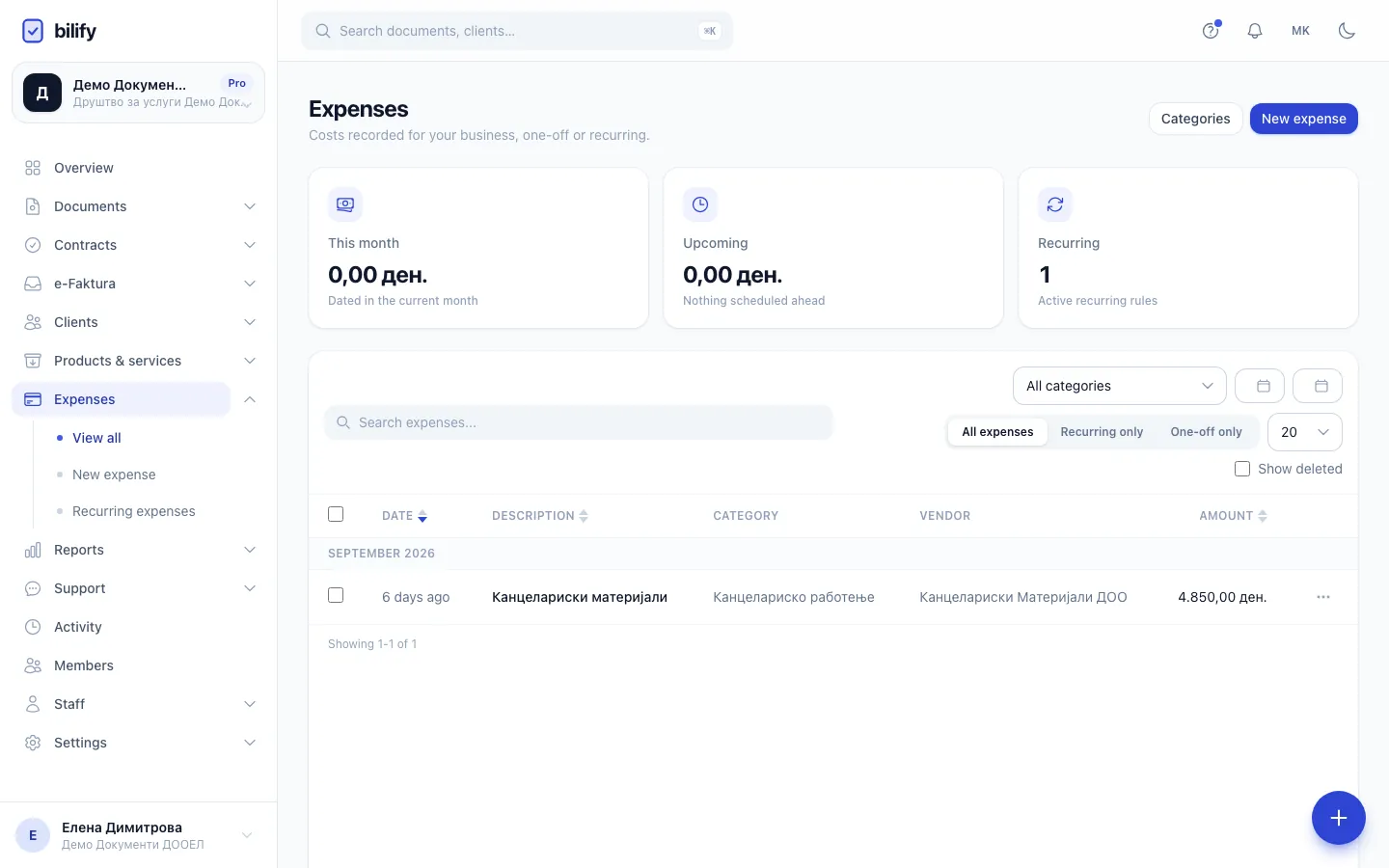
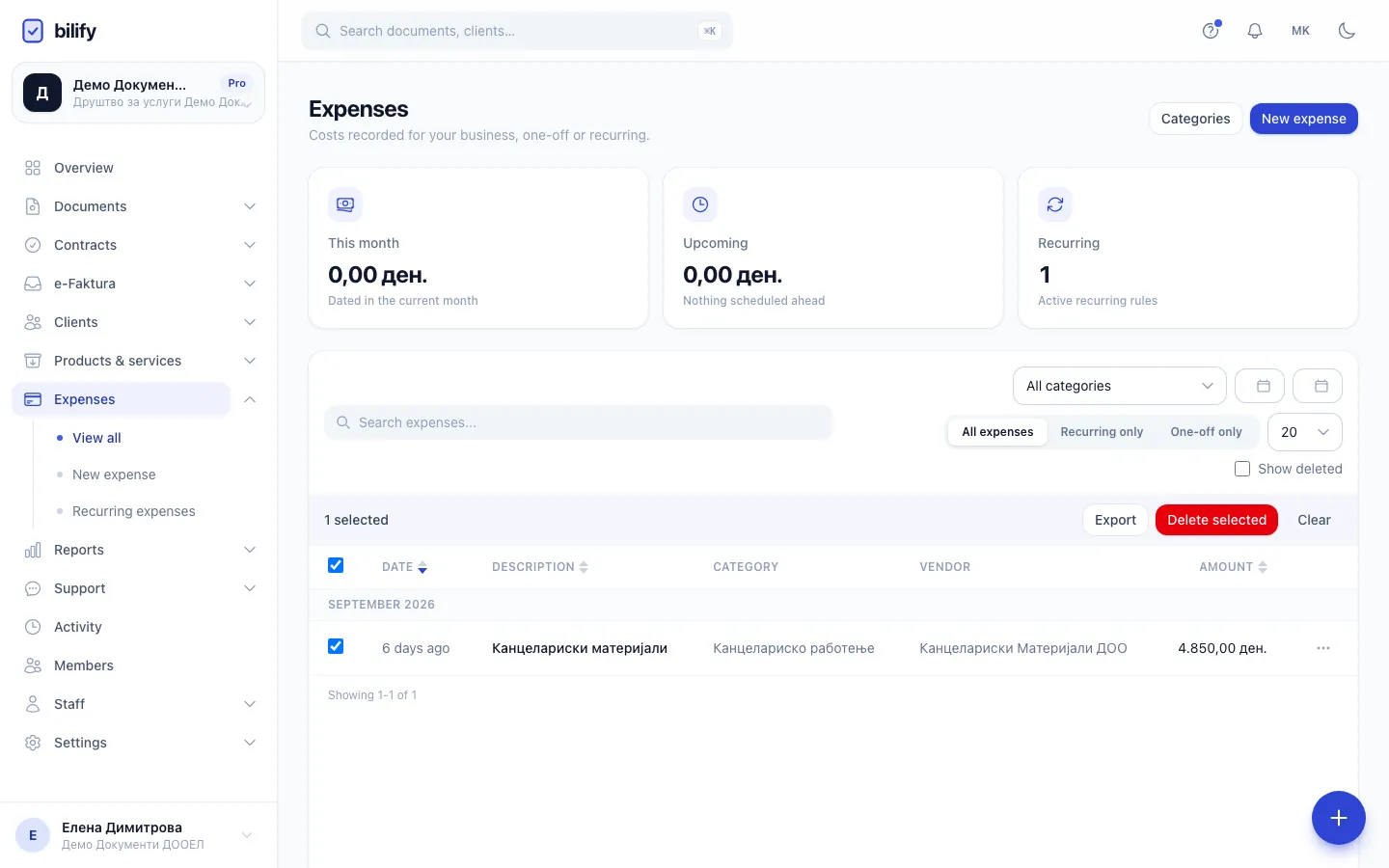
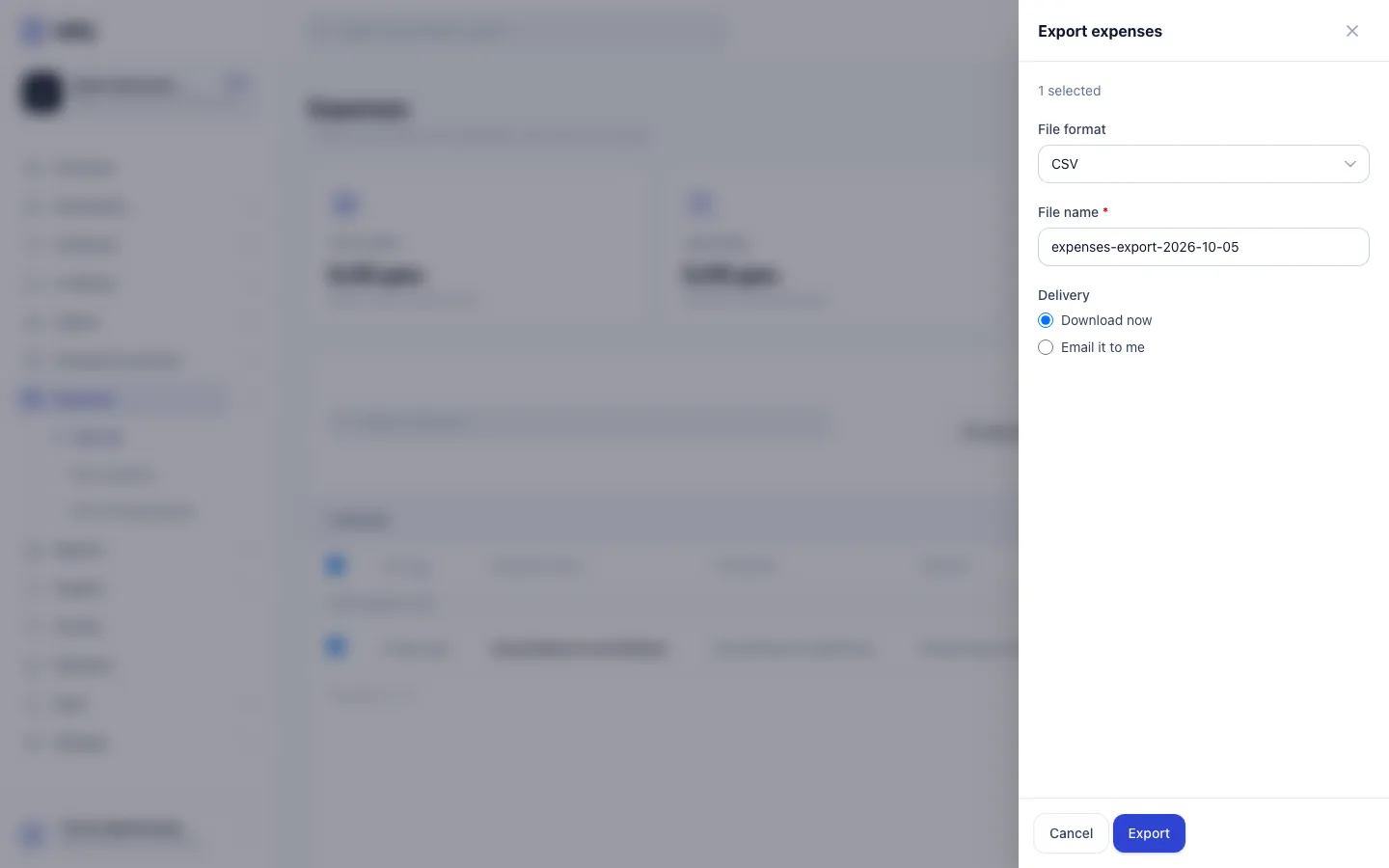
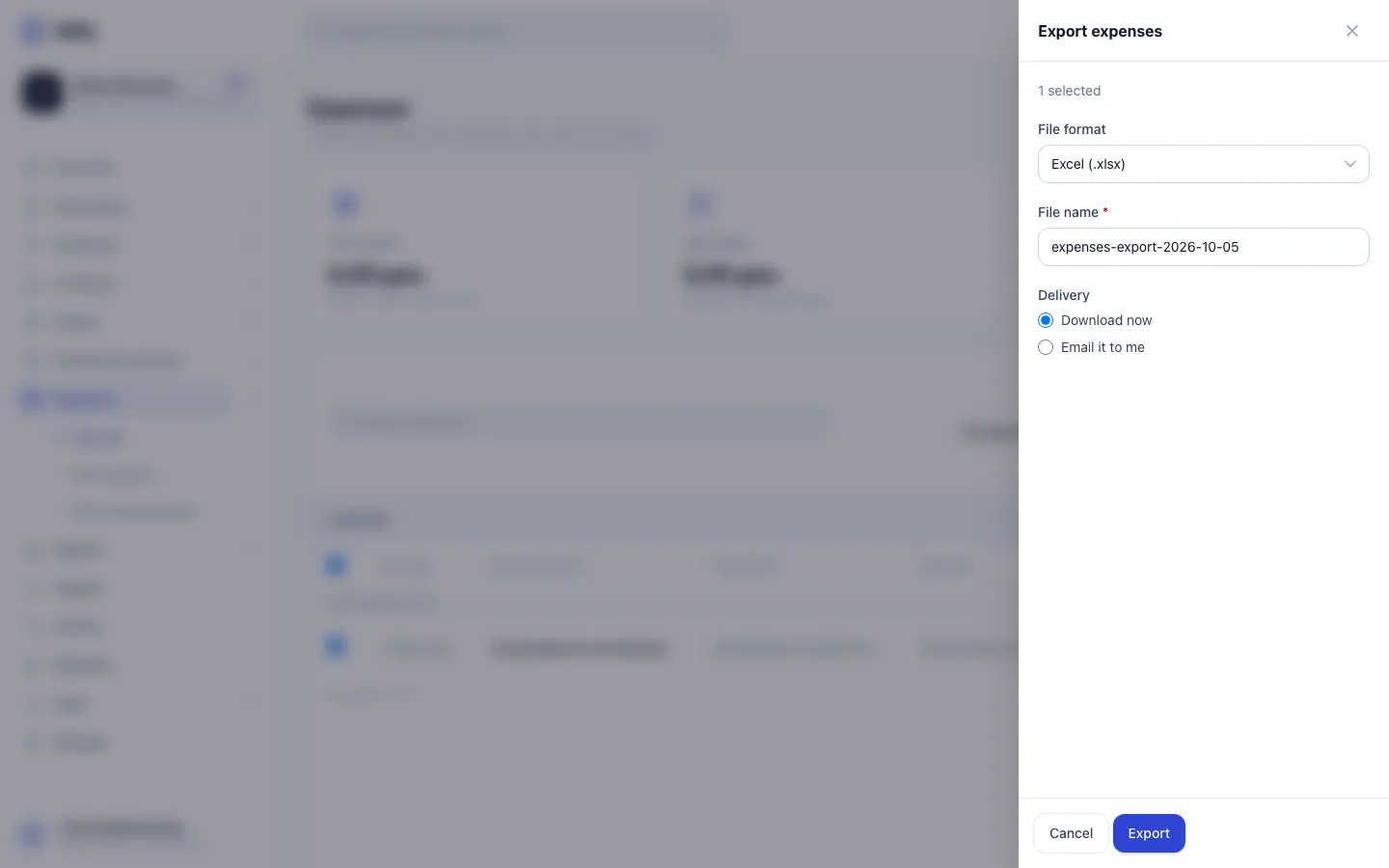
- Open Expenses.
- Narrow the list down if you like: search, pick a category, set a From and To date, or choose Recurring only or One-off only.
- Tick the expenses you want. The box in the table header ticks every expense on the current page.
- In the bar that appears above the list, click Export.
- In the Export expenses panel, choose the File format: CSV or Excel (.xlsx).
- Check the File name. It starts as
expenses-exportwith today's date. - Choose the Delivery:
- Download now opens the file in a new tab straight away.
- Email it to me sends it to the Email address you enter (your own address is filled in).
- Click Export.
Exporting a whole month or year
The header box only ticks the current page. To export many expenses at once, set the date filter first and raise the rows per page to 100. For a full period without ticking anything, use the Expenses export report described below.
What the file contains
One row per expense, oldest first, with these columns:
| Column | Contains |
|---|---|
| Date | The expense date |
| Category | The category name, empty if none |
| Vendor | The vendor, empty if none |
| Description | The description |
| Amount | The amount, formatted with its currency |
| Currency | The currency code |
| Source | Recurring or one-off |
Column names follow the language you use the app in.
Deleted and skipped expenses are left out
If you tick expenses while Show deleted is on, deleted and skipped ones are not included in the file.
Download and email details
- The download link is valid for 30 minutes. If it has expired, export again.
- The email contains a link to the file and, when the file is small enough, the file itself as an attachment.
Export by period with a report
For a regular export (for example every month to your accountant), create a report of type Expenses export under Reports. It exports every expense in the chosen period, can be limited to some categories, can leave out recurring expenses, and can be scheduled and emailed automatically on packages that include scheduled reports. See Run a report and Schedule reports.
Was this page helpful?
Related articles
Still stuck?
Write to us and we will get back to you within one working day.