Notification settings
Choose when clients get payment reminders, who on your team hears about payments and contracts, and what reaches you in the bell.
Bilify notifies people in two ways: by email, and in the in-app bell at the top of the screen. What gets sent at all is a company setting under Settings > Notifications. Each person can then switch off what they do not want to receive personally.
The bell and the Notifications page
The bell in the top bar shows your 10 most recent notifications for the workspace you are in, with a count of unread ones. It refreshes about every 30 seconds.
- Click a notification to open what it is about (an invoice, a contract, a ticket). It is marked as read.
- Mark all as read clears the count.
- View all opens the Notifications page with your full history. There you can search, filter by Status (All, Unread, Read) and use Mark as read on a single entry without opening it.
You only ever see notifications addressed to you, and only those of the current workspace. What can arrive in the bell:
| Notification | Who gets it |
|---|---|
| Payment received for an invoice | The roles chosen under Payment received |
| A contract was signed, fully signed, declined or expired | The roles chosen under Contracts |
| It is your turn to sign a contract | The team member who is the signer |
| A reply from Bilify support on your ticket | Owner and Admin (also by email) |
| A webhook endpoint was disabled after repeated failures | Owner and Admin |
| Your own email provider needs attention | Owner and Admin |
| Your subscription payment failed or the subscription ended | Owner (also by email) |
Change the company settings
You need the settings.notifications permission (Owner and Admin by default).
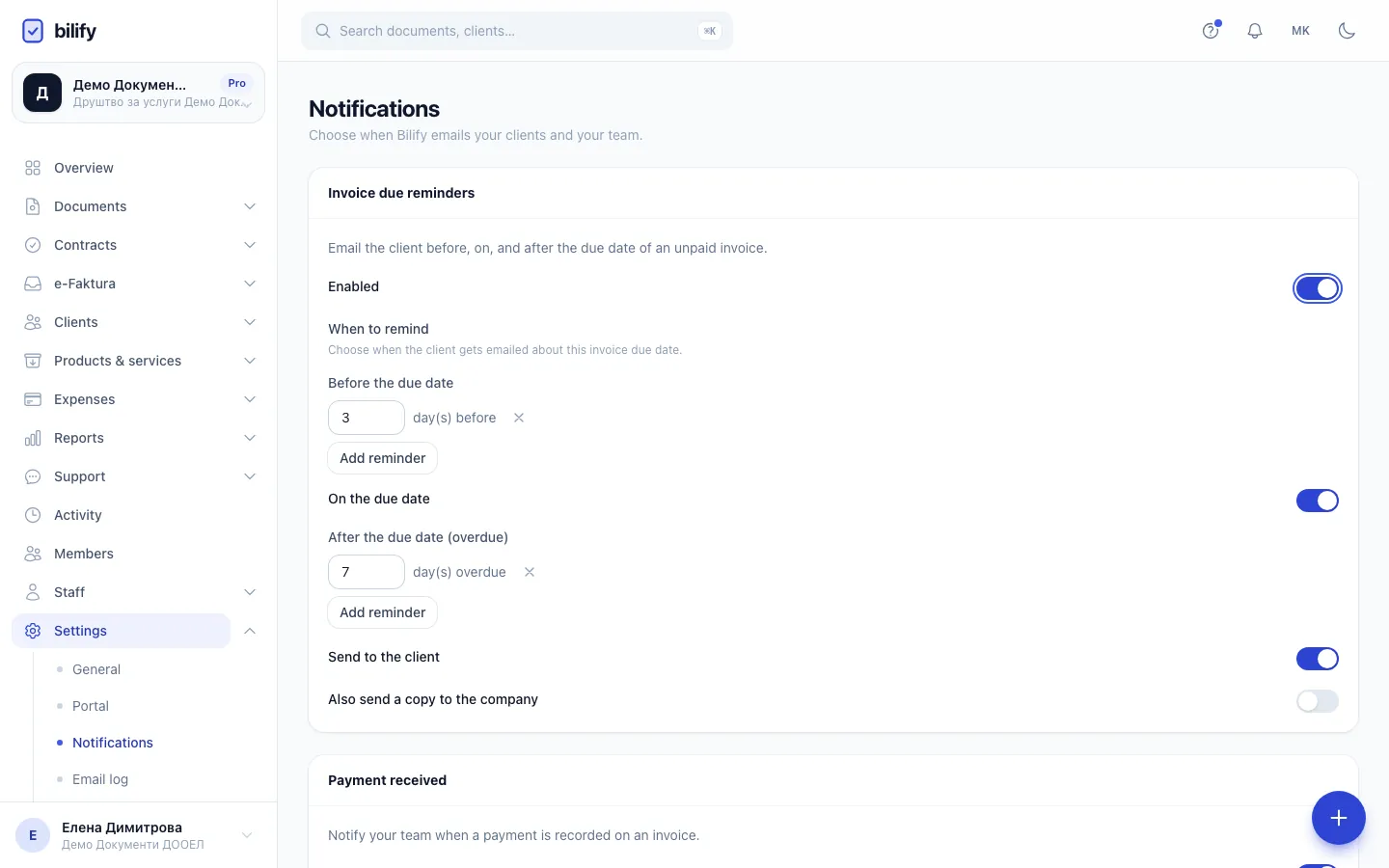
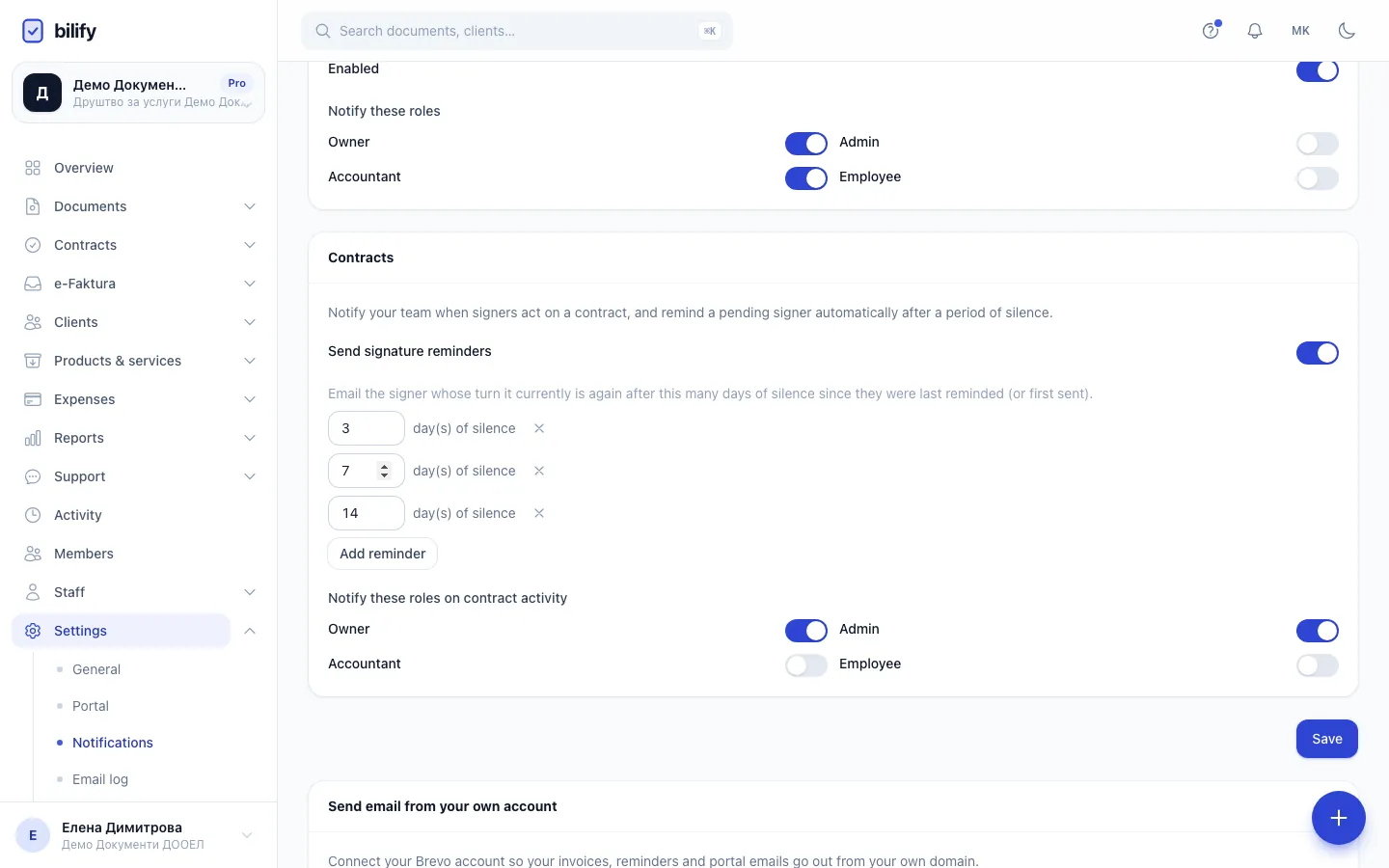
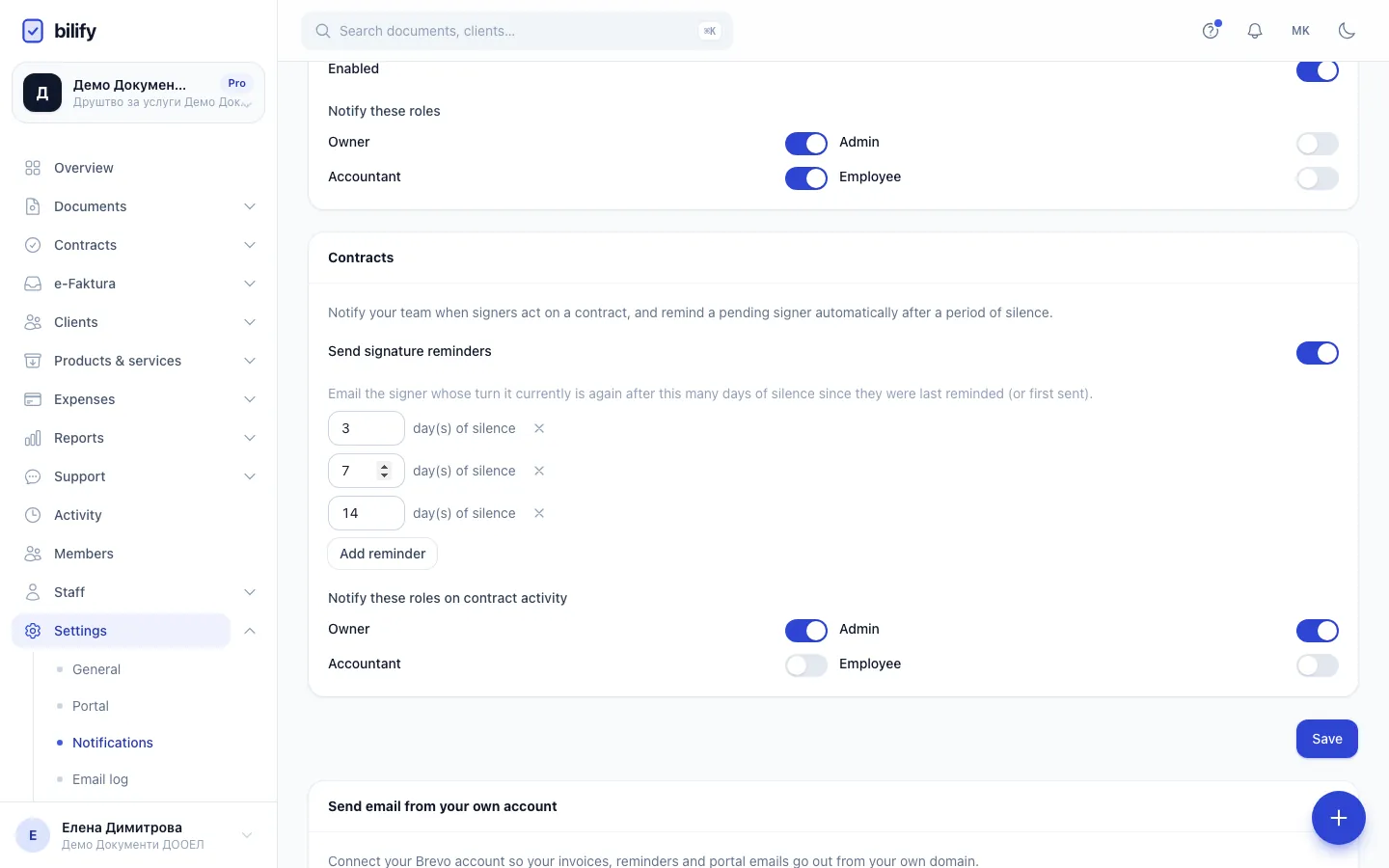
- Step 1: Invoice due reminders email your client about unpaid invoices before, on and after the due date.
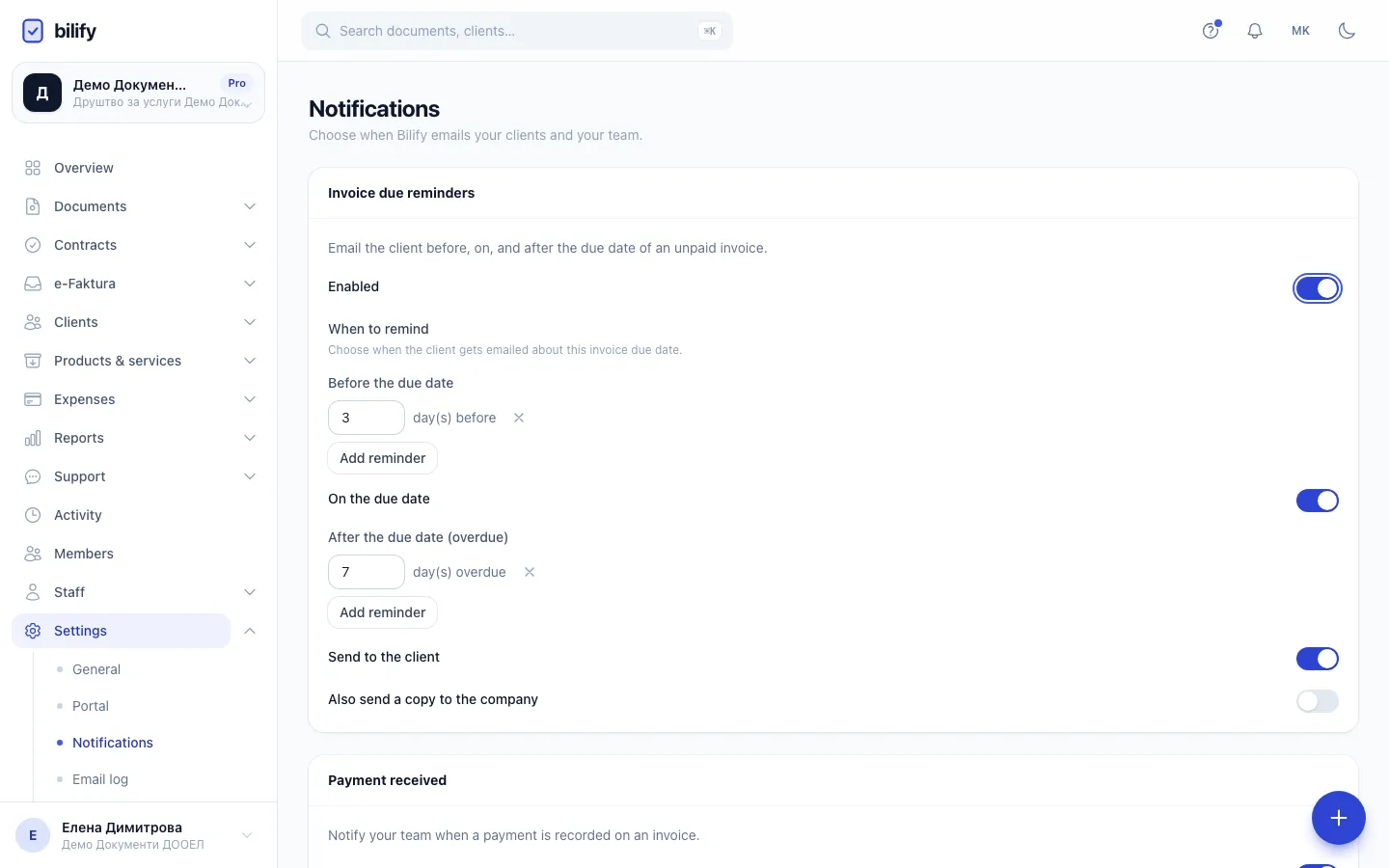
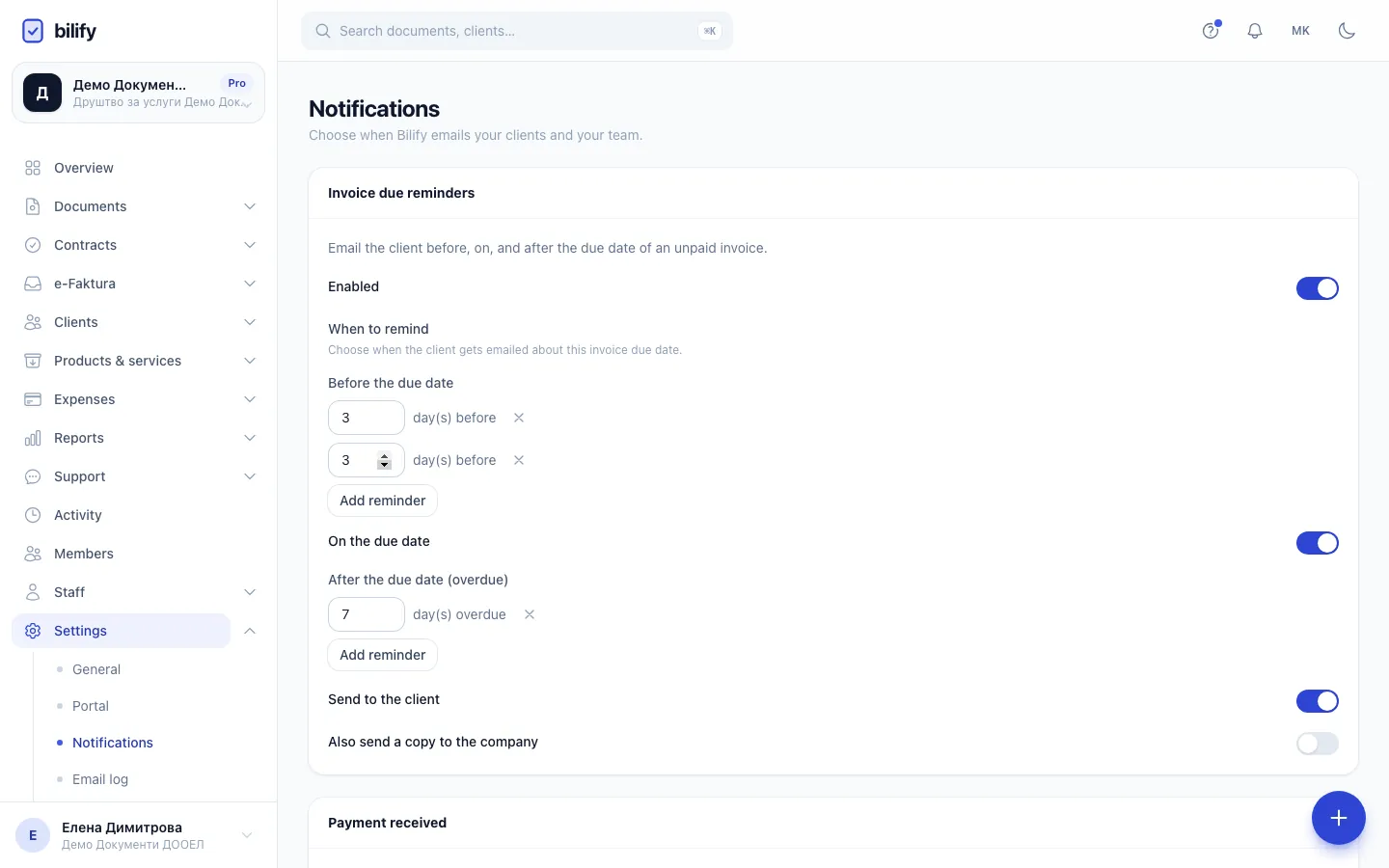
- Step 2: Add reminder adds another reminder before the due date.
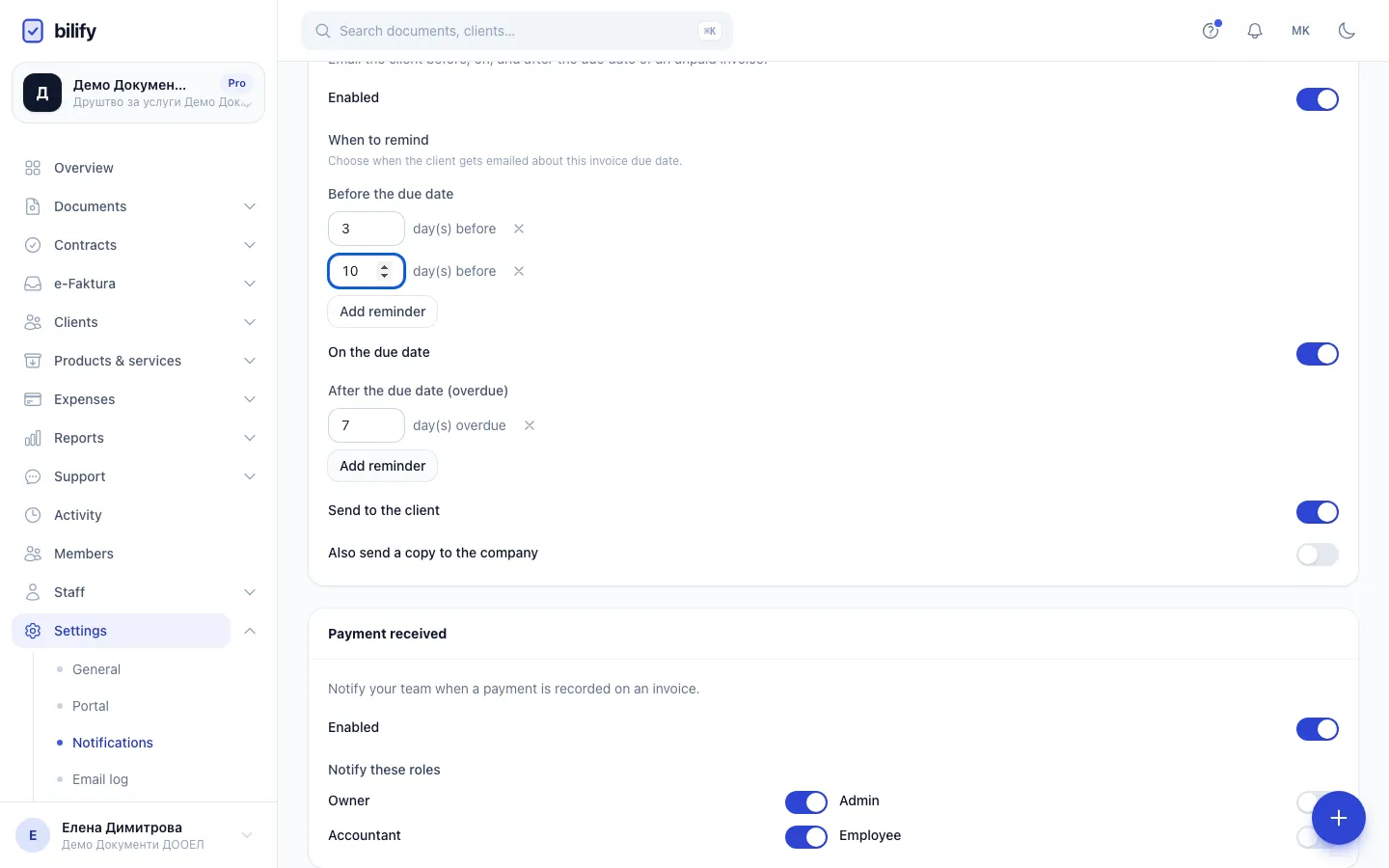
- Step 3: Enter how many days before the due date this reminder goes out.
- Step 4: Choose which roles get an email and a bell notification when a payment is recorded.
- Step 5: Contract reminders nudge a signer who has not signed yet, a set number of days after the contract was sent.
- Step 6: Save. The new settings apply from the next daily check.
- Open Settings > Notifications.
- Adjust the Invoice due reminders, Payment received and Contracts cards as described below.
- Click Save. Bilify confirms with "Notification settings saved."
The Send email from your own account card on the same page has its own Connect button and is explained in Send email from your own Brevo account.
Invoice due reminders
Bilify emails your client about an unpaid invoice around its due date.
- Enabled switches reminders on or off for the whole company.
- When to remind sets the days:
- Before the due date: one line per reminder, in days before (1 to 90). Use Add reminder for another line and the x to remove one.
- On the due date: one reminder on the day itself.
- After the due date (overdue): days after the due date (1 to 365).
- The default is 3 days before, on the due date, and 7 days after.
Bilify checks once a day, in the morning. Each invoice gets each reminder once, even if you change the settings later.
Which invoices get reminders: issued invoices with a due date whose status is Issued, Sent, Seen, Partially paid or Overdue. Paid and Cancelled invoices get none, and neither do drafts. The email goes to the client's primary contact, or the client's own email if there is no contact, or the email printed on the invoice.
Send to the client and Also send a copy to the company are saved with your settings, but they do not change delivery yet: reminders always go to the client, and no copy is sent to your company.
To stop reminders for one invoice only, open the invoice and set Due-date reminders for this document to Never send. Always send does not override the company switch: if Enabled is off, no reminders go out.
Payment received
When someone records a payment on an invoice, full or partial, Bilify tells your team.
- Enabled switches this notification on or off.
- Notify these roles: tick Owner, Admin, Accountant and/or Employee. Every member with a ticked role gets an email and a bell notification. The default is Owner and Accountant.
The client is never notified by this setting.
Contracts
Requires: Contracts & e-signature
- Send signature reminders emails the signer whose turn it is when they have not signed yet. Each line is a number of days after the contract was sent to that signer (1 to 90); each reminder goes out once. The default is 3, 7 and 14 days. Use Add reminder for more. Reminders go out once a day and only for contracts that have reminders switched on. See Reminders and expiry.
- Notify these roles on contract activity chooses who gets a bell notification when a contract is signed, fully signed, declined or expires. These are bell notifications only, not emails.
Turn off notifications for yourself
Each person can narrow what reaches them without changing the company setting:
- Open your Account and choose Preferences.
- Under My notifications, switch off Email or In the app for payment received notifications, or In the app for disabled webhook endpoints.
- Save.
You can only switch off what the company sends. You cannot switch on something the company has turned off. See Account and security.
See what was sent
Every email Bilify sends on your behalf is listed in the email log, with its delivery status.
Was this page helpful?
Related articles
Still stuck?
Write to us and we will get back to you within one working day.