Invite your team
Give colleagues and your accountant their own login to your company, pick the right role for each and know what the invitation email does.
Everyone who works in Bilify should have their own login, so the activity log shows who did what and each person sees only what their role allows. This page shows how to invite someone. Owners and Admins can invite.
Before you start
- Check your member limit. Each package allows a number of team members, and you count as one. On a package with a single member you cannot invite anyone until you change plan; see Usage limits.
- Pick the role. In short: Admin can do everything except manage billing, Accountant works with documents, clients, expenses and reports but not company settings, Employee creates and edits drafts and clients but cannot issue. The full list is in Roles and permissions.
- Employees who only work shifts and never sign in do not need an invitation. Add them as employees instead.
Send the invitation
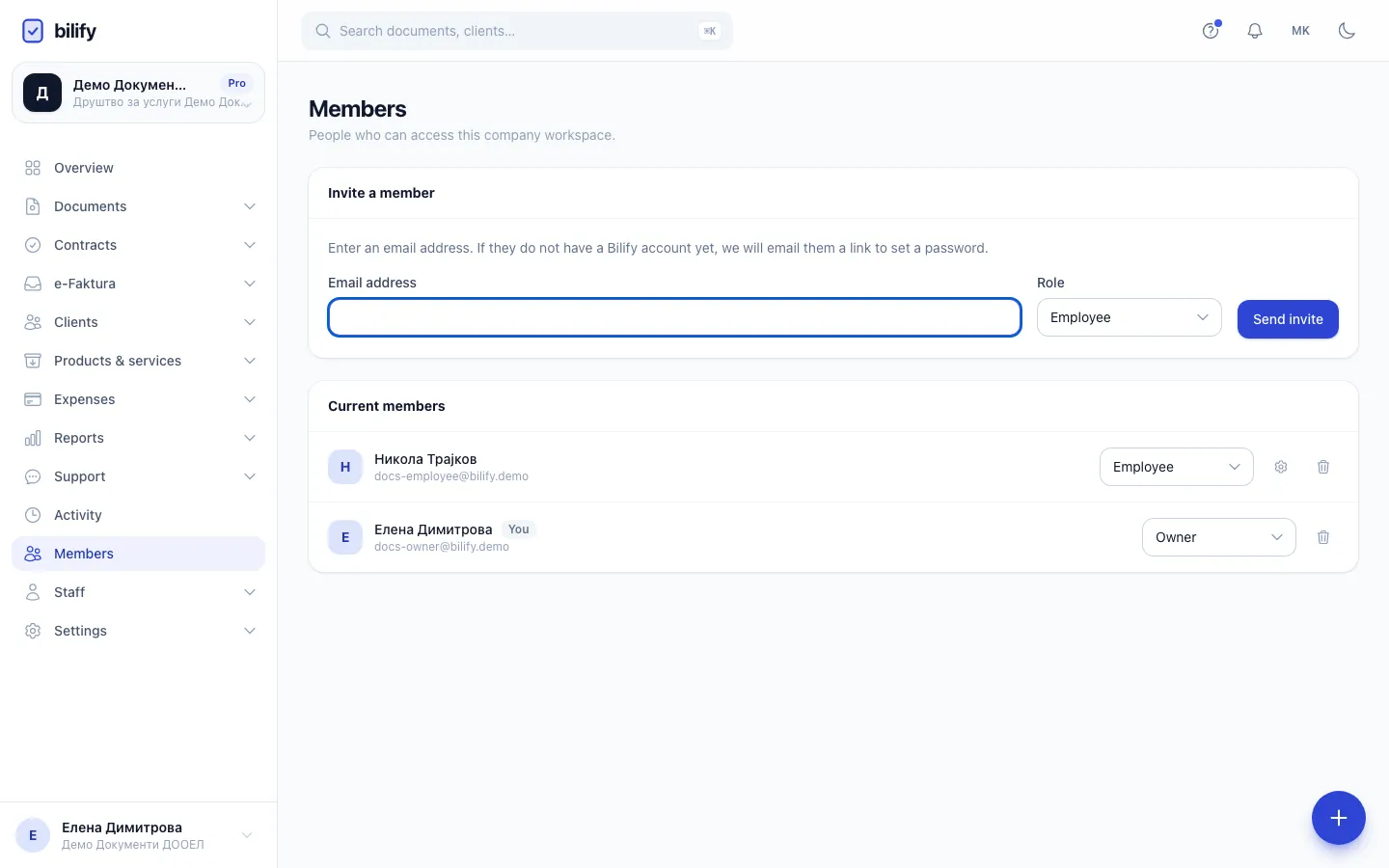
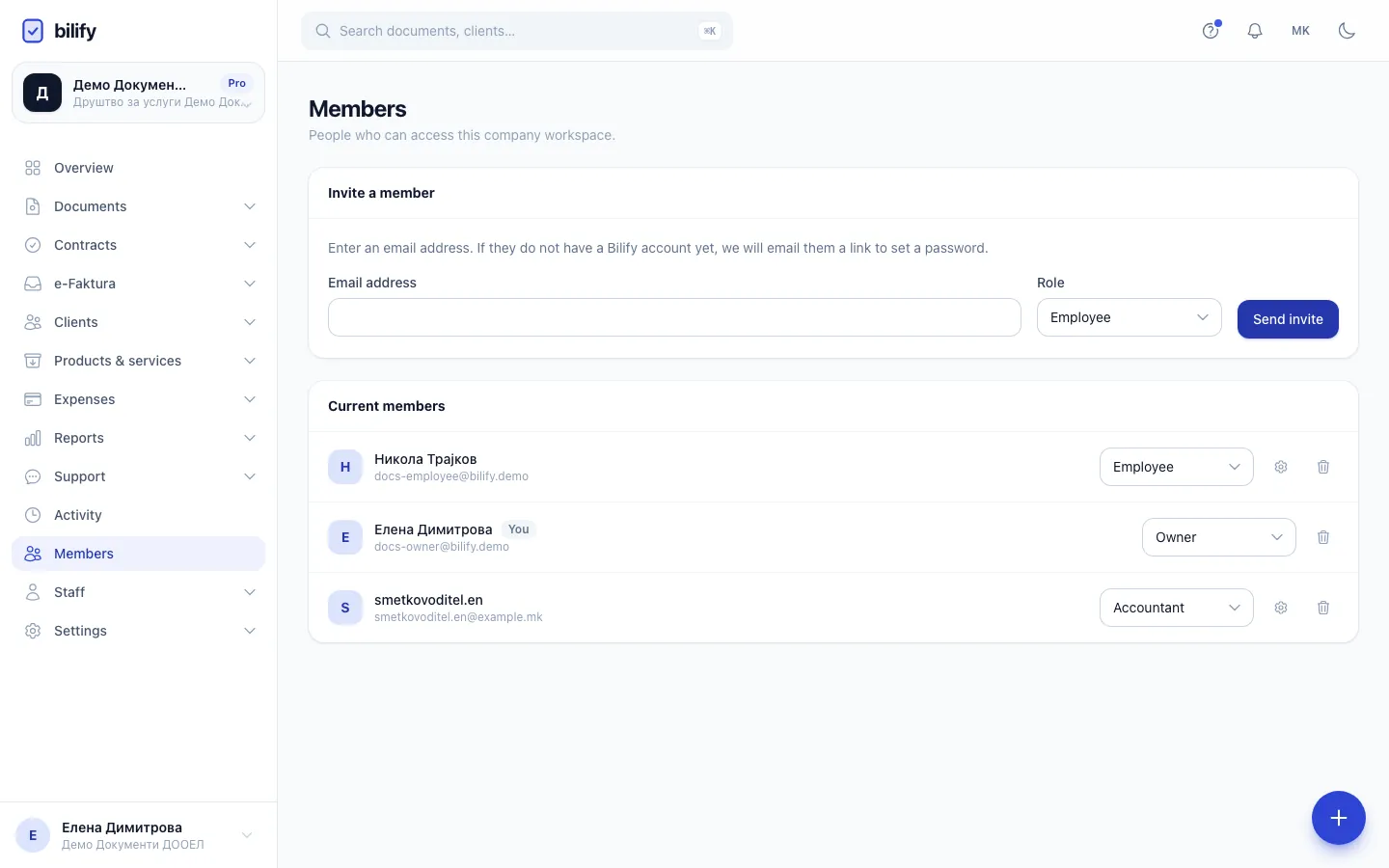
- Step 1: Invite people from the Members page. Each person gets their own login.
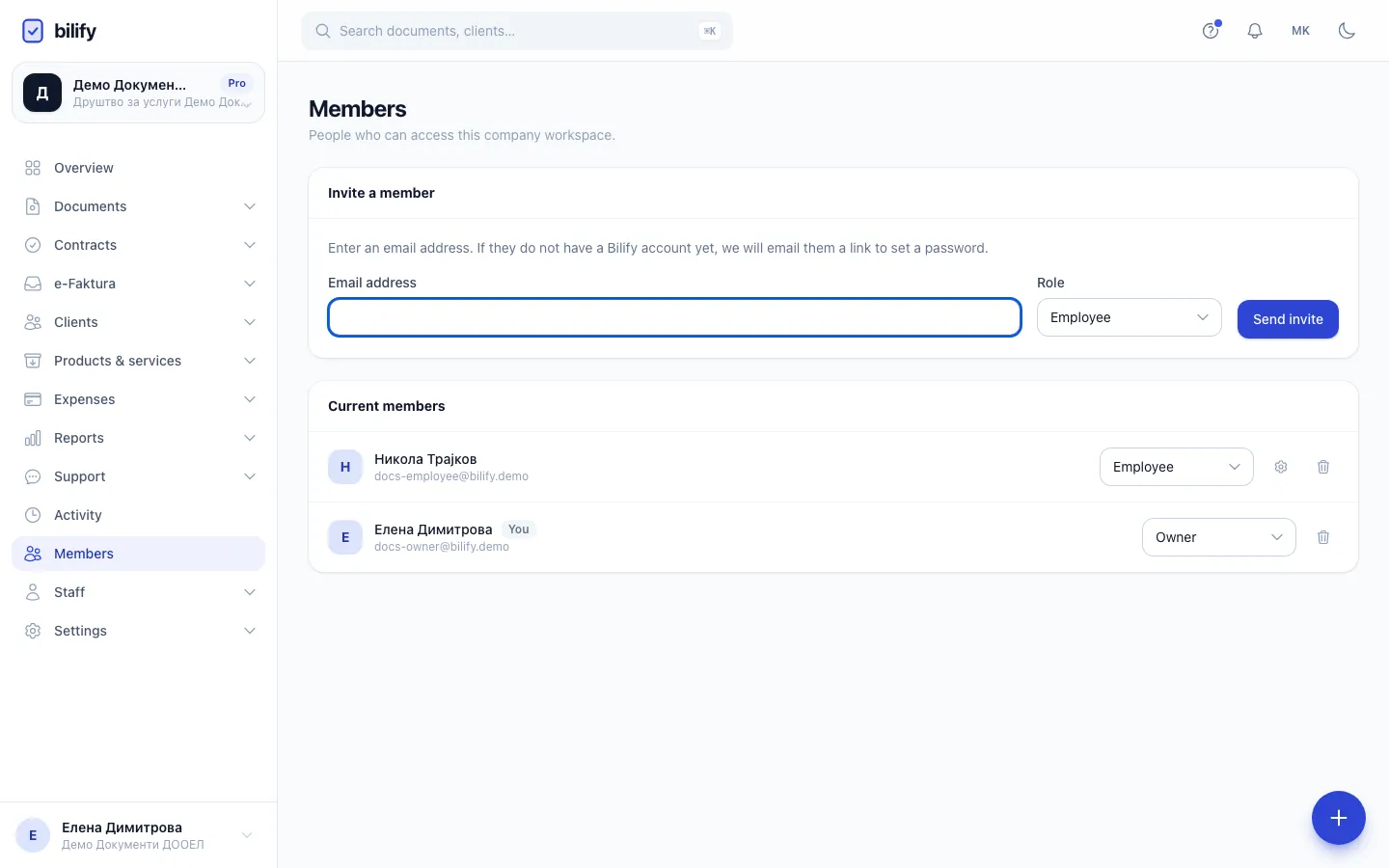
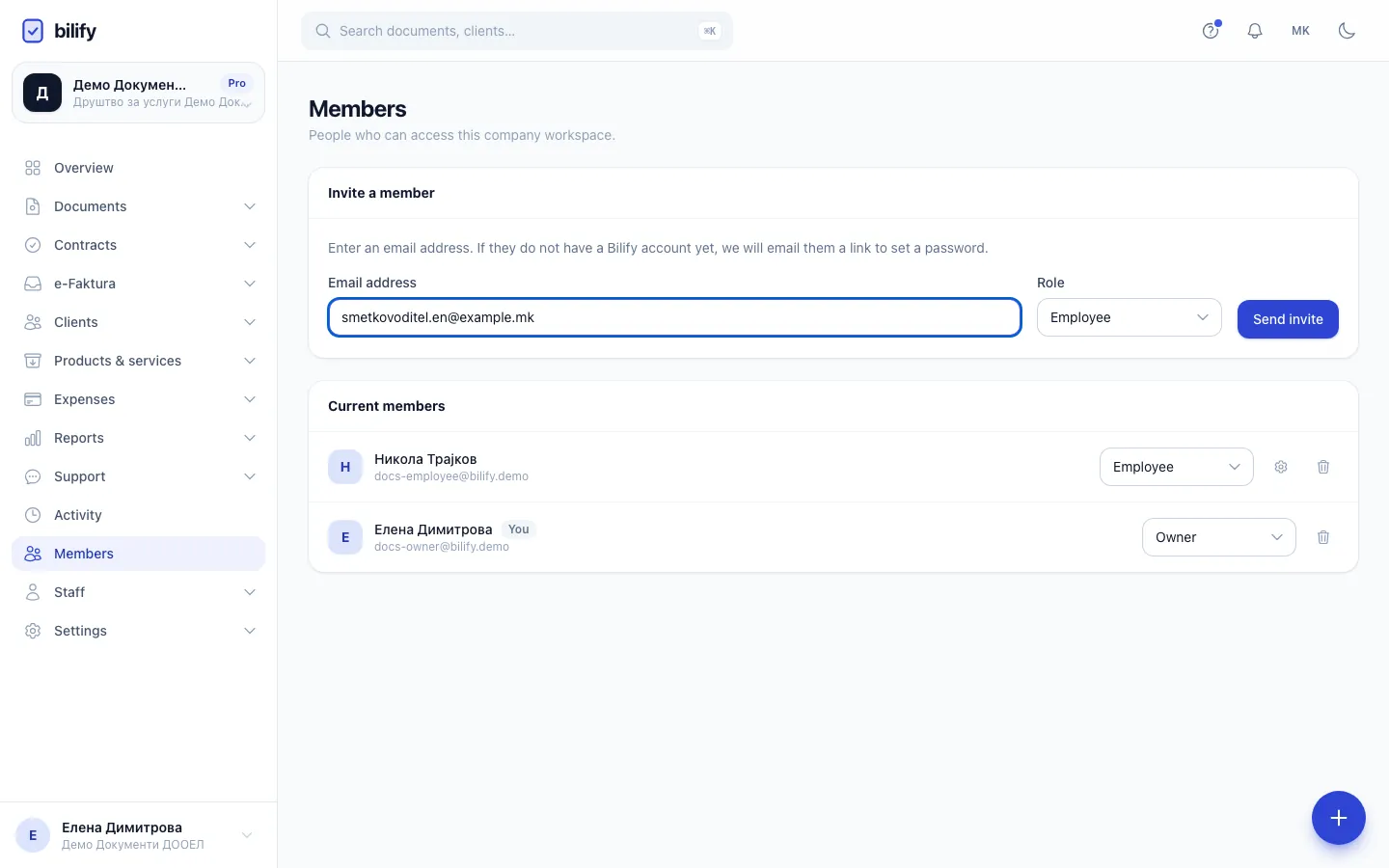
- Step 2: Type the person's email address.
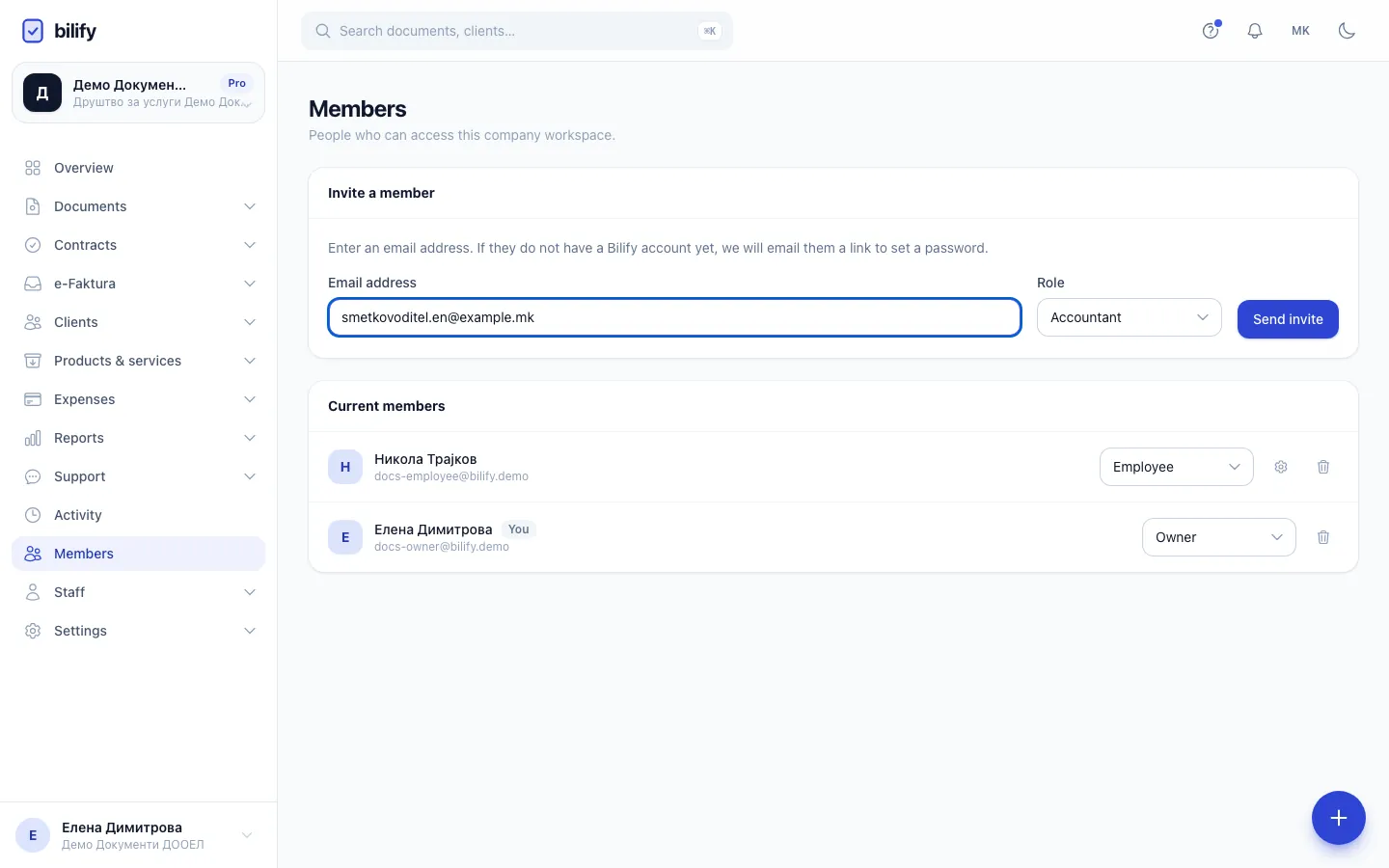
- Step 3: Choose a role. Accountant sees documents, expenses and reports but not company settings.
- Step 4: Click Send invite. They join right away and get an email with a link to sign in.
- Step 5: The new member is now in the list with the role you picked.
- Open Members in the sidebar.
- Under Invite a member, type the person's Email address.
- Choose a Role.
- Click Send invite.
The person appears under Current members straight away. There is no pending state: they are a member from this moment, with the role you chose.
What the invited person receives
The email subject is "You have been invited to join your company on Bilify". What happens next depends on whether they already have a Bilify account:
| They are | The email button | What they do |
|---|---|---|
| New to Bilify | Set your password and join | Choose a password and sign in. Their email counts as verified. |
| Already on Bilify (for example in another company) | Open your workspace | Sign in as usual and pick your company in the company card under the logo. |
The password link expires after 60 minutes
If a new member opens the email too late, the link no longer works. They do not need a new invitation: they go to the login page, click Forgot password? and request a reset link to the same address.
A new member's display name starts as the part of their email before the @ sign. They can change it under Account, see Account and security.
If something goes wrong
- "This person is already a member." The email already belongs to a member of this company.
- "You have reached your plan's member limit." The package is full. Remove someone or change plan.
- The email did not arrive. Ask them to check spam, then look in Settings > Email log to see whether it was delivered. See Email log.
- Wrong role. Change it in the member list at any time; see Members.
Was this page helpful?
Related articles
Still stuck?
Write to us and we will get back to you within one working day.