Sandbox mode
A separate test copy of your workspace with its own data, test API keys and webhooks, where emails are never sent and e-Faktura runs in the simulator.
The sandbox is a second, private workspace that mirrors your company's setup but holds only test data. Use it to build and test an integration, train a new colleague or try a workflow without creating real invoices or emailing real clients.
Enable the sandbox
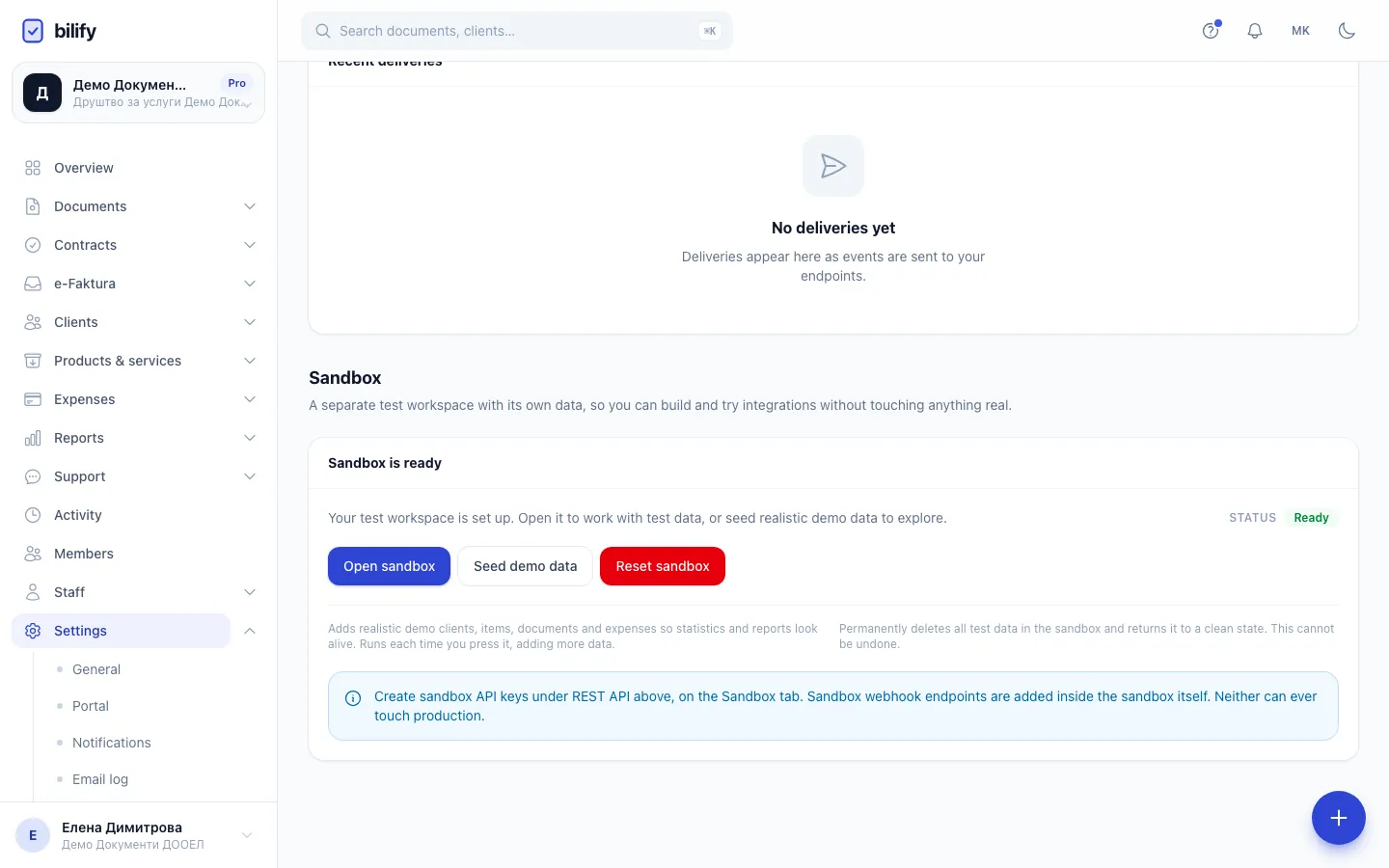
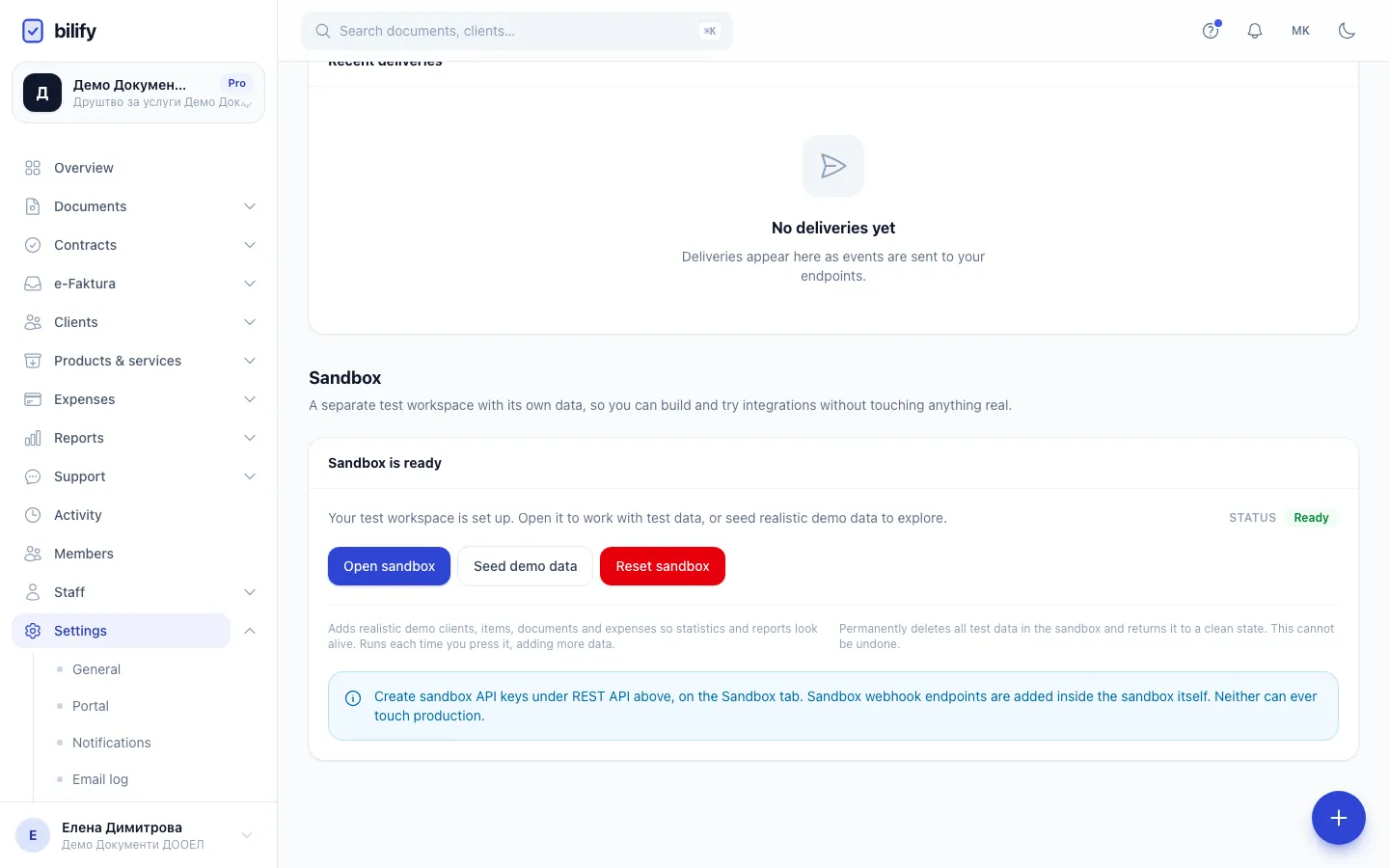
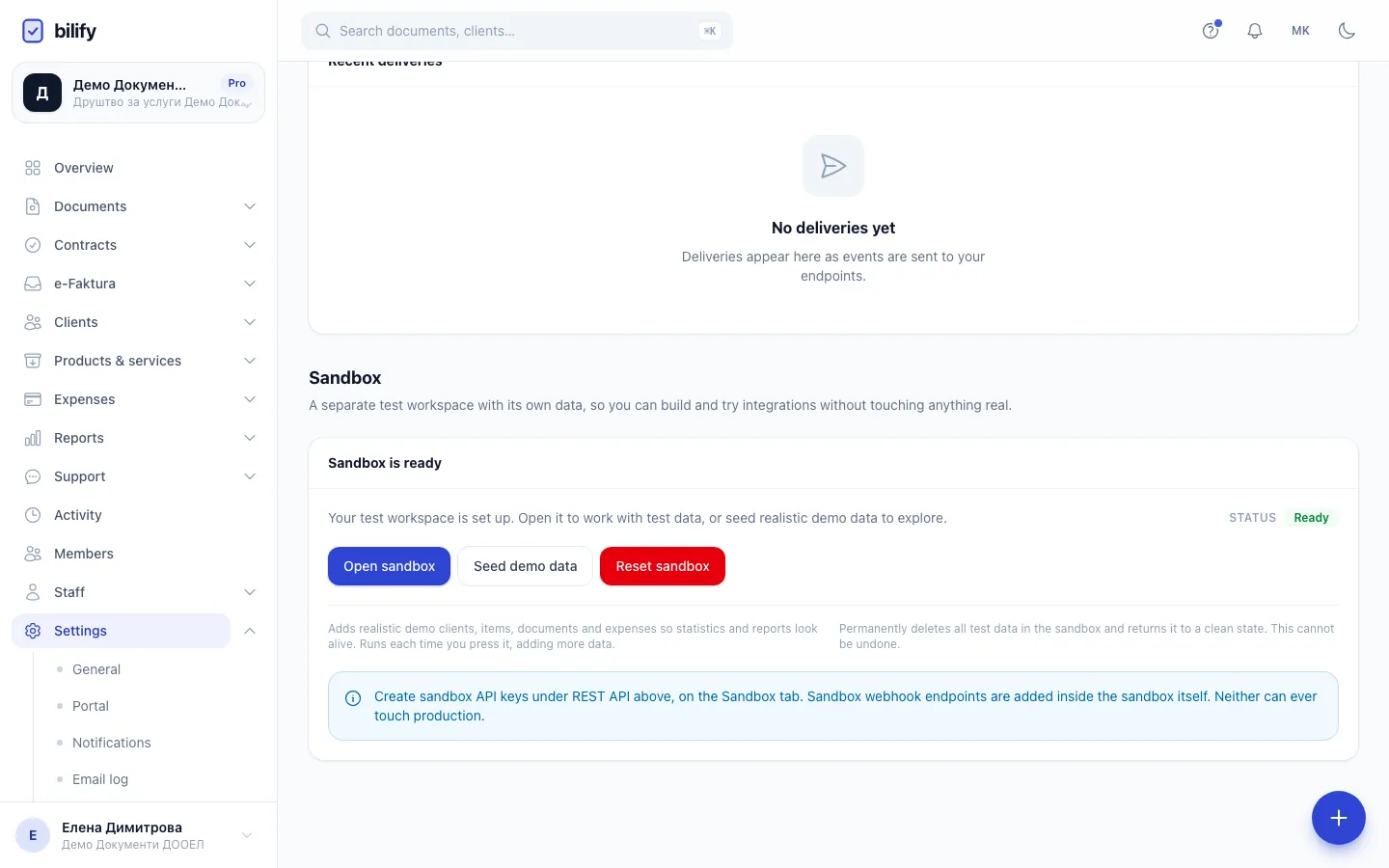
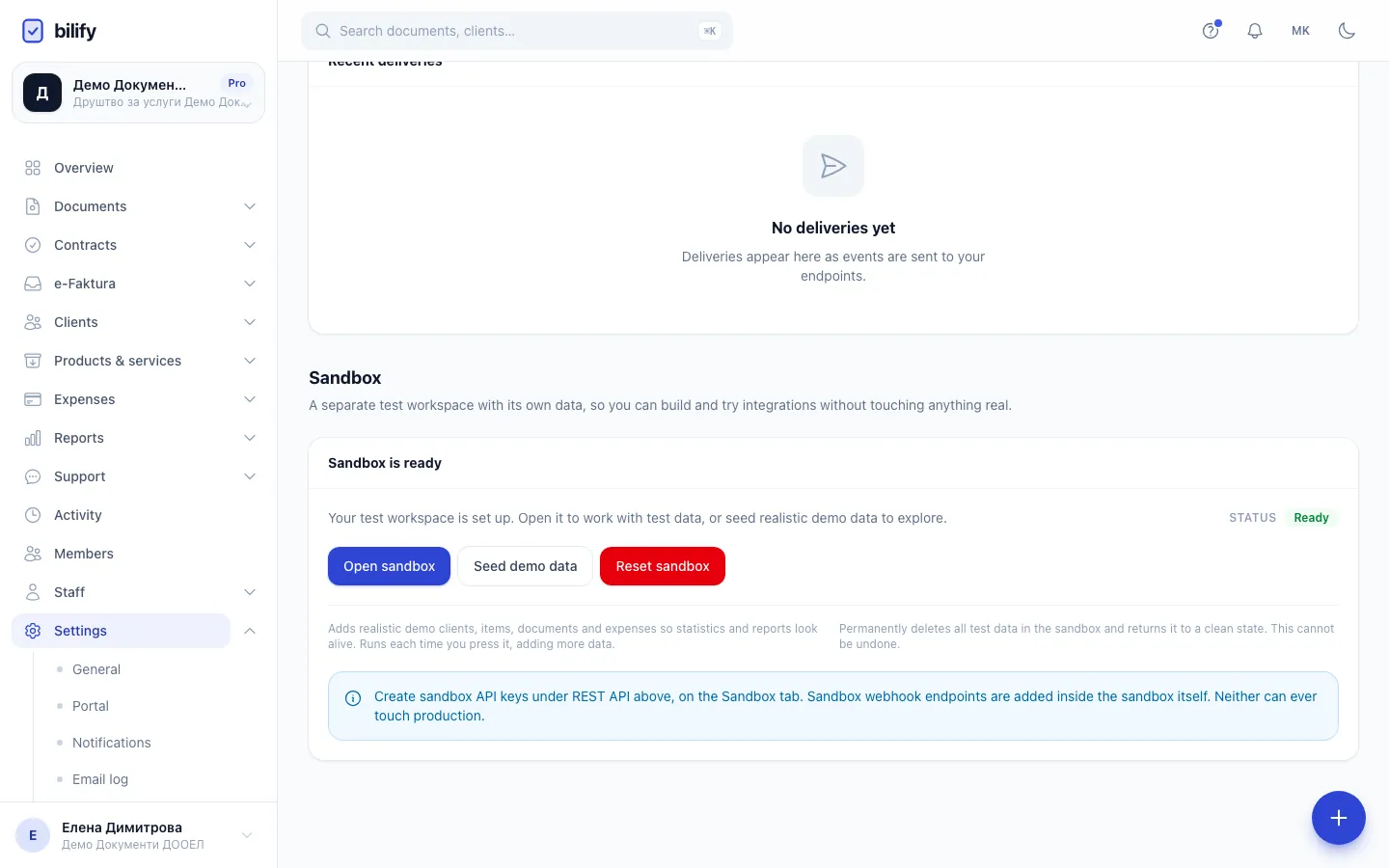
- Step 1: After you click Enable sandbox once, this card holds the sandbox tools. Enabling copies your settings, never your real data.
- Step 2: Seed demo data adds sample clients, items, documents and expenses to the sandbox. Each click adds more.
- Step 3: Reset sandbox wipes the test data after you type RESET. Your real workspace is never touched.
- Step 4: Open sandbox switches you into the test workspace. A strip at the top shows you are in the sandbox.
- Open Settings > Integrations and scroll to Sandbox.
- Under Enable sandbox mode, click Enable sandbox. This needs the integrations management permission (owners and admins).
Bilify creates the test copy straight away. It copies your settings, not your data:
| Copied into the sandbox | Not copied |
|---|---|
| Company name, address, tax and registration numbers, currency, language, brand colour | Clients, documents, payments |
| Numbering series (counters start again from the beginning) and document type settings | Items, stock, expenses |
| Roles and the team: every member of the real workspace can open the sandbox | Contracts, reports, employees and shifts |
The card then changes to Sandbox is ready with three buttons.
Open the sandbox and go back
- Click Open sandbox. Bilify switches you into the sandbox and shows a coloured strip at the top of every page: Sandbox mode, test data only.
- To leave, click Back to production in that strip (or in Settings > Integrations).
The sandbox does not appear in the workspace switcher. You always enter it through Open sandbox.
What is different inside the sandbox
- Emails are never sent. Invoices, reminders, contract invitations and every other email are written to the email log with the status Suppressed (sandbox), but nothing leaves Bilify. To try contract signing, copy a signer's link from the contract page instead.
- Printouts and PDFs carry a large TEST watermark, so a test invoice can never pass for a real one.
- e-Faktura always uses the built-in simulator. Nothing reaches UJP, whatever is configured in production.
- The client portal is switched off. Clients cannot sign in to a sandbox.
- Your package applies as in production: the same features and the same limits. The sandbox has no subscription or bill of its own.
- Keys and endpoints are separate. Sandbox API keys start with
blf_test_and can only reach the sandbox. Webhook endpoints added inside the sandbox only receive sandbox events, marked"environment": "sandbox".
Fill it with demo data
Click Seed demo data to add realistic sample records, so lists, the dashboard and reports have something to show: about 10 clients, 12 items, 30 documents in different states and 18 expenses spread over the last six months. Each click adds another batch.
Start again from a clean state
- Click Reset sandbox.
- Read the warning, type RESET and confirm.
The reset permanently deletes the sandbox's clients, documents and payments, items and stock, expenses (one-off and recurring), employees and shifts, reports, the email log and the sandbox activity history, and restores the numbering and document type settings from production. The reset itself is recorded in the activity log of your real workspace.
The reset keeps the sandbox's members, its API keys and its webhook endpoints, so scripts that point at the sandbox keep working. Contracts, contract templates and recurring invoices created in the sandbox are not removed by a reset yet.
A reset cannot be undone
It only ever touches the sandbox, never your real workspace, but the test data is gone for good.
Test keys and webhooks
- API keys for the sandbox are created in your real workspace: Settings > Integrations > REST API, Sandbox tab, Create key. The tab appears once the sandbox exists. See API keys.
- Webhook endpoints for the sandbox are added from inside the sandbox: open it, go to Settings > Integrations > Webhooks and click Add endpoint. See Webhooks.
- The AI connector always works with production data. Use the REST API with a test key to experiment safely.
Was this page helpful?
Related articles
Still stuck?
Write to us and we will get back to you within one working day.