Send a contract for signature
Choose the signers and their order, send the contract by email, share a signer's link yourself or sign it on the spot, and know what happens after.
When a draft is ready, you send it: Bilify freezes the text, emails the first signer(s) a personal signing link, and guides everyone through signing one after another (or all at once). When the last person signs, everyone receives the sealed PDF.
Sending needs the contracts send permission (owners, admins and accountants). Employees can prepare drafts but not send them.
Before you send
Check the draft once more, because a sent contract cannot be edited. The text is frozen with all merge fields filled in, and Bilify records a fingerprint of it. To change something afterwards you would have to void the contract and send a corrected copy.
Bilify refuses to send when:
- there is no signer, or a signer has no email address;
- a written contract has an empty body, or an uploaded contract has no PDF;
- your package's monthly limit of sent contracts is reached (the message shows the limit; see Usage limits).
Send it
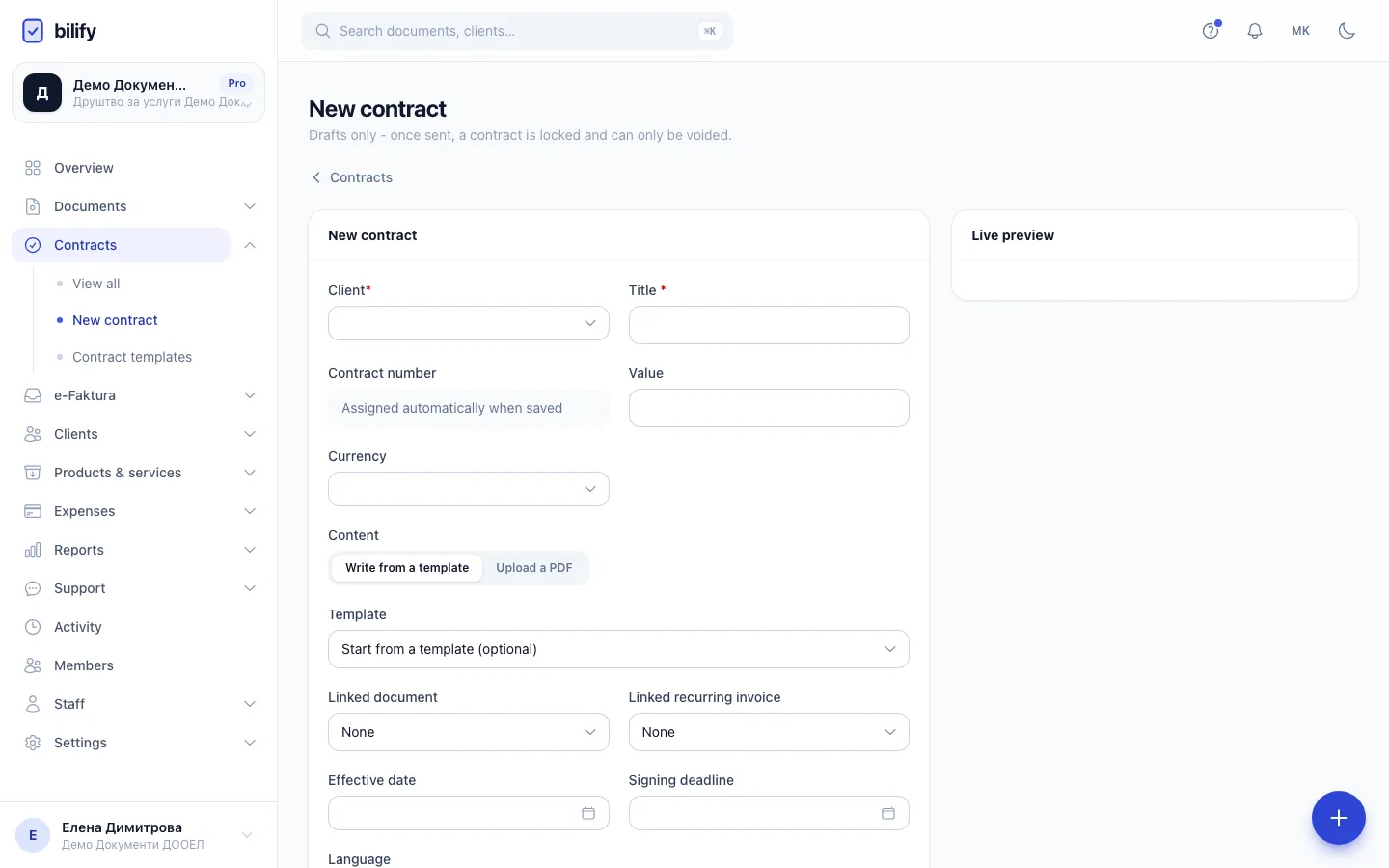
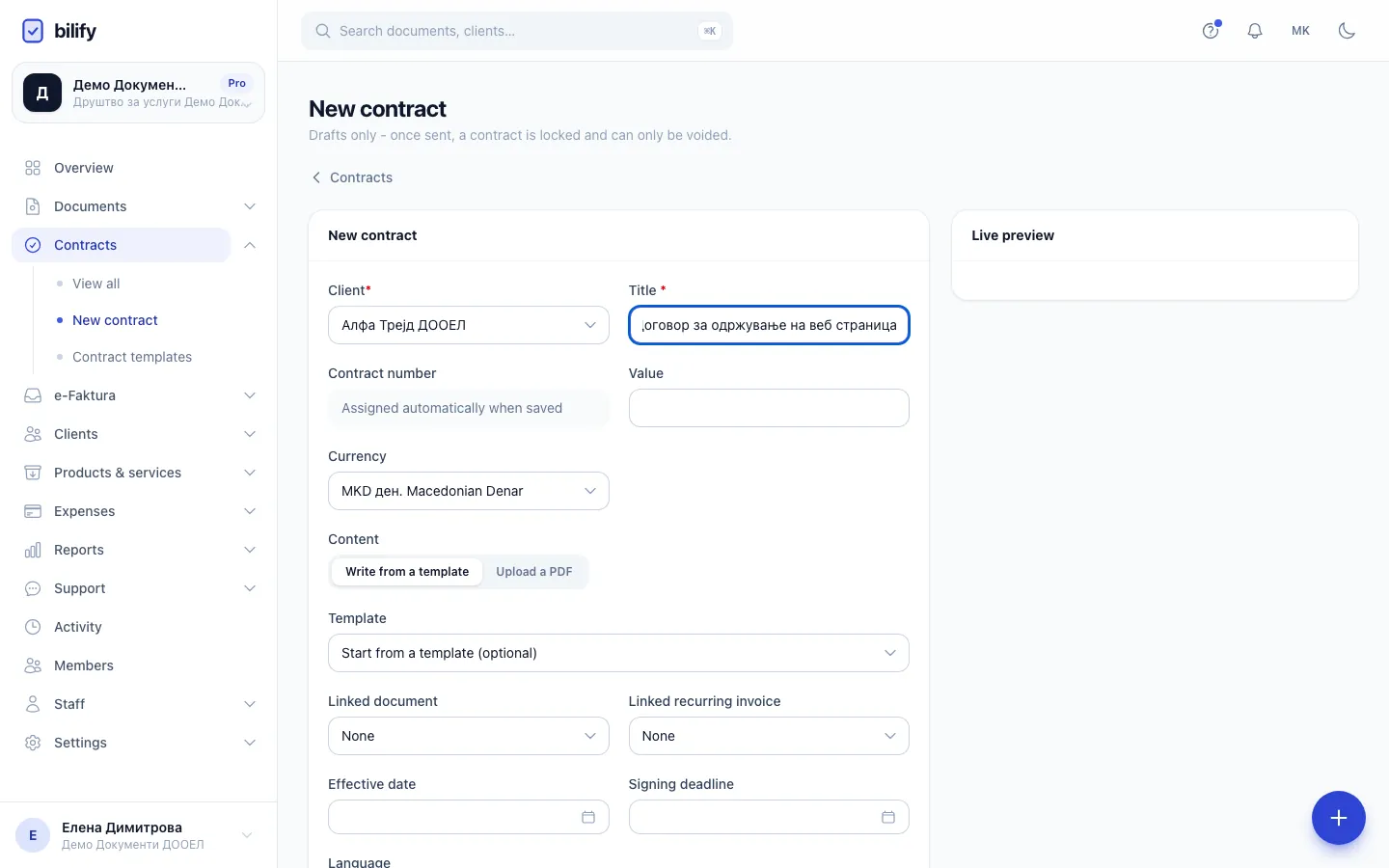
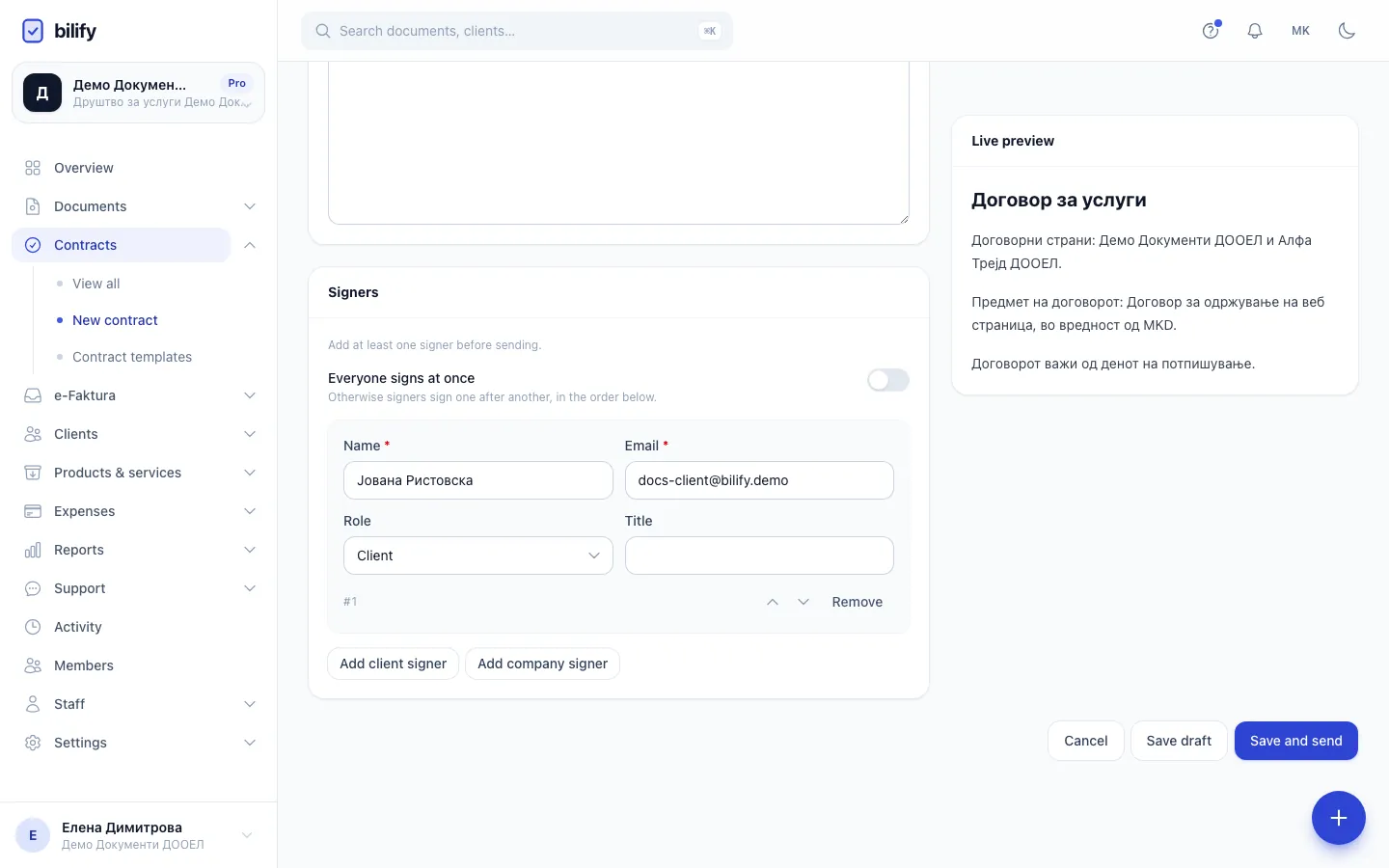
- Step 1: Choose the client. Their contact person is added as the first signer.
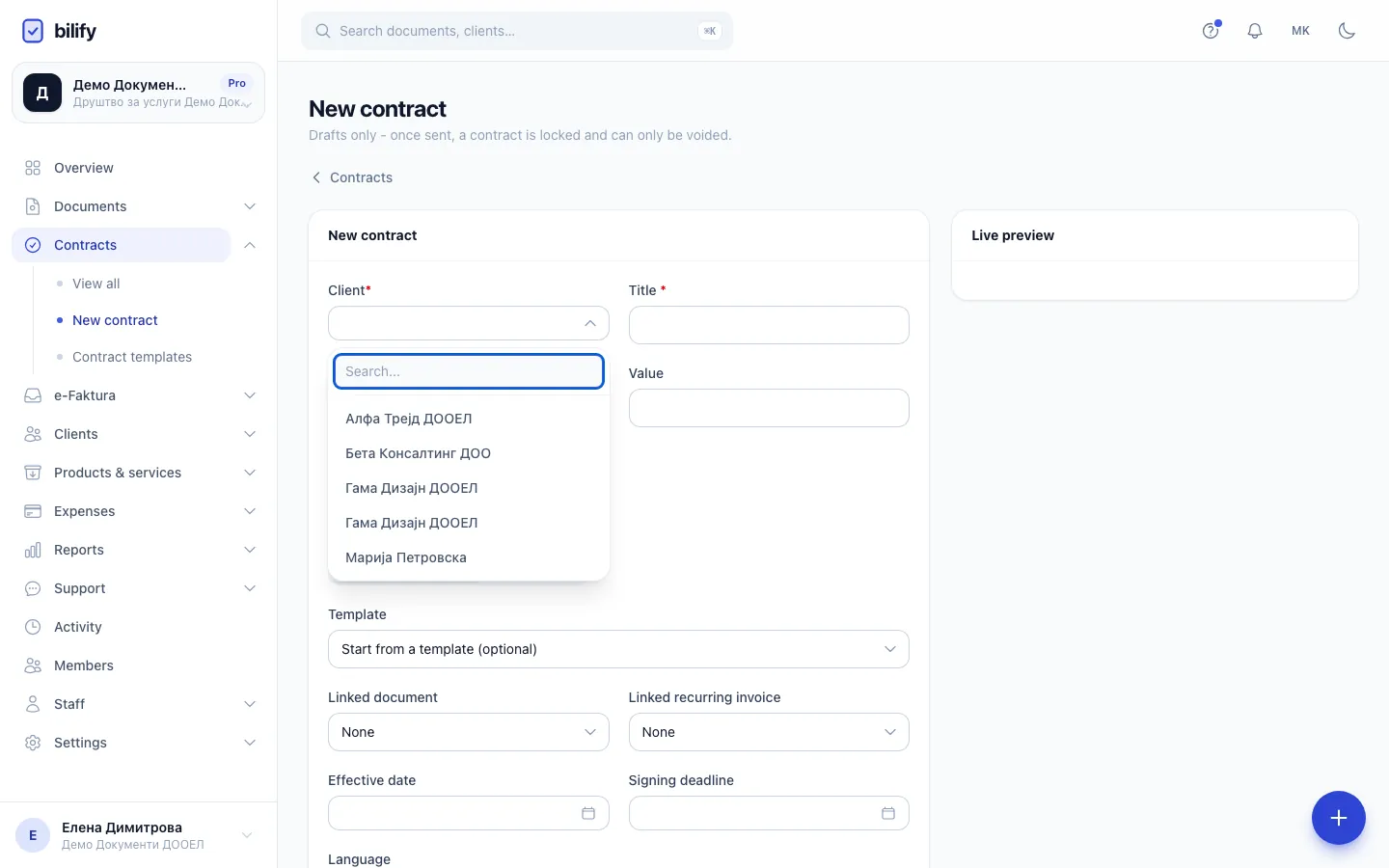
- Step 2: Type part of the client's name.
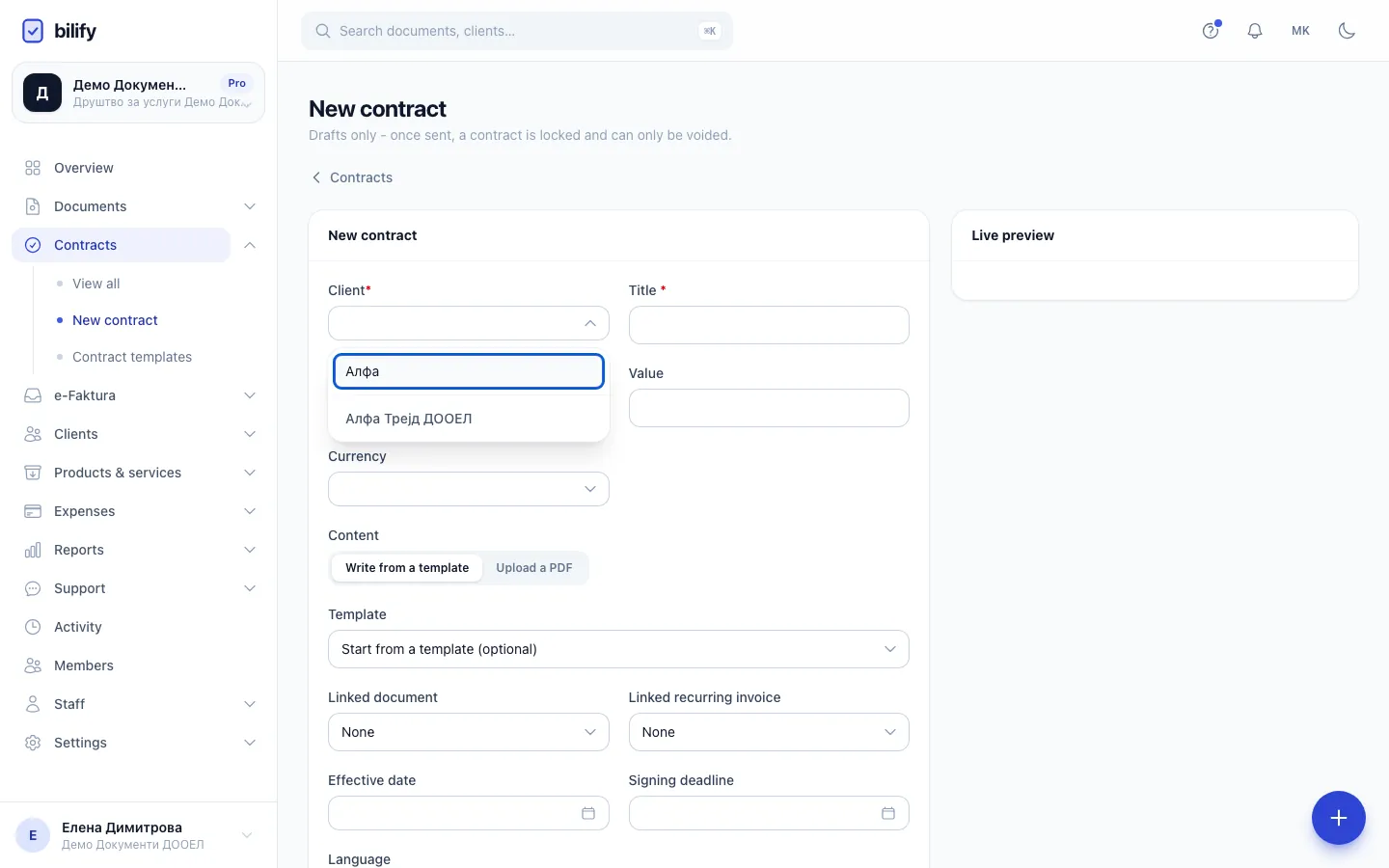
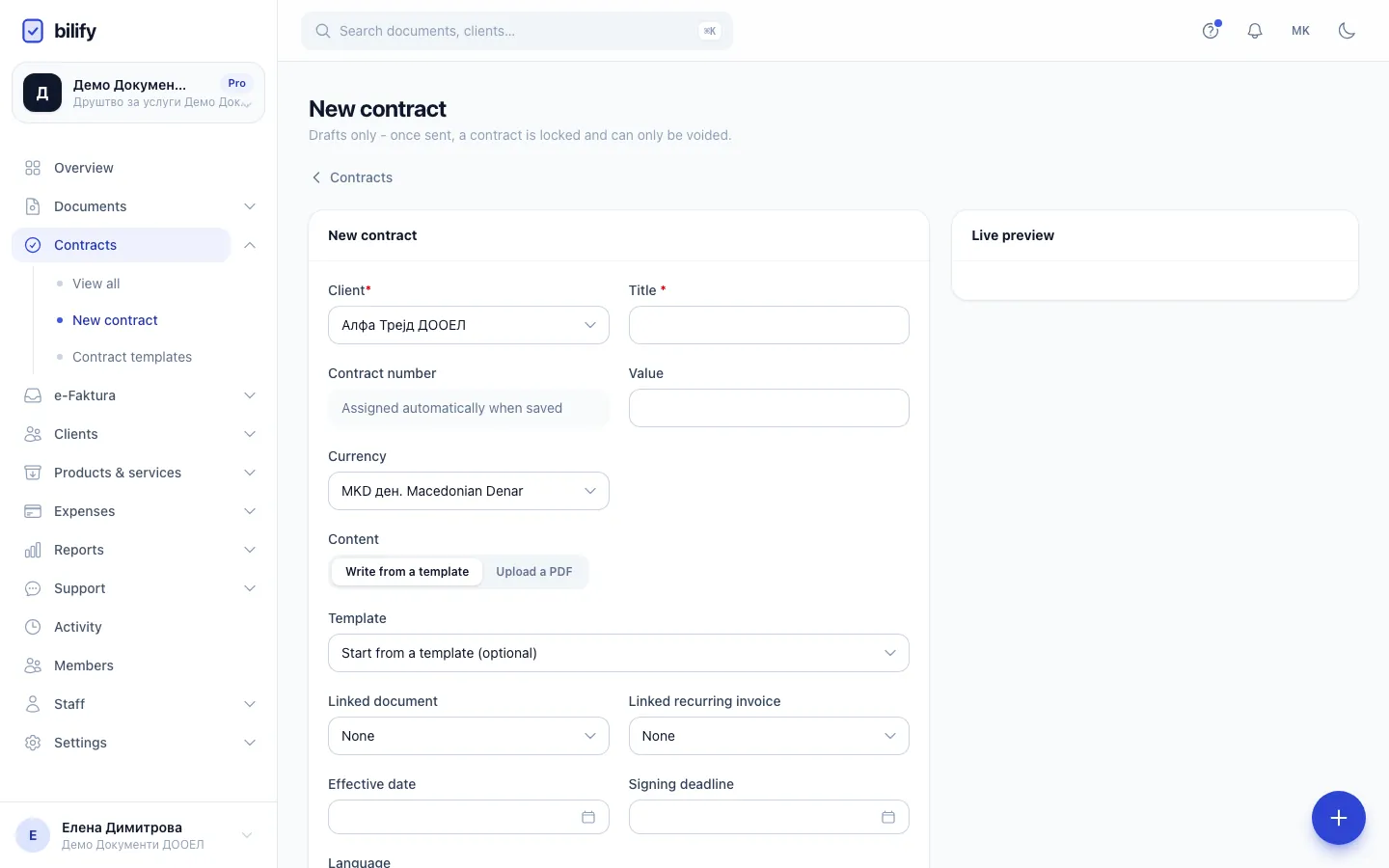
- Step 3: Select the client.
- Step 4: Enter the title the signers will see.
- Step 5: Start from a template so the text is ready.
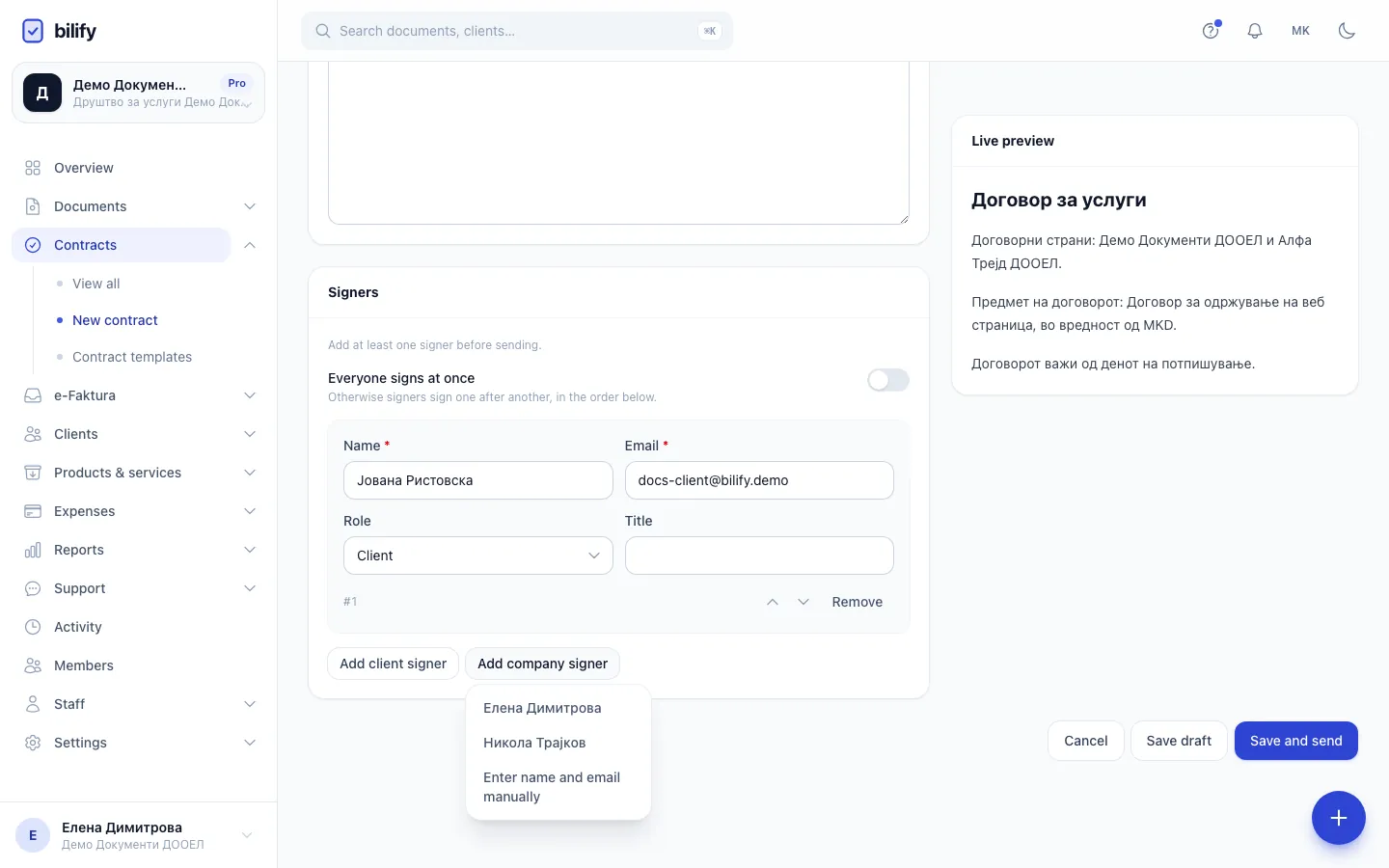
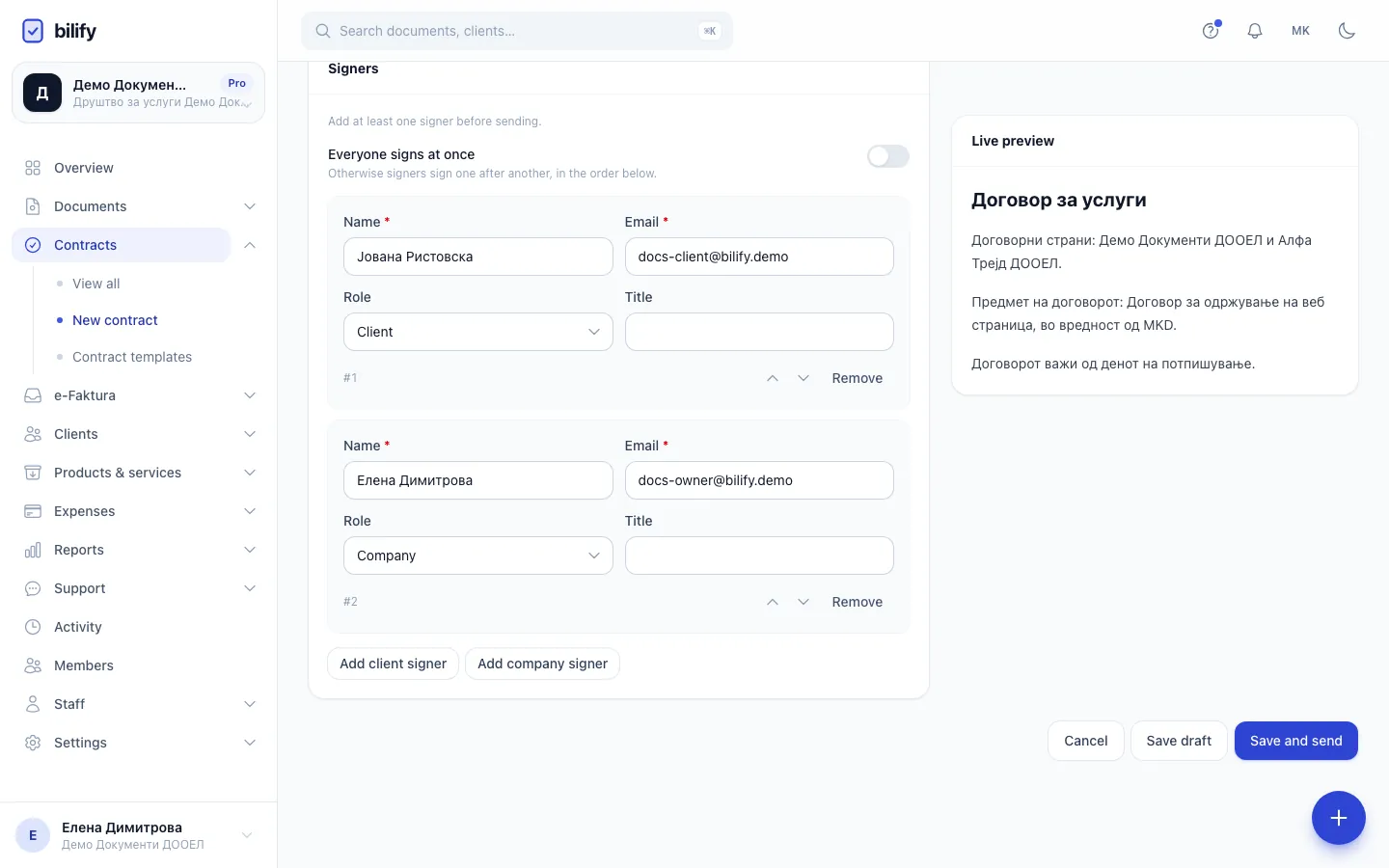
- Step 6: To countersign, add someone from your company as a second signer.
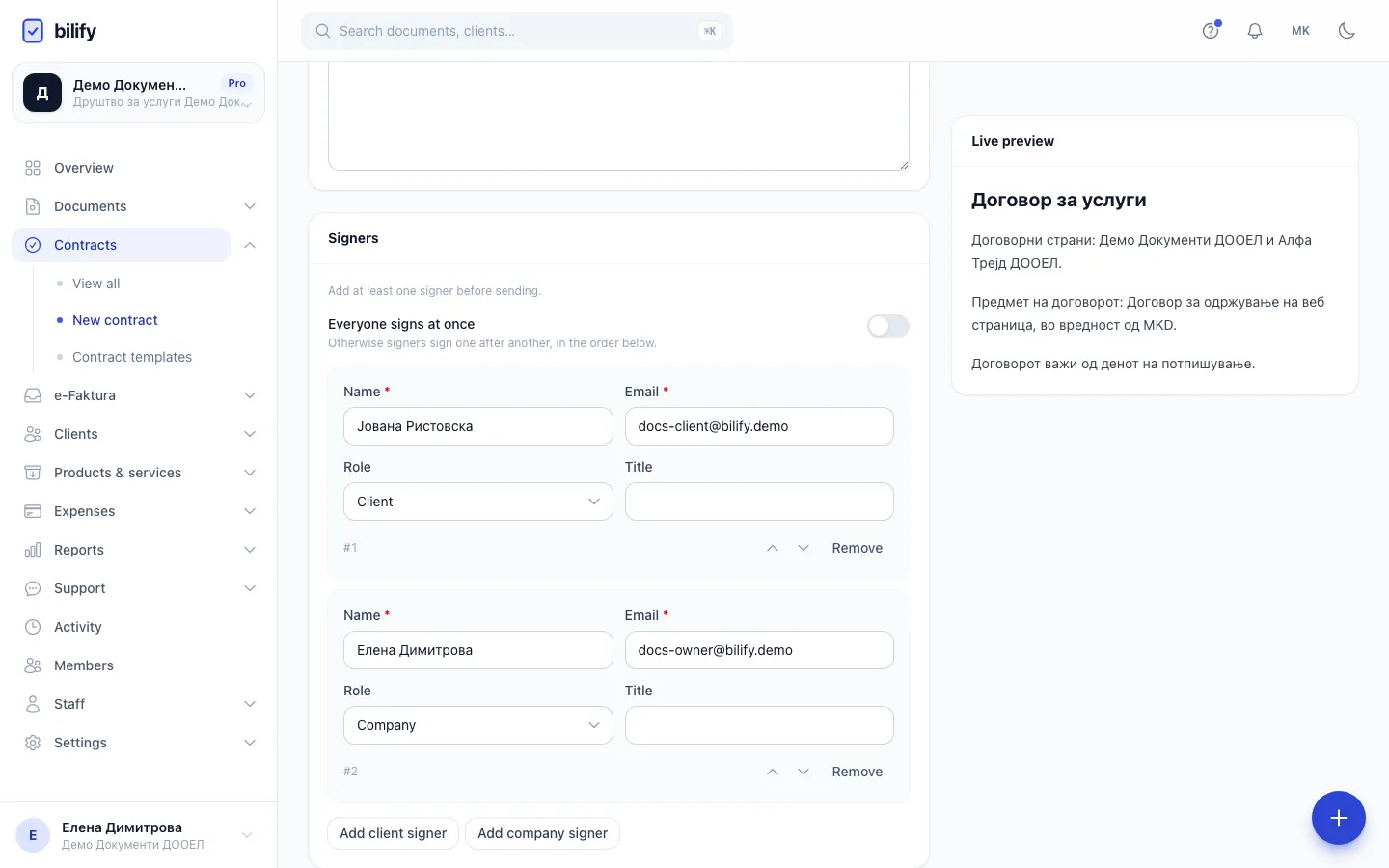
- Step 7: Pick a team member. They sign after the client, in the order of the list.
- Step 8: Signers sign one after another unless you switch on Everyone signs at once.
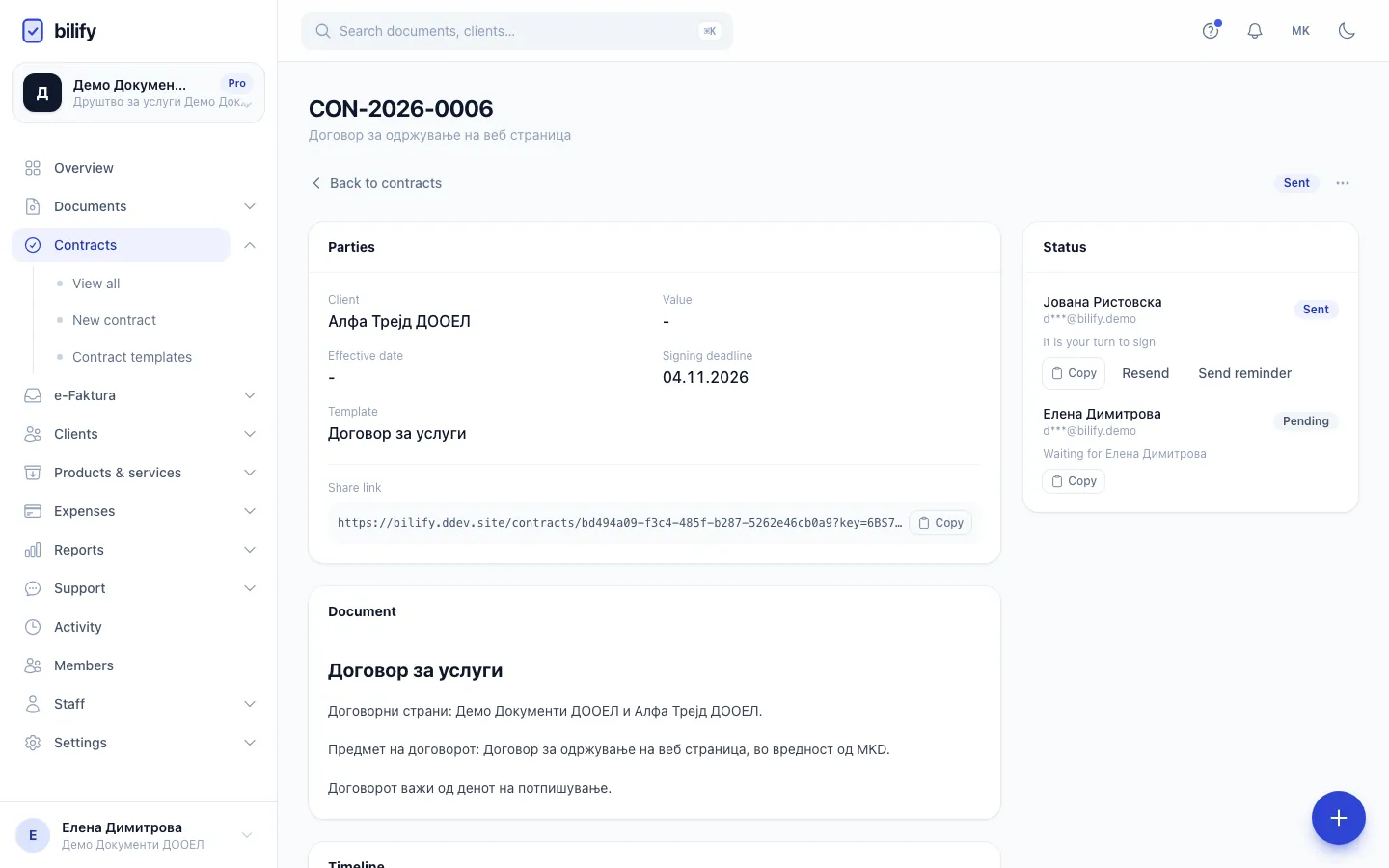
- Step 9: Save and send freezes the text and emails the first signer a personal signing link.
- Step 10: The contract is now Sent. The Status card shows each signer and whose turn it is.
- Open the draft (from Contracts, drafts open in the editor) or finish a new one.
- In Signers, check every Name and Email, and the order.
- Decide on the order (see below).
- Optionally write a Message to signers. It appears in the email.
- Click Save and send.
The contract opens on its own page with the status Sent.
Signing order
| Setting | What happens |
|---|---|
| Everyone signs at once off (default) | Signers sign one after another, in the order of the list (#1, #2, ...). Only the first signer is emailed at first. When they sign, the next one gets the email, and so on. |
| Everyone signs at once on | Every signer is emailed immediately and can sign in any order. |
A common sequence is the client first, then your director countersigns. Use the arrows next to each signer to change the order.
What the signers receive
Each signer whose turn it is gets an email Please sign: <title> (
On the signing page the signer reads the contract, confirms their identity with a 6-digit code sent to their email (valid for 10 minutes), and then draws their signature (on screen or on their phone via a QR code) or types their name. They can also decline, with an optional reason. The client-side steps are explained in Sign a contract.
What kind of signature this is
Bilify uses a simple electronic signature: identity is confirmed by a one-time code to the signer's email, and the signature is drawn or typed. The sealed PDF says so in its audit section. It is not a qualified electronic signature.
Share a link yourself or sign on the spot
On the contract page, each signer in the Status card has:
- Copy: copies that signer's personal signing link, so you can send it through another channel (chat, SMS). Send it only to that person. The verification code still goes to the signer's own email address, so they need access to it.
- Sign now: shown when you yourself are a company signer and it is your turn. It opens your signing page. Your turn also appears on the dashboard under Awaiting your signature, and you get a notification.
Under Parties, the Share link is a read-only view of the contract and its signer statuses, without a way to sign. It is handy for someone who only needs to see it.
After the last signature
- The contract status changes to Signed.
- Bilify seals the final PDF: the contract (or your uploaded PDF) followed by a signature and audit appendix with each signer's name, email, role, IP address, browser and the times they viewed, verified and signed, plus a SHA-256 fingerprint of the document.
- The signed PDF is emailed to every signer, to the client's email address and to the person who sent the contract.
- Download signed PDF appears on the contract page, and the contract is available to the client in the client portal.
The person who sent the contract gets an email each time someone signs, if anyone declines, and when the contract is complete. The roles chosen under Settings > Notifications > Contracts also get a notification in the app. Follow progress as described in Track signatures.
Was this page helpful?
Related articles
Still stuck?
Write to us and we will get back to you within one working day.