Offers and pro-forma invoices
Send a Понуда or Про-Фактура before the real invoice, use your own numbering for them, and see when a client accepts an offer in the portal.
A Offer is a price proposal. A Pro-Forma Invoice is a pre-invoice, often sent so the client can pay in advance. Neither is a fiscal document, so they are more flexible than a Invoice. When the client agrees, you convert them into an invoice.
Create an offer or pro-forma
- Open Documents and click New document.
- Choose Offer or Pro-Forma Invoice as the Document type. (In English the types are called Offer and Pro-Forma Invoice.)
- Fill in the client, payment method and lines as for any document. See Create an invoice.
- Click Save draft, then Issue when it is ready.
Compared with a Invoice:
- the Due date is optional;
- they never reduce stock;
- they are not sent to UJP;
- they can have a custom number (below).
Use your own number
Offers and pro-formas take their number from the numbering series bound to their type, like every document. If you prefer to number them yourself, for example to match a number agreed with the client:
- On the draft, find Custom number under the number preview.
- Type the number, for example
PONUDA-2026-001. - Leave it empty to use the automatic number.
Bilify checks that no other document in your company already has that number, when you save and again when you issue. The field appears only for non-fiscal types and only for people who can issue documents.
A separate series for offers
Many companies number offers and pro-formas in their own series, for example П-2026-001, so the gap-free invoice series is not interrupted. Set this up under Settings > Document types and Numbering. See Numbering series.
When the client accepts an offer
Clients with portal access see issued offers under Offers in the client portal, with an Accept offer button. When they accept:
- the offer shows "You accepted this offer on [date]" to the client;
- an "accepted an offer" entry is added to the document's Activity.
Bilify does not notify you by email, and accepting does not create an invoice. Check the offer's Activity, then convert it yourself.
Turn it into an invoice
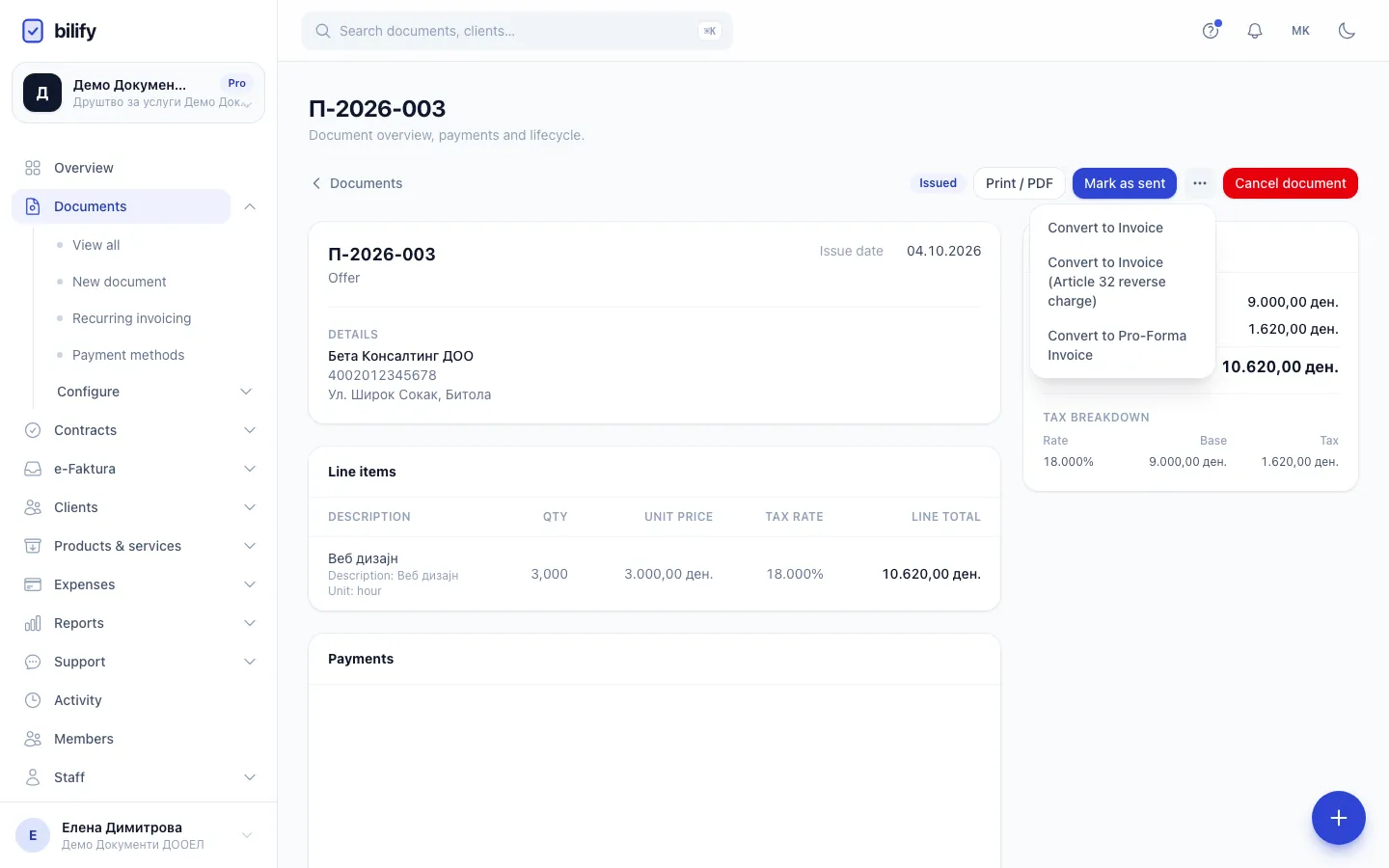
Open the issued offer or pro-forma, click the actions menu (...) and choose Convert to Invoice (or another allowed type). An offer can also become a Pro-Forma Invoice or an Invoice (Article 32 reverse charge); a pro-forma can also become an Advance Invoice or an Invoice (Article 32 reverse charge). Only types your company has switched on are offered. Bilify creates a new draft with the same client and lines and leaves the original untouched. See Convert documents.
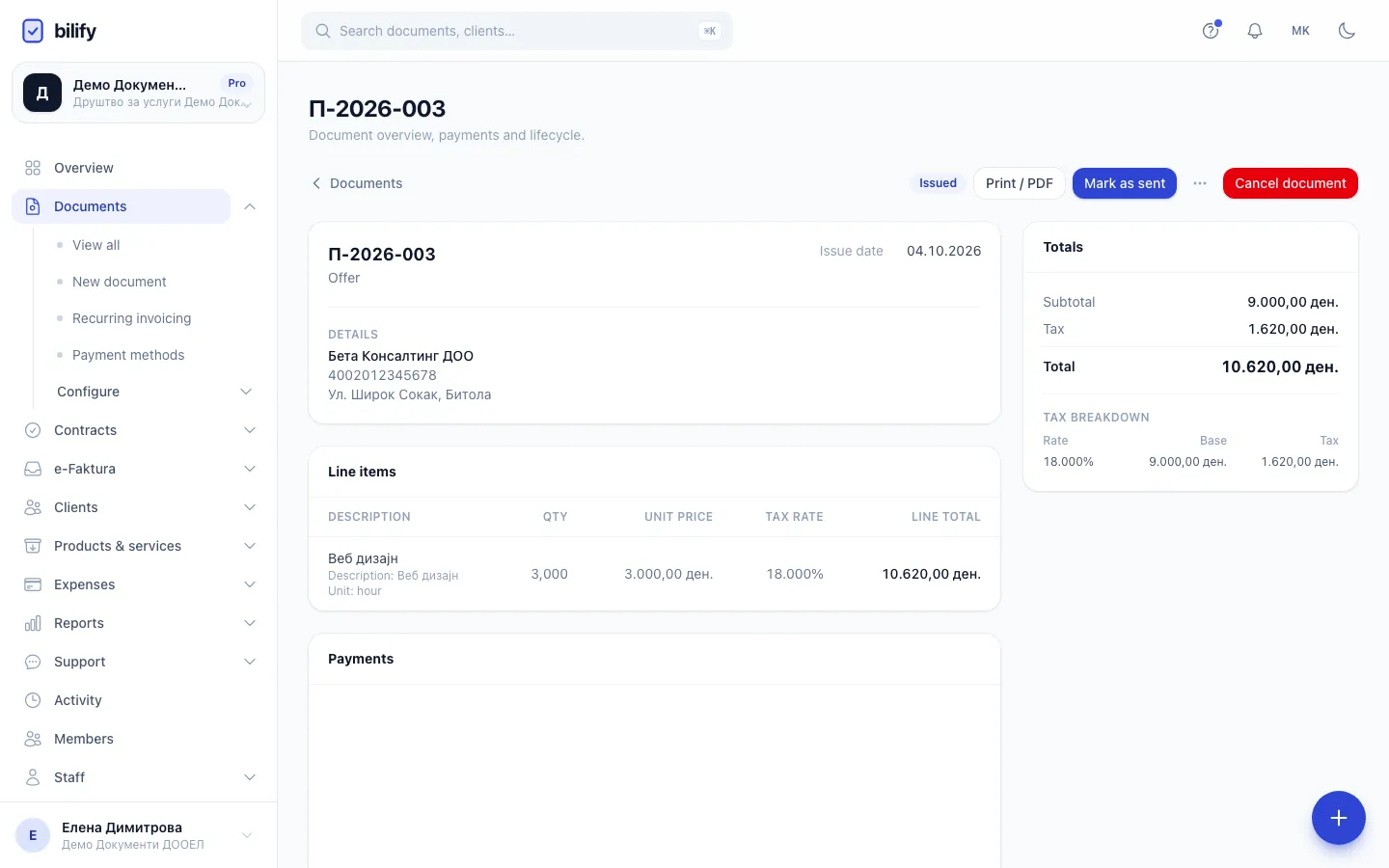
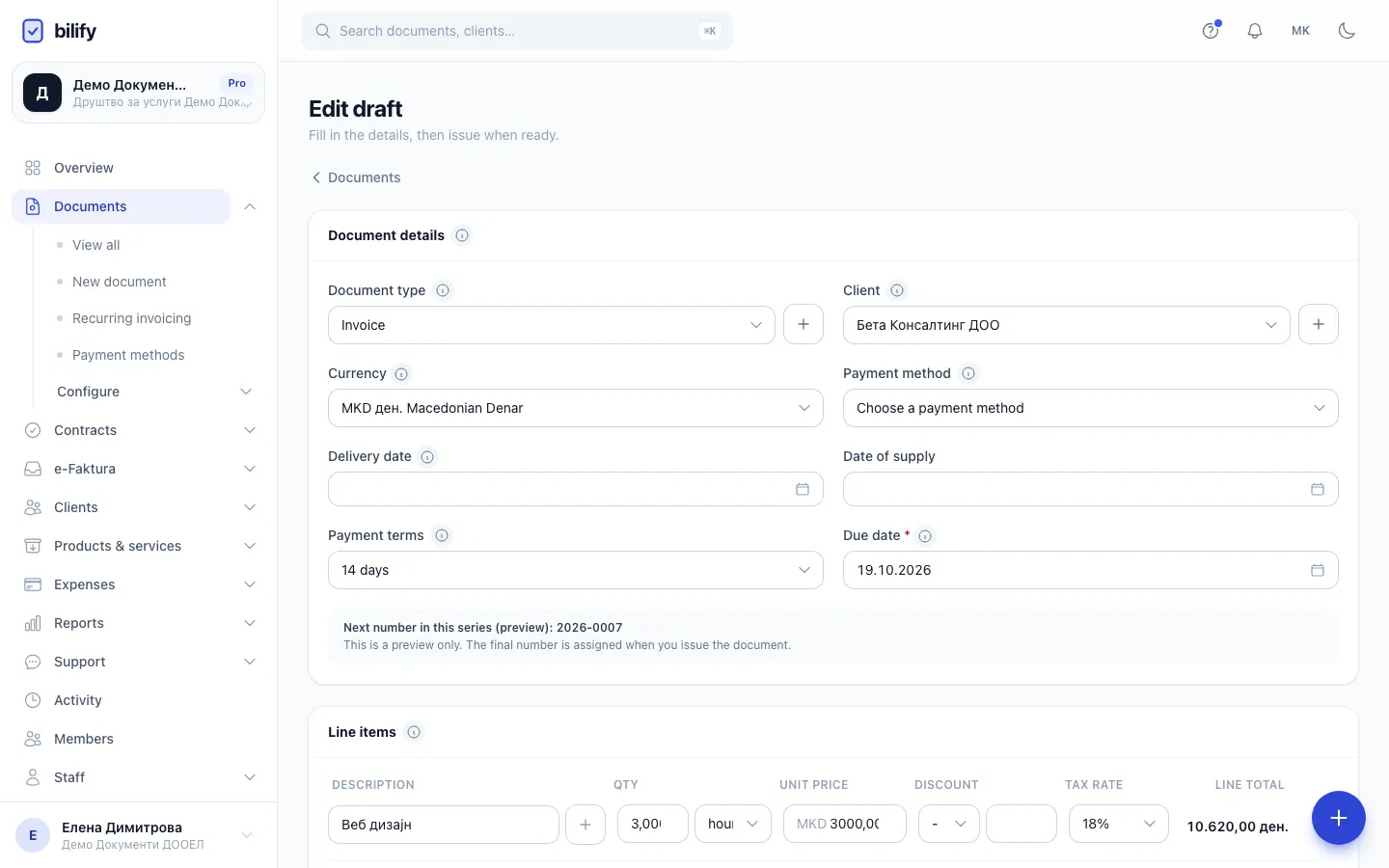
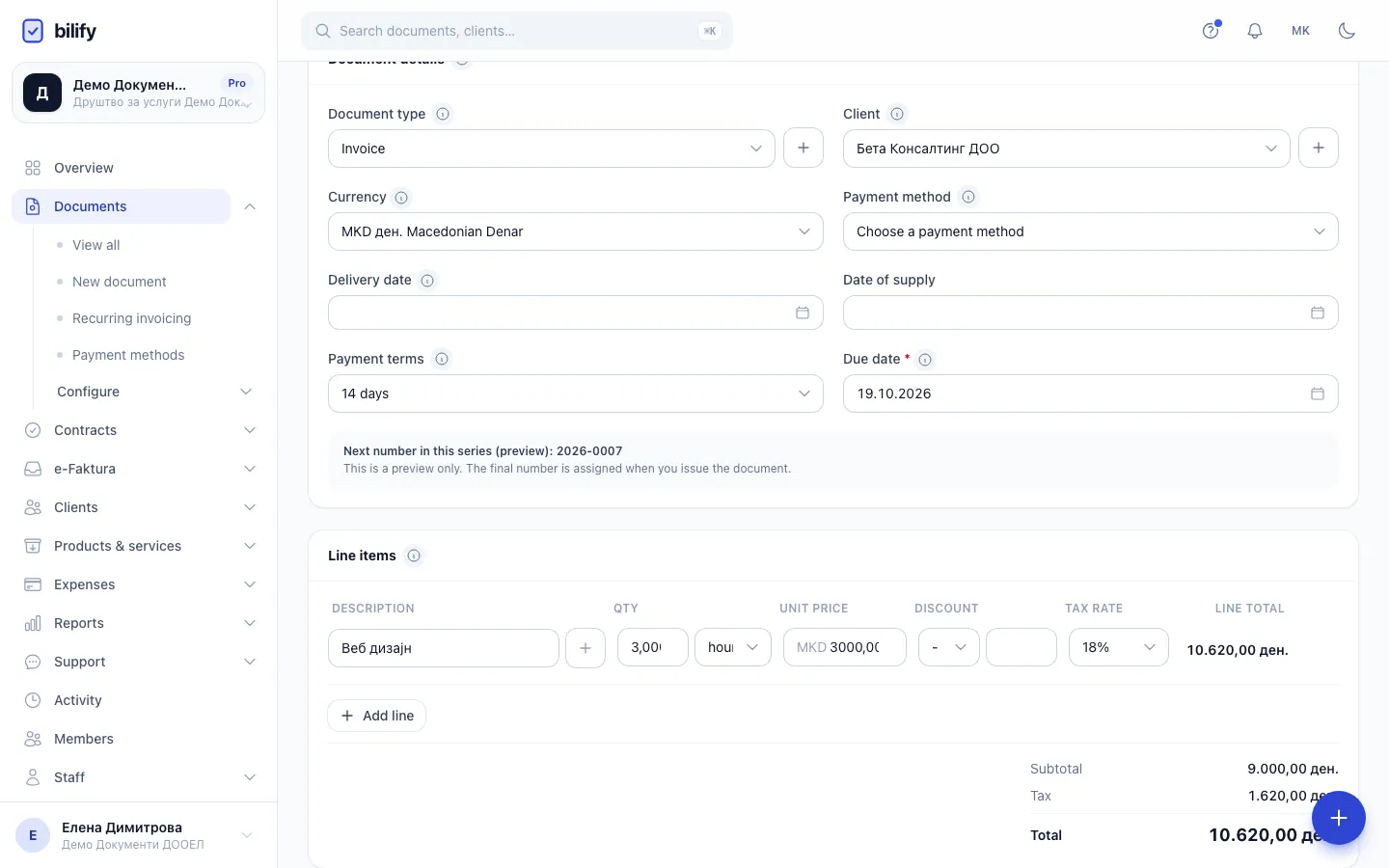
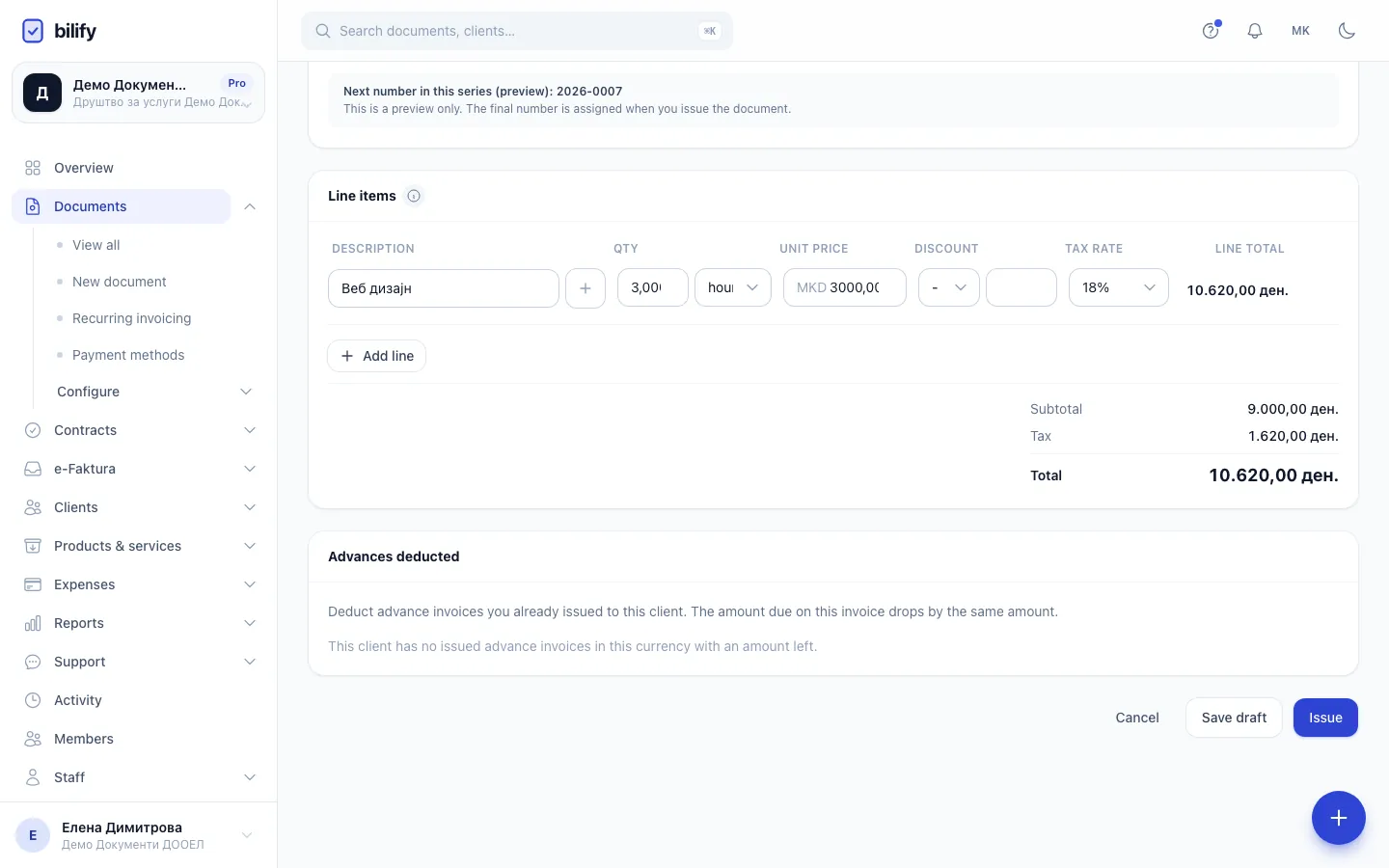
- Step 1: Open the issued offer and click the actions menu next to the buttons at the top.
- Step 2: Choose Convert to Invoice. Only the conversions allowed for this type are listed.
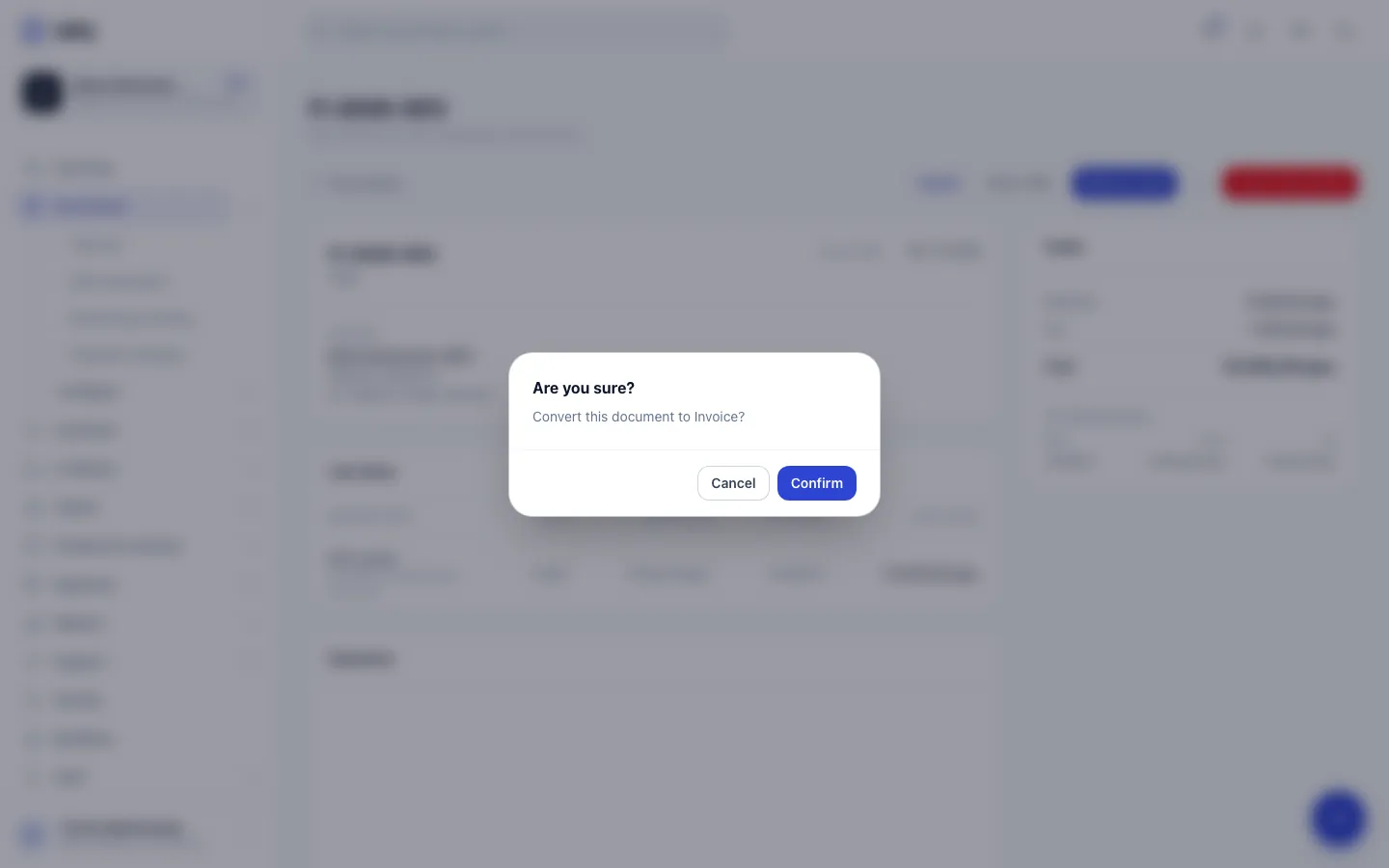
- Step 3: Confirm. Bilify creates a new draft and leaves the offer unchanged.
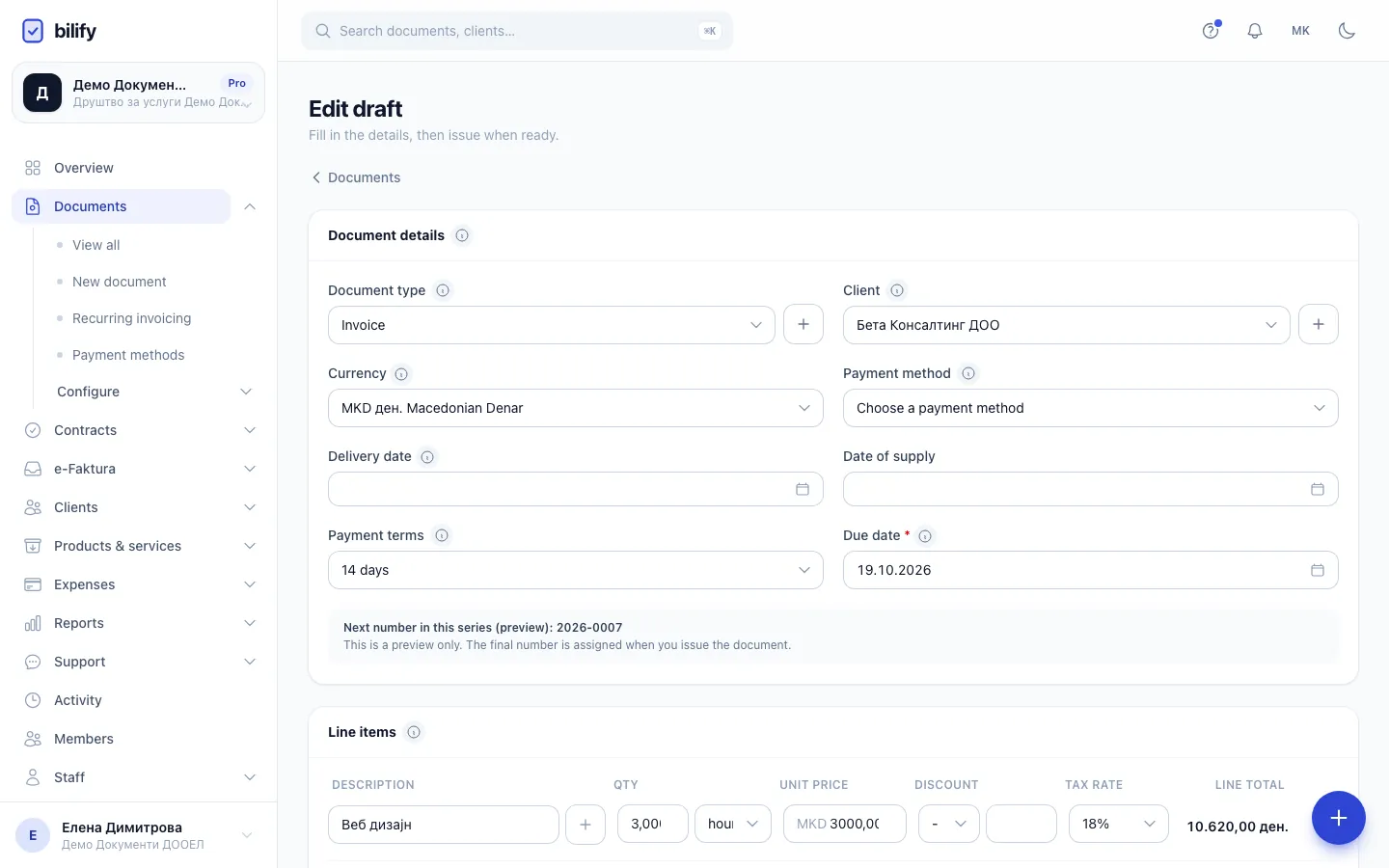
- Step 4: The client and currency are copied from the offer.
- Step 5: The payment method is not copied. Choose the account the client should pay to.
- Step 6: All lines are copied. Adjust anything that changed since the offer.
- Step 7: Issue the invoice when it is ready. Until then it is an ordinary draft.
Payments go on the invoice
Offers and pro-formas never take payments: they have no Record payment or Payment link button, and the portal shows no Pay now on them. If a client pays a pro-forma, convert it into an invoice and record the payment there. If the payment is a prepayment before delivery, convert the pro-forma into an Advance Invoice instead and deduct it later on the final invoice. See Advance invoices.
Was this page helpful?
Related articles
Still stuck?
Write to us and we will get back to you within one working day.