Track signatures
Follow a sent contract: what each contract and signer status means, the timeline, resending links and reminding the signer whose turn it is.
After you send a contract, its page shows who has signed, who is next and everything that has happened so far. This article explains what you see and what you can do while you wait.
Find your contracts
Contracts lists every contract with Number, Title, Client, Value, Status and Sent. The cards at the top count Awaiting signature, Signed this month, Declined / expired and Drafts. Click Awaiting signature, Signed this month or Drafts to filter the list (click again to clear the filter). You can also search by number, title or client and filter by status, client and year.
To get a spreadsheet, tick contracts and click Export (CSV).
Contract statuses
| Status | Meaning |
|---|---|
| Draft | Not sent yet. Opens in the editor. |
| Sent | Sent; nobody has opened their link yet. |
| Viewed | At least one signer has opened the signing page. |
| Partially signed | Some signers have signed, others are still to sign. |
| Signed | Everyone signed. The sealed PDF is available. |
| Declined | A signer declined. Nobody else can sign. The reason, if given, is shown under Parties. |
| Expired | The signing deadline passed before everyone signed. |
| Voided | You cancelled the contract. |
Sent, Viewed and Partially signed count as open (Awaiting signature). Signed, Declined, Expired and Voided are final: nothing further can happen to the contract.
Follow a contract
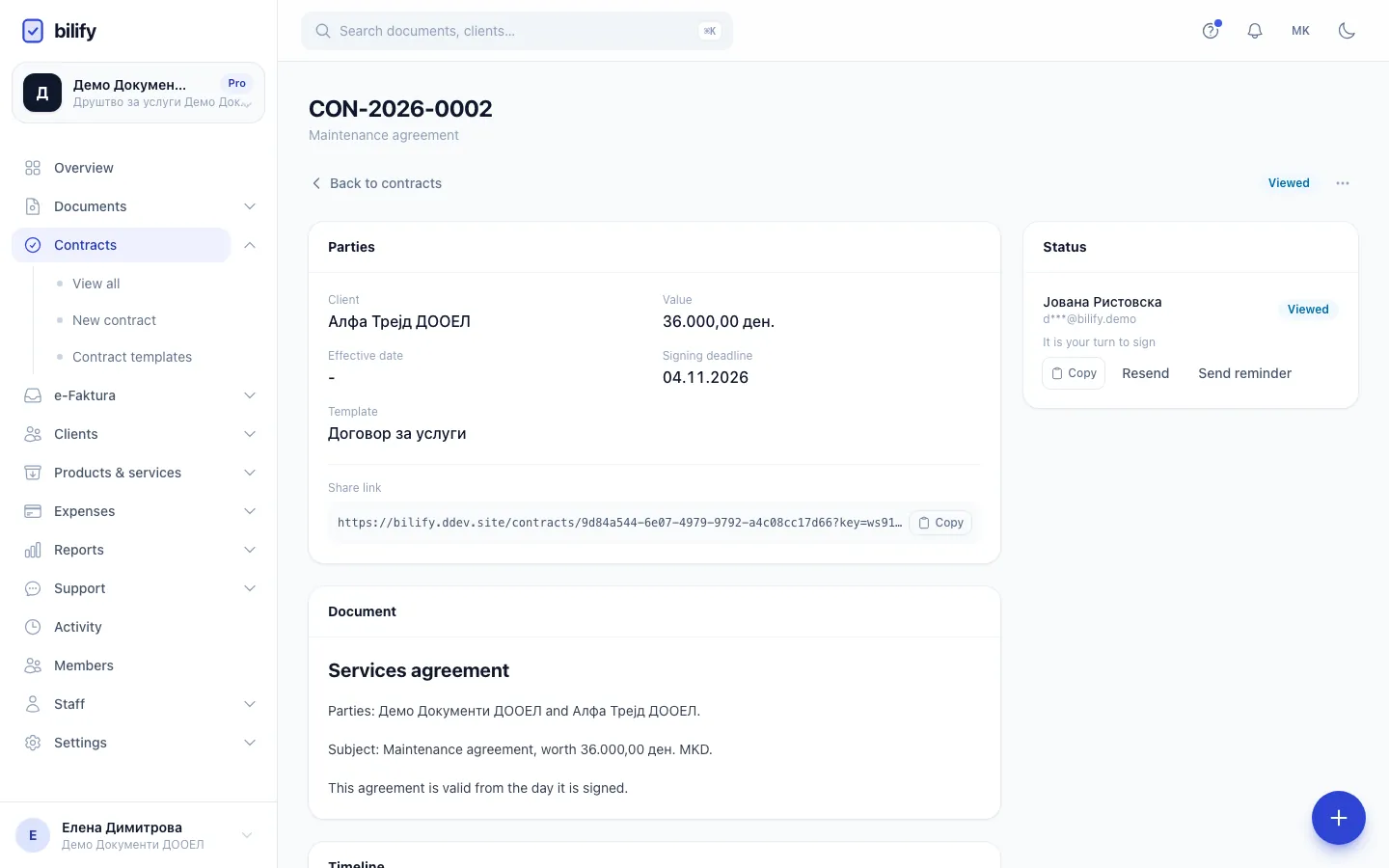
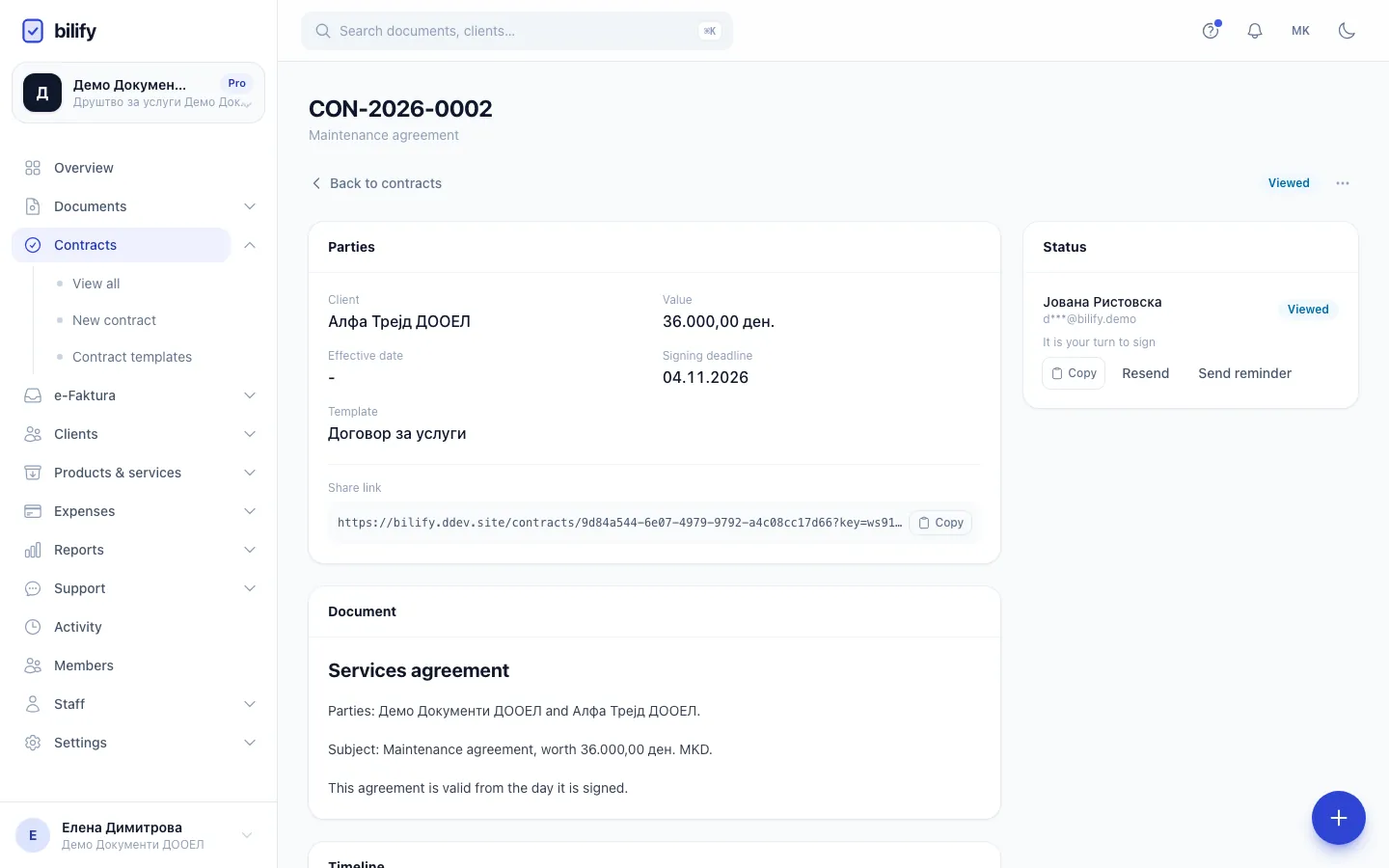
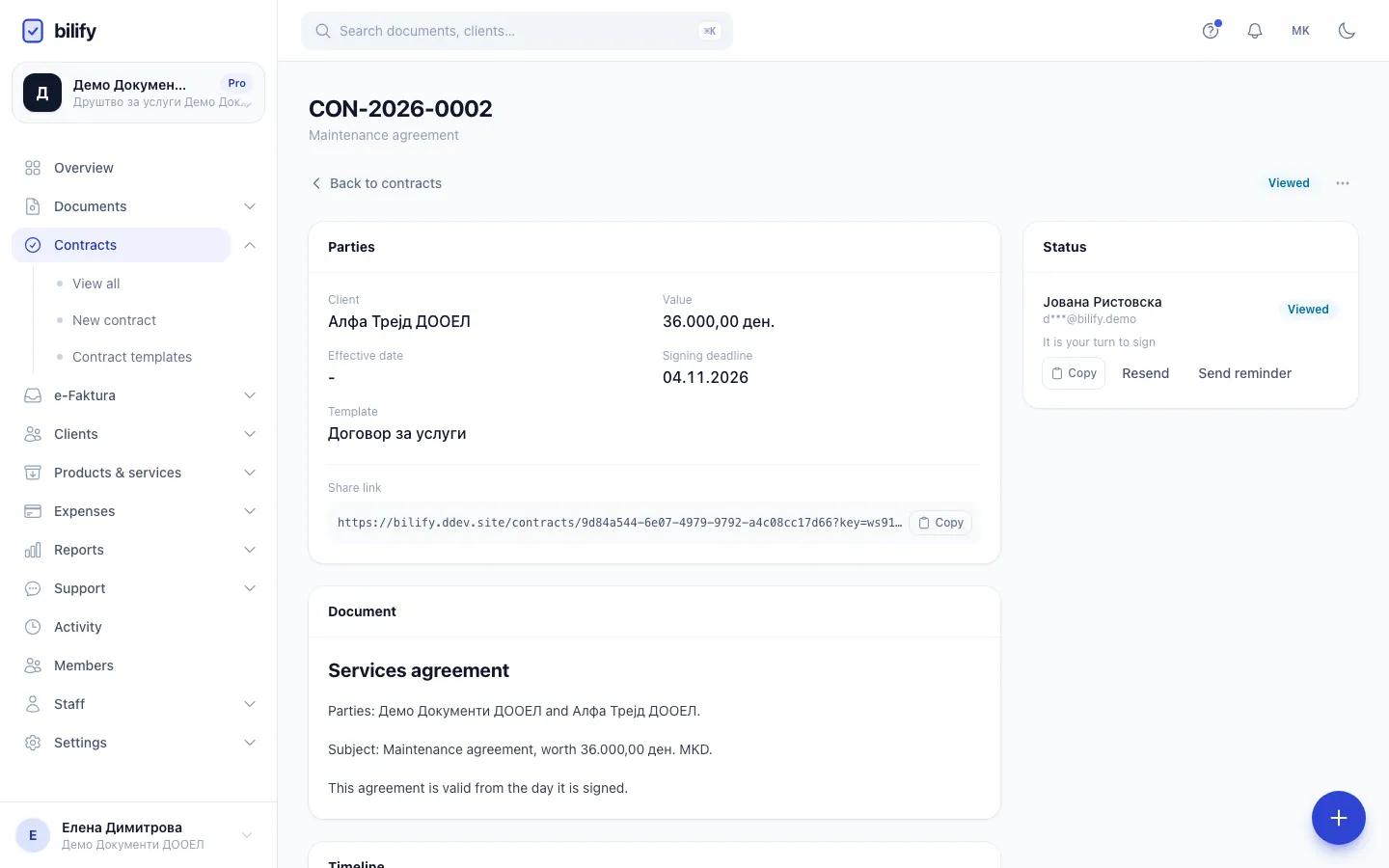
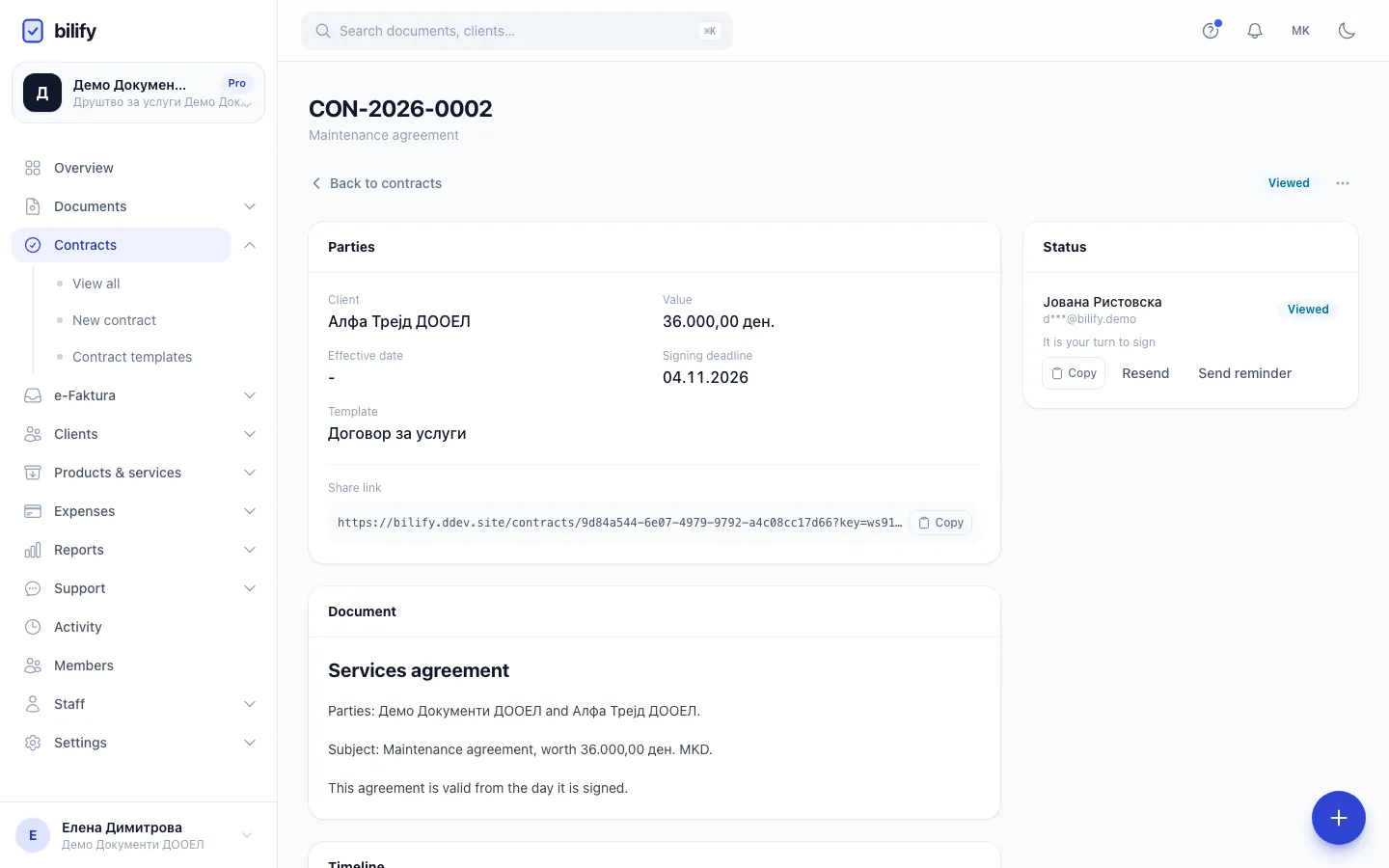
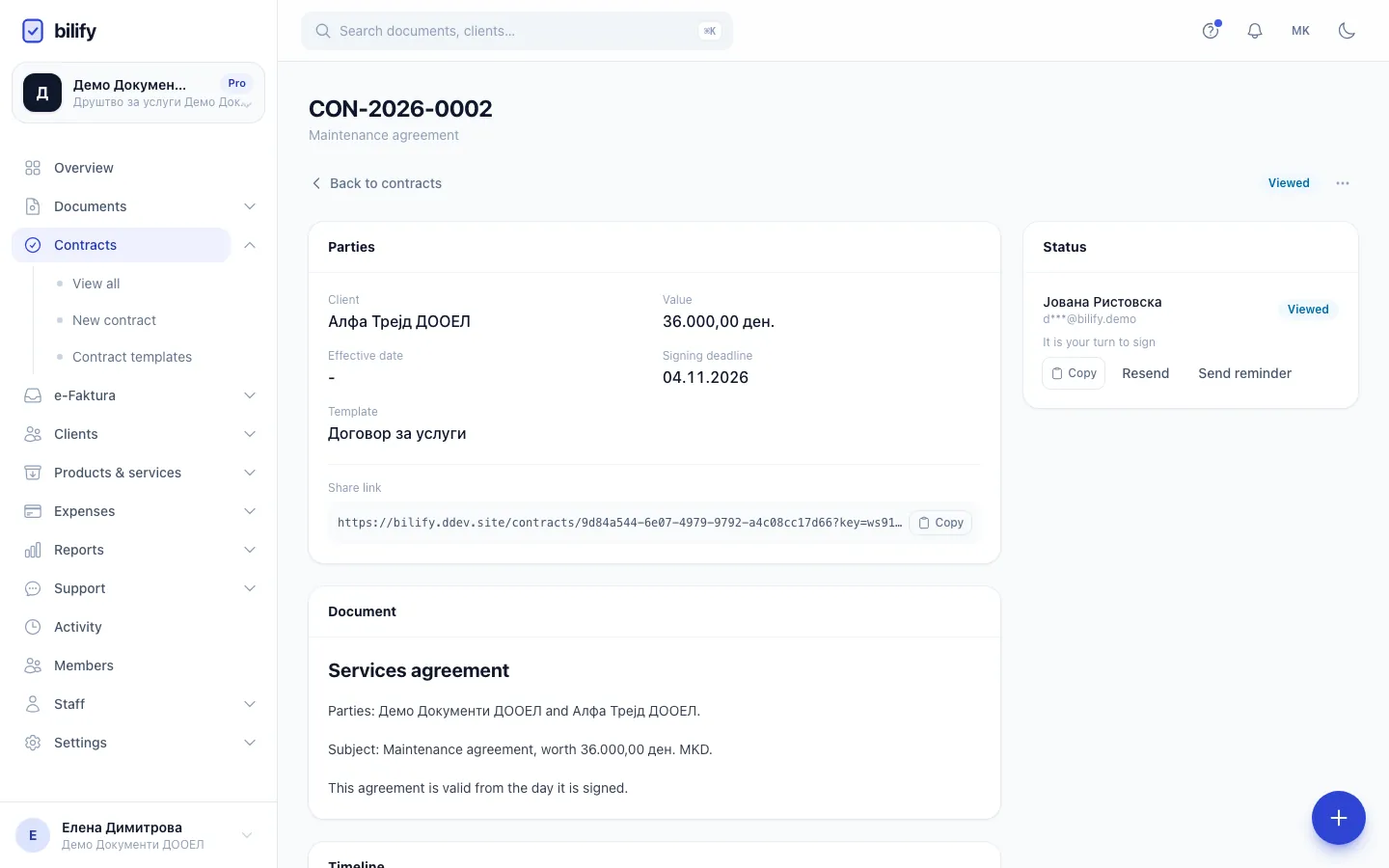
- Step 1: The badge shows the contract status, from Sent and Viewed to Signed.
- Step 2: Status lists every signer with their own status, so you see who is next.
- Step 3: Send reminder emails the signer whose turn it is. Resend sends the original email again.
- Step 4: Copy takes the signer's personal link, to send it through another channel.
- Step 5: The share link opens a read-only view of the contract and its signers, without signing.
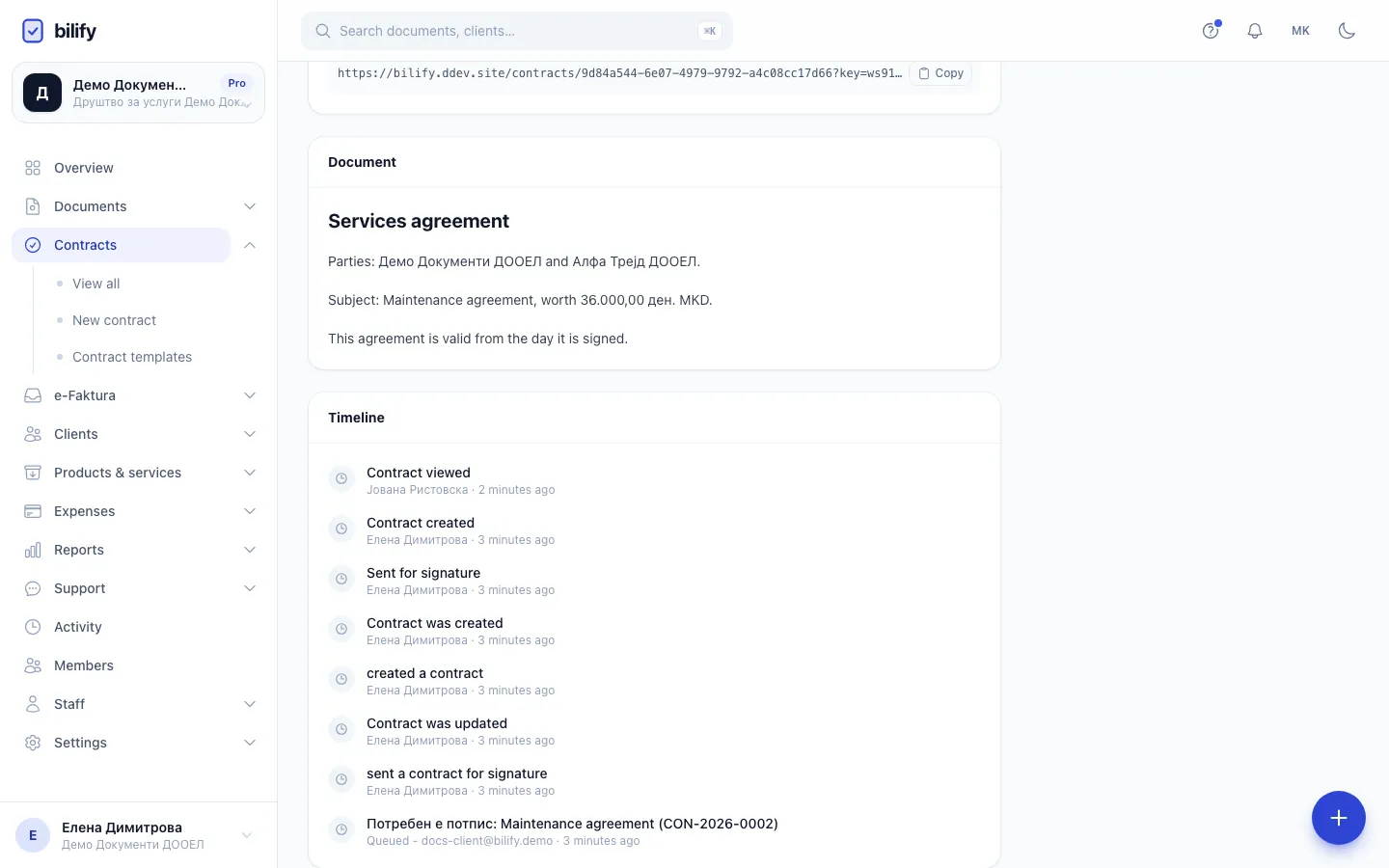
- Step 6: The timeline records every step, including views, code checks, reminders and emails.
Open the contract from the list. The page has:
- The status badge at the top, with Download signed PDF once it is signed (and Download original PDF for an uploaded contract).
- Parties: client, value, effective date, signing deadline, linked document and template, and the Share link (a read-only view of the contract and its signers).
- Document: the contract exactly as it was sent.
- Timeline: every step so far, for example Sent for signature, Contract viewed, Verification code requested, Verification code confirmed, Incorrect verification code entered, Signed, Reminder sent, Signing link resent, Declined, Contract expired, Contract voided, Sealed and archived, Signed copy delivered. Each line shows the signer or team member involved and when it happened. Emails sent for the contract also appear, with their delivery status and recipient.
- Status (on the right): every signer with name, a partly hidden email, and their own status.
Signer statuses
| Status | Meaning |
|---|---|
| Pending | Not their turn yet (in a one-after-another order); no email sent so far. |
| Sent | Signing email sent; not opened yet. |
| Viewed | Opened the signing page. |
| Signed | Signed. |
| Declined | Declined to sign. |
Nudge the signer whose turn it is
For the signer currently expected to sign, the Status card offers (with the contracts send permission):
- Resend: sends the original signing email again, for example after they say they cannot find it. Logged as Signing link resent.
- Send reminder: sends a reminder email ("Reminder: please sign ..."). The card then shows Last reminder sent with the date.
- Copy: copies the signer's personal link to share through another channel.
These buttons only appear for the signer whose turn it is, and only while the contract is open. Automatic reminders are explained in Reminders and expiry.
When something goes wrong
| Situation | What to do |
|---|---|
| The signer did not get the email | Check the email address in the Status card and the timeline entry for the email. Use Resend, or Copy the link and send it yourself. If the address was wrong, void the contract and send a corrected copy. |
| A signer declined | The contract is closed. Read the reason under Parties, then use Duplicate as draft in the menu (three dots), adjust and send again. |
| The deadline passed | The contract is Expired. Use Duplicate as draft, set a new Signing deadline and send again. |
| You need to change the text | A sent contract cannot be edited. Void it, duplicate it and send the new version. |
Duplicate as draft creates a new draft with the same client, title (marked "(copy)"), text or PDF, value, currency, language, message and signers, with a new contract number. It works from any contract, including signed ones.
Was this page helpful?
Related articles
Still stuck?
Write to us and we will get back to you within one working day.