Schedule reports
Have a report generated and emailed automatically every week, month, quarter or year, to your team or to your accountant.
A schedule runs a saved report on a fixed rhythm and emails it to the people you choose, for example your monthly figures to your accountant on the 1st of every month. Each report has at most one schedule, and you set it on the report itself.
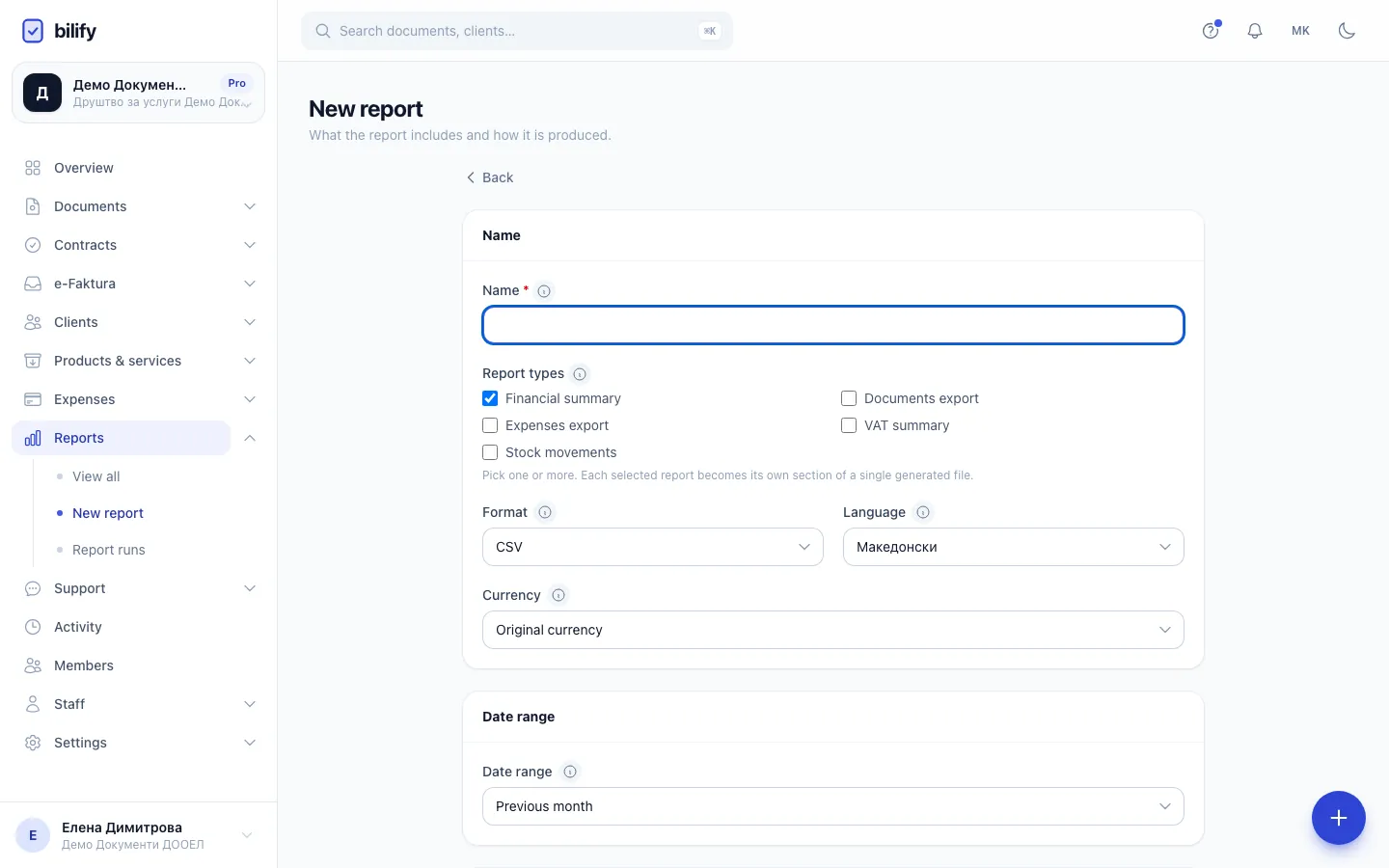
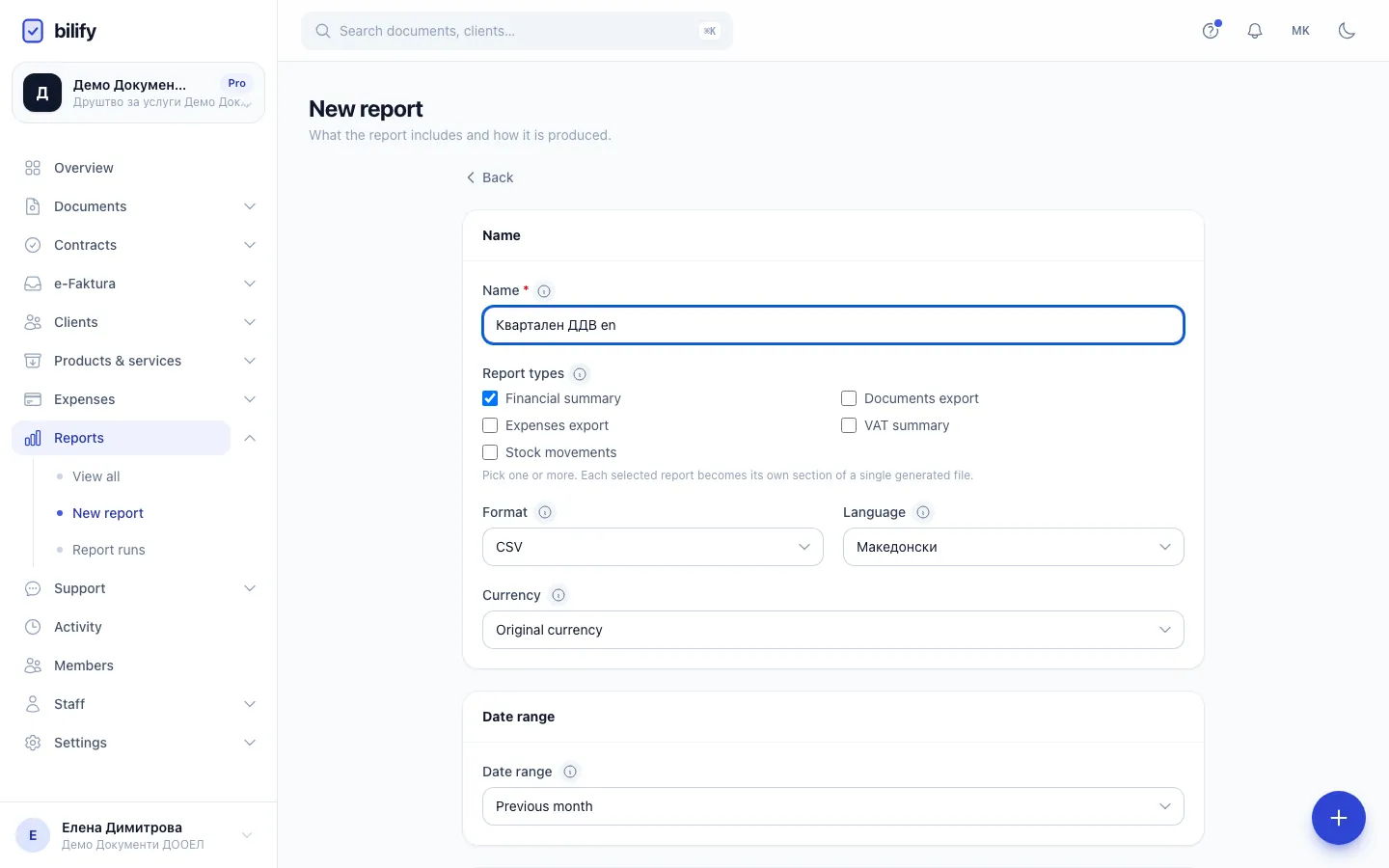
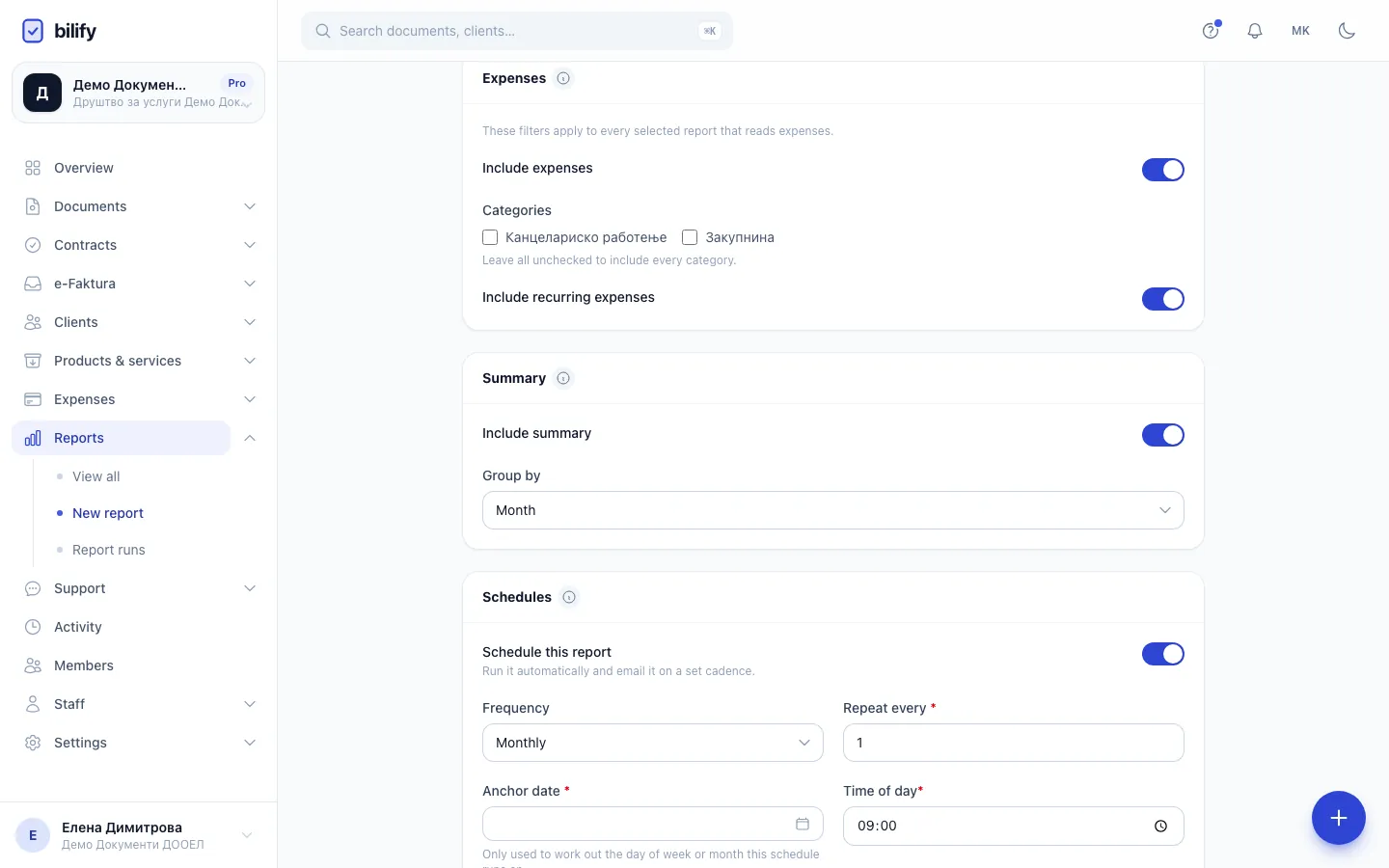
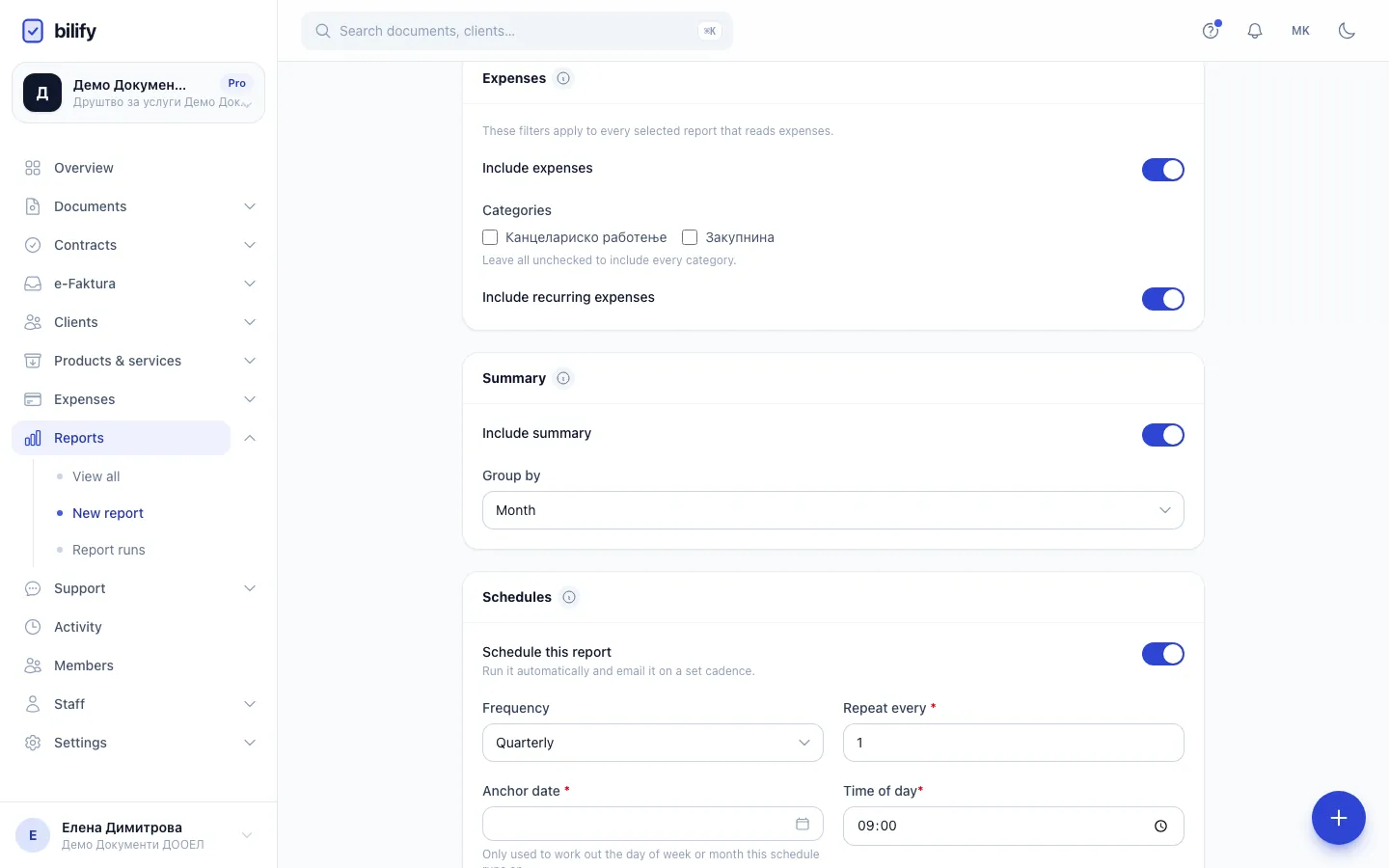
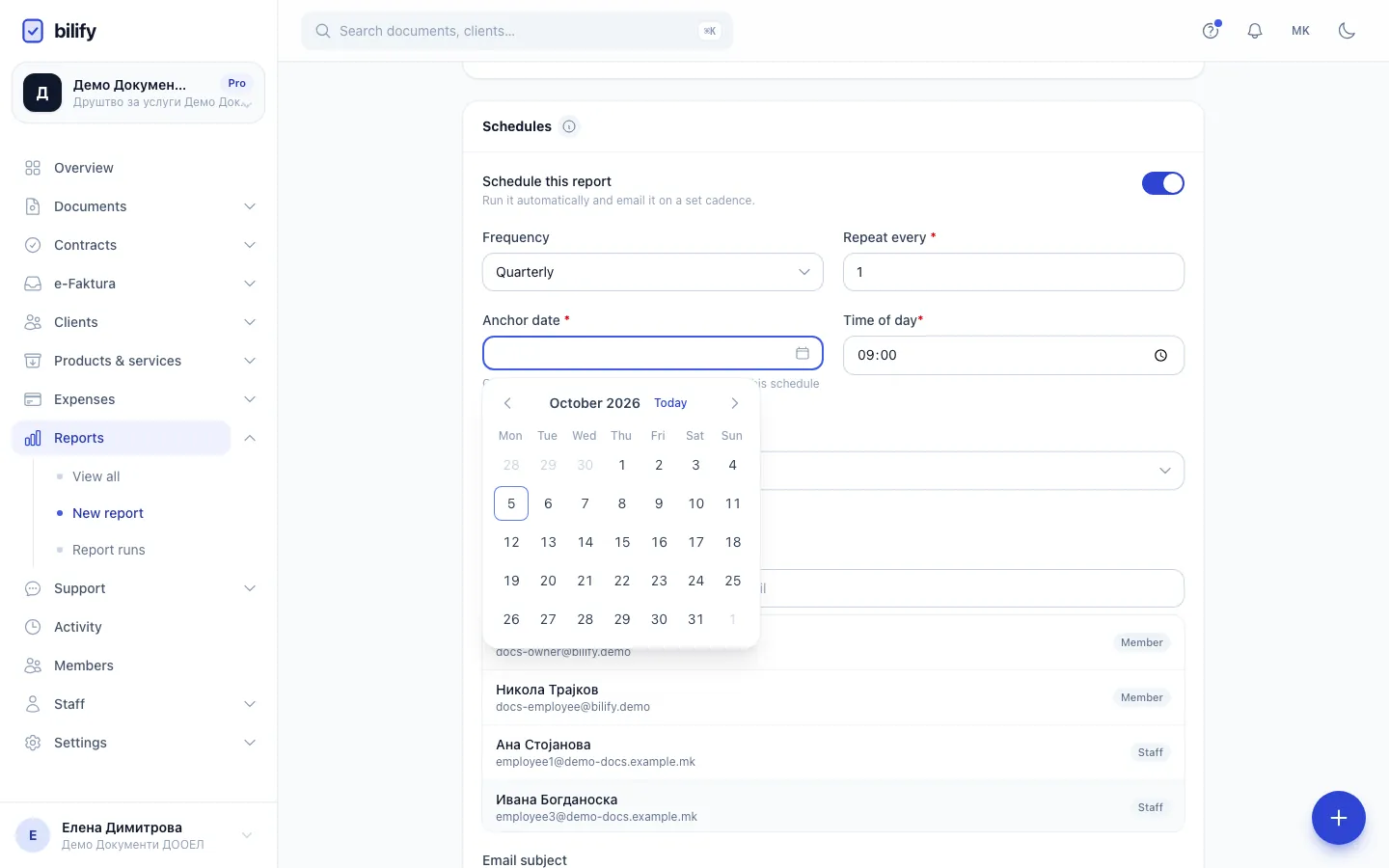
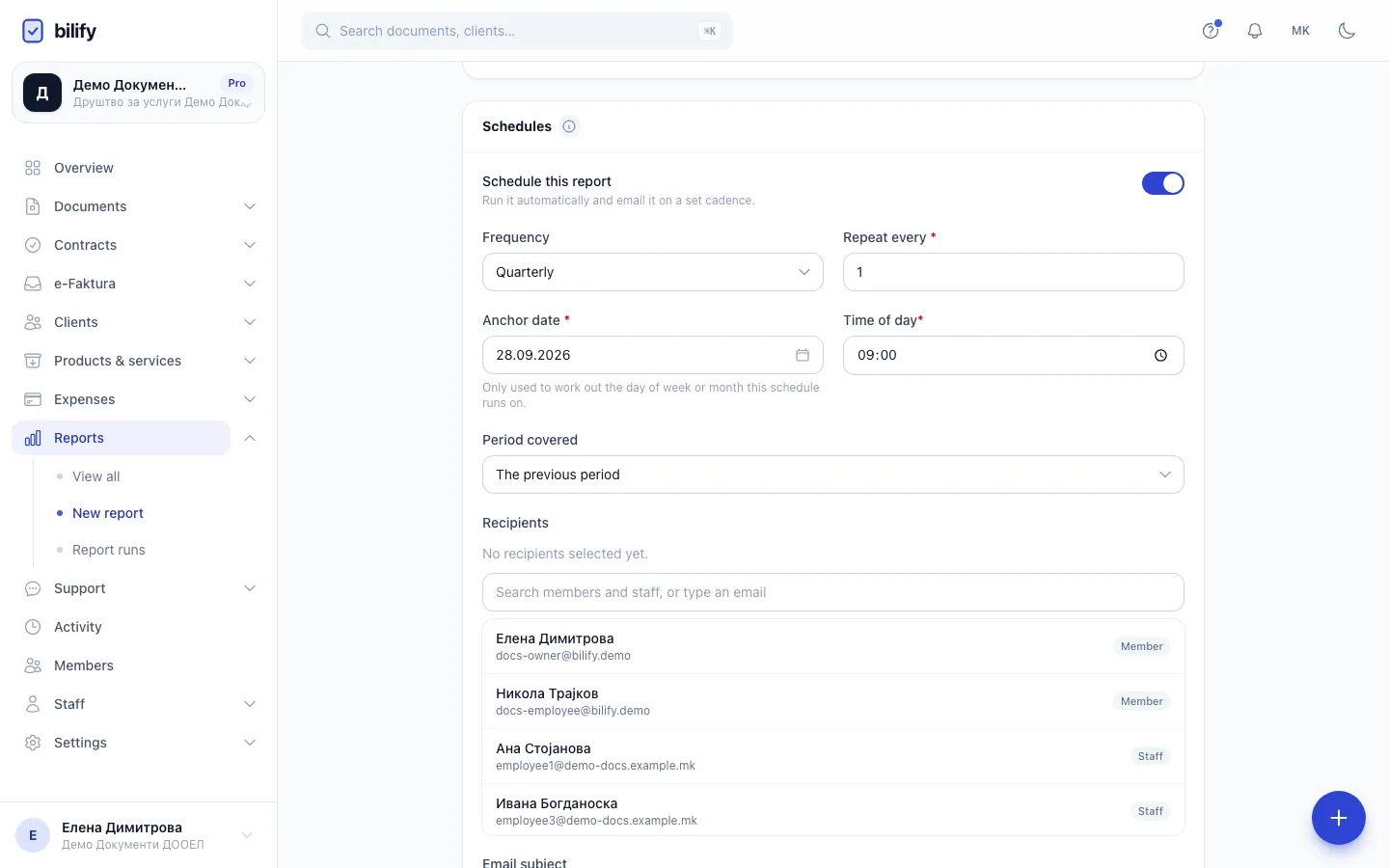
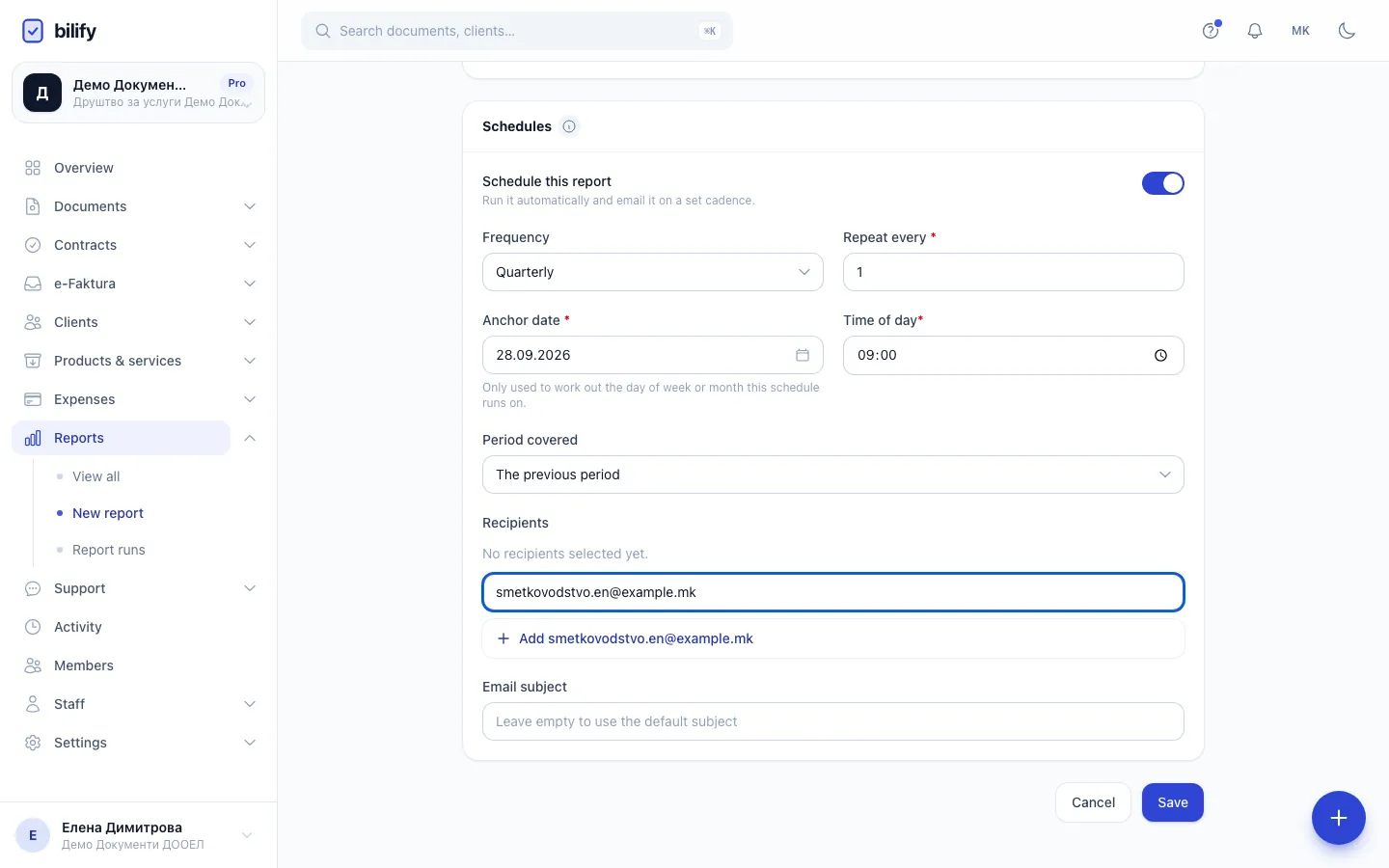
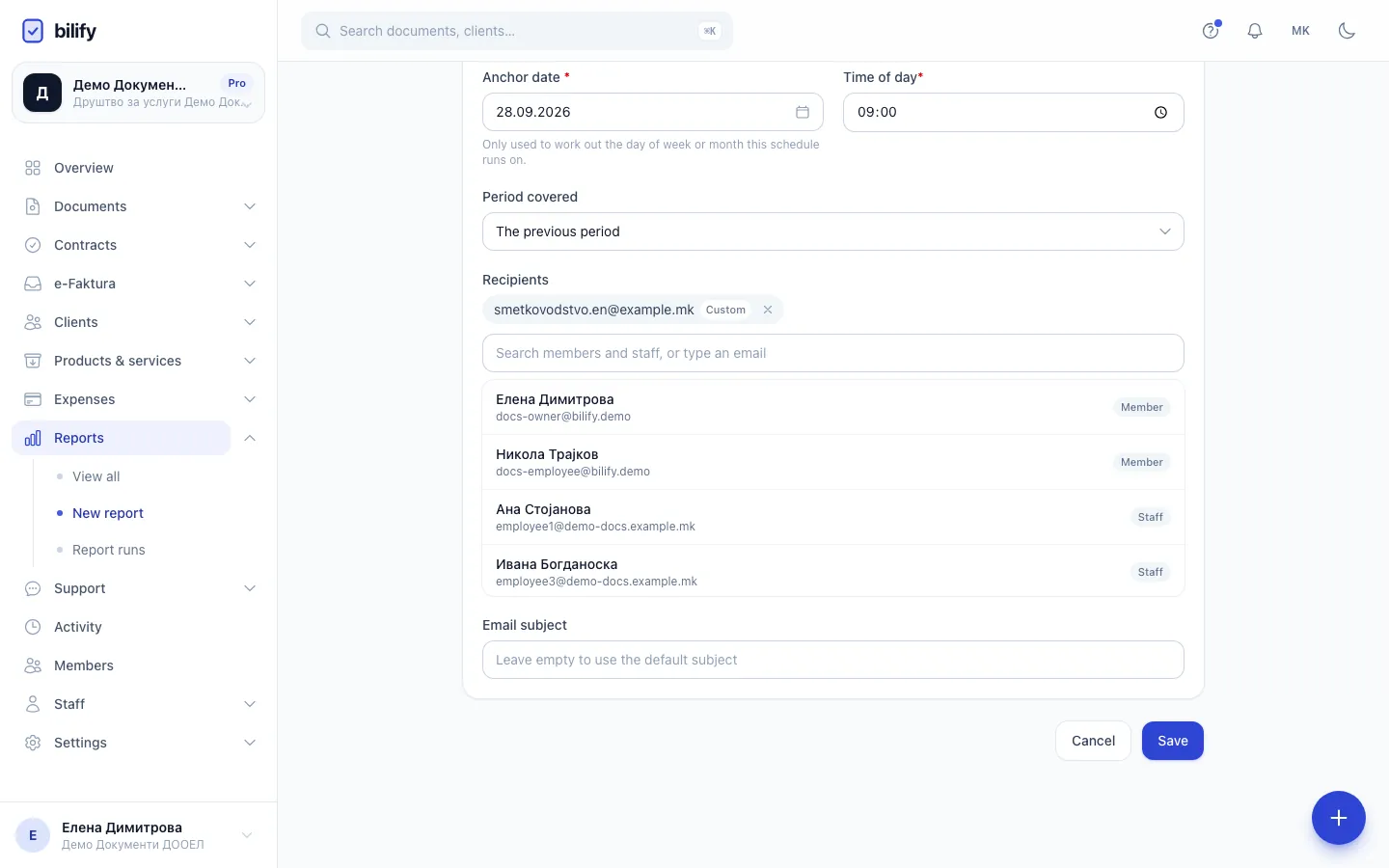
- Step 1: Give the report a name. Recipients see it in the email subject.
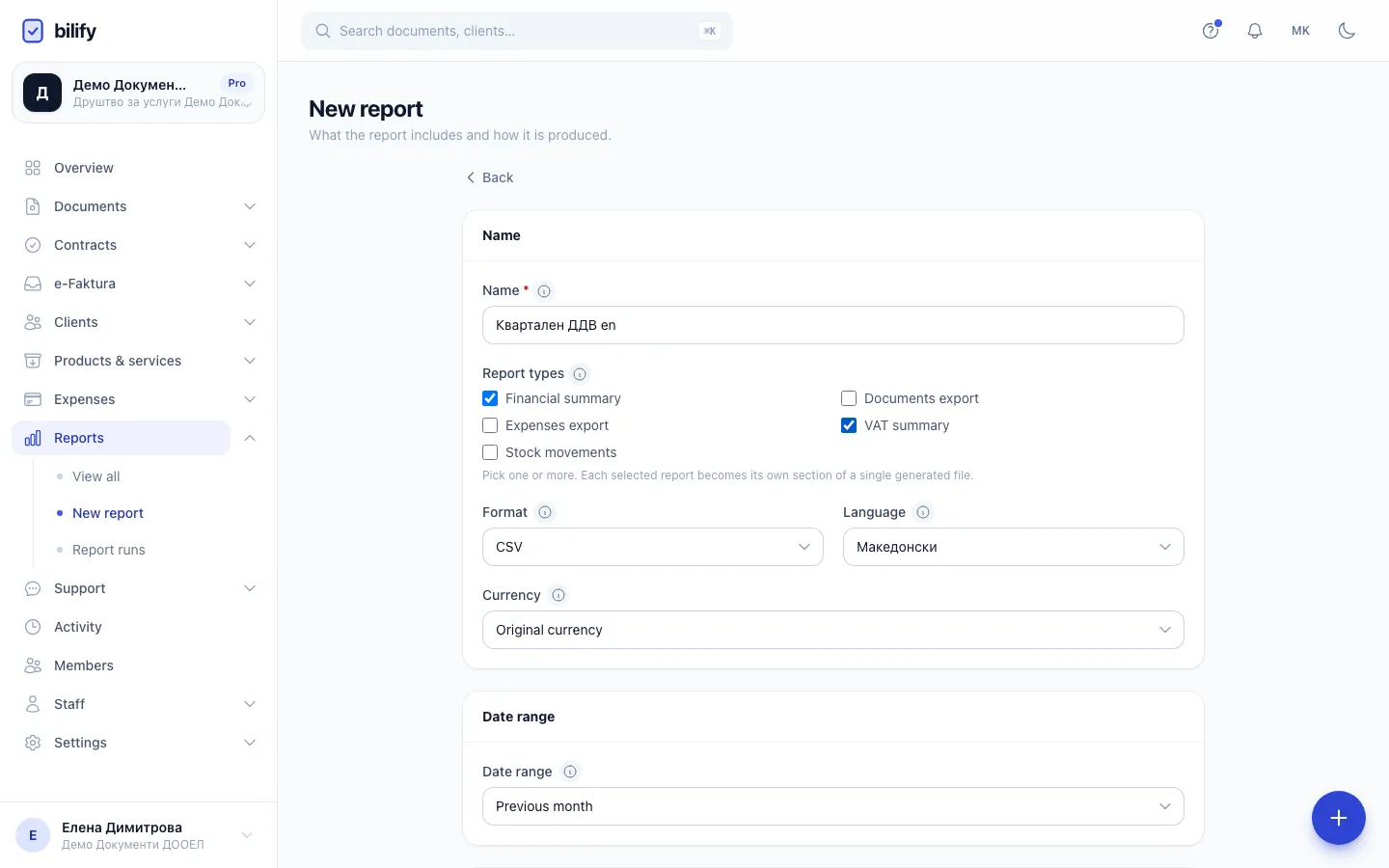
- Step 2: Tick the report types to include. Each one becomes its own section of the same report.
- Step 3: The date range is used when you preview or send by hand. A schedule uses its own period instead.
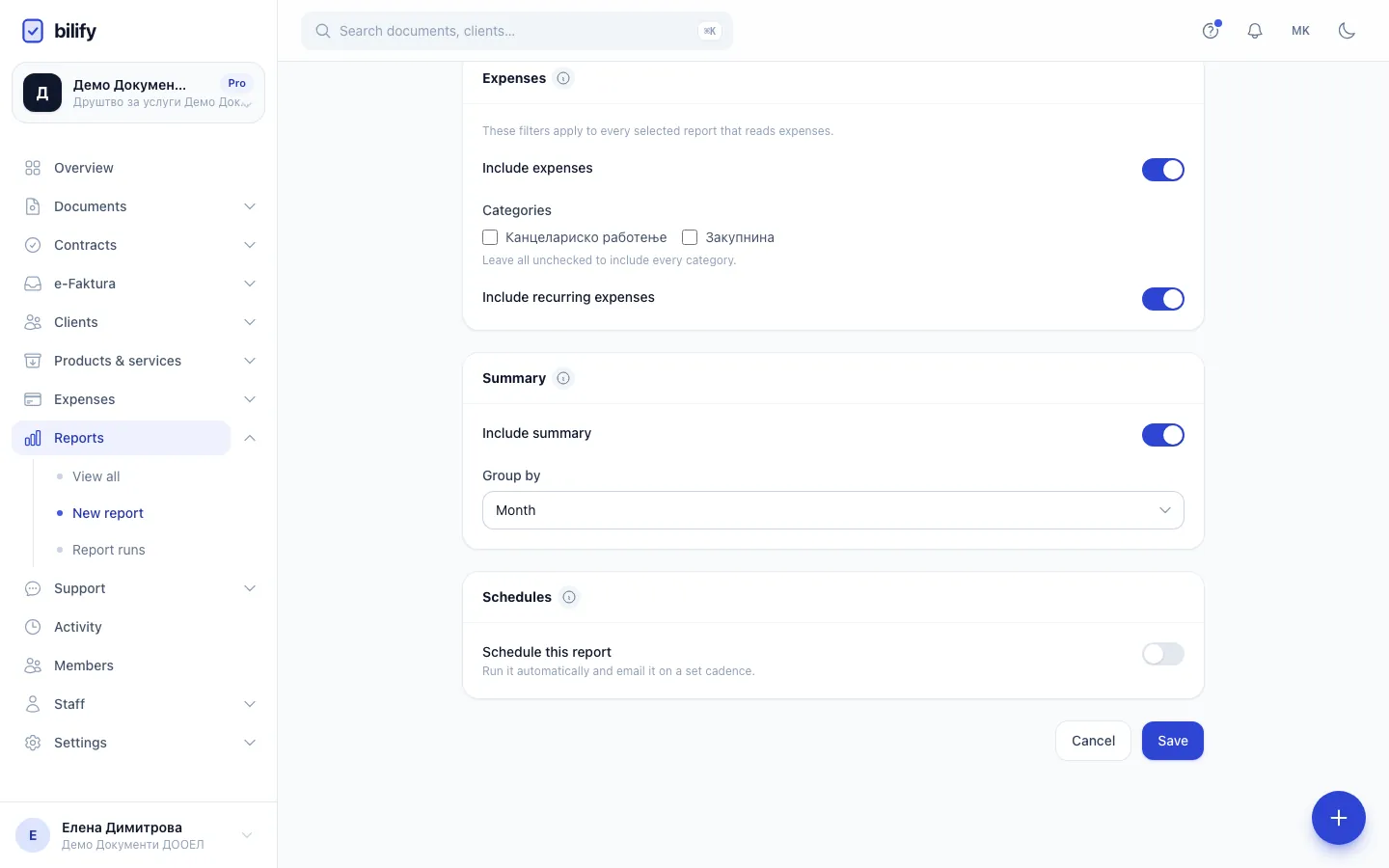
- Step 4: Turn on Schedule this report to have it generated and emailed automatically.
- Step 5: Choose how often it runs. Quarterly sends the previous quarter's figures each time.
- Step 6: The anchor date only sets which day of the month the report runs on.
- Step 7: Pick a day. Time of day and Period covered keep their defaults here.
- Step 8: Search your members and staff, or type any address, for example your accountant's.
- Step 9: Add the address as a recipient. Recipients do not need a Bilify account.
- Step 10: Save. The report list now shows one active schedule for this report.
Set up a schedule
- Open Reports and click the report's name, or create a new one with New report.
- In the Schedules card, turn on Schedule this report.
- Choose the Frequency: Weekly, Biweekly, Monthly, Quarterly or Annually.
- Set Repeat every. Leave it at 1 to run on every cycle; 2 runs every second cycle, and so on (up to 52).
- Pick an Anchor date. Bilify only uses it to work out the day: the weekday for weekly and biweekly schedules, the day of the month for monthly and quarterly ones, and the month and day for annual ones.
- Set the Time of day. It is your company's local time.
- Choose the Period covered: The previous period or The period to date (see below).
- Add Recipients: search your members and staff, or type any email address and choose Add for it. At least one recipient is required.
- Optionally enter an Email subject. Leave it empty to use "Your report "(name)" is ready".
- Click Save.
The Reports list now shows "1 active schedule" for the report.
Which period a scheduled report covers
A scheduled report ignores the report's Date range field and uses Period covered instead, matched to the frequency:
| Frequency | The previous period | The period to date |
|---|---|---|
| Weekly | Last Monday to Sunday | This Monday until the run |
| Biweekly | The two full weeks before this one | This Monday until the run |
| Monthly | The whole previous month | The 1st of this month until the run |
| Quarterly | The whole previous quarter | The start of this quarter until the run |
| Annually | The whole previous year | 1 January until the run |
Repeat every does not stretch the period. A monthly schedule that repeats every 2 months still covers one month.
For month-end figures, use Monthly, an anchor date on the 1st, an early time such as 08:00 and The previous period. Each run then sends the complete previous month.
What recipients receive
Each recipient gets their own email from Bilify with:
- Open report: a link to the report as a web page, showing the figures exactly as they were when it was generated.
- Download report: for CSV and XLSX reports, a link to the file. PDF reports have no file; the page is printed or saved as PDF from the browser.
- The file attached, when it is 5 MB or smaller.
Recipients do not need a Bilify account. The links stop working after 7 days. After that, anyone with access to Reports can open the run again from Report runs, which creates a fresh link.
Requires: Send email from your own provider
If you send email from your own Brevo account, scheduled reports go out from your own sender address.
Pause, change or stop a schedule
- Change it: open the report, change the fields in Schedules and click Save. The next run time is worked out again from your changes.
- Stop it: turn off Schedule this report and click Save. The schedule is switched off but kept, and you can turn it back on later.
- Delete the report: the schedule stops with it. Generated reports stay in the run history.
When runs fail
A failed run shows Failed with its error in Report runs. After 3 scheduled runs in a row fail, Bilify pauses the schedule and emails the person who created the report ("Schedule paused for ..."). Fix the cause, then open the report, turn Schedule this report back on and click Save.
Limits by package
| Package | Report schedules |
|---|---|
| Starter | Not included |
| Business | Up to 3 |
| Pro, Enterprise | Unlimited |
On a package without scheduling, the switch is greyed out with "Scheduling is not included in your current package." When you reach the limit, saving shows "You have reached your plan's scheduled reports limit". The report's other changes are still saved. Compare packages in Usage limits.
If you move to a package without scheduling, existing schedules keep running, but you cannot save changes to a report while its schedule is switched on. Schedules never run in a sandbox workspace.
Was this page helpful?
Related articles
Still stuck?
Write to us and we will get back to you within one working day.