Your contracts in the portal
See contracts waiting for a signature, follow who has signed, and download signed contracts from the archive in the client portal.
The Contracts page of the portal keeps every contract the company has sent to you or your colleagues: the ones still open for signing, and an archive of signed, declined and expired ones. It is a place to look things up; the signing itself happens on the signing page described in Sign a contract.
You see Contracts in the menu only if the company uses contracts.
Open the contracts list
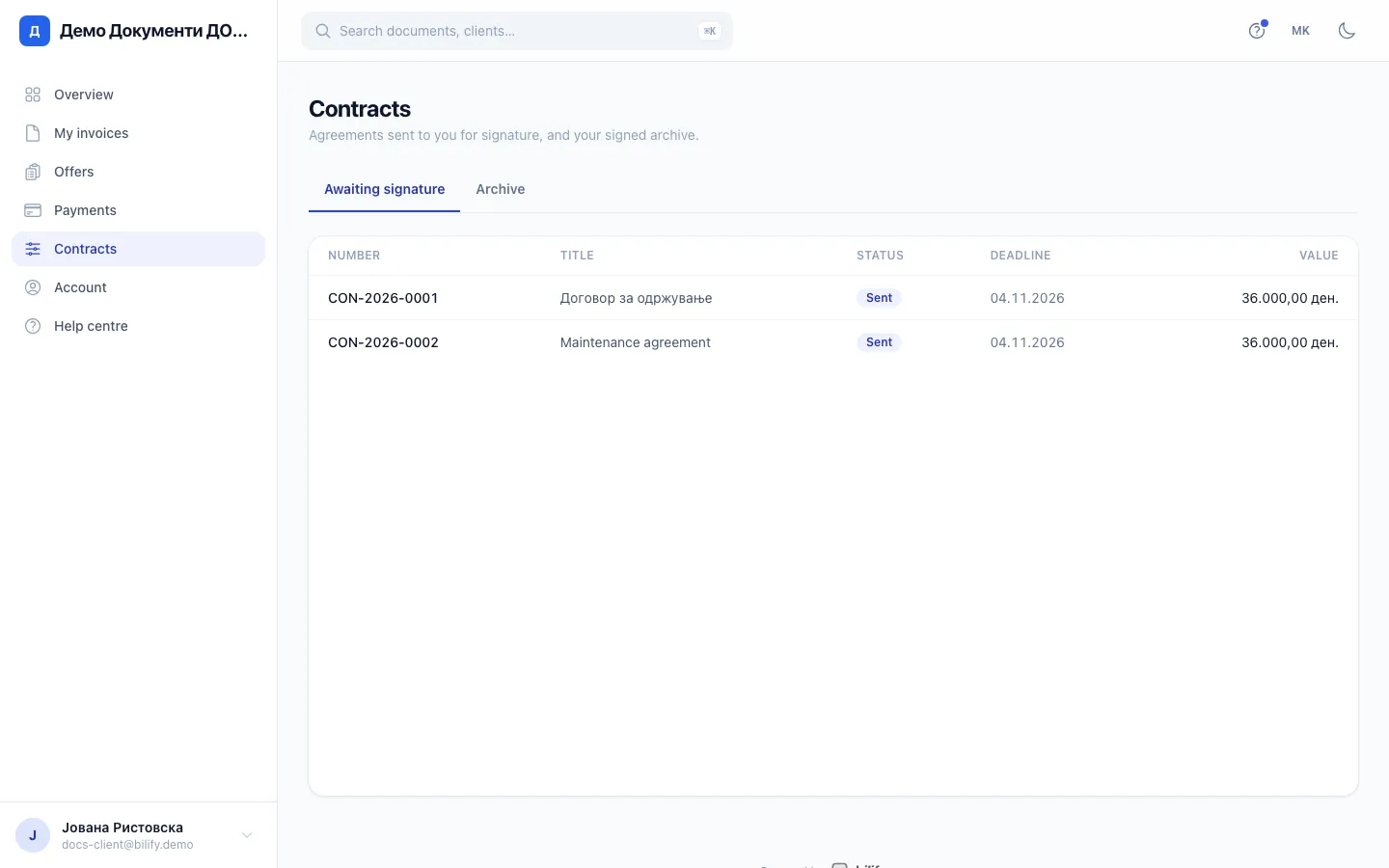
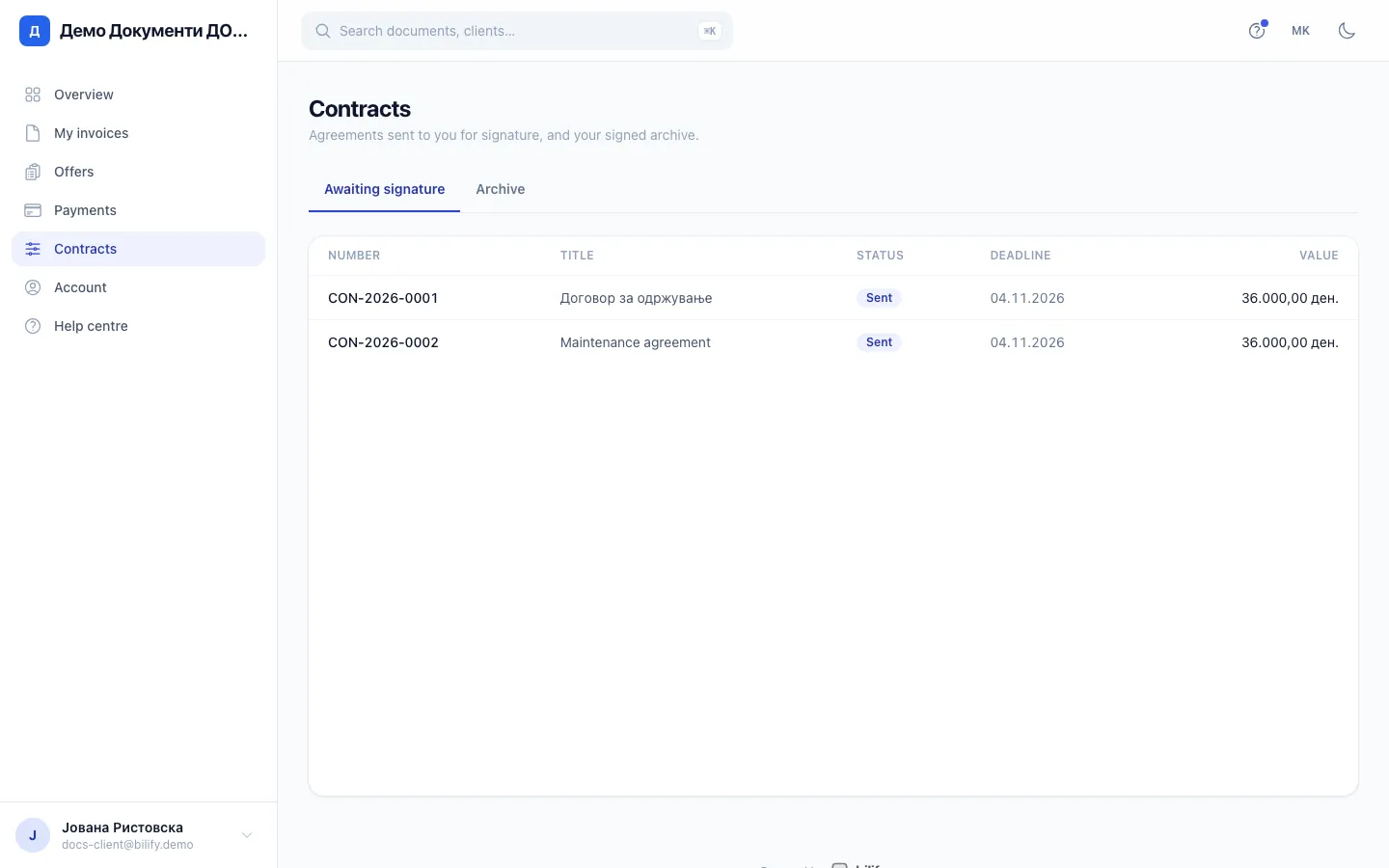
- Step 1: Awaiting signature lists contracts that are still open for signing.
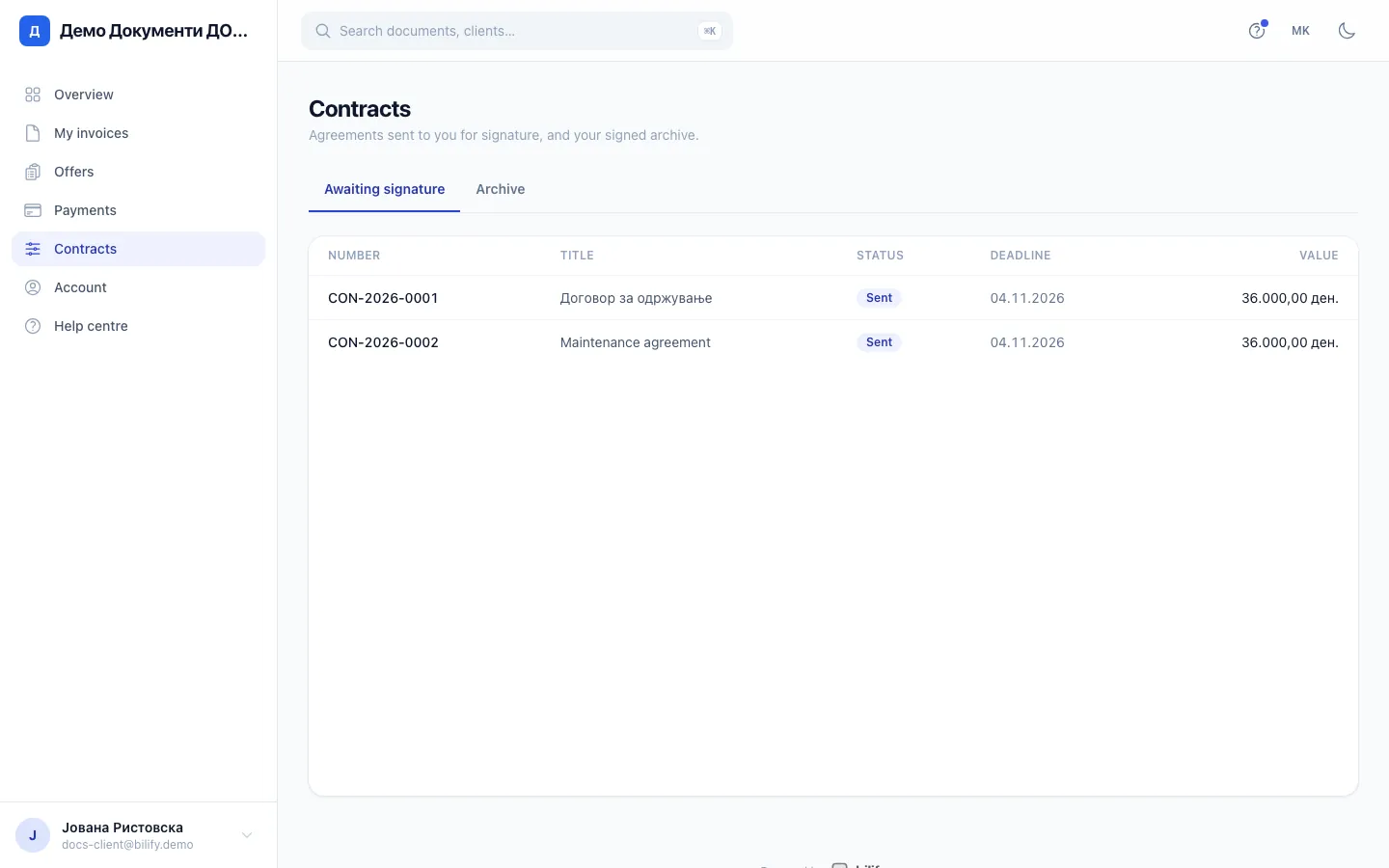
- Step 2: Click a contract number to open it.
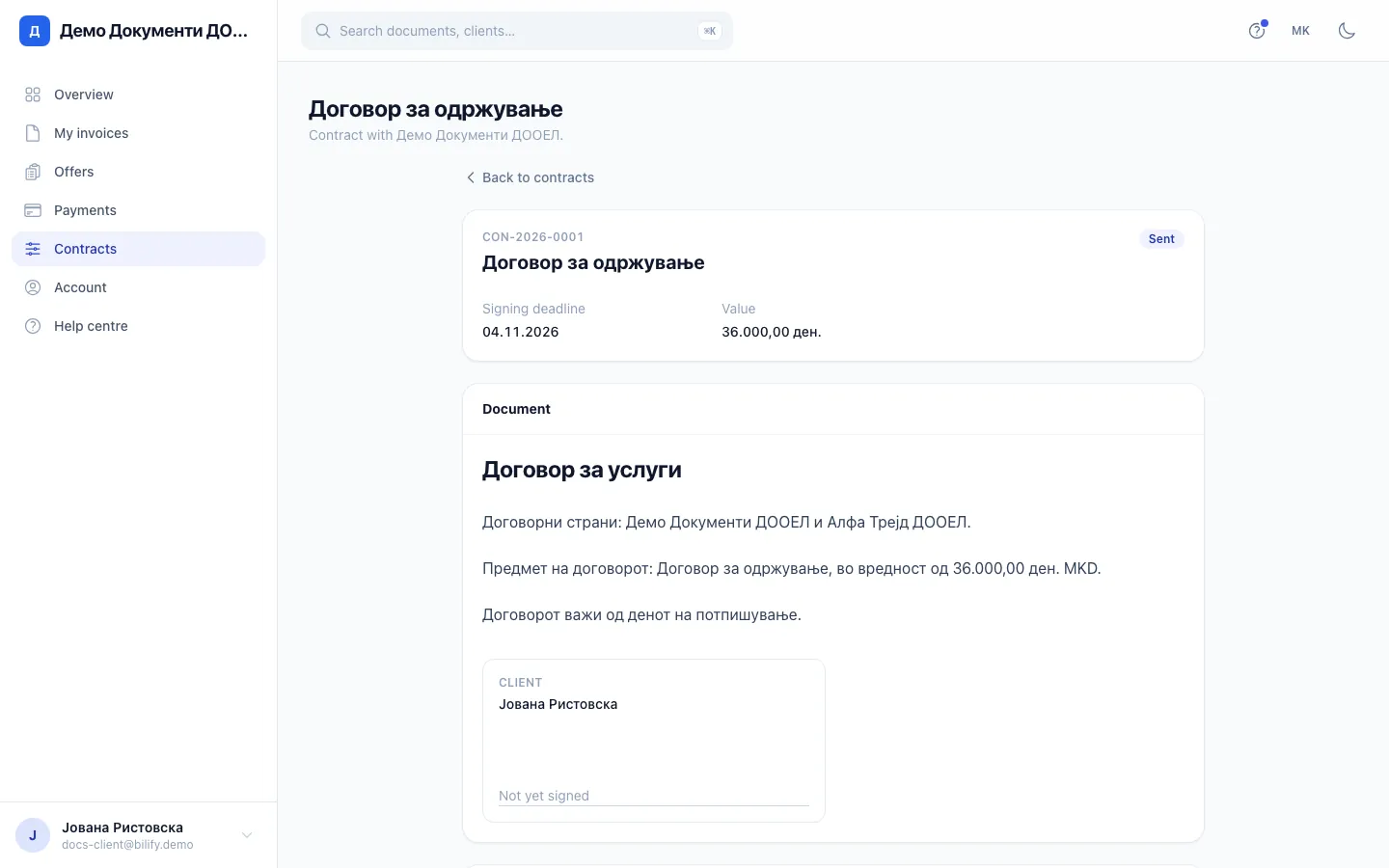
- Step 3: The full text of the contract, with the signature blocks below it.
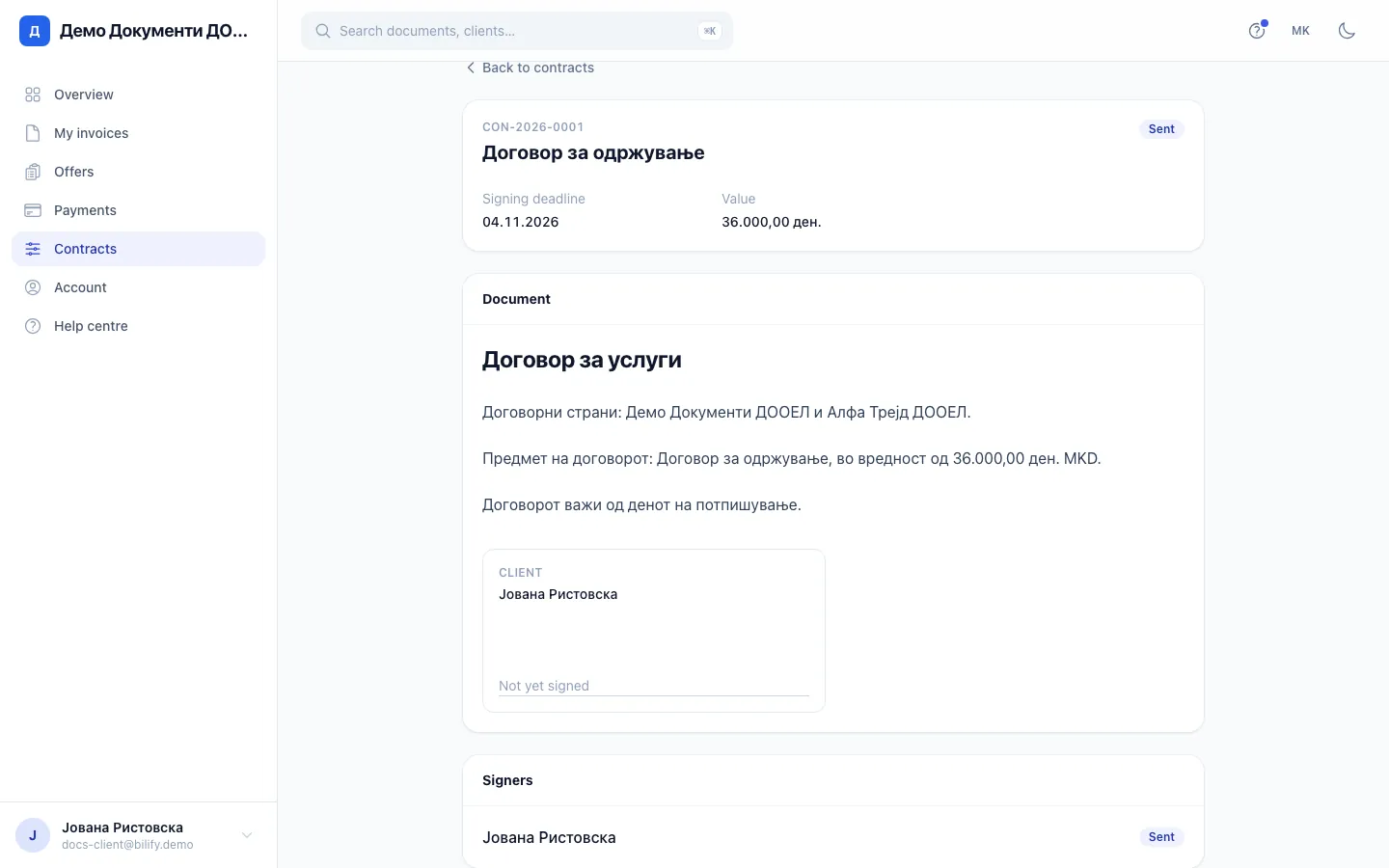
- Step 4: See who has signed and who is still pending.
- Step 5: Archive keeps signed, declined and expired contracts. Signed ones can be downloaded as a sealed PDF.
- Sign in to the portal.
- Click Contracts in the menu. If a contract is waiting for your signature, the Overview page also shows a tile Awaiting your signature that takes you here.
- Choose a tab:
- Awaiting signature: contracts that are still open for signing, including ones where a colleague still has to sign.
- Archive: contracts that are finished, that is signed, declined or expired.
Each row shows the Number, Title, Status, the signing Deadline and the Value, when the company entered one.
Open a contract
Click a contract number to see:
- The contract number, title and status, and the Effective date, Signing deadline and Value when they are set.
- Document: the full text of the contract with the signature blocks, or the PDF the company uploaded.
- Signers: everyone who has to sign, with their status: Pending, Sent, Viewed, Signed or Declined.
At the bottom you find what you can do next:
| You see | What it means |
|---|---|
| "It is your turn to sign this contract." and Sign now | Click Sign now to open the signing page. |
| "Waiting for other signers to complete this contract." | Someone else still has to sign. Every signer gets the final copy by email when everyone has signed. |
| "Signed and sealed on" with a date, and Download signed PDF | The contract is complete. Download the sealed PDF. |
Declined and expired contracts show only their status. There is nothing more to do on them in the portal.
Download a signed contract
- Open Contracts > Archive.
- Click the contract.
- Click Download signed PDF.
The sealed PDF contains every signature and ends with an audit certificate (who signed, when, and how their identity was confirmed). It is the same file every signer received by email when the contract was completed.
Keep your own copy
The portal keeps the archive for you, but it is good practice to save the signed PDF with your own records as well.
A contract is missing
- Contracts the company is still preparing are not shown until they are sent.
- Contracts the company withdrew (voided) do not appear in the portal.
- You see the contracts of the client account your email belongs to. If you expect a contract that is not there, contact the company.
Was this page helpful?
Related articles
Still stuck?
Write to us and we will get back to you within one working day.