Sign a contract
Sign a contract online from the signing email, by drawing or typing your signature and confirming with a 6 digit code sent to your email.
When a company sends you a contract to sign, you receive an email and sign on a secure web page. You do not need an account or a password: your personal link and a code sent to your email are enough. It takes a few minutes.
Open the signing page
- Open the email with the subject "Please sign:" followed by the contract title and number.
- Click Review and sign.
You can also start from the portal: open Contracts, open the contract and click Sign now. That button appears when it is your turn to sign.
The signing page opens in the language of the contract. At the top you see You are signing as with your name and a partly hidden email address, and the Signing deadline if there is one. Check that the name is yours.
Keep your signing link to yourself
The link in the email is personal. Anyone who has it can open your signing page, so do not forward the email. Signing still needs the code sent to your inbox.
Sign
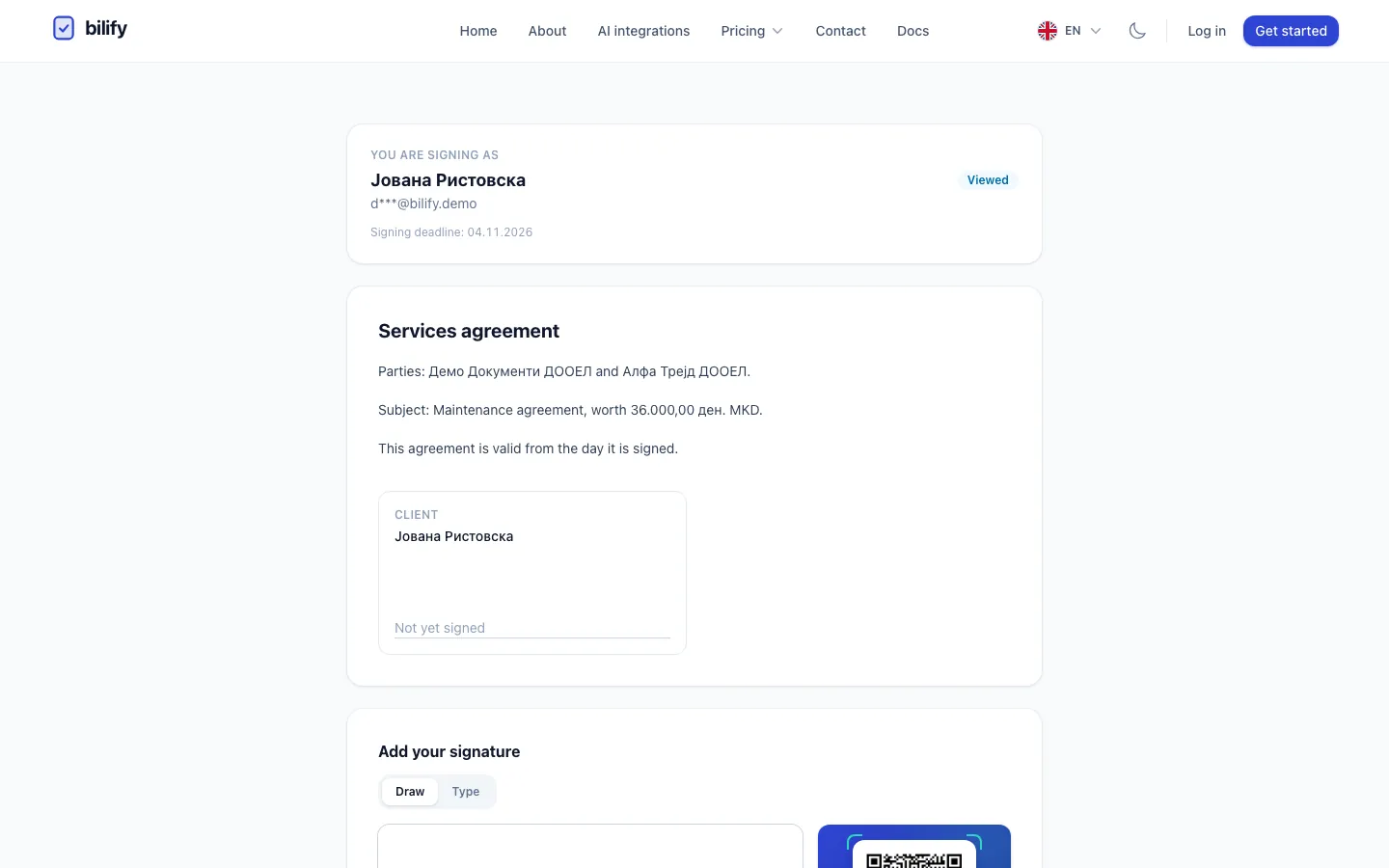
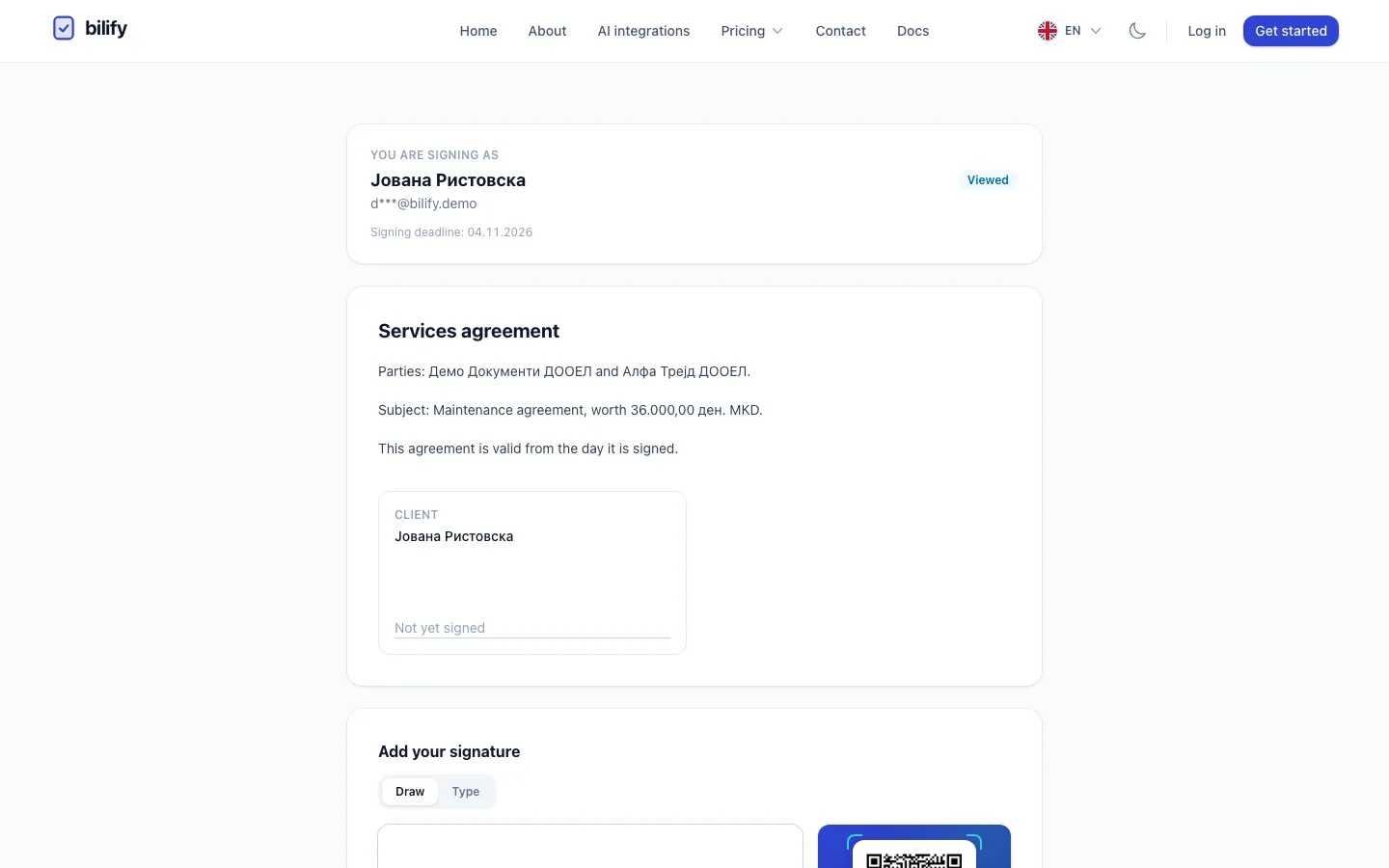
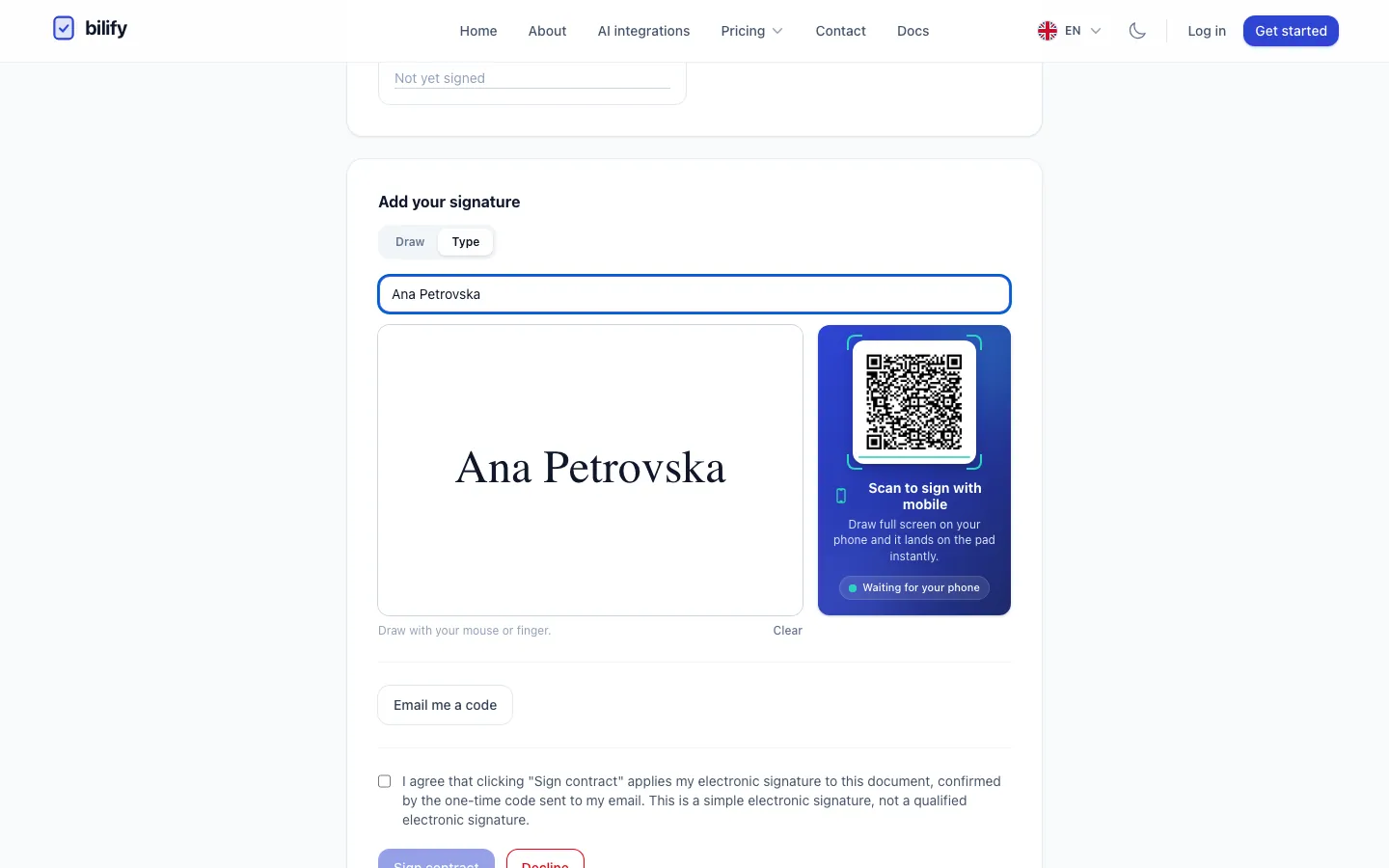
- Step 1: Check that you are signing under your own name. The signing deadline is shown here too.
- Step 2: Read the whole contract before you sign it.
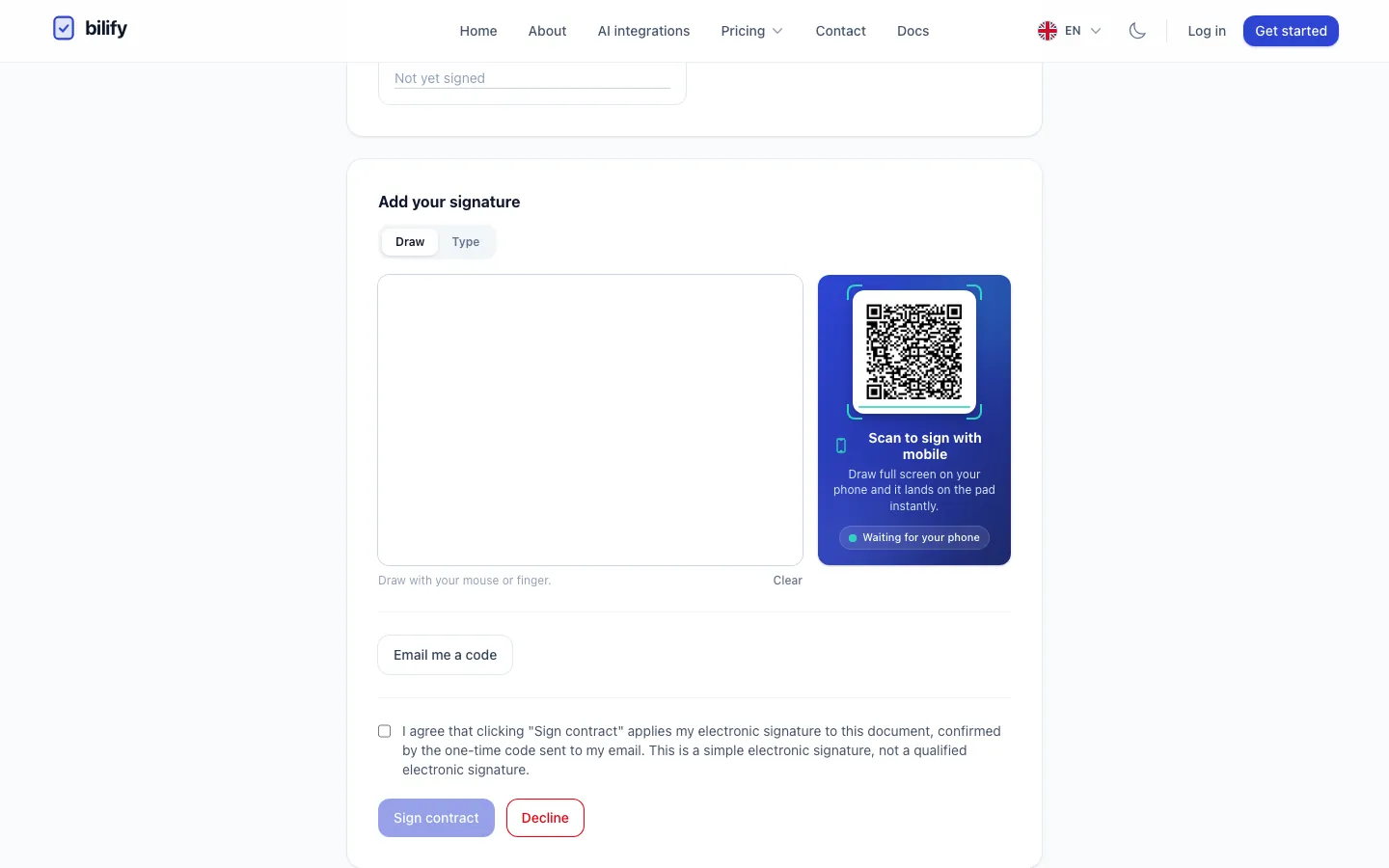
- Step 3: Draw your signature on the pad, or switch to Type to write your name instead.
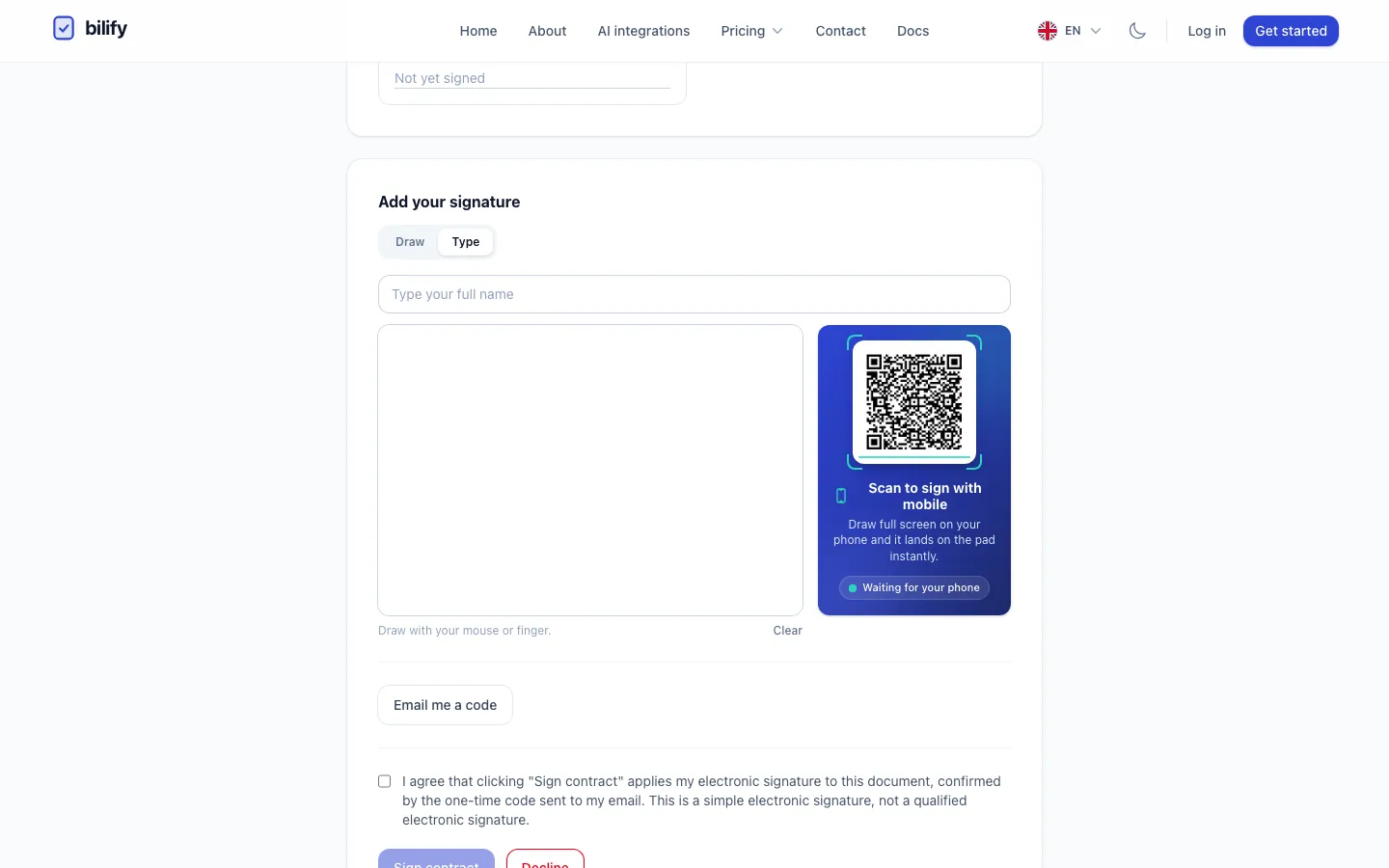
- Step 4: Type your full name. It is turned into a handwritten style signature.
- Step 5: Prefer your finger? Scan this code with your phone, draw there, and the signature appears here.
- Step 6: Click Email me a code. You get a 6 digit code by email, valid for 10 minutes.
- Step 7: Enter the code, tick the consent box and click Sign contract.
- Read the contract. The full text is on the page. A contract the company uploaded as a PDF is shown in a frame you can scroll.
- Add your signature under Add your signature:
- Draw: sign on the white pad with your mouse, touchpad or finger.
- Type: type your full name; it is turned into a handwritten style signature.
- Clear starts again.
- Get your code. Click Email me a code. Within a minute you receive an email "Your signing code for" followed by the contract number, with a 6 digit code.
- Enter the code in Verification code.
- Tick the consent box: "I agree that clicking "Sign contract" applies my electronic signature to this document...".
- Click Sign contract.
You see "You have signed this contract. Thank you."
About the code
- It is valid for 10 minutes and works once.
- You have 5 attempts to enter it. After a wrong entry the page shows how many attempts remain.
- Did not get it? Check your spam folder. Resend code becomes available after 30 seconds (the button counts down). Each new code replaces the previous one, so always use the newest email.
- After 5 wrong attempts or after 10 minutes, the code stops working. Click Email me a code again for a fresh one.
Sign with your phone
Drawing a signature is easier with a finger. You do not have to start over on your phone.
On a computer or tablet: next to the pad you see Scan to sign with mobile with a QR code.
- Scan the code with your phone's camera.
- On your phone, a full screen pad opens. Draw your signature (turning the phone sideways gives more room) and tap Confirm drawing.
- The phone shows Signature sent. Your signature appears on the pad on your computer within a few seconds, marked Signed on your phone.
- Finish on the computer: request the code, enter it, tick the consent box and click Sign contract.
On a phone: below the pad there is a Draw full screen card. Tap it, draw your signature, tap Confirm drawing, and you return to the signing page with your signature added. Then continue with the code.
If you want to change the drawing, tap Draw again on the phone.
When more people sign
Some contracts have several signers, sometimes in a fixed order. If it is not your turn yet, the page shows "It is not your turn yet. Waiting on:" with the names, and you get a new email when it is your turn.
When everyone has signed, the contract is sealed: a final PDF is created with all signatures and an audit page at the end. Every signer receives it by email with the subject ending in "is fully signed", with the PDF attached. You can also use Download signed PDF on the signing page, or find it in the portal under Contracts > Archive (see Your contracts in the portal). If the page says "The signed PDF is being prepared and will be emailed to you shortly.", wait a moment and reload.
Decline to sign
If you do not want to sign:
- Click Decline under the signature box.
- In Decline to sign, optionally write a reason in Reason (optional). The company receives it.
- Click Decline contract.
Declining cannot be undone. The company is notified, and the contract stops for all signers. If you change your mind, contact the company; they will need to send a new contract.
What kind of signature is this?
This is a simple electronic signature, not a qualified electronic signature. Your identity is confirmed by the one-time code sent to your email. The sealed PDF ends with an audit certificate that lists, for every signer, the name, email, the time the contract was viewed, verified and signed, the IP address and browser, and a SHA-256 fingerprint of the document.
Messages you may see
| Message | What it means |
|---|---|
| "This contract is no longer open for signing." | The deadline passed, or the company withdrew the contract. Contact the company. |
| "You declined to sign this contract." | You or someone using your link declined it earlier. |
| "That code is incorrect or has expired." | Check the code, or request a new one. |
| "Too many attempts. Please wait a moment and try again." | Wait a minute, then try again. |
Was this page helpful?
Related articles
Still stuck?
Write to us and we will get back to you within one working day.