Add products and services
Build your catalogue of products and services with prices, units and default VAT, so you can add them to documents in one click.
Save the things you sell as items, and every document line becomes a quick search instead of retyping names and prices. This article covers adding, editing and organising items.
Products or services
Every item is either a Product or a Service:
| Product | Service | |
|---|---|---|
| Units | pcs, kg, l, m, day, hour, service | hour, day, service |
| Measurement value | Yes | No |
| Stock tracking | Yes, if your package includes stock | Never |
The type cannot be changed later
Once an item is saved, its Type is locked. If you picked the wrong one, create a new item of the right type and deactivate or delete the old one.
Add an item
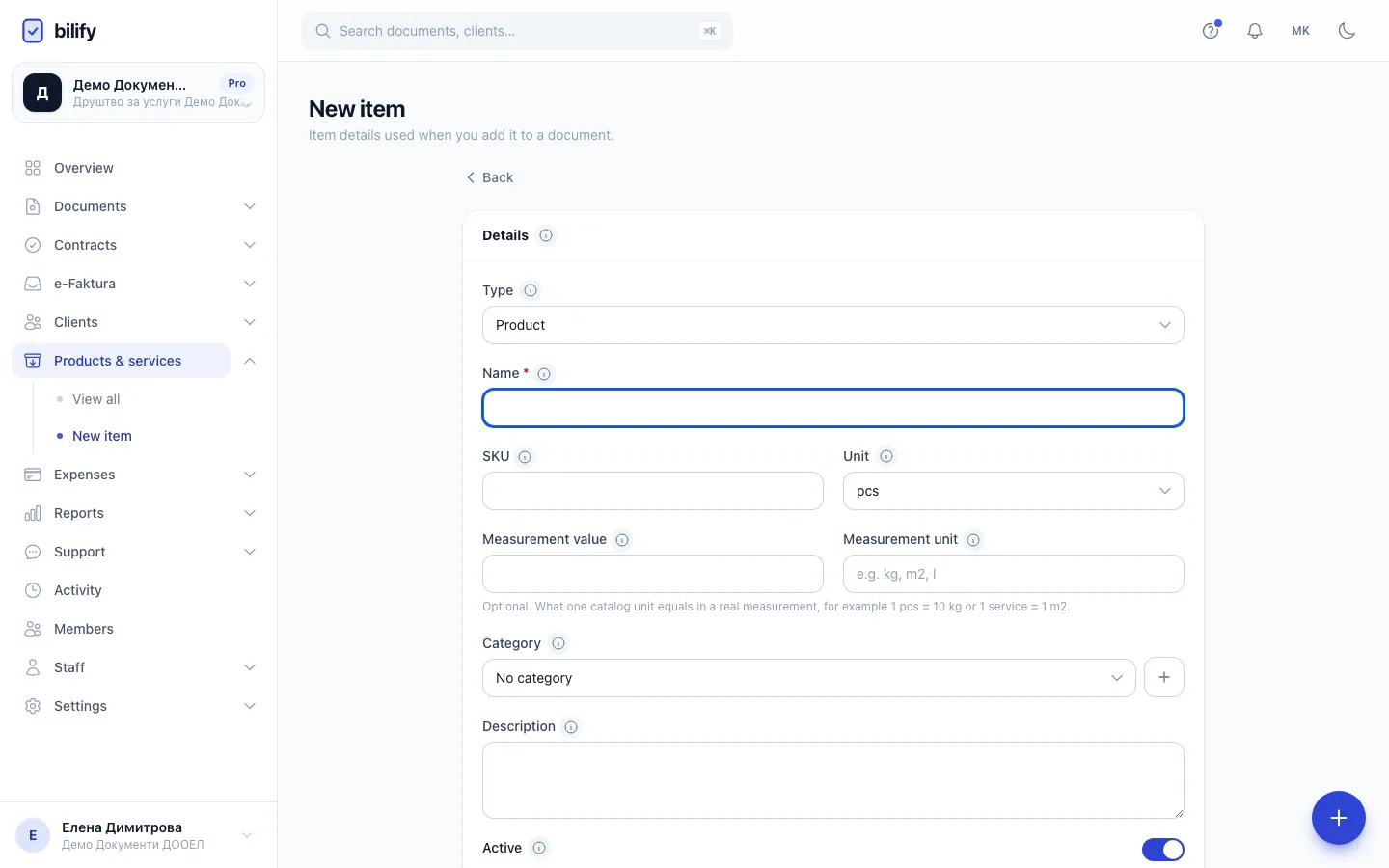
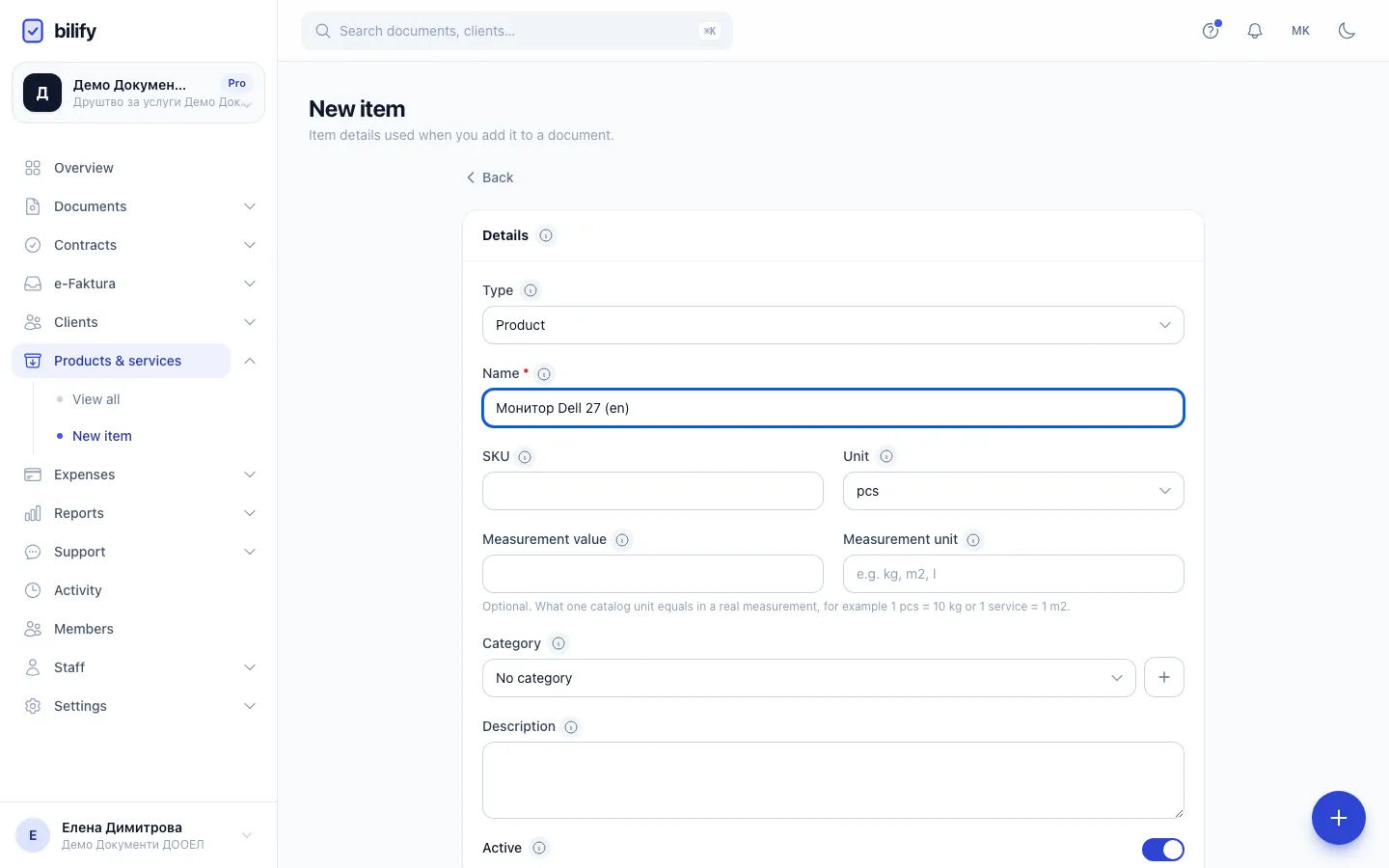
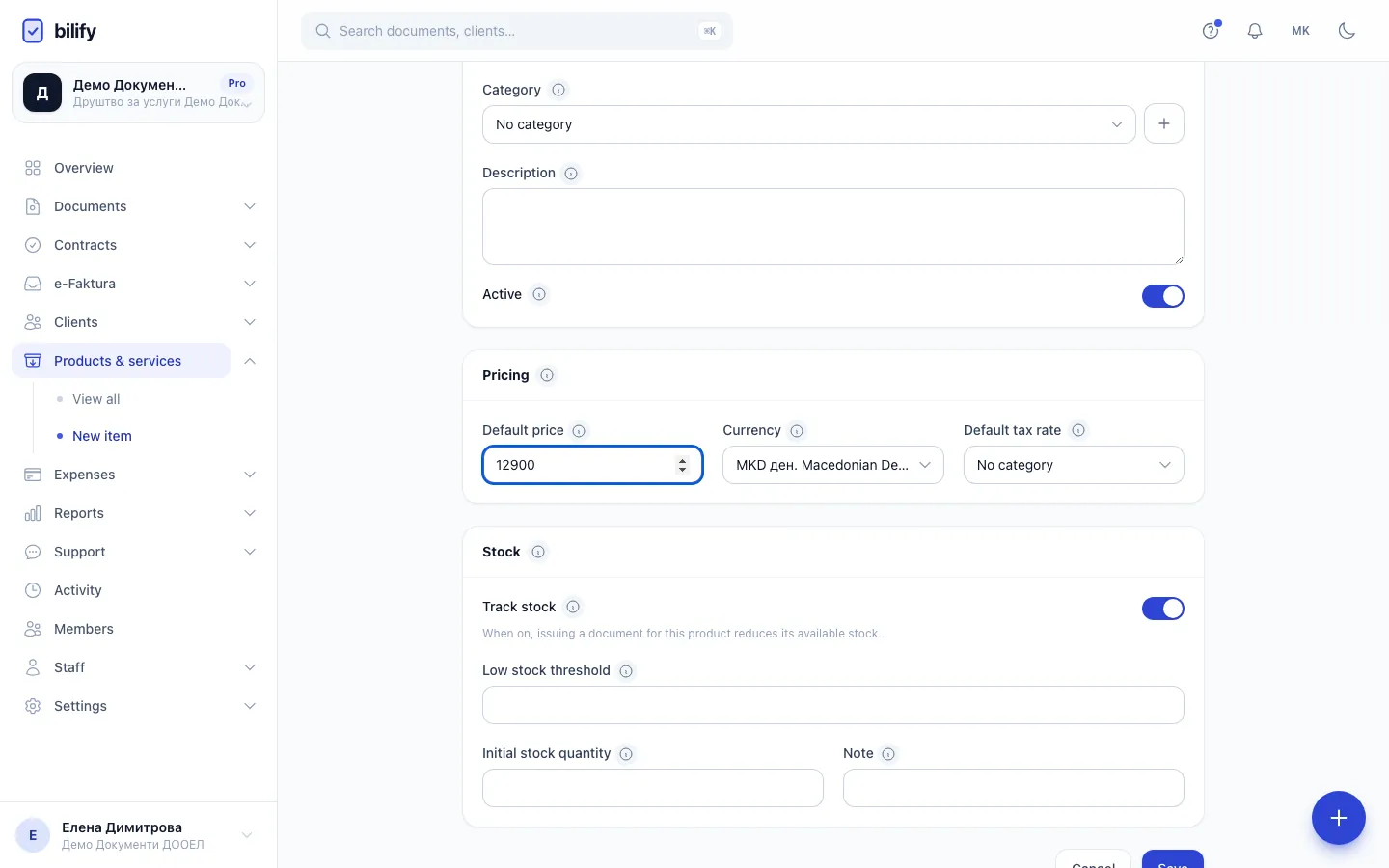
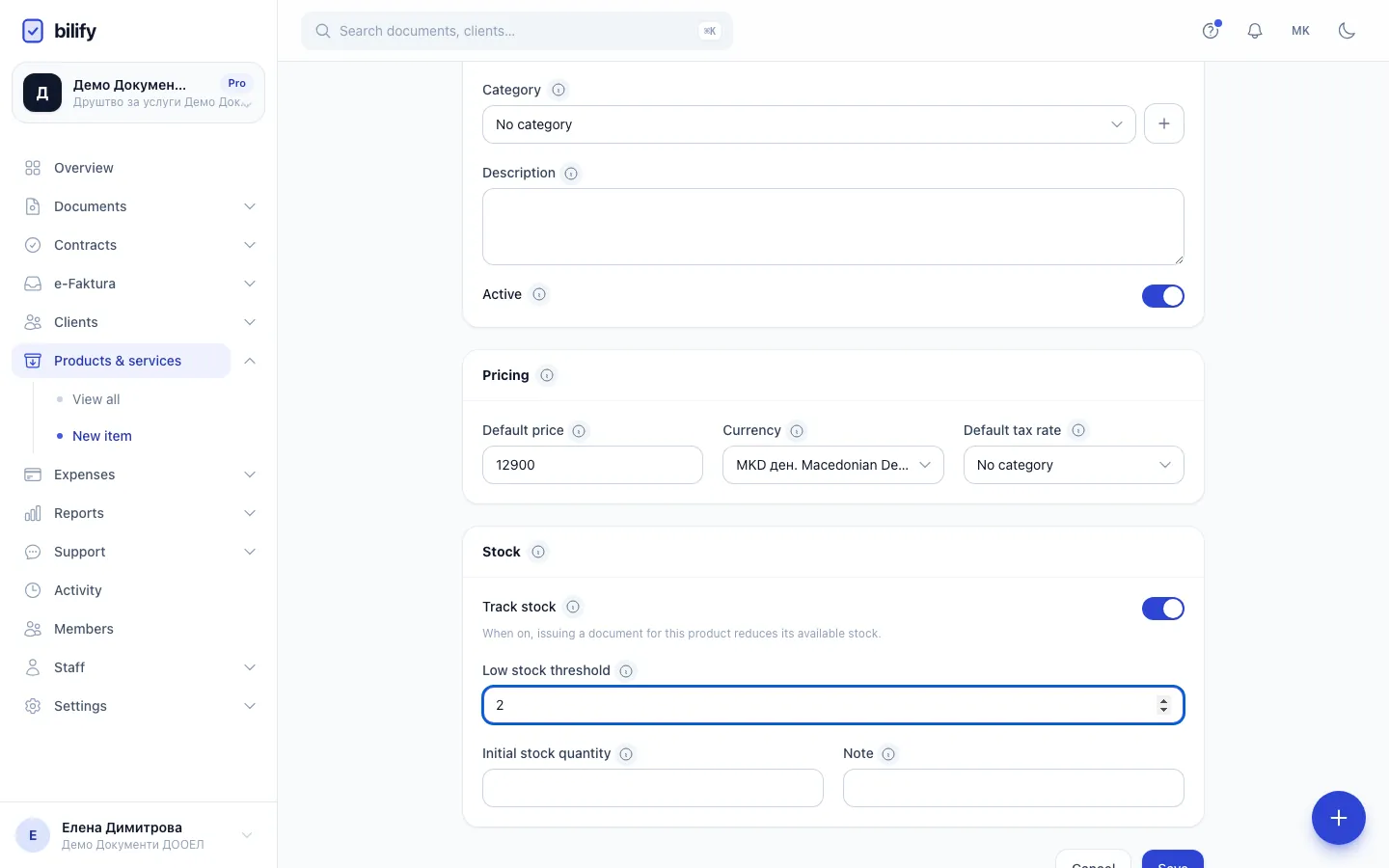
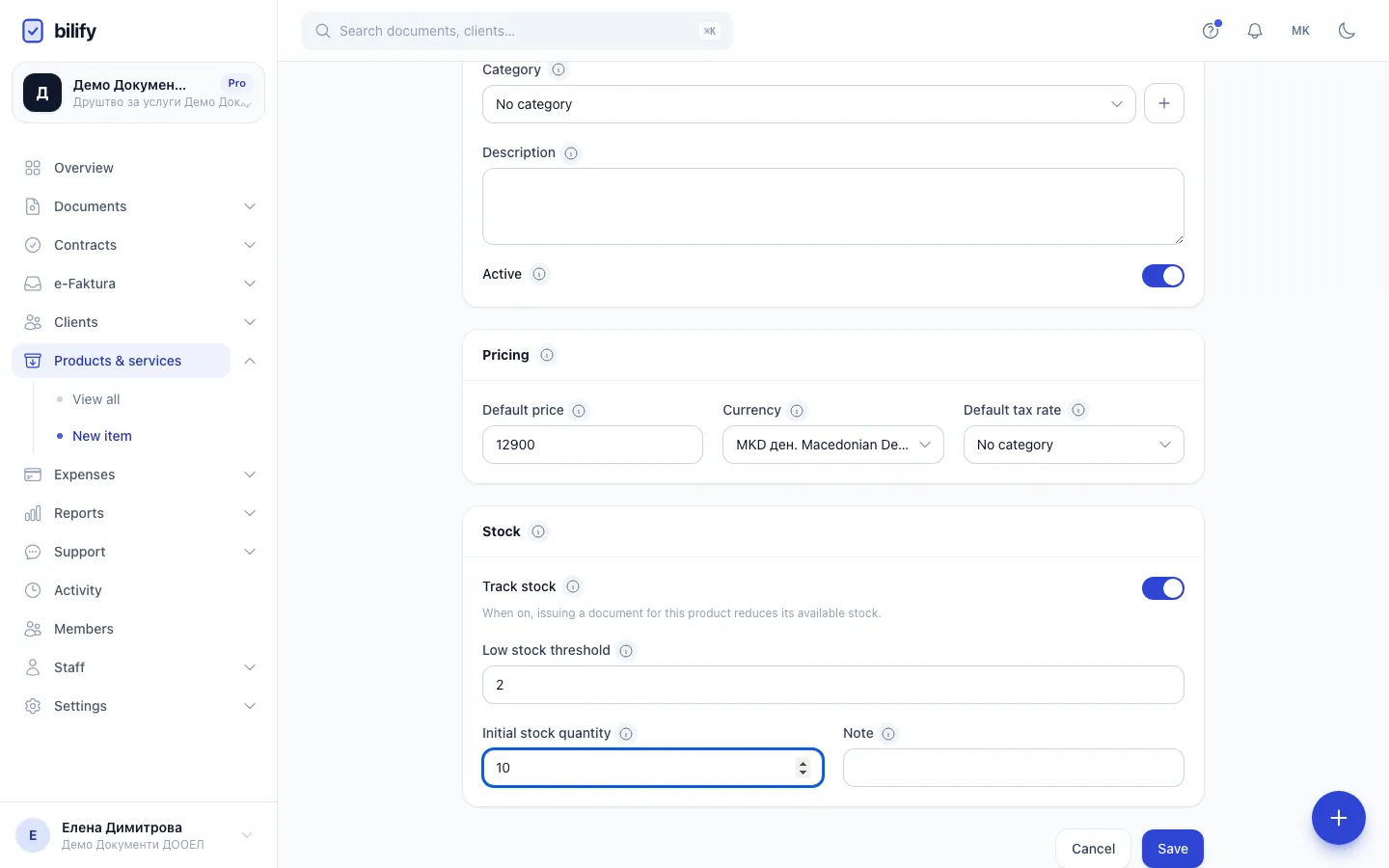
- Step 1: Type is already Product. Enter the name that should appear on document lines.
- Step 2: Optionally add a SKU, your own code for the product. It must be unique in your company.
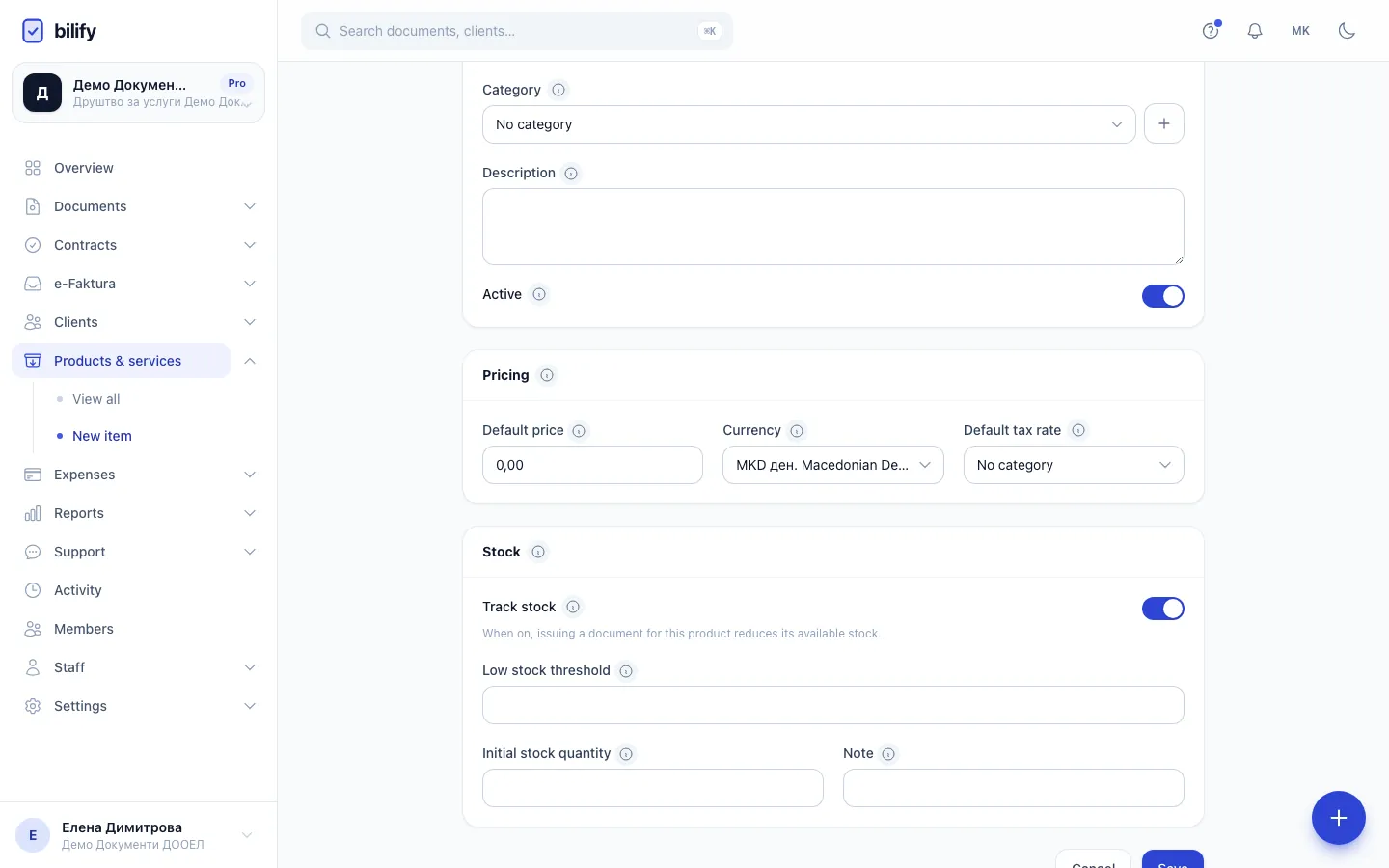
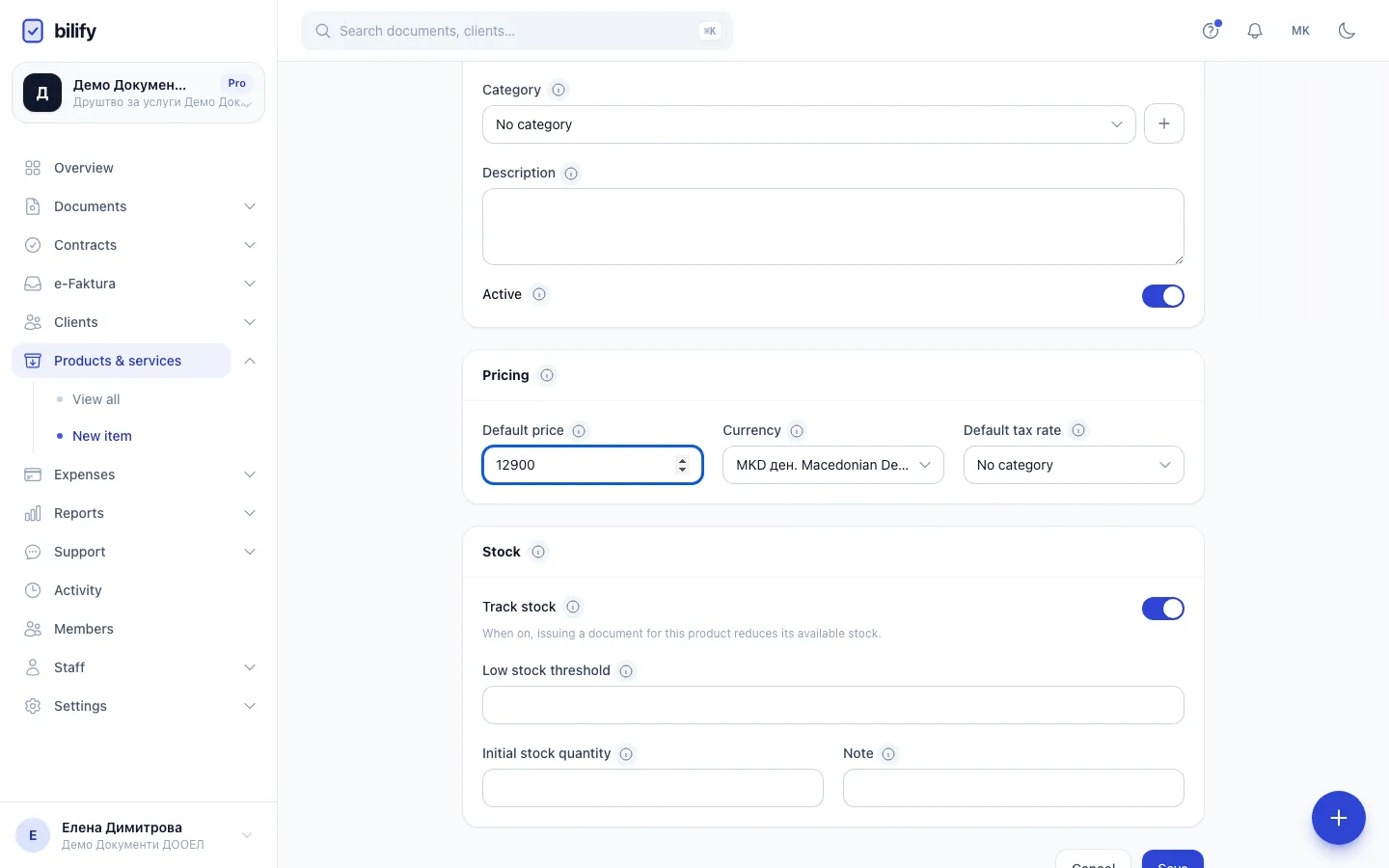
- Step 3: Enter the default price without VAT. It is copied to the line when you pick the product.
- Step 4: Choose the default tax rate so every line with this product gets the right VAT.
- Step 5: With Track stock on, set a low stock threshold. At or below it the product shows Low stock.
- Step 6: Enter how many you have today. It becomes the Opening stock entry in the ledger.
- Step 7: Click Save. The product page opens with its stock summary.
- In the menu, open Products & services and click New item.
- Choose the Type: Product or Service.
- Type the Name. This is what appears on document lines.
- Optional: add a SKU (your own code, it must be unique in your company), choose the Unit, a Category and a Description.
- For a product, optional: fill in Measurement value and Measurement unit to say what one unit equals, for example 1 pcs = 10 kg.
- In Pricing, enter the Default price (without VAT), the Currency and the Default tax rate.
- For a product, set up the Stock card if you track stock. See Track stock.
- Click Save. The item's page opens.
The Active switch is on by default. Inactive items stay in your catalogue but are no longer offered on document lines.
Use an item on a document
On a document line, start typing in the description. Bilify suggests matching active items by name or SKU. Click one and the line gets the item's name, unit, default price and default tax rate. You can still change any of them on that line, and changes on a line never change the item.
Price and currency
The default price is copied as a number. If the document is in a different currency from the item, Bilify does not convert it: check the unit price on the line.
You can also create an item without leaving a document: the item picker on a line has a button that opens New item with just Type, Name and Default price.
Categories
Categories help you filter a long catalogue.
- On the item form, choose a Category, or click + next to it to create one on the spot.
- On the items list, click Categories to add, rename or delete categories. A category that still has items cannot be deleted.
Find, edit and remove items
- The list has tabs for All, Products and Services, a search box (name or SKU) and a category filter.
- Click an item to open its page, then Edit to change it.
- Use the switch in the row to make an item active or inactive, and the row menu to delete it. Deleted items can be found again with Show deleted and brought back with Restore.
Deleting an item never changes documents that already used it. Issued documents keep their own copy of every line.
Who can do what
| Action | Who, with the default roles |
|---|---|
| See items | owners, admins, accountants, employees |
| Add, edit, delete and restore items | owners, admins, accountants |
| Record stock movements | owners, admins, accountants |
Was this page helpful?
Related articles
Still stuck?
Write to us and we will get back to you within one working day.