Activity log
See who did what and when in your workspace, from issued invoices to portal logins, and filter the history by person, subject, type and date.
The activity log is your company's audit trail: a history of what happened in the workspace, newest first. Use it to find out who issued or changed an invoice, when a client logged in to the portal, or who downloaded a report.
You need the activity.view permission. By default only Owner and Admin have it.
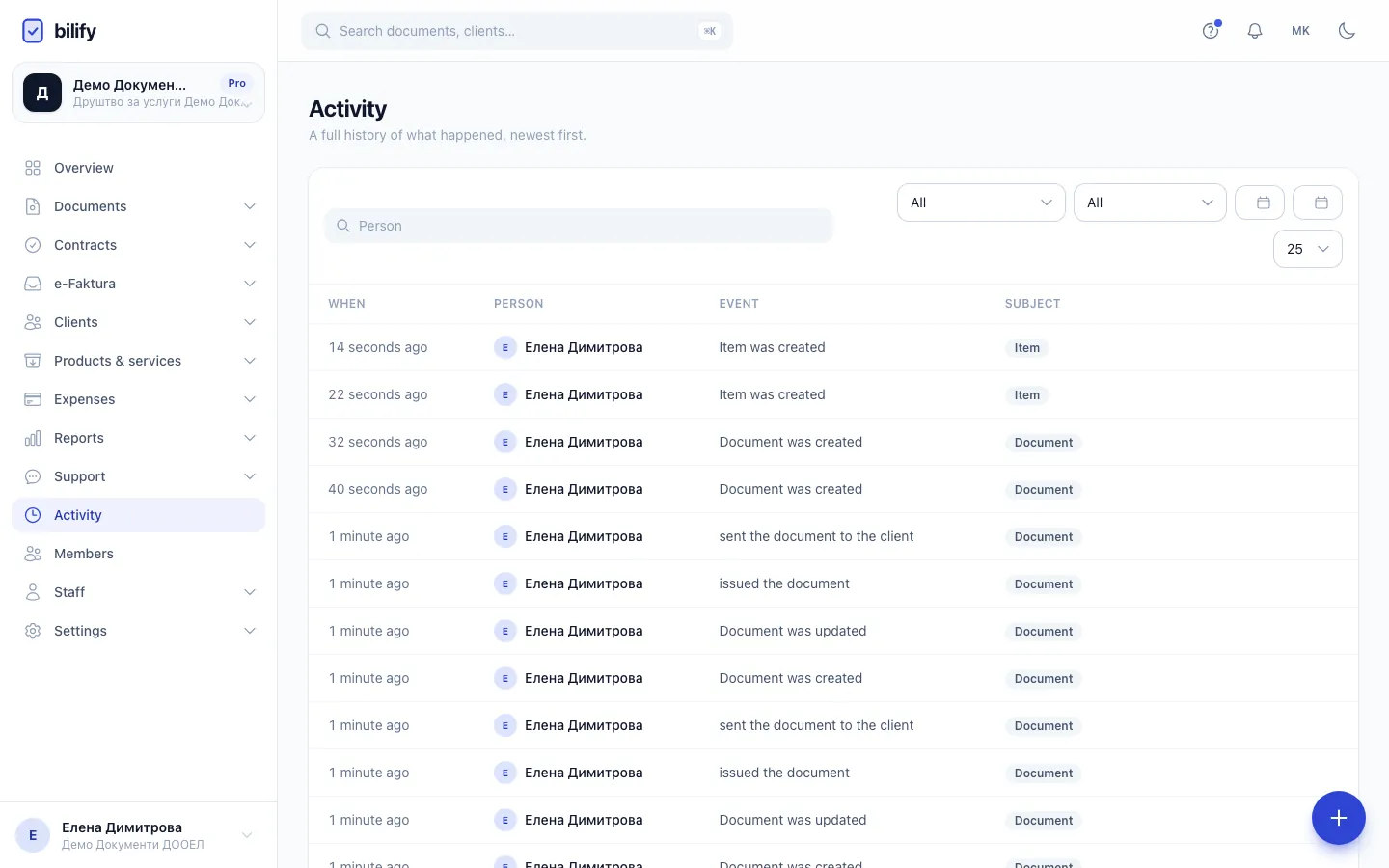
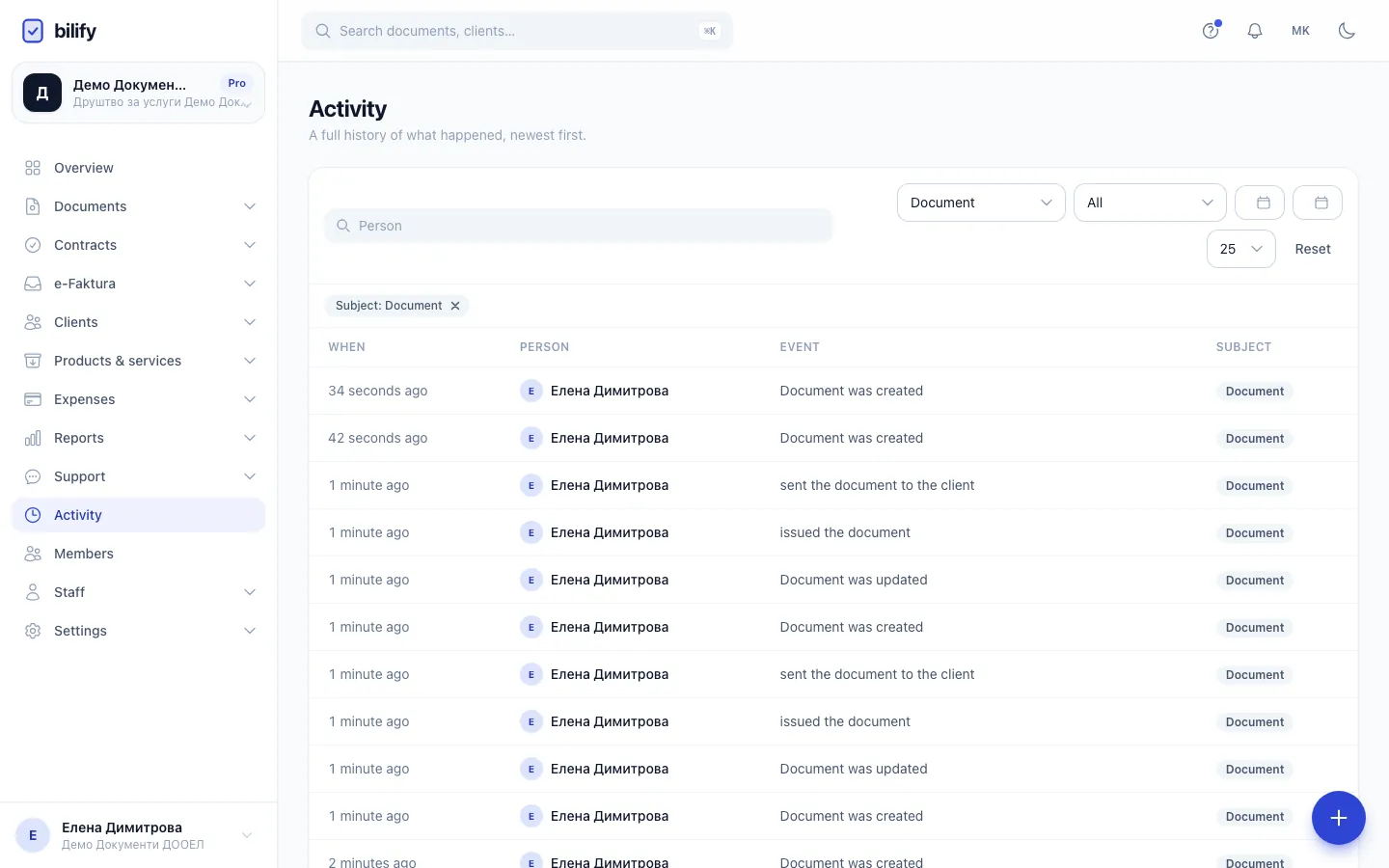
- Step 1: Choose a subject to see the history of one kind of record, here documents.
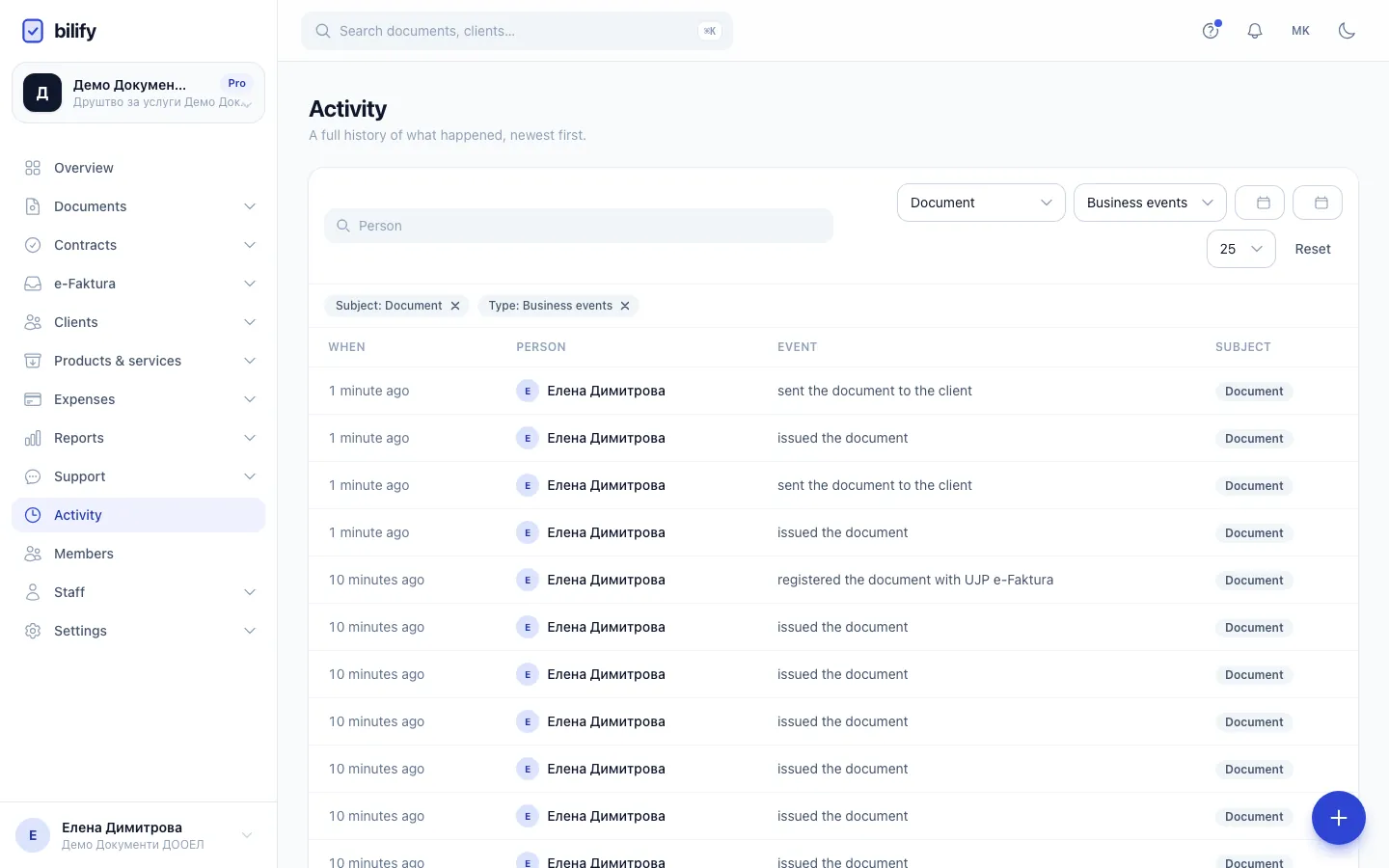
- Step 2: Business events narrows the list to things like issued, sent and paid documents.
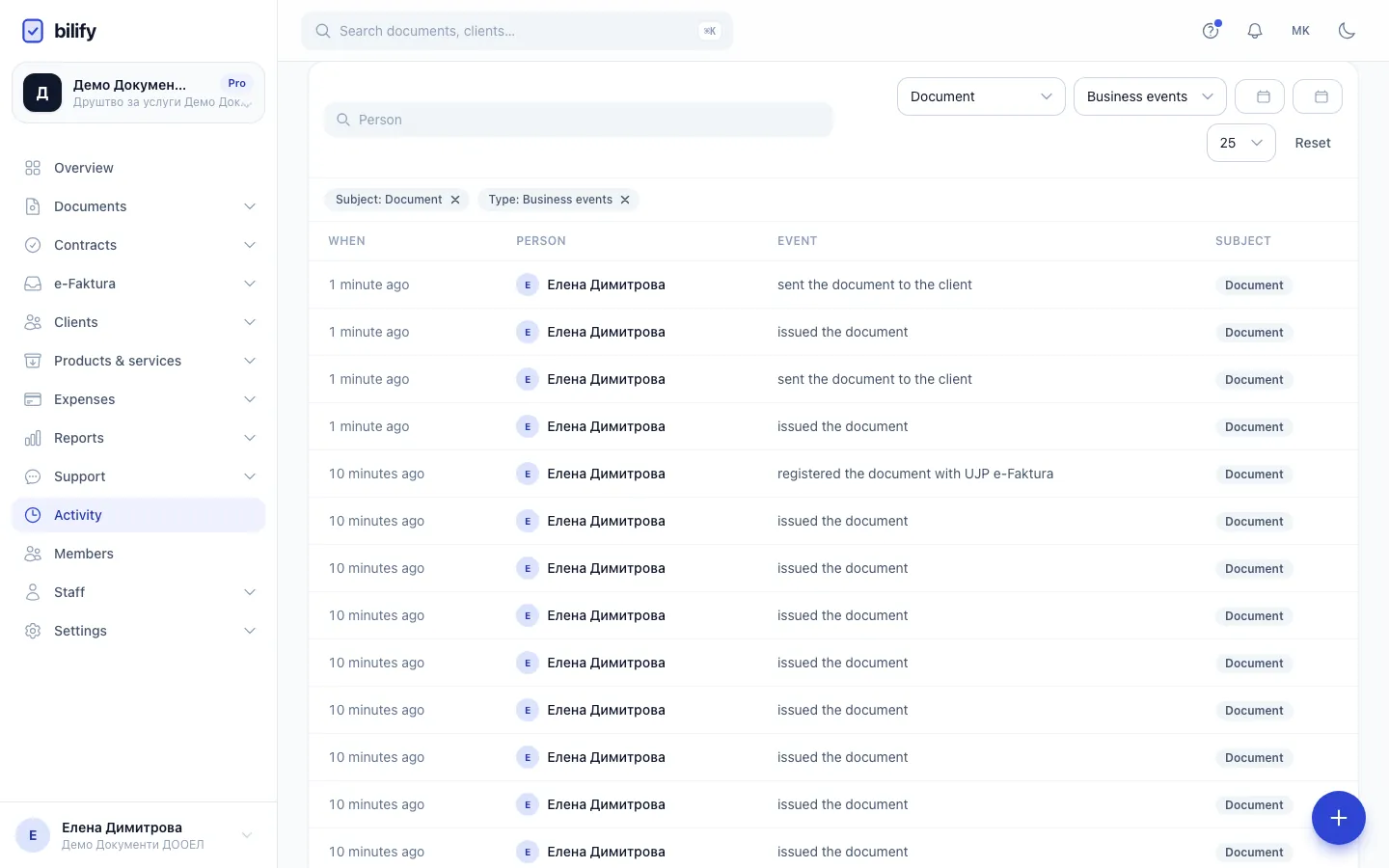
- Step 3: Type a name in Person to see what one team member did.
- Step 4: Each active filter shows as a chip. Entries can never be edited or deleted.
Open the log
Click Activity in the sidebar. Each entry shows:
| Column | What it shows |
|---|---|
| When | Date and time. |
| Person | Who did it. System means Bilify did it automatically, for example a scheduled report or a nightly job. |
| Event | What happened, for example "issued the document" or "Client was updated". |
| Subject | What it happened to: Document, Client, Contract, and so on. |
On a phone, the log shows a compact list with the person, the event and the time.
Filter the log
- Type a name in the Person search to see one person's actions.
- Choose a Subject to see one kind of record: Document, Client, Item, Expense, Recurring expense, Company, Team member, Numbering series, Subscription, Custom domain, Report run or Report schedule.
- Choose a Type:
- Record changes: records created, updated, deleted or restored.
- Business events: document events (issued, sent, cancelled, payments, conversions, e-Faktura) and report events.
- Access: client portal logins and offers accepted in the portal.
- Administrative: custom domain verification.
- Set From and To to limit the dates.
- Change how many entries you see per page (15, 25 or 50).
Each active filter shows as a chip above the list; click its x to remove it. When nothing matches, use Reset to clear all filters.
Contract events (created, sent, signed, declined, voided, sealed) are recorded, but they are not in the Subject list and not under any Type. Leave Type on All to see them.
What is recorded
- Changes to records: documents, clients, items, expenses, numbering series, team members and company settings.
- Document events: issued, sent to the client, cancelled, payment recorded, converted, and e-Faktura submissions and answers.
- Reports: generated, failed, opened and downloaded (also when a recipient opens an emailed link without signing in), and schedules paused after repeated failures.
- Client portal: logins and accepted offers.
- Contracts: created, sent, signed, declined, voided and sealed.
- Custom domain verification, sandbox resets, and Bilify support signing in as a user of your workspace (start and end).
Entries cannot be edited or deleted, by anyone. Deleted records stay in the log with their history, so the trail stays complete.
Availability
The activity log is included in every package. Accountants and Employees do not see it unless you give their role the activity.view permission; see Roles and permissions.
Was this page helpful?
Related articles
Still stuck?
Write to us and we will get back to you within one working day.