Set up your company profile
Fill in the company details, address, default currency, logo and brand color that Bilify prints on your documents and shows to clients.
Your company profile is what appears in the seller block of every document, at the top of the client portal and in the emails Bilify sends for you. Check it once before you issue your first invoice.
You need the Owner or Admin role (the General settings permission) to change it.
Open the company profile
Go to Settings > General in the sidebar, or click the company card under the logo and choose Company profile.
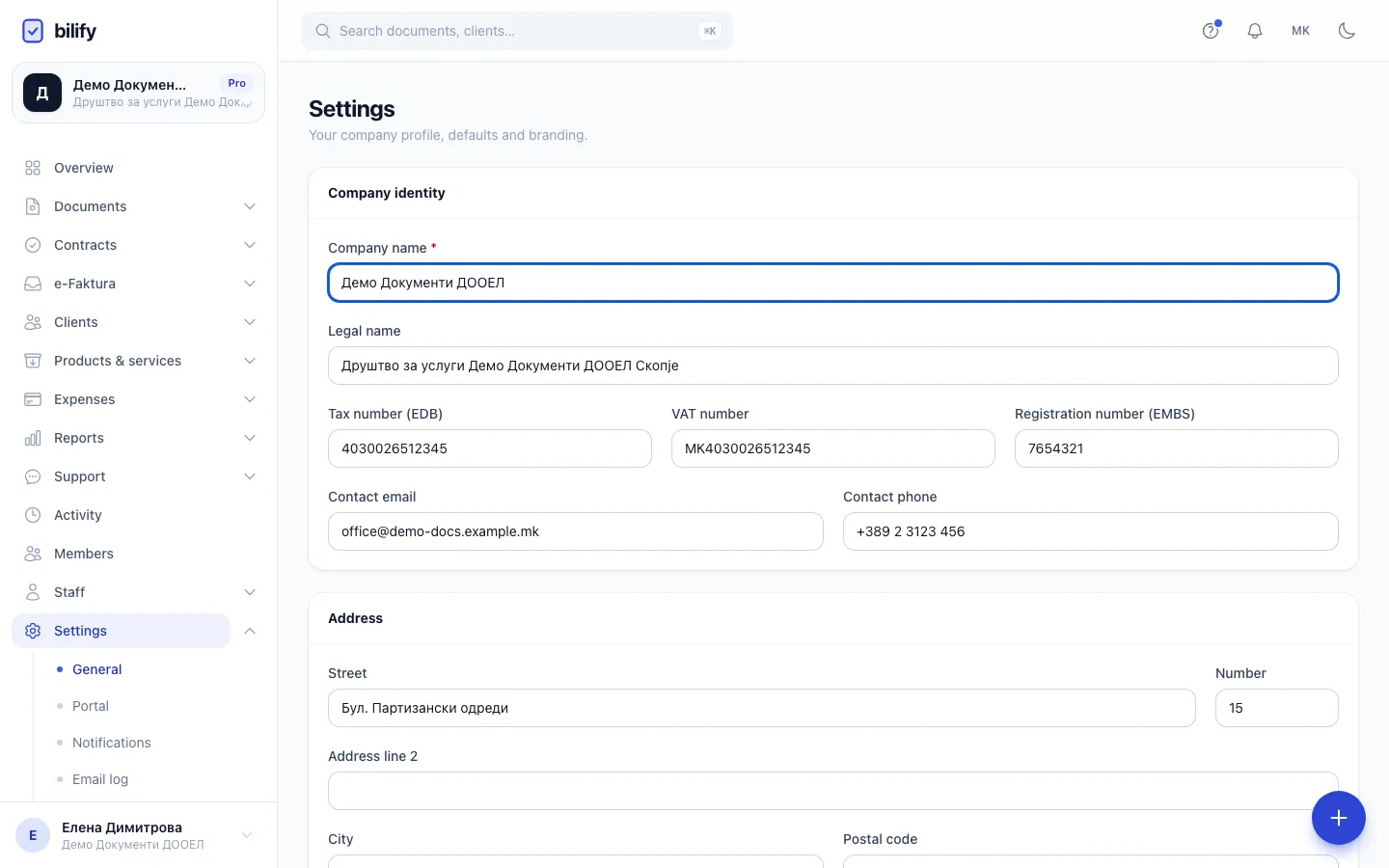
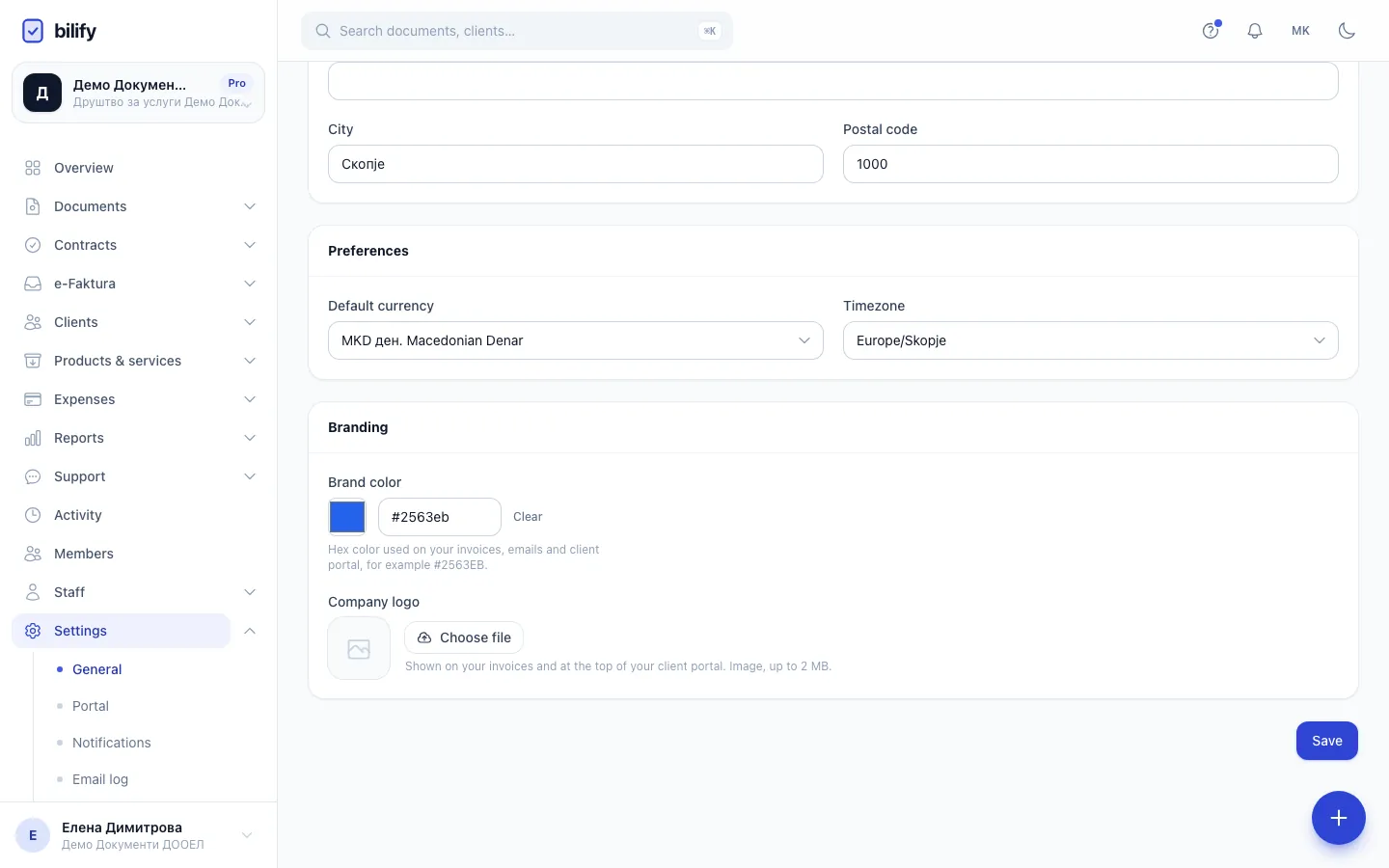
- Step 1: Company identity holds the name, legal name, EDB and EMBS that print on your documents.
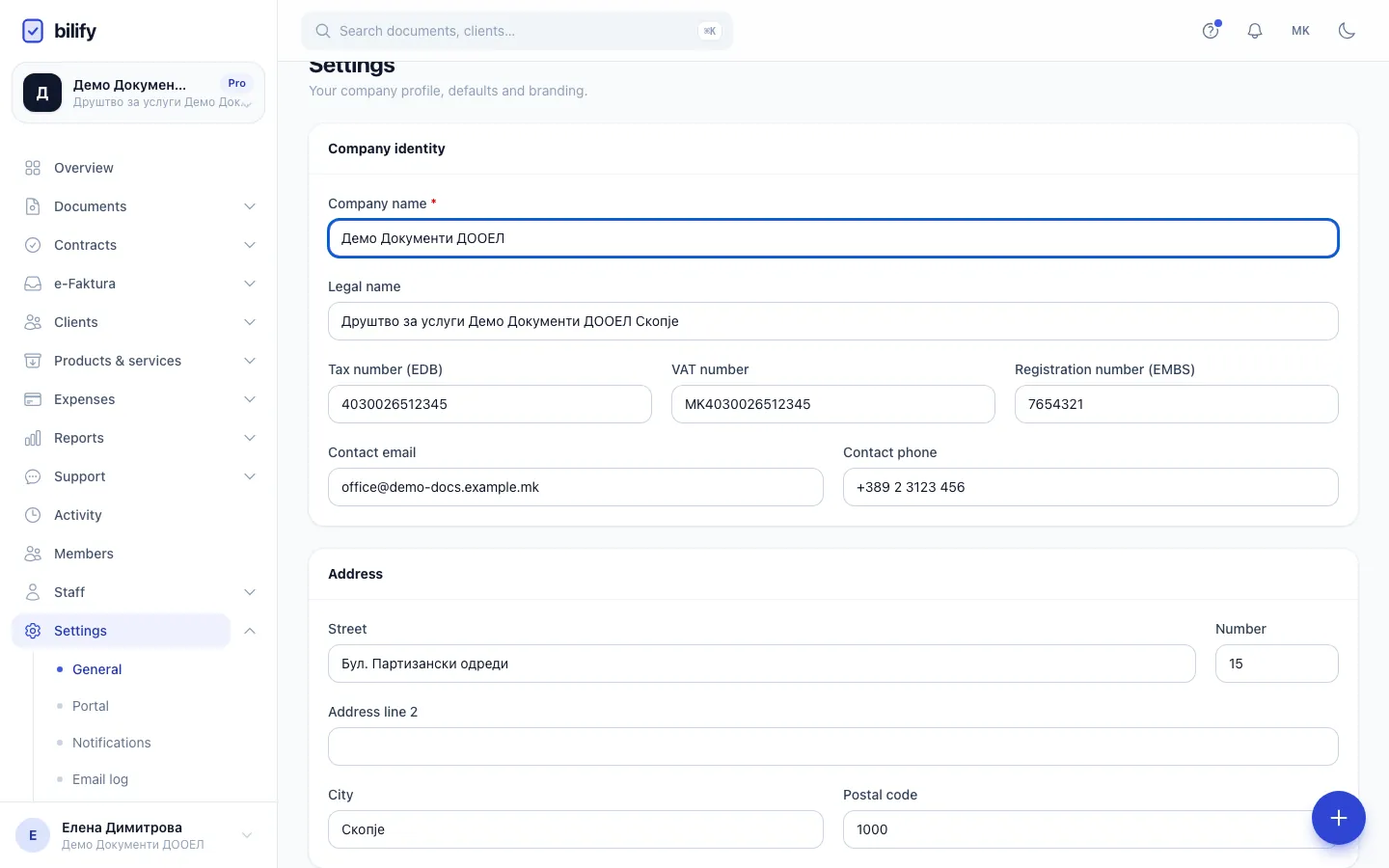
- Step 2: Keep the address current. Documents you issue from now on use the address saved here.
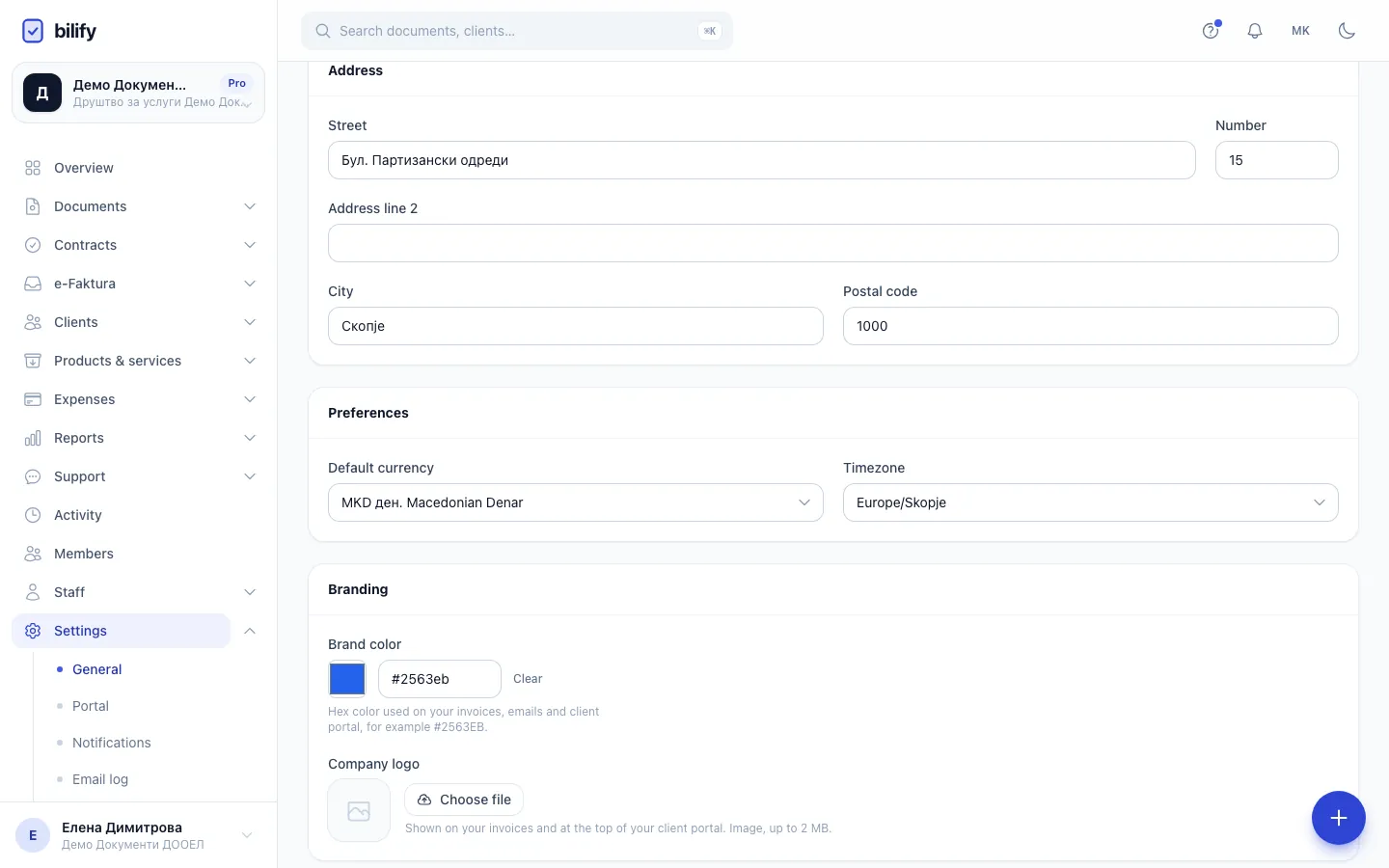
- Step 3: The default currency and timezone are used for new documents and for dates across the app.
- Step 4: Upload a logo and pick a brand color. They appear on invoices, emails and the client portal.
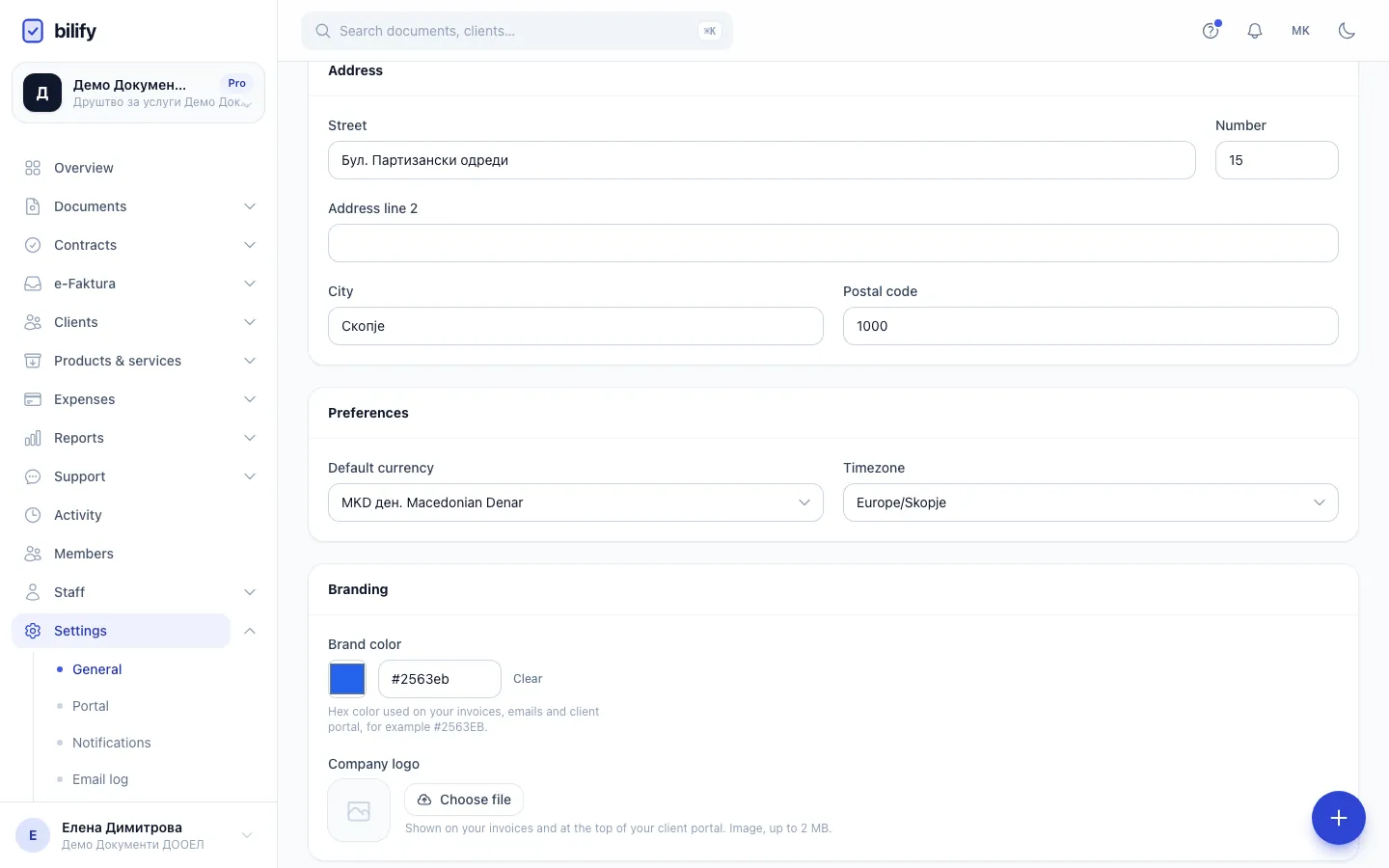
- Step 5: Click Save to keep your changes. The logo is saved as soon as you upload it.
Fill in the details
- Under Company identity, check the Company name (the name you invoice under) and add the Legal name if it differs.
- Enter the Tax number (EDB) and Registration number (EMBS). For Macedonian companies there are also VAT number, Contact email and Contact phone fields.
- Under Address, fill in Street, Number, City and Postal code. Address line 2 is optional.
- Under Preferences, choose the Default currency for new documents and your Timezone.
- Under Branding, pick a Brand color (or click Clear to use none) and upload a Company logo. The logo must be an image of up to 2 MB.
- Click Save.
The logo saves itself
The logo is stored as soon as the upload finishes, without clicking Save. To take it off again, click Remove logo. Everything else on the page is only stored when you click Save, and the browser warns you if you try to leave with unsaved changes.
What changes and what does not
- New documents use the profile as it is when they are issued: name, address, tax numbers, logo and color.
- Issued documents do not change. Each issued document keeps a copy of the seller details from the moment it was issued, so editing your address today does not rewrite last month's invoices.
- The country was set when the company was created and cannot be changed here. It decides the tax rates, document types and fields available to you.
- The Brand color and logo also appear in the client portal and in emails to clients.
Next steps
A new company has no numbering yet, so you cannot issue a document until you:
- create a numbering series, and
- enable a document type and connect it to that series.
Bilify also creates a default payment method called "Bank transfer" for your company. Add your bank account details to it under Documents > Payment methods so they print on your invoices; see Payment methods.
Was this page helpful?
Related articles
Still stuck?
Write to us and we will get back to you within one working day.