Cancel a document
Cancel an issued document that should no longer count, what cancelling keeps and reverses, and how it differs from deleting a draft.
An issued document can never be edited or deleted. If it is wrong or the deal fell through, you cancel it. Cancelling keeps the document and its number for the record and takes it out of your open amounts.
Cancel an issued document
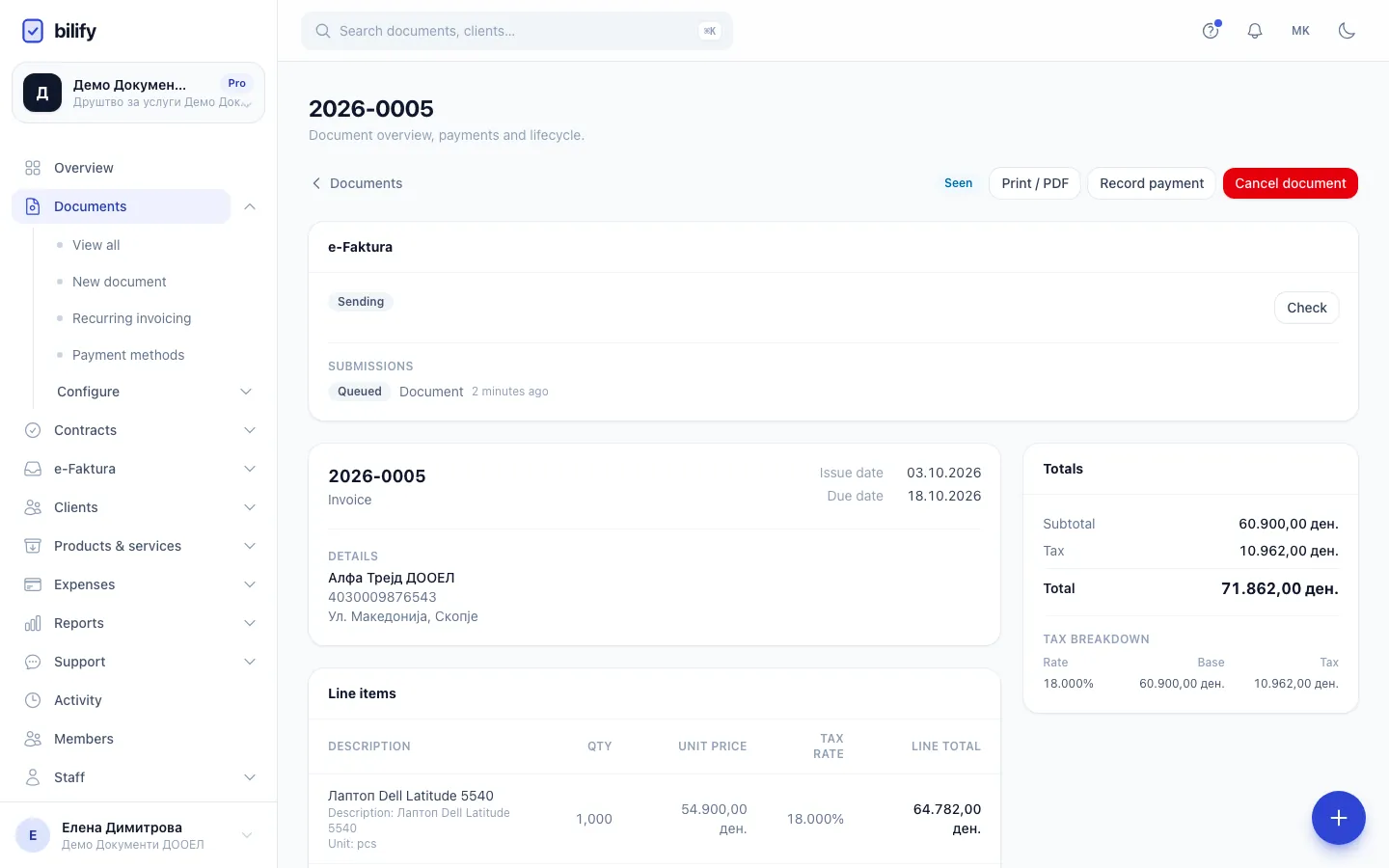
- Open the document from Documents.
- Click Cancel document.
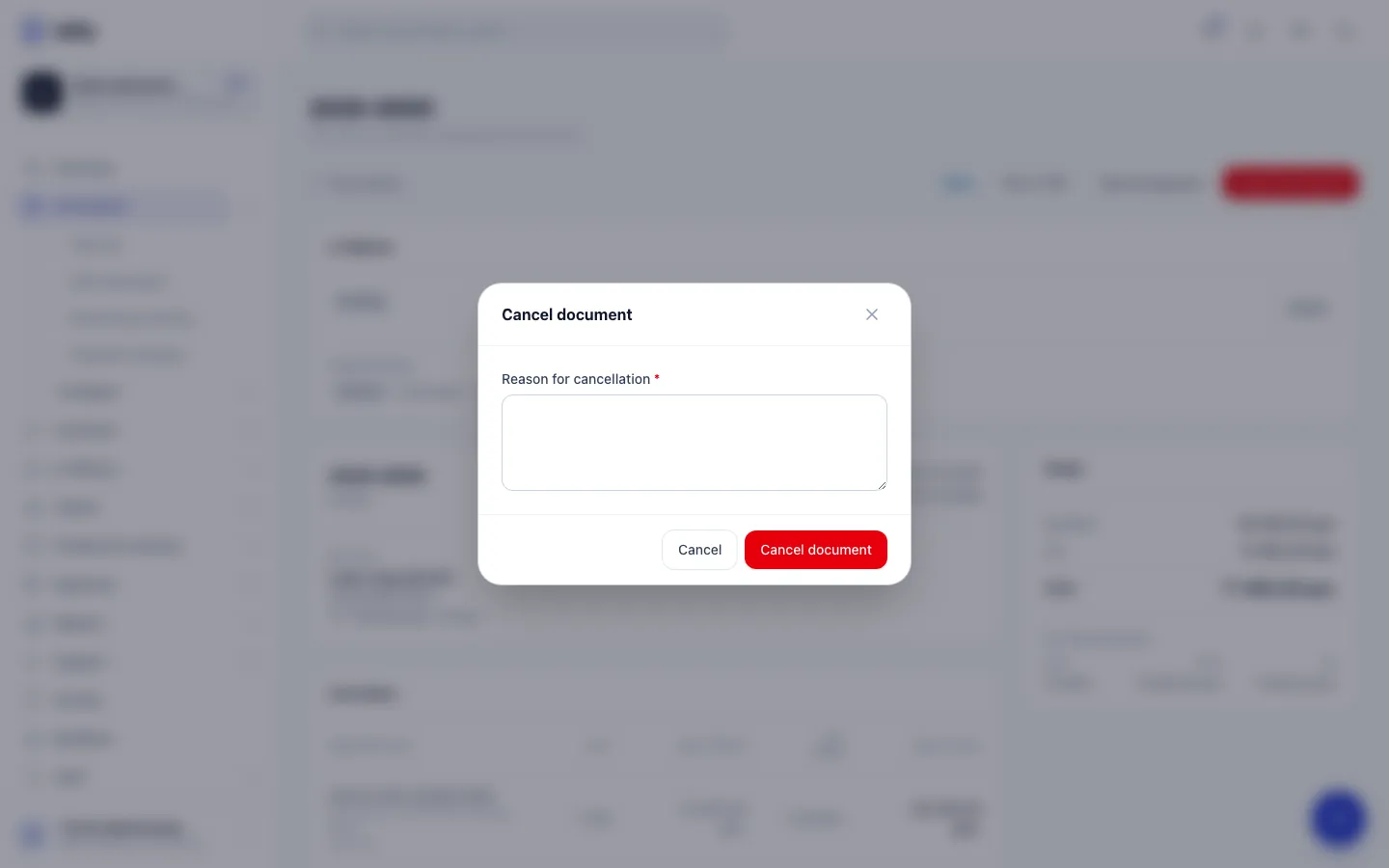
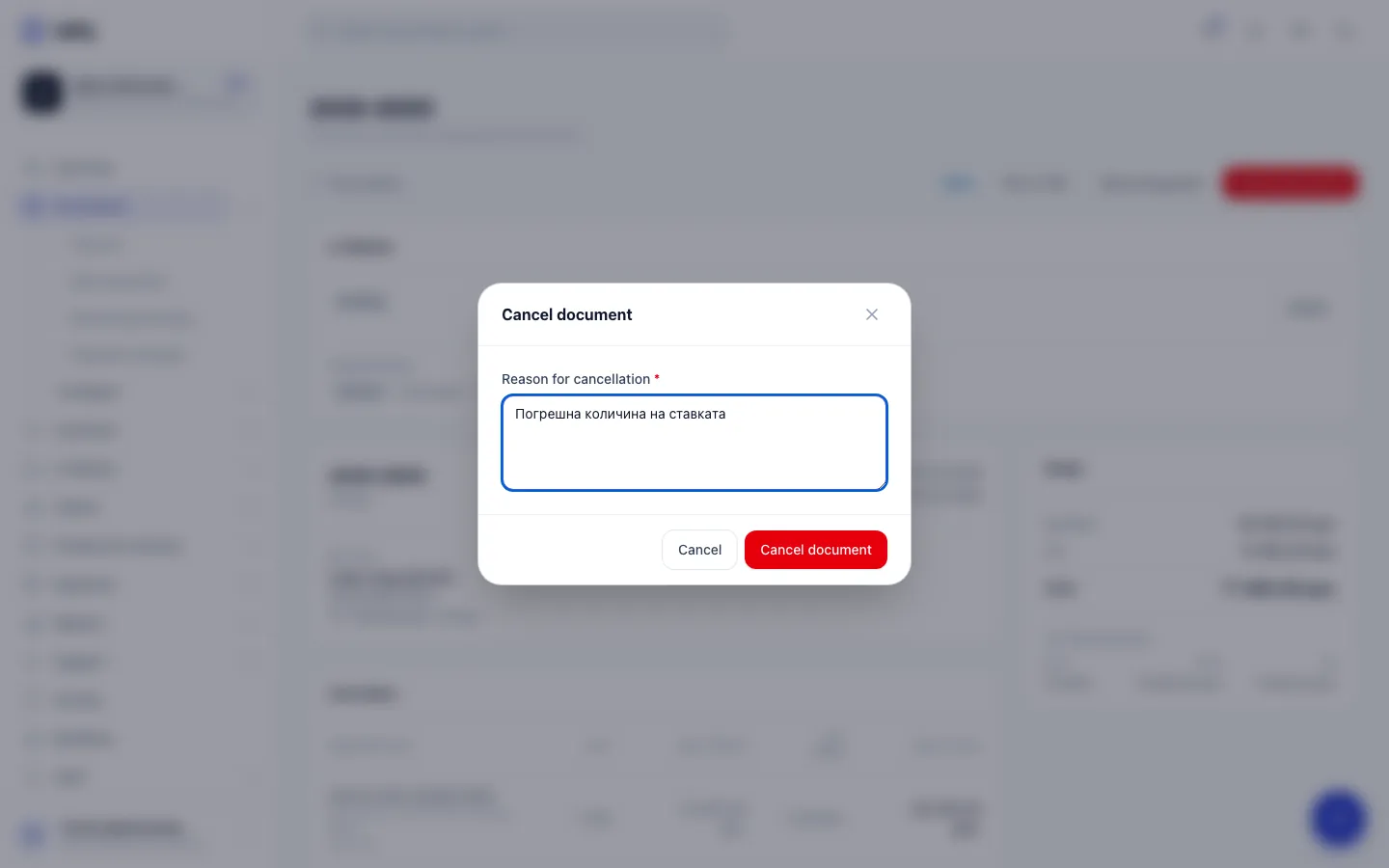
- Enter the Reason for cancellation (required, up to 500 characters).
- Click Cancel document in the window.
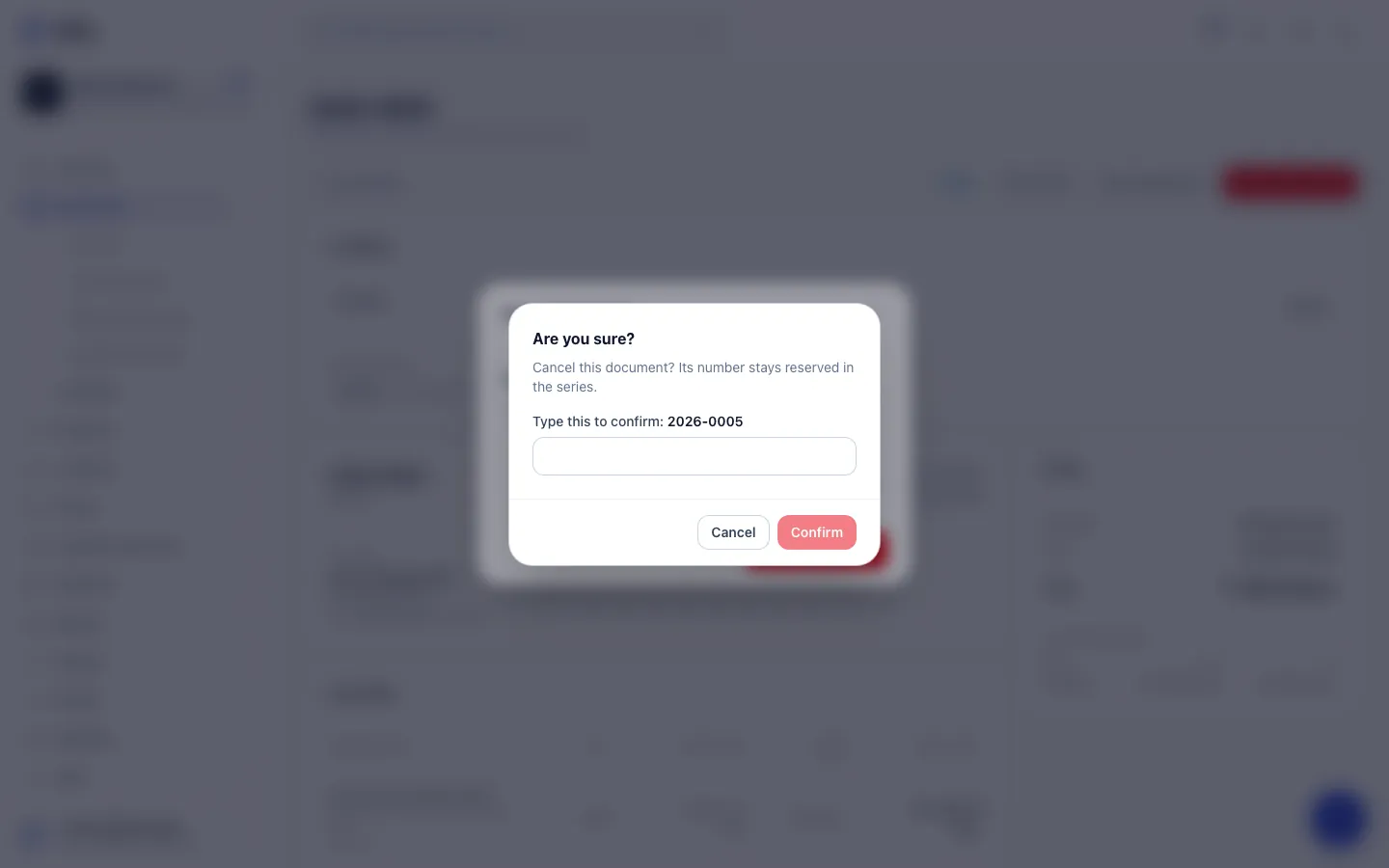
- Bilify asks "Cancel this document? Its number stays reserved in the series." and shows the document's number. Type the number exactly as shown into the box to confirm.
- Click Confirm.
The status changes to Cancelled. You can also start a cancellation from the status badge or the row menu on the Documents list.
Cancel document is not offered on documents that are already Paid or Cancelled.
What cancelling does
- The document stays in your list with the status Cancelled, its number, lines and totals unchanged.
- The number stays with the cancelled document. The series is not rewound, so the next document gets the next number and the sequence has no gap.
- The reason is saved with the document and recorded in its Activity.
- It no longer counts in Total due or in your totals of open amounts.
- No more payments can be recorded on it.
- Stock taken out when the document was issued is put back, if you track stock.
Cancelling does not notify the client. Tell them yourself if they already received the document.
Cancelling cannot be undone
A cancelled document cannot be reopened. To replace it, issue a new document. If you converted it from an offer, you can convert the offer again.
Requires: UJP e-Faktura integration
Invoices already registered with UJP
If an invoice was sent to UJP through e-Faktura and registered there, Bilify does not let you cancel it in place. The message says the document is already registered with UJP and that you need to issue a storno or a correction instead. See Storno and correction.
Drafts are deleted, not cancelled
A draft has no number yet, so it is simply deleted: use Delete in the row menu on Documents, or select several drafts and click Delete selected. Only drafts can be deleted; issued documents in a selection are skipped. Deleted drafts can be brought back: tick Show deleted and choose Restore.
Credit notes
Credit note (credit note) and Debit note (debit note) are not available yet, so a partial correction of an issued invoice is not possible in Bilify today. See Credit and debit notes.
Was this page helpful?
Related articles
Still stuck?
Write to us and we will get back to you within one working day.