Recurring expenses
Set up rent, salaries, subscriptions and other repeating costs once, and let Bilify create each expense on schedule.
A recurring expense is a rule, such as "office rent, 35,000 MKD, every month on the 1st". Bilify uses the rule to create a normal expense on each date, so your costs are complete without typing them every month.
Create a recurring expense
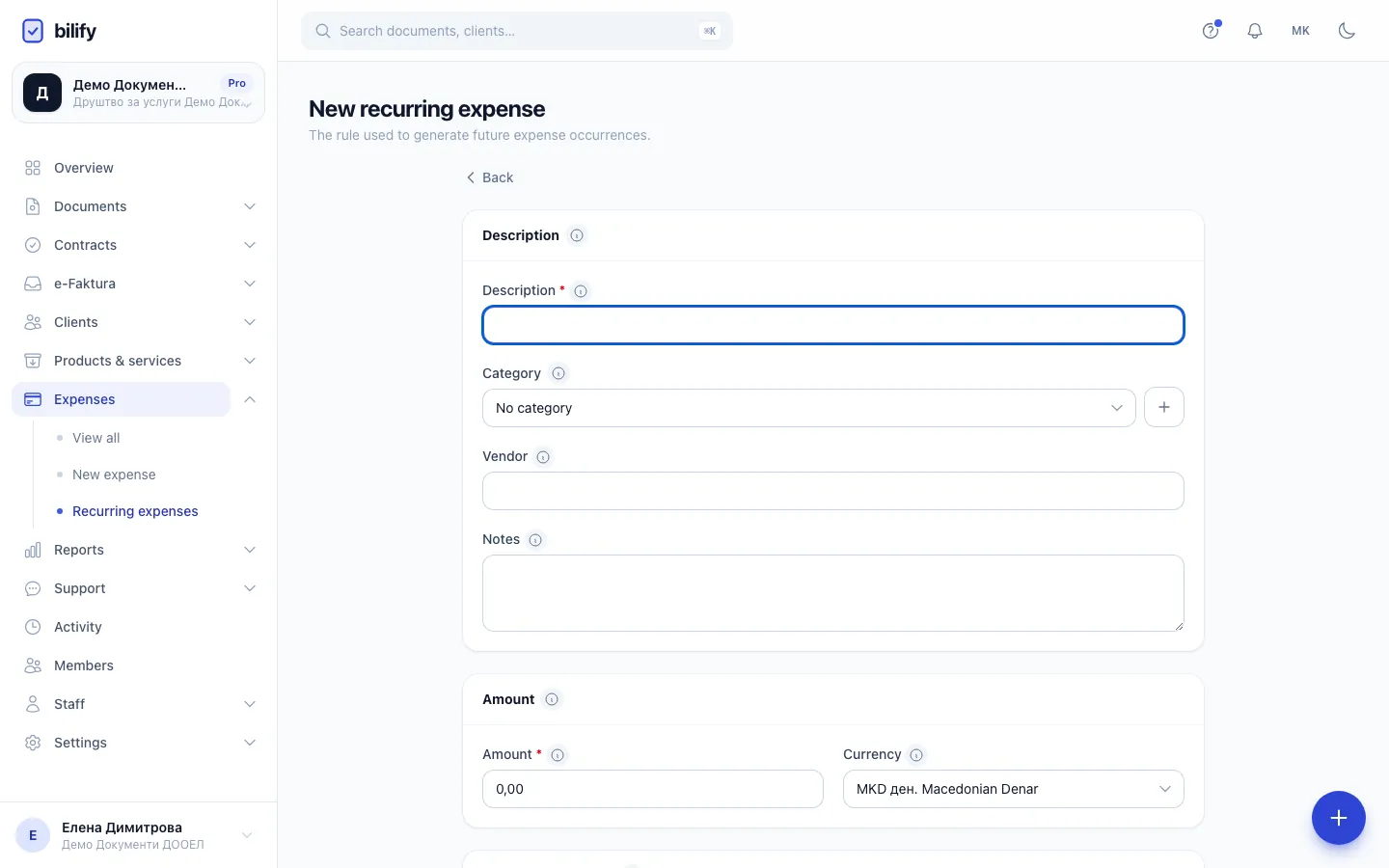
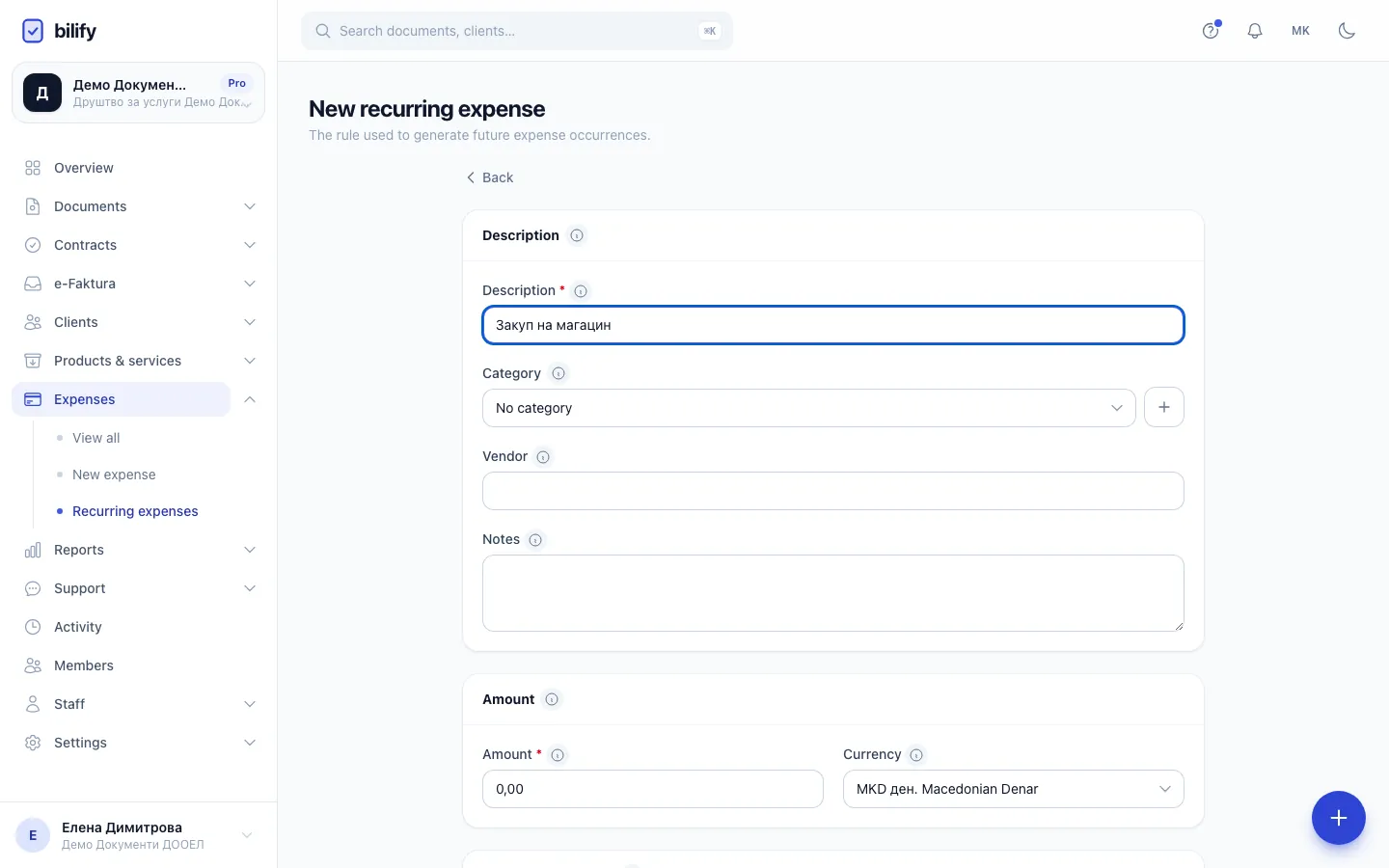
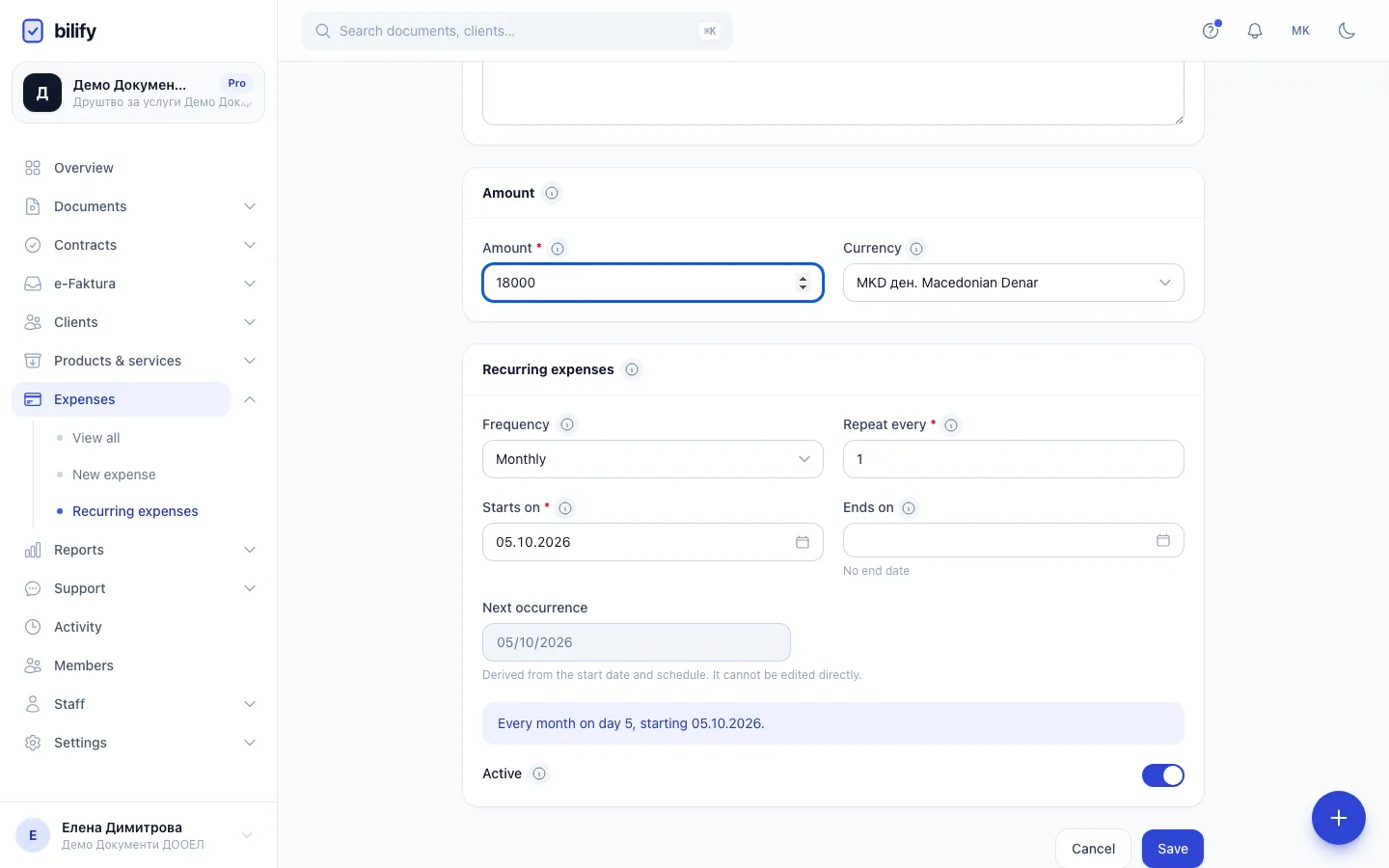
- Step 1: Describe the cost. Every expense the rule creates gets this description.
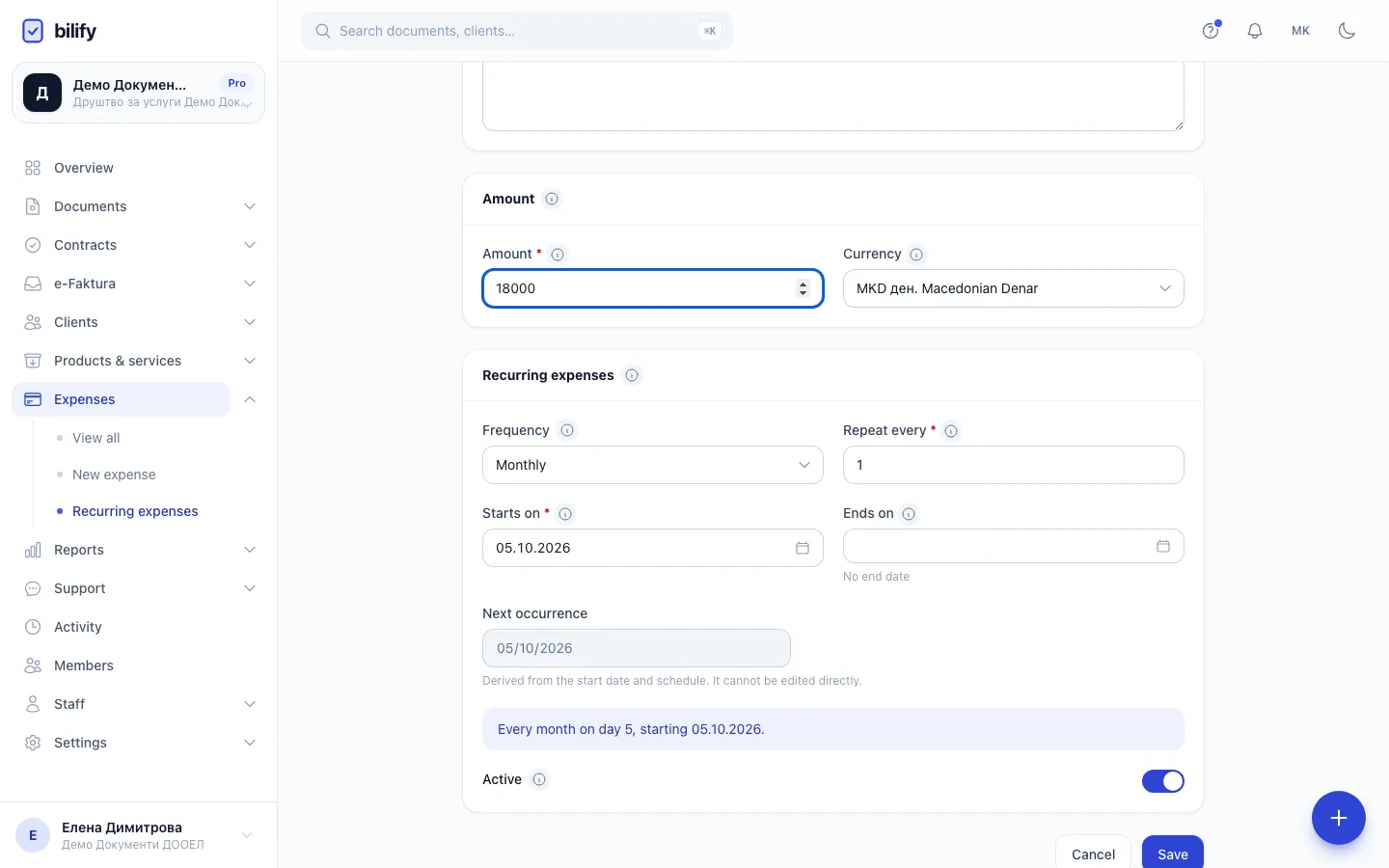
- Step 2: Enter the amount charged each time.
- Step 3: Choose how often it repeats. Starts on fixes the day, for example the 15th of each month.
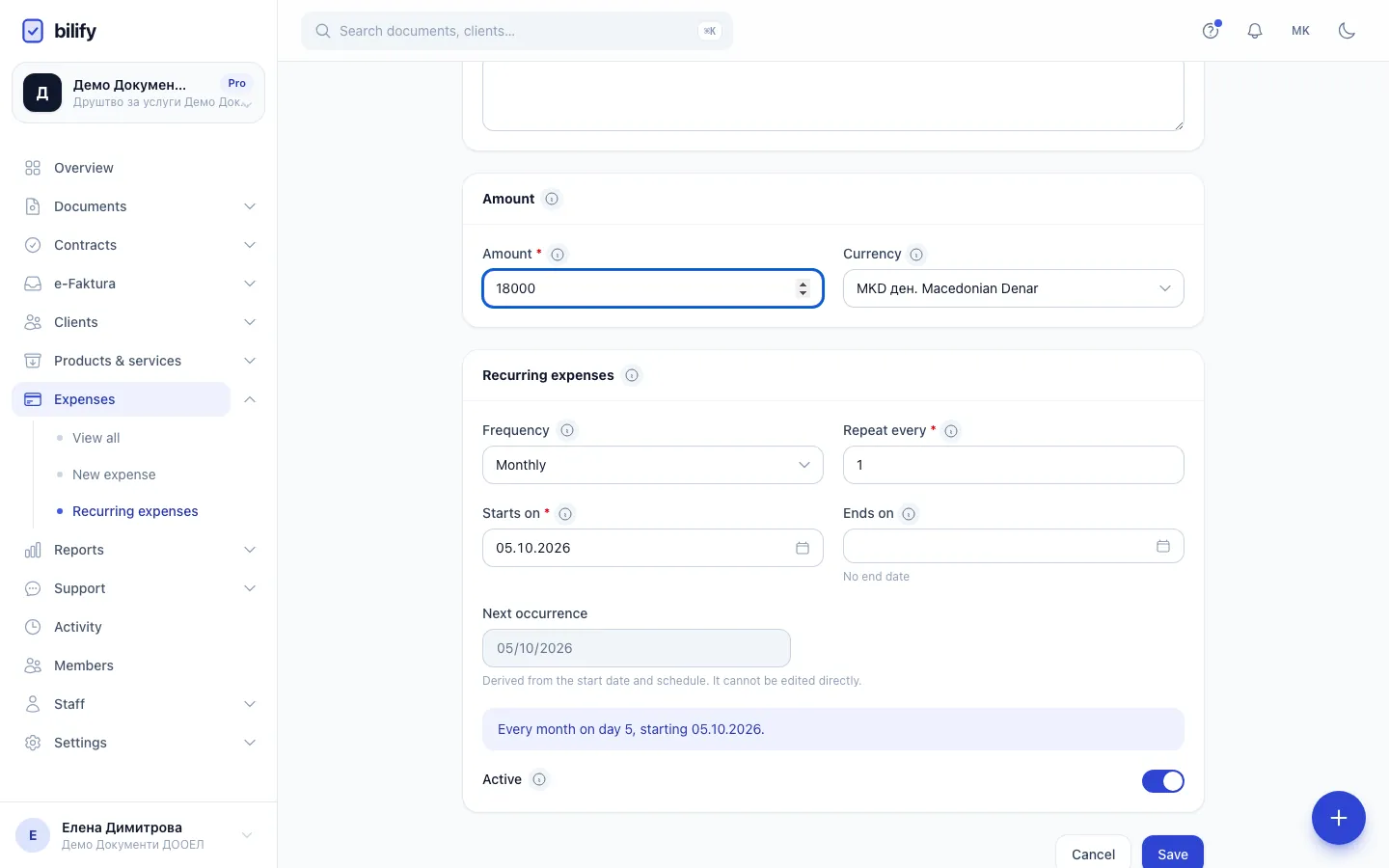
- Step 4: Read the summary to check the schedule before you save.
- Step 5: Click Save. Bilify creates each expense on its date, once a day just after midnight.
- Open Expenses > Recurring expenses and click New recurring expense.
- Fill in the Description, and optionally the Category, Vendor and Notes. These are copied to every expense the rule creates.
- Enter the Amount and check the Currency.
- In the schedule card, choose the Frequency: Weekly, Biweekly, Monthly, Quarterly or Annually.
- Set Repeat every to 1 for every period, 2 for every second period, and so on (up to 52).
- Choose Starts on. This date also fixes the day: a monthly rule starting on the 15th repeats on the 15th, a weekly rule starting on a Monday repeats on Mondays.
- Optional: choose Ends on. Leave it empty for no end date.
- Read the sentence under Next occurrence, for example "Every month on day 15, starting ...", to check the schedule.
- Leave Active on and click Save.
Months with fewer days
A monthly, quarterly or yearly rule on the 29th, 30th or 31st falls on the last day of shorter months (for example 28 February), and returns to its own day in the next month that has it.
When the expenses appear
Bilify checks the rules once a day, shortly after midnight, and creates the expense for every date that has arrived. Expenses are created on their date, not in advance.
A start date in the past fills in the gap
If Starts on is in the past, the next daily run creates one expense for every date from the start up to today. The same happens when you switch a rule back to Active after a pause: every date it missed while inactive is created. If you do not want those, skip them afterwards or change Starts on before you save.
Expenses created by a rule show a badge with the rule's name in the expenses list and count everywhere a normal expense does. For a foreign currency, each one gets the exchange rate of its own date.
Change one upcoming occurrence
Sometimes next month is different, for example a higher bill. In the recurring expenses list, open the row menu and choose Edit upcoming occurrence. Bilify creates the next expense early and opens it, so you can change its amount or details. Its date stays locked. The change applies to that one expense; the rule stays as it was. Changed occurrences show the Edited badge.
To skip a single date, find that expense in the expenses list and choose Skip. The rule will not create it again. See Record an expense.
Change or stop a rule
- Edit the rule to change the amount, category, schedule or end date. Changes apply to future occurrences only; expenses already created stay as they are. The Next occurrence date is worked out by Bilify and cannot be typed.
- Use the Active switch in the list to pause a rule. Paused rules create nothing.
- Delete a rule to stop it for good. Expenses it already created are kept. Deleted rules can be brought back with Show deleted and Restore.
Package
Recurring expenses are part of the Business, Pro and Enterprise packages. On other packages the page shows Recurring expenses is a premium feature with an Upgrade plan button, and new rules cannot be saved. See Change your plan.
Was this page helpful?
Related articles
Still stuck?
Write to us and we will get back to you within one working day.