Create an invoice
Write a draft invoice or other document, add lines from your catalogue, check the live totals and save it until you are ready to issue.
Every document in Bilify starts as a draft. A draft can be changed, saved and deleted as often as you like. Nothing is numbered and nothing is sent until you issue it.
The same screen creates every document type: Invoice, Offer, Pro-Forma Invoice and the others your company has switched on.
Fill in the document details
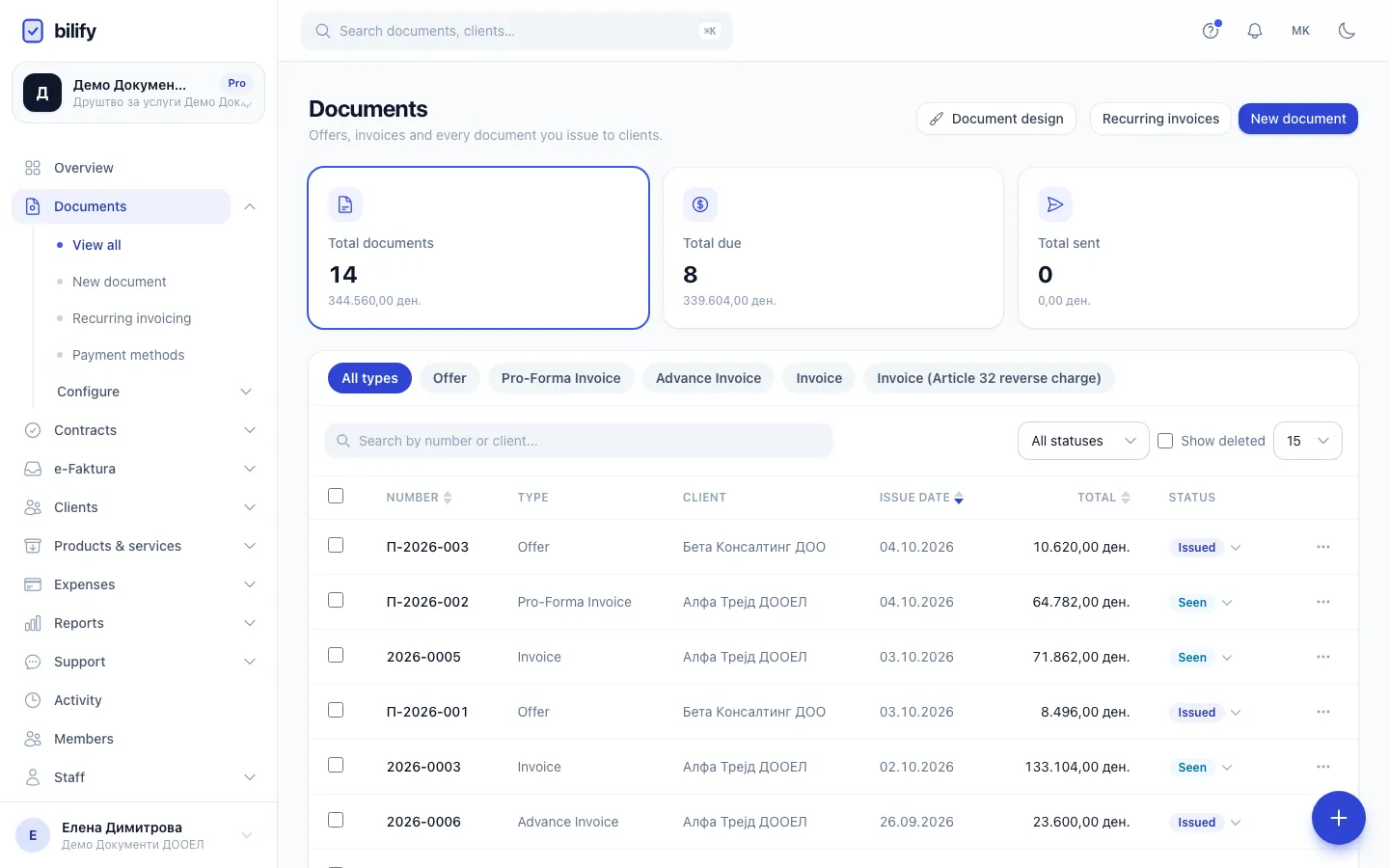
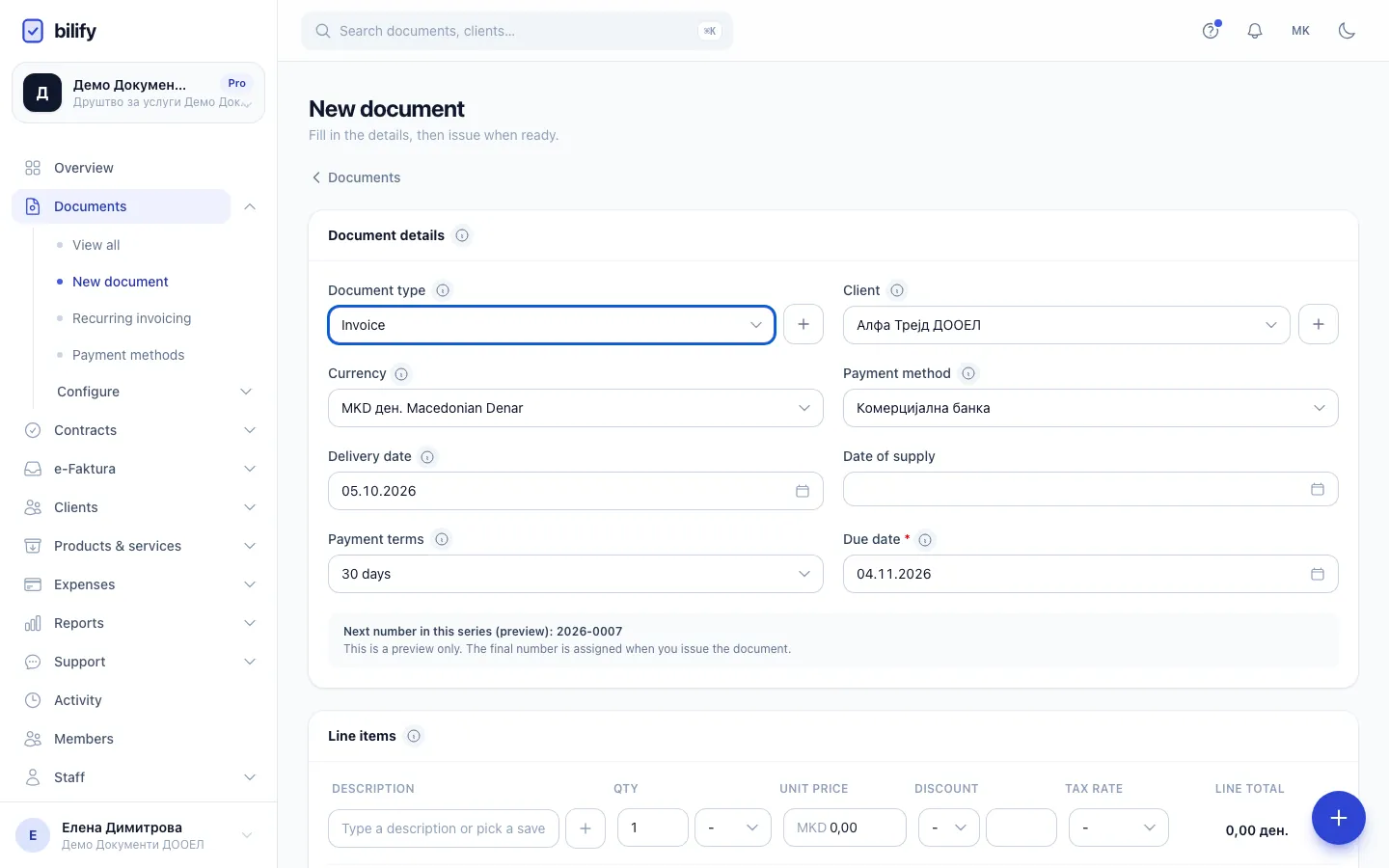
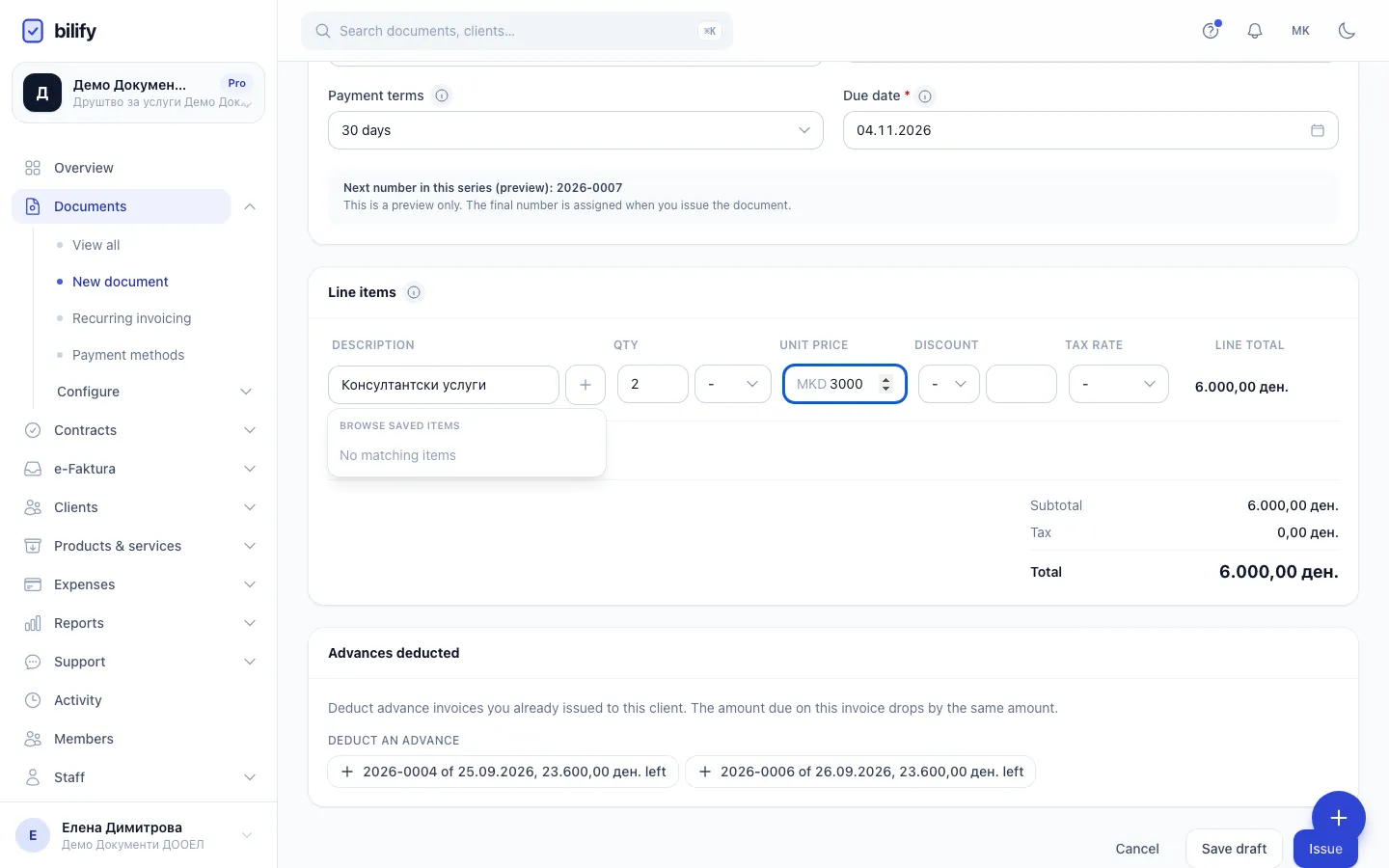
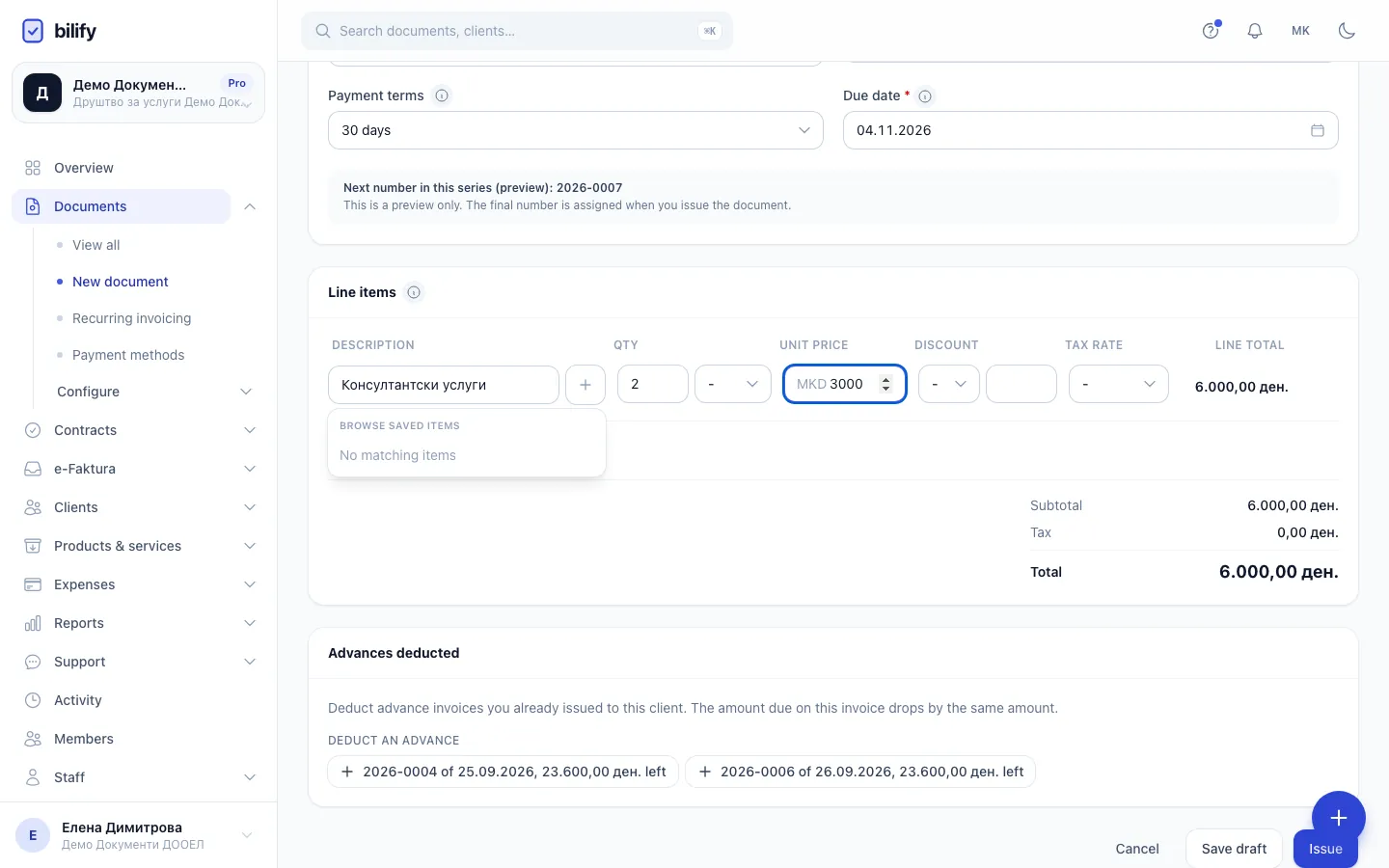
- Step 1: On Documents, click New document. Every document type starts here.
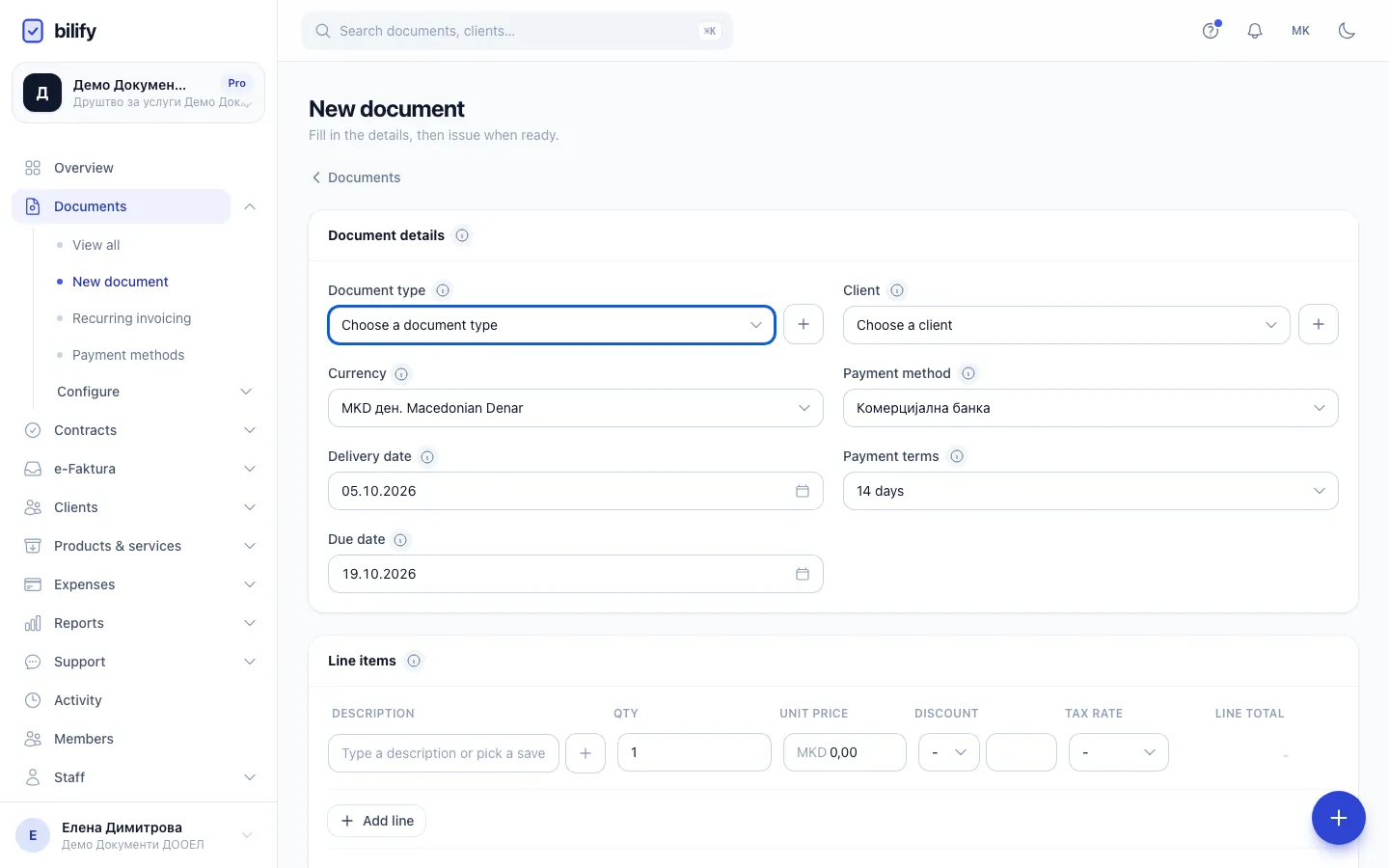
- Step 2: Choose the document type, for example Invoice. Only the types your company uses are listed.
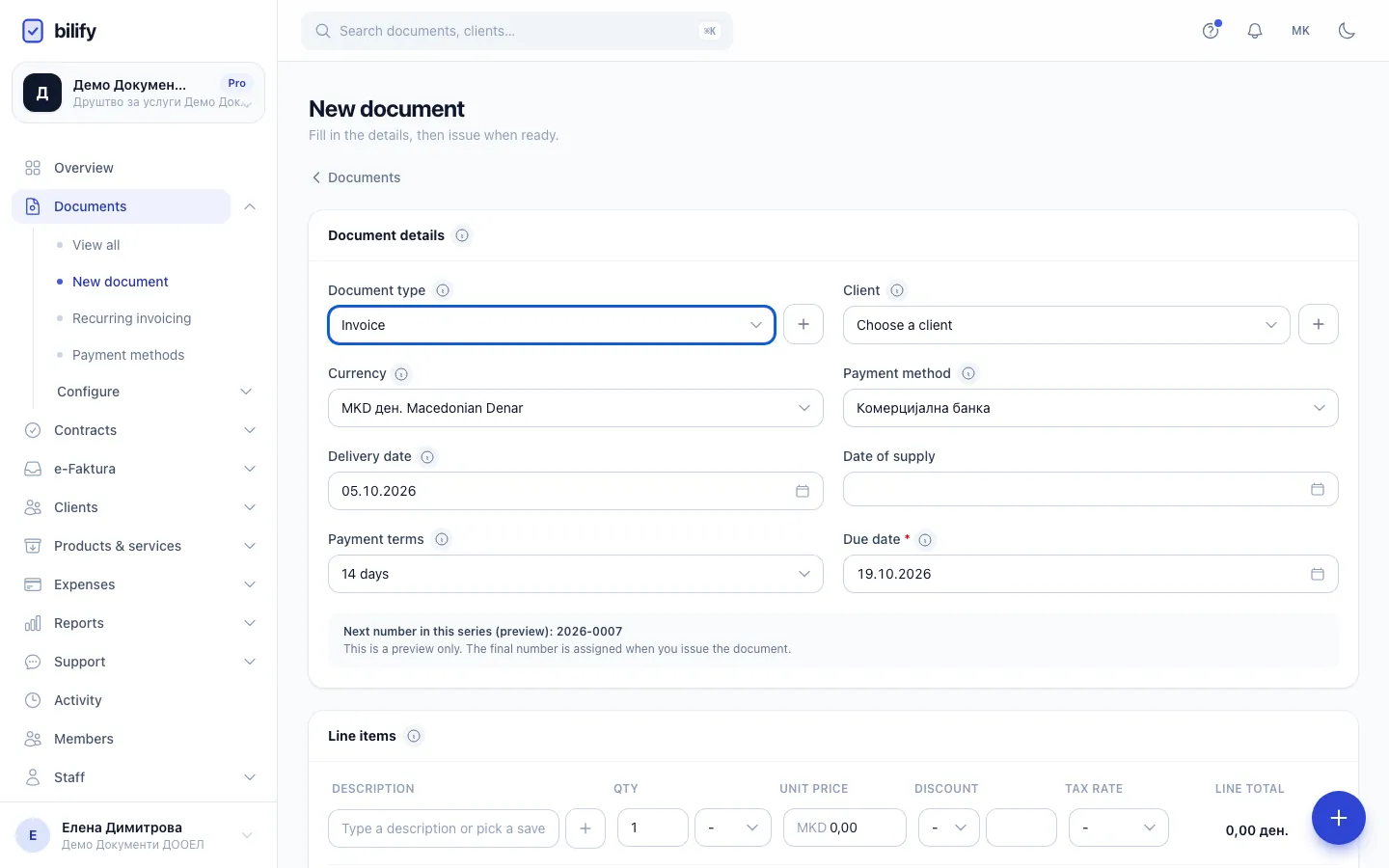
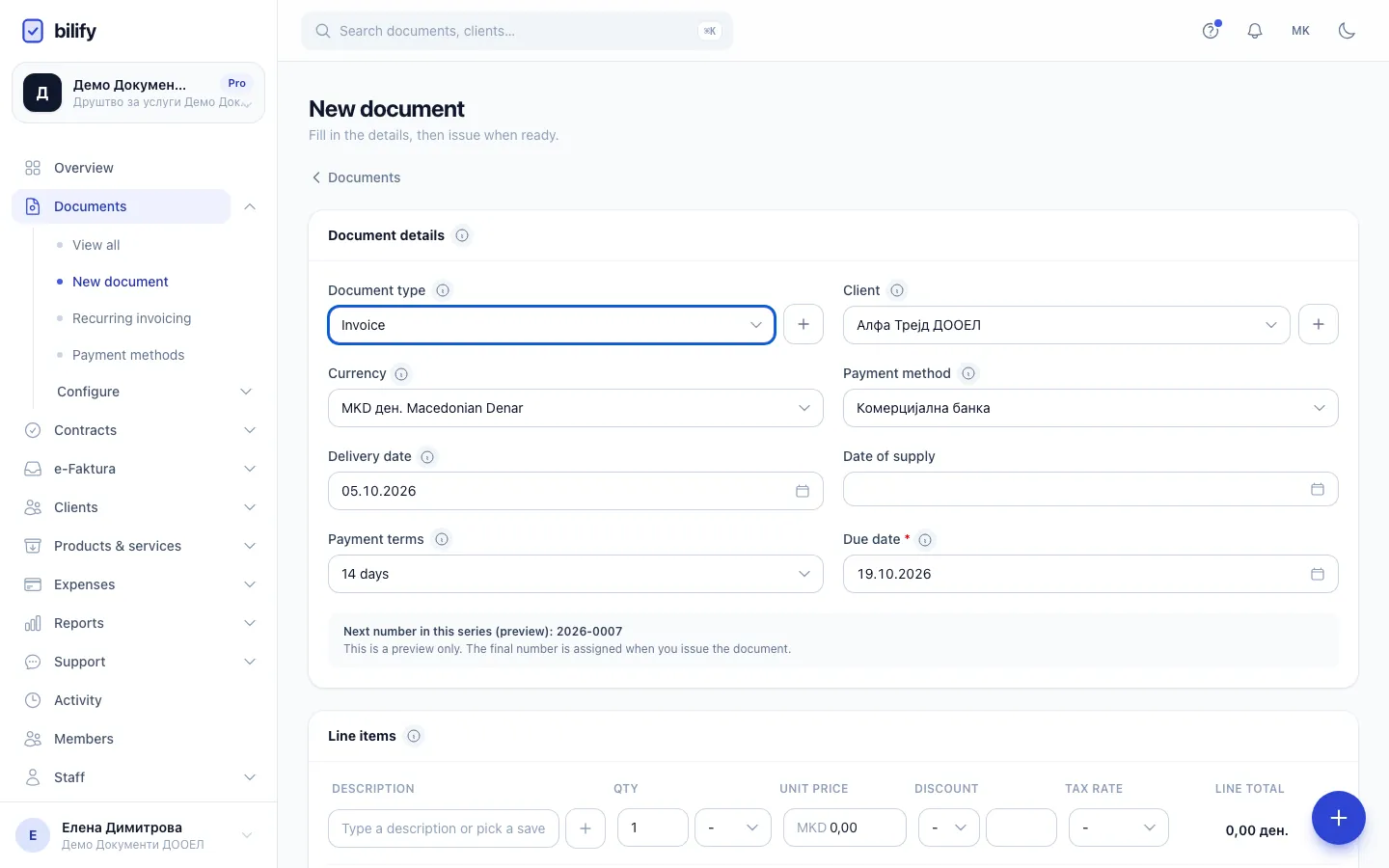
- Step 3: Choose the client. The + button next to it adds a new client without leaving the draft.
- Step 4: Pick the payment terms. Bilify sets the due date from the delivery date.
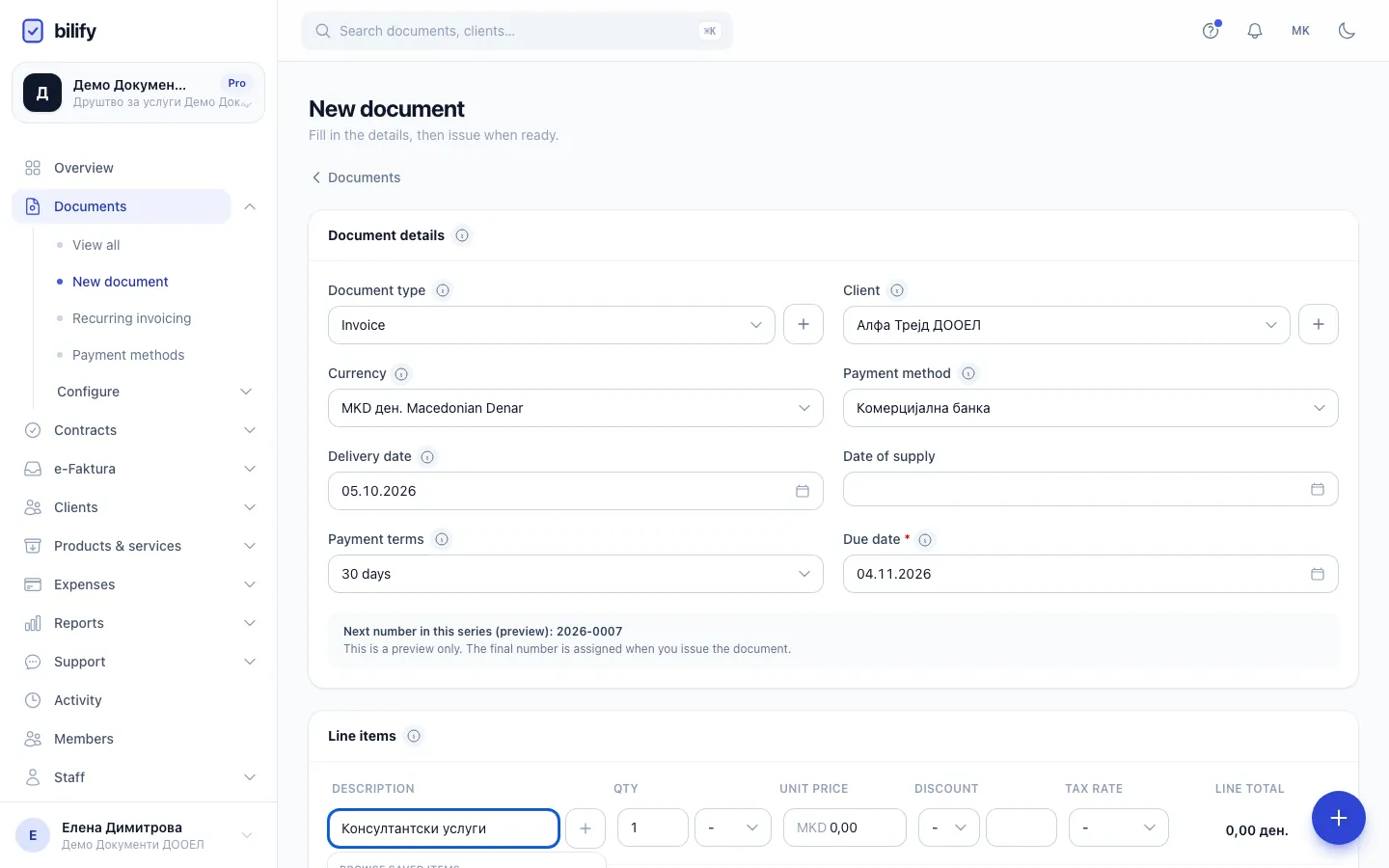
- Step 5: Type a description or pick a saved product or service from the list that opens.
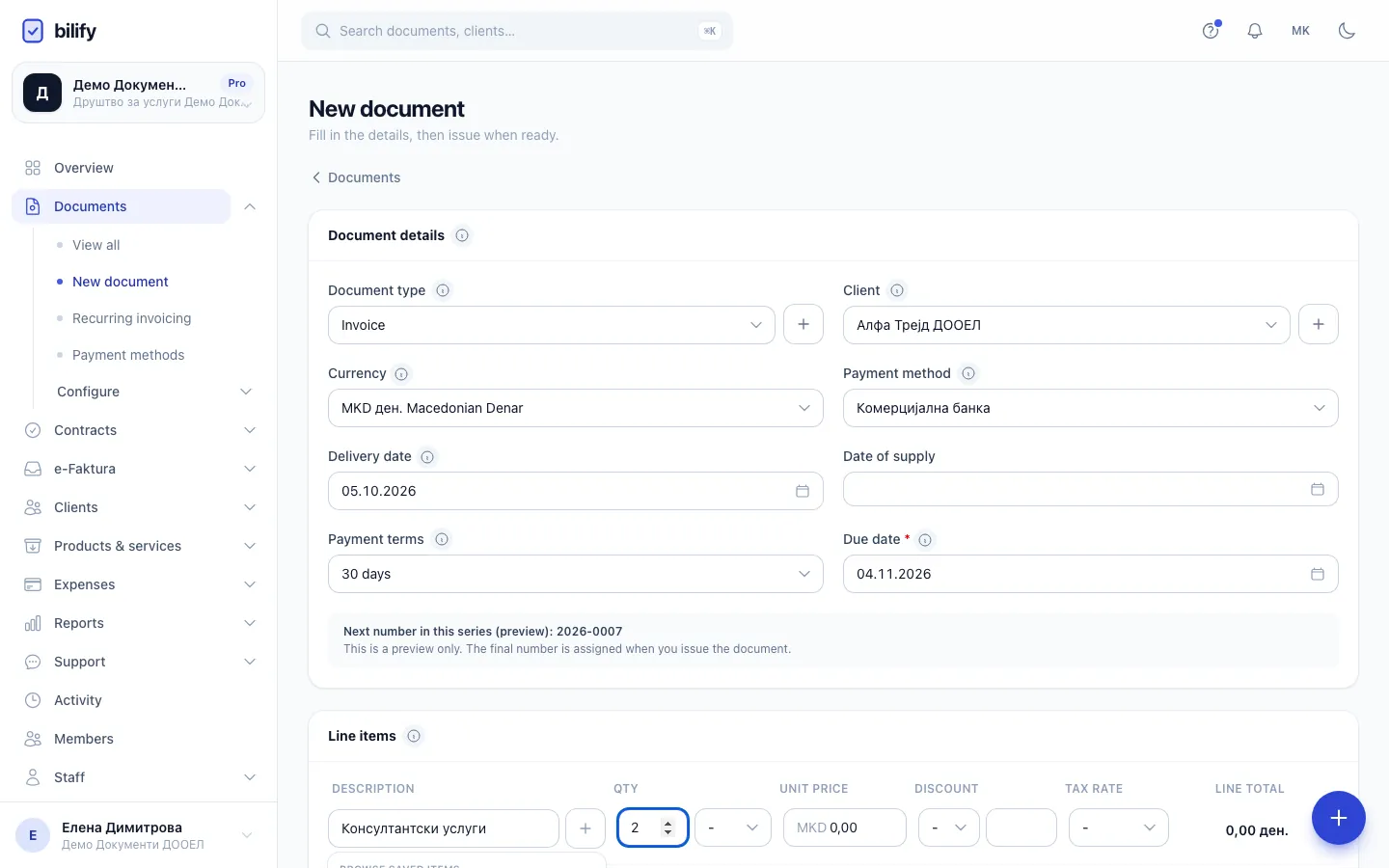
- Step 6: Set the quantity.
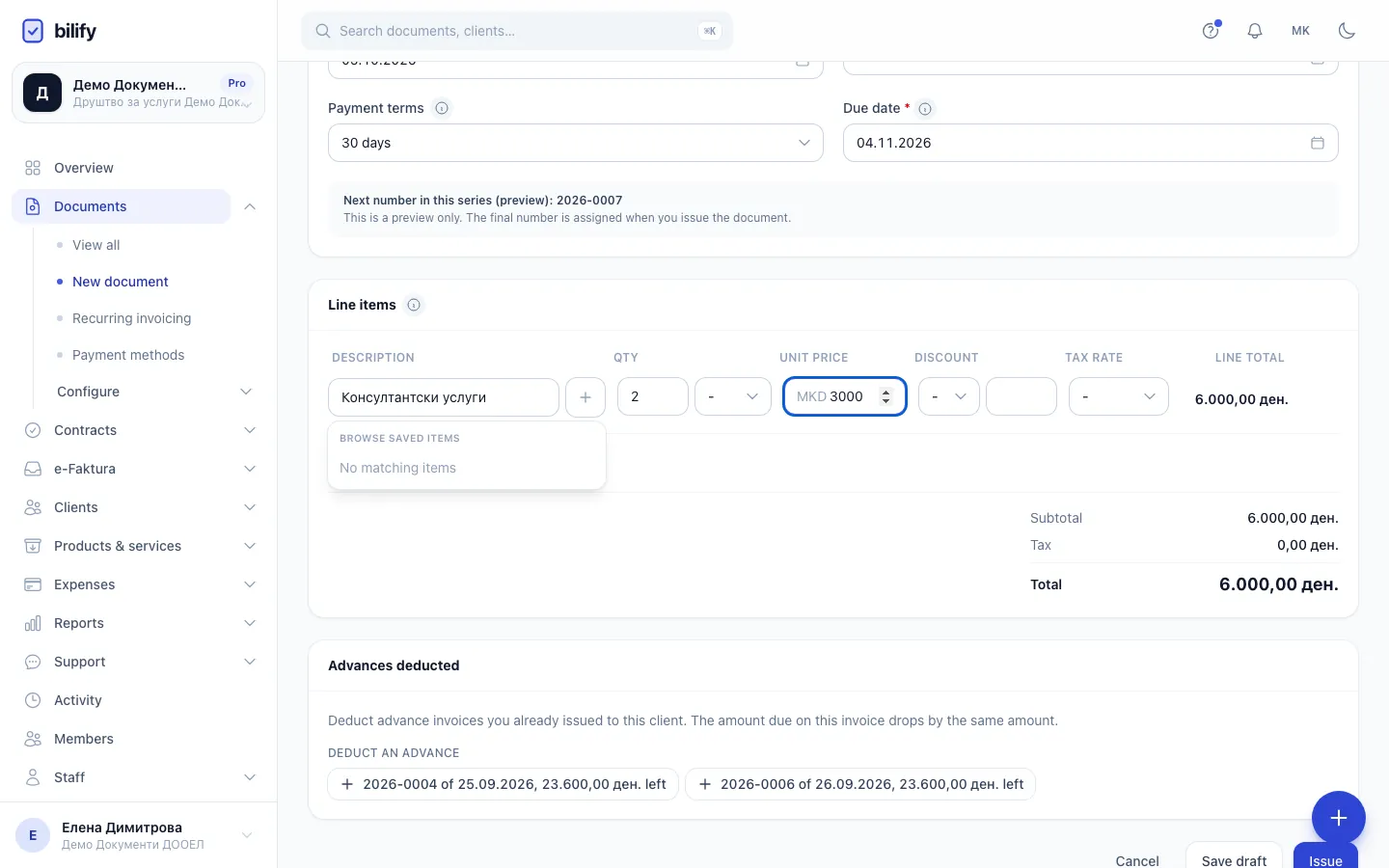
- Step 7: Enter the unit price. On most types it is the price without VAT.
- Step 8: Add as many lines as you need. Totals update as you type.
- Step 9: Save draft keeps your work without a number. You can come back and change it any time.
- Step 10: When everything is correct, Issue gives the document its number and locks it.
- Open Documents and click New document.
- Choose the Document type, for example Invoice. Only the types switched on for your company are listed. If you manage document types, the + button next to the field lets you switch a type on or off without leaving the draft.
- Choose the Client. To add a new one on the spot, click the + next to the field (see Add a client).
- Check the Currency and the Payment method. The payment method decides which bank account (or online payment) is printed on the document. Only currencies you have an active payment method for are offered. If none is set up, Bilify asks you to add one first under Settings > Payment methods.
- Set the Delivery date. It starts at today.
- Pick the Payment terms: Due on receipt, 7, 14, 30 or 60 days, or Custom. Bilify sets the Due date to the delivery date plus that many days. If you change the due date by hand, the terms switch to Custom.
Fiscal types such as Invoice also show Date of supply. Leave it empty and Bilify uses the issue date when you issue.
Below the fields Bilify shows Next number in this series (preview). It is only a preview: the real number is assigned when you issue, and can differ if a colleague issues a document first. If you see "No numbering series bound to this type yet", set one up under Settings > Numbering before you issue.
Some document types ask for more information under Additional details, for example the reverse-charge invoice. See Article 32 reverse-charge invoices.
The issue date
There is no issue date field on the draft. A document is dated the day you click Issue.
Add the lines
- In Line items, click in the first line and type a description. A list of your saved products and services opens under it. Pick one to fill in the price, tax rate and unit, or just keep typing a free-text description.
- Set the Qty and, when shown, the unit next to it.
- Check the Unit price. It is entered without VAT on most types.
- Optionally add a Discount: choose % or the currency, then enter the value.
- Choose the Tax rate. Pick Custom to type a different percentage.
- Click Add line for each further line. Use the x at the end of a line to remove it.
The + next to a description creates a new saved product or service from that line. When stock tracking is on, the line also shows how many units are In stock.
The Line total, Subtotal, Tax and Total update as you type. They come from the same calculation that runs at issue, so what you see is what will be issued.
Save the draft
Click Save draft (or press Ctrl + Enter, Cmd + Enter on a Mac). The draft appears under Documents with the label Draft instead of a number. Open it any time to continue, or delete it from the row menu.
When everything is correct, click Issue. What happens next is explained in Issue and send a document.
After issuing there is no going back
Issuing assigns the number and freezes the client details, the lines, the tax and the totals. An issued document cannot be edited or deleted, only cancelled. Check the draft carefully first.
Plan limits
Each package allows a number of issued documents per month. Drafts do not count. When the limit is reached, Issue shows a message and the document stays a draft. See Usage limits.
Was this page helpful?
Related articles
Still stuck?
Write to us and we will get back to you within one working day.