Webhooks
Get a signed HTTPS request at your own endpoint whenever a client, document, payment, expense, e-Faktura status or contract changes.
A webhook endpoint is a URL on your own server that Bilify calls when something happens in your workspace, for example when an invoice is issued or a contract is signed. Your system reacts immediately instead of asking the API every few minutes.
Endpoints are managed in Settings > Integrations, section Webhooks. Owners and admins can add and change them.
Add an endpoint
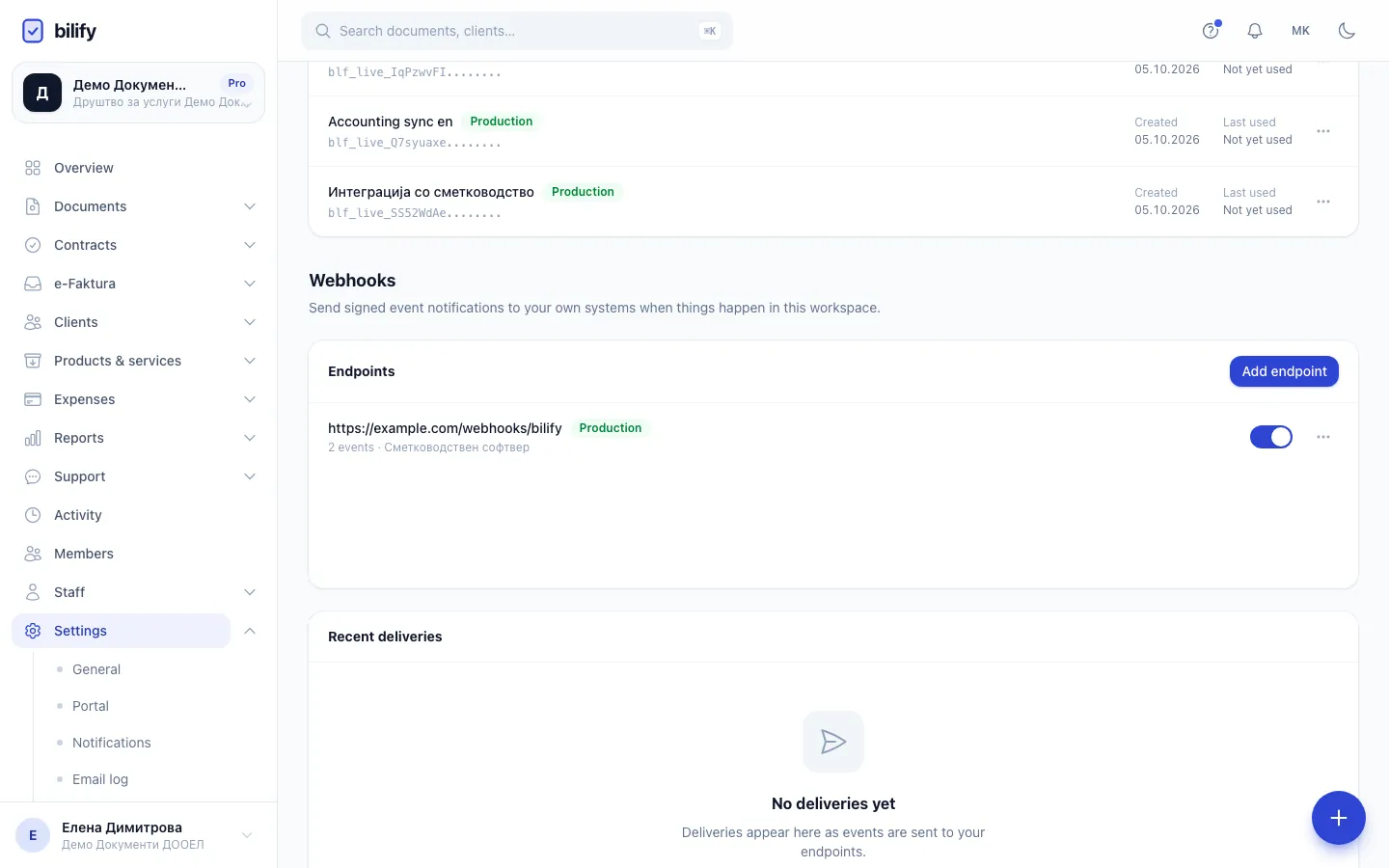
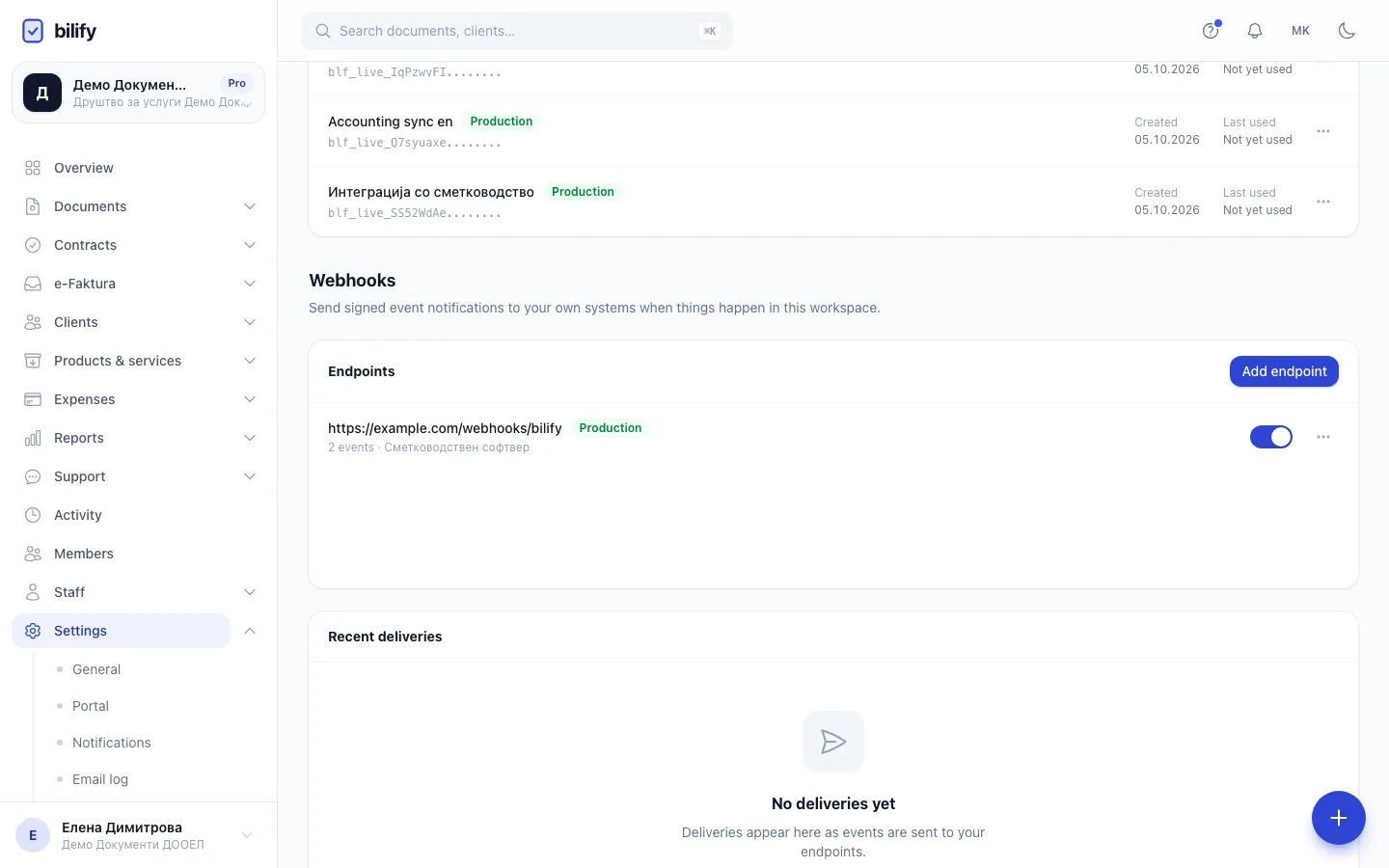
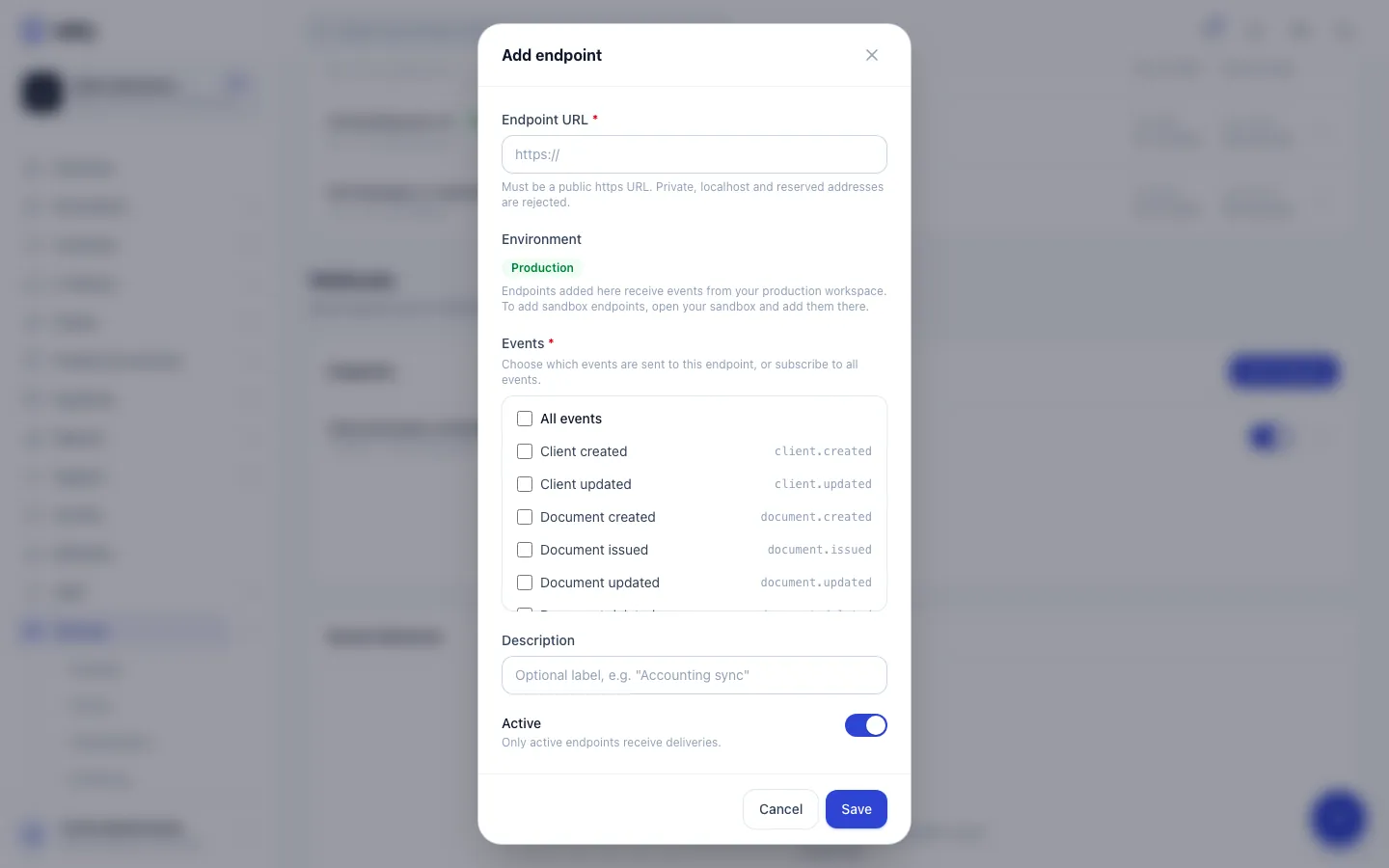
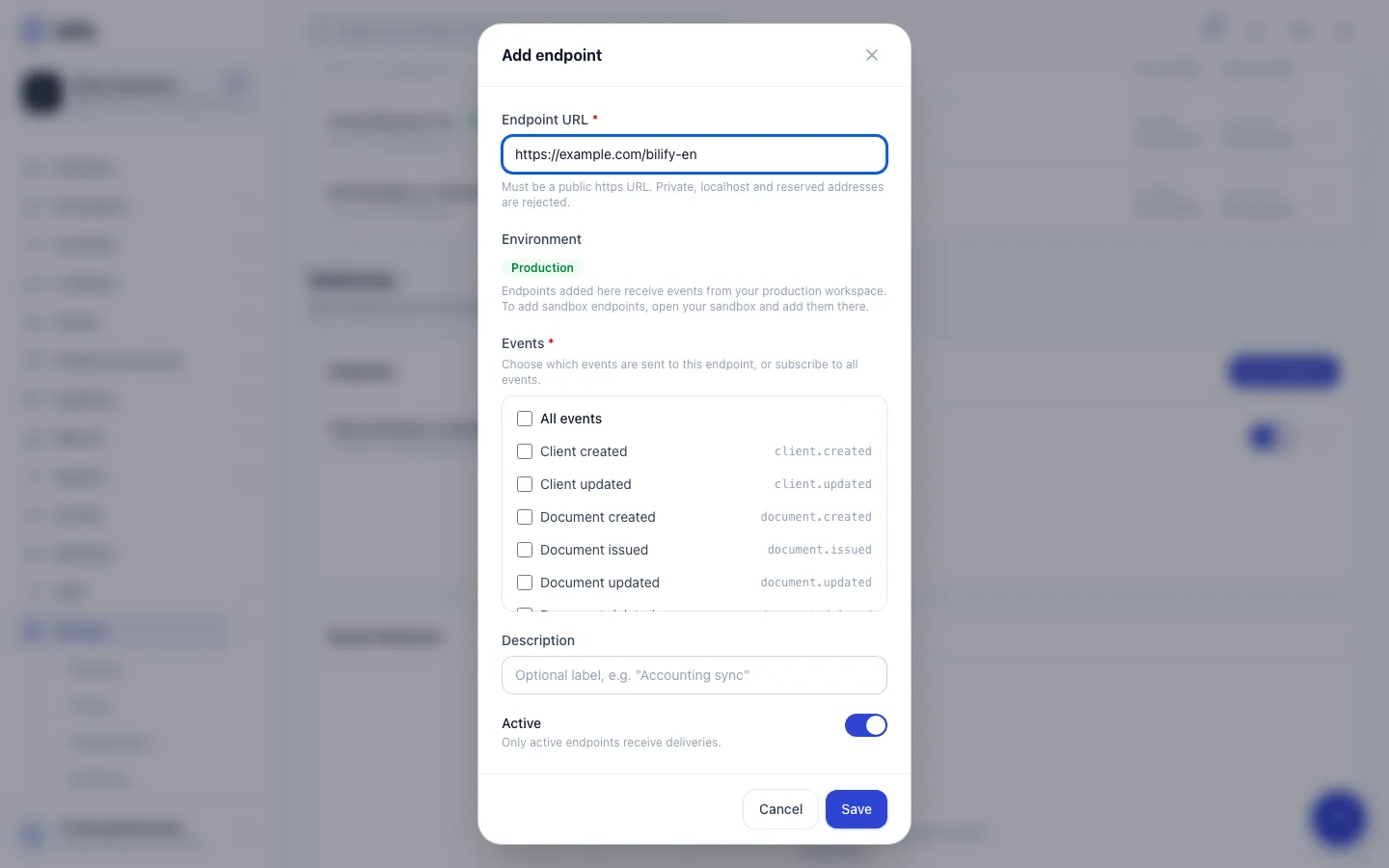
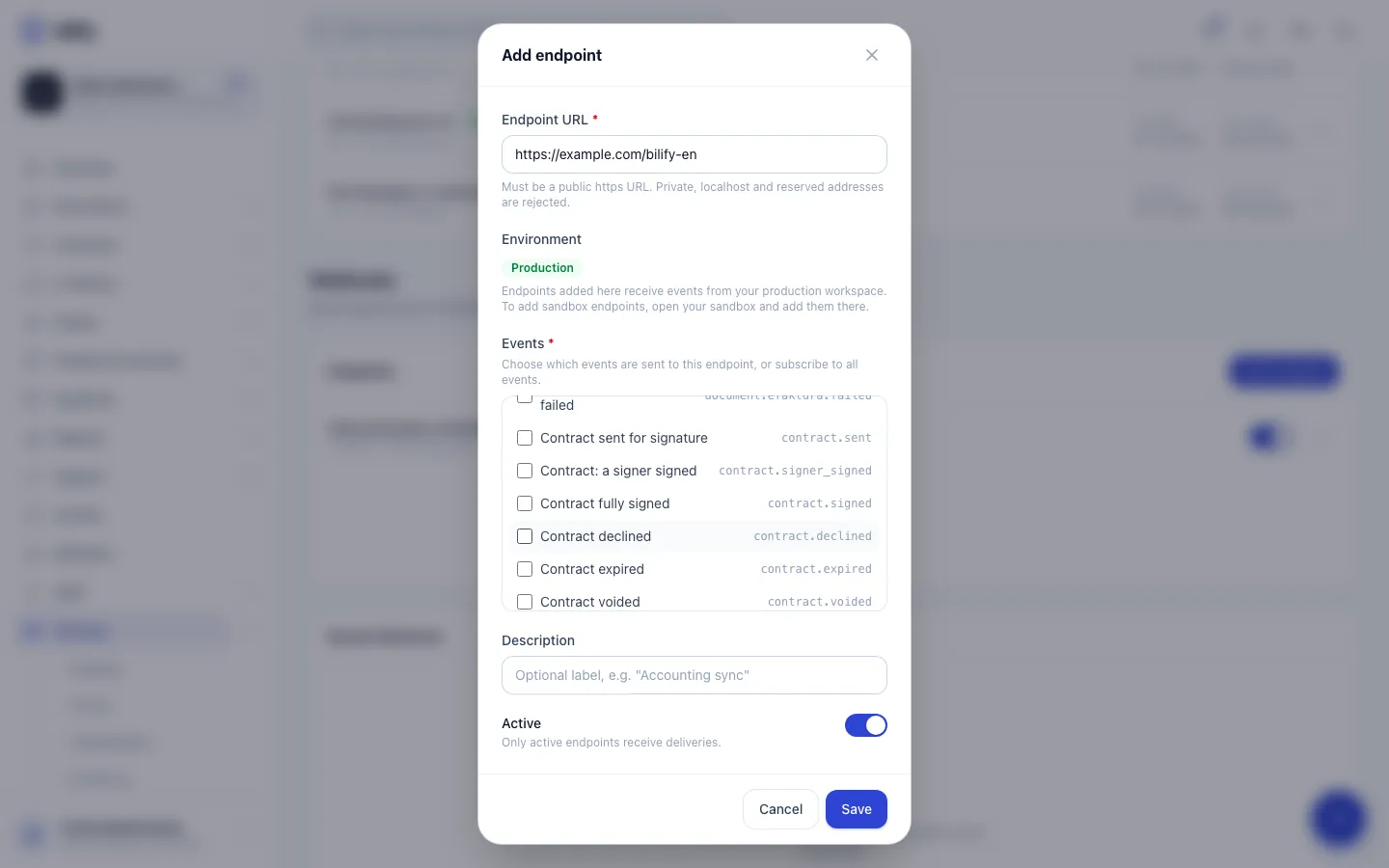
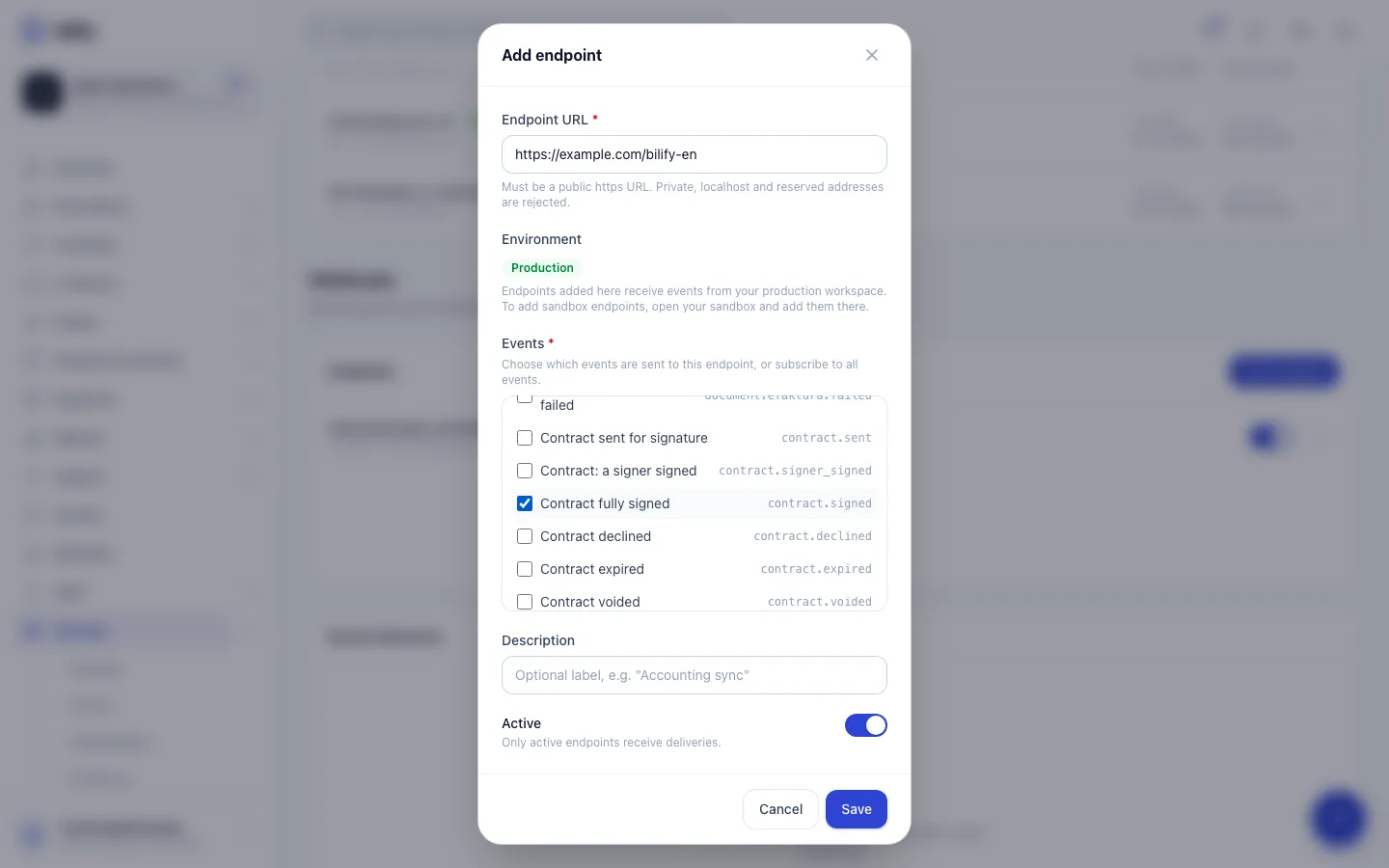
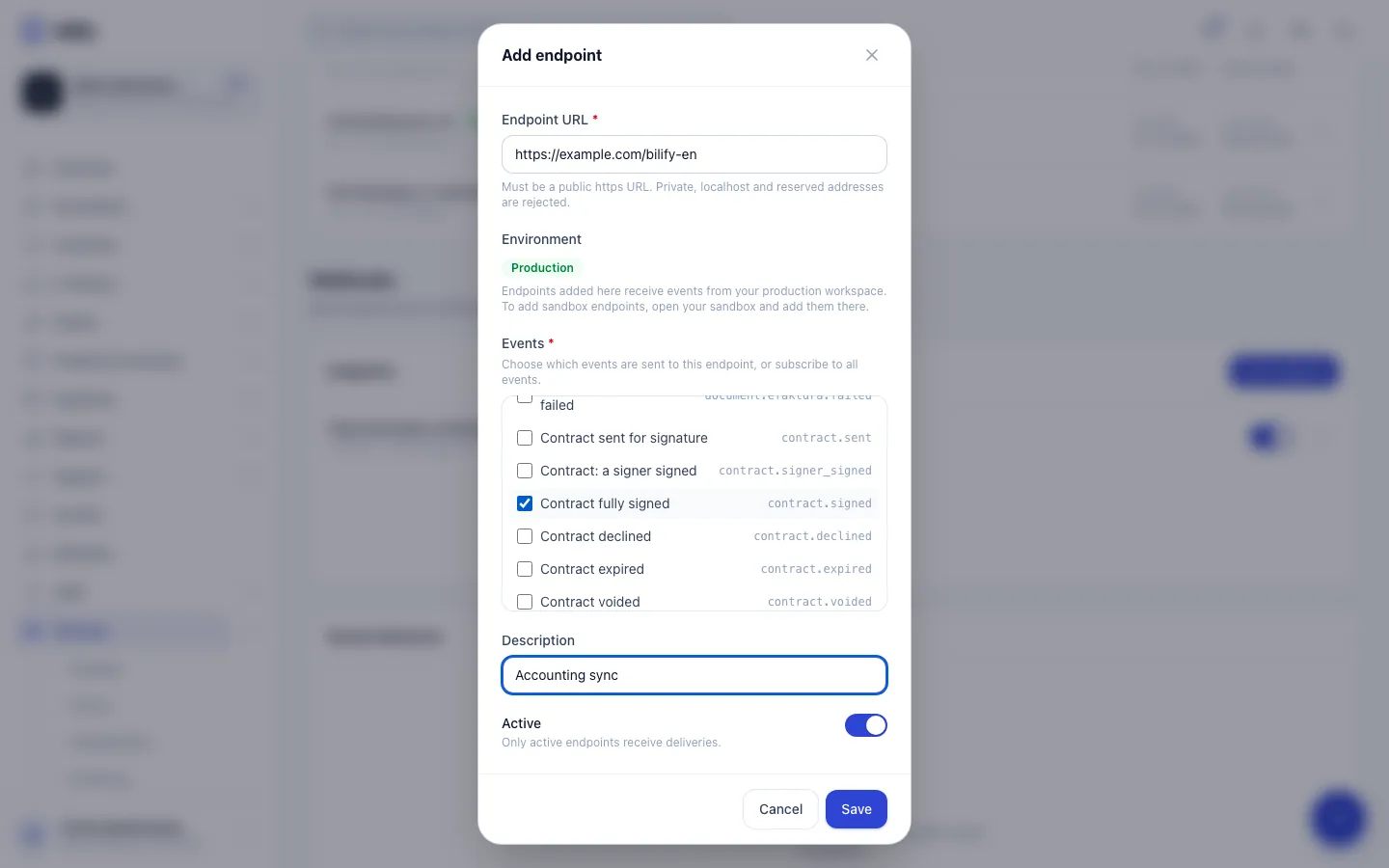
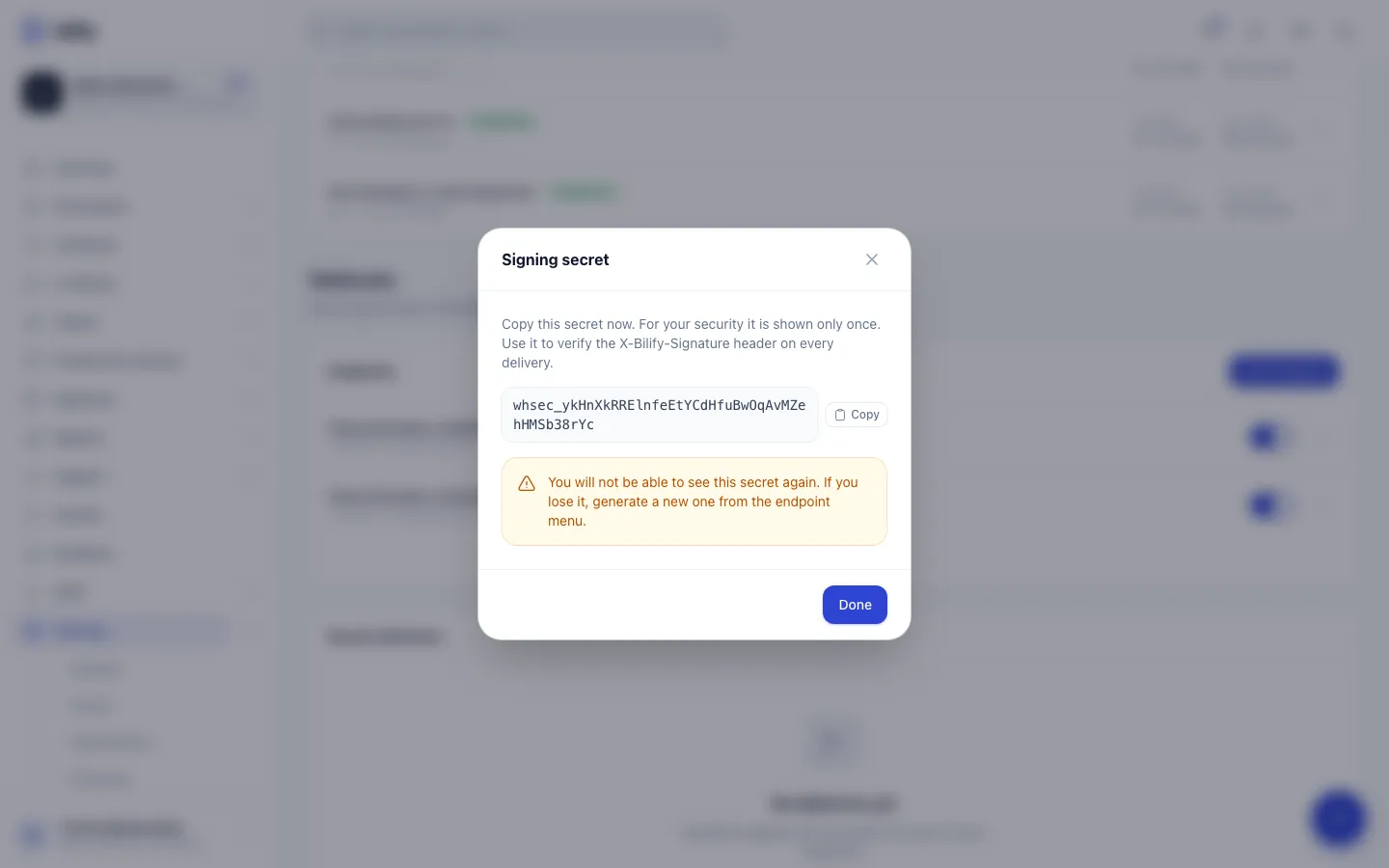
- Step 1: Endpoints lists the URLs that receive events from this workspace, with their environment and status.
- Step 2: Add endpoint opens the form.
- Step 3: Enter a public https URL on your own server. Private and localhost addresses are rejected.
- Step 4: Tick the events you want, or All events to receive everything.
- Step 5: Here we also subscribe to fully signed contracts.
- Step 6: An optional description helps you tell endpoints apart.
- Step 7: Save adds the endpoint and creates its signing secret.
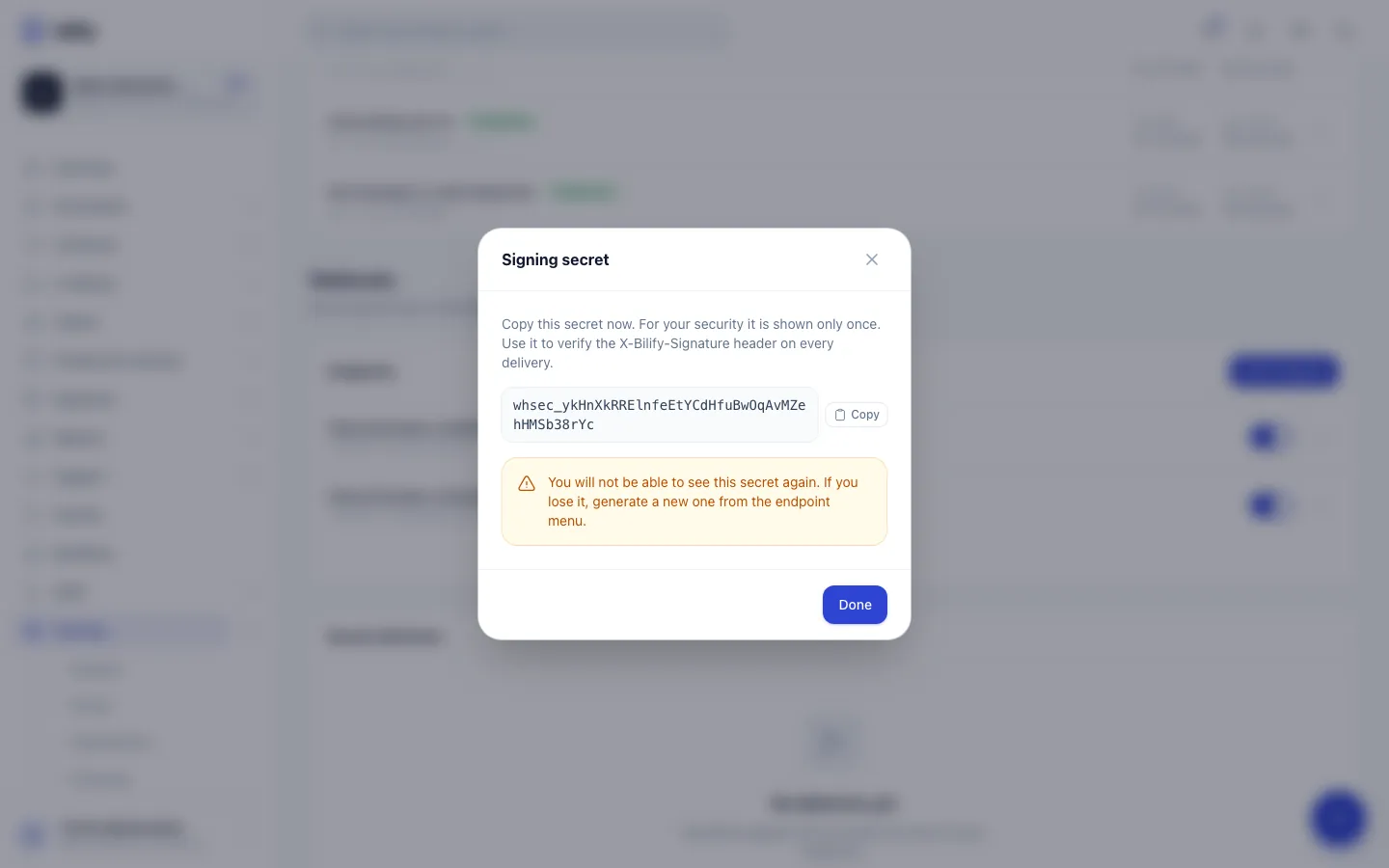
- Step 8: Copy the signing secret now. Your server uses it to verify the X-Bilify-Signature header.
- Step 9: Done closes the window. Deliveries will show under Recent deliveries.
- Open Settings > Integrations and scroll to Webhooks.
- In the Endpoints card, click Add endpoint.
- Enter the Endpoint URL. It must be a public
https://address. Private,localhostand reserved addresses are rejected. - Under Events, tick the events you want, or tick All events to receive everything, including events added in the future.
- Optionally add a Description, for example "Accounting sync".
- Leave Active on and click Save.
- Copy the Signing secret (it starts with
whsec_) and store it with your receiver's configuration, then click Done. You need it to verify signatures.
The signing secret is shown once
If you lose it, open the endpoint's menu and choose Regenerate secret. The old secret stops working immediately, so update your receiver at the same time.
The Environment in the form is not a choice. Endpoints you add in your production workspace receive production events only. To receive sandbox events, open the sandbox and add the endpoint there (see Sandbox mode).
Events
| Event | When it is sent |
|---|---|
client.created, client.updated |
A client is added or changed |
document.created |
A document (draft) is created |
document.issued |
A document is issued and gets its number |
document.updated |
Any other change to a document, for example a draft edit, sending it or cancelling it |
document.deleted |
A draft is deleted |
payment.recorded |
A payment is recorded on a document (data is the document, with its new paid amount) |
expense.created, expense.updated, expense.deleted |
An expense is added, changed or deleted (including recurring expenses that are generated automatically) |
document.efaktura.sent |
e-Faktura: the document was registered with UJP |
document.efaktura.accepted |
e-Faktura: the buyer accepted it (or it was accepted automatically) |
document.efaktura.rejected |
e-Faktura: the buyer rejected it |
document.efaktura.voided |
e-Faktura: storno |
document.efaktura.corrected |
e-Faktura: corrected |
document.efaktura.failed |
e-Faktura: submission failed |
contract.sent |
A contract is sent for signature |
contract.signer_signed |
One signer signed, others are still pending |
contract.signed |
The last signer signed |
contract.declined |
A signer declined |
contract.expired |
The signing deadline passed |
contract.voided |
The contract was voided |
Events fire no matter where the change was made: in the app, through the REST API, by the AI connector or by a scheduled job. The e-Faktura events only occur for Macedonian workspaces that use e-Faktura.
What a delivery looks like
Bilify sends a POST with a JSON body and these headers:
Content-Type: application/json
User-Agent: Bilify-Webhooks/1
X-Bilify-Signature: t=1791100800,v1=5f2c...
{
  "event": "document.issued",
  "occurred_at": "2026-10-04T09:15:02+02:00",
  "environment": "production",
  "data": { "reference": "01JA0...", "number": "...", "status": "issued", "...": "..." }
}
data holds the record in the same shape the REST API returns for it. environment is production or sandbox.
Responding, retries and auto-disable
- Answer with any 2xx status within 15 seconds. Anything else, a timeout or a connection error counts as a failed attempt.
- After a failure Bilify tries again after about 1 minute, 5 minutes, 30 minutes, 2 hours, 8 hours and 24 hours. That is 7 attempts in total over roughly a day and a half. Then the delivery is marked Failed permanently.
- If 5 deliveries in a row end as Failed permanently, the endpoint is switched off automatically and owners and admins get a notification in the app (bell). Any successful delivery resets the count. The endpoint shows a note that it was disabled after repeated failures. Switch its toggle back on once your server is reachable again.
Make your receiver idempotent
Because of retries and the Redeliver button, the same event can reach you more than once, and events can arrive out of order. Deliveries carry no separate event id, so de-duplicate on the combination of event, data.reference and occurred_at, and do slow work after you have answered.
Recent deliveries and redelivery
The Recent deliveries card lists the last 30 deliveries with Event, the endpoint URL, Status (Pending, Delivered, Failed, Failed permanently), the HTTP Code your server answered (or No response), Attempts and Created.
Click Redeliver on a row to send it again right away. The attempt counter starts from zero, the original payload is sent again, and it is signed with the endpoint's current secret and a new timestamp. You can also redeliver through the API with POST /api/v1/webhook-deliveries/{reference}/redeliver.
Bilify does not currently delete old delivery records, so the history stays available for your audits.
Edit, pause or remove an endpoint
From the endpoint's row:
- The toggle switches the endpoint between active and inactive. Inactive endpoints receive nothing; events that happen meanwhile are not queued for later.
- The menu (three dots) has Edit (URL, events, description, active), Regenerate secret and Remove.
- Remove stops all deliveries to that endpoint. Its past delivery history is kept.
Test before going live
Use the sandbox: add an endpoint inside the sandbox, create test data there, and watch deliveries arrive with "environment": "sandbox". See Sandbox mode.
Was this page helpful?
Related articles
Still stuck?
Write to us and we will get back to you within one working day.