Give a client portal access
Let a client's contacts sign in to your client portal with an emailed link to see their invoices, offers, payments and contracts.
The client portal is a page where your clients see the documents you issued them, without a password. Access is switched on per client, and people sign in as one of the client's contacts.
Before you start
Your portal must be switched on under Settings > Portal. That page also shows the portal address you share with clients. See Set up the client portal.
Switch on access for a client
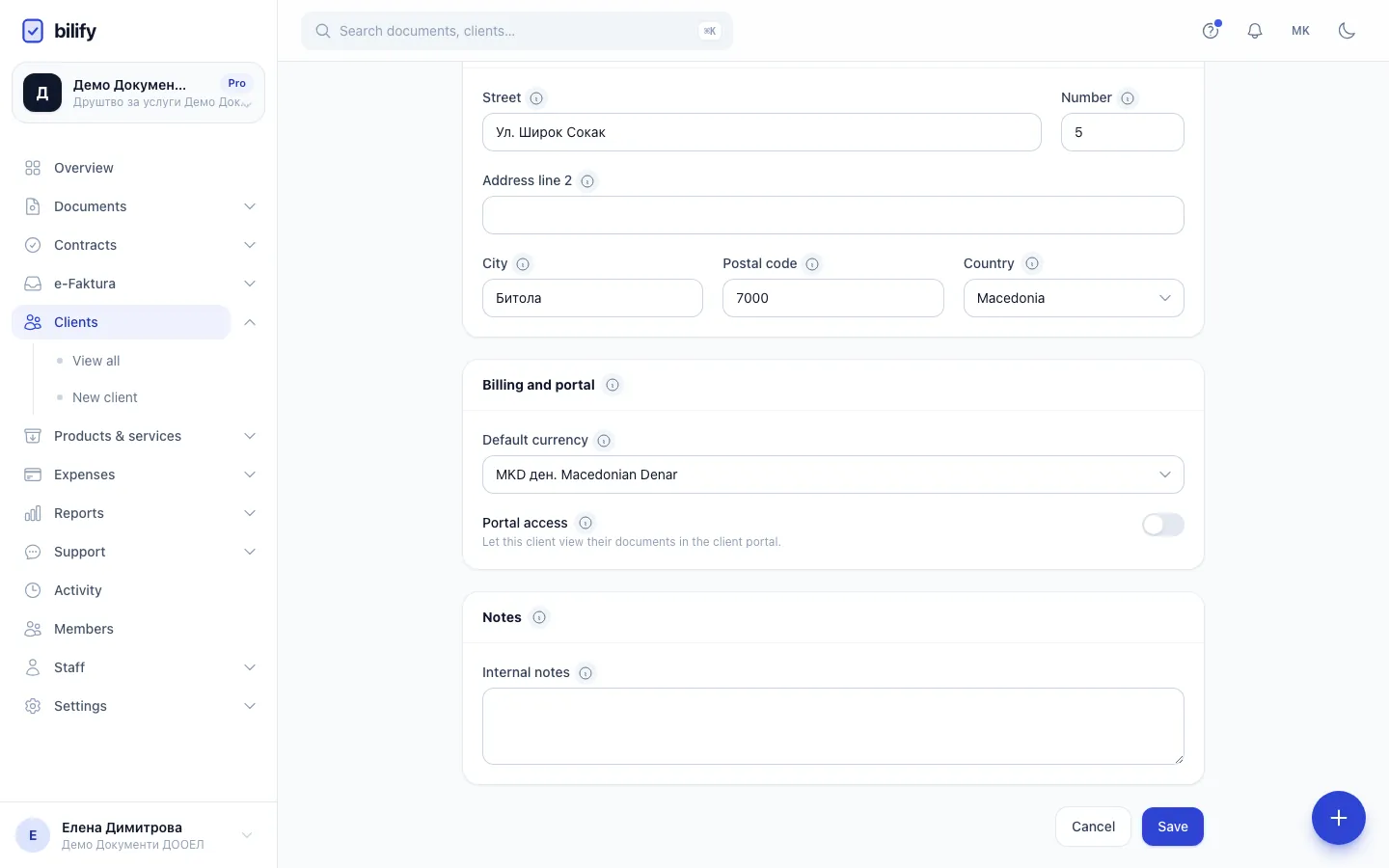
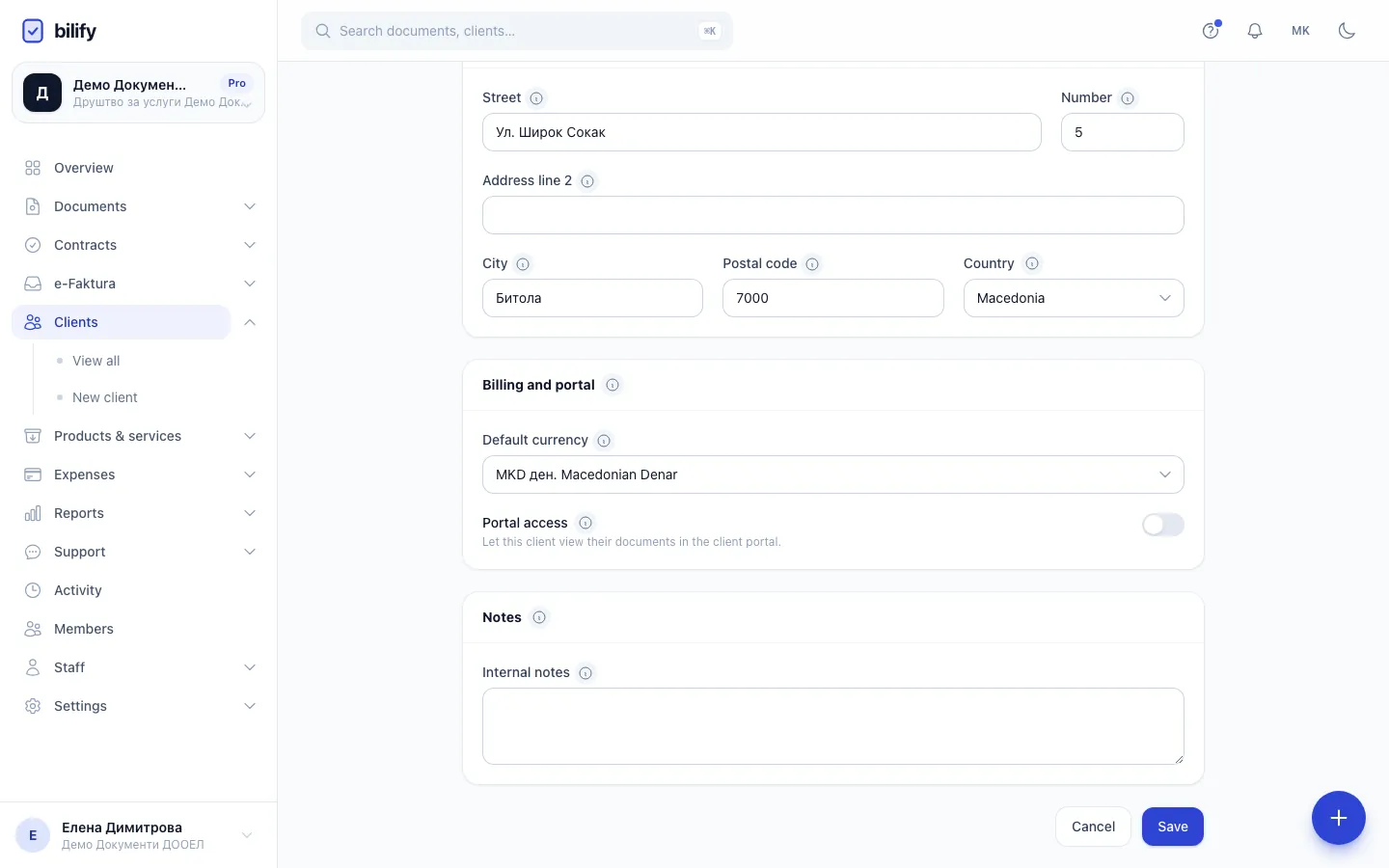
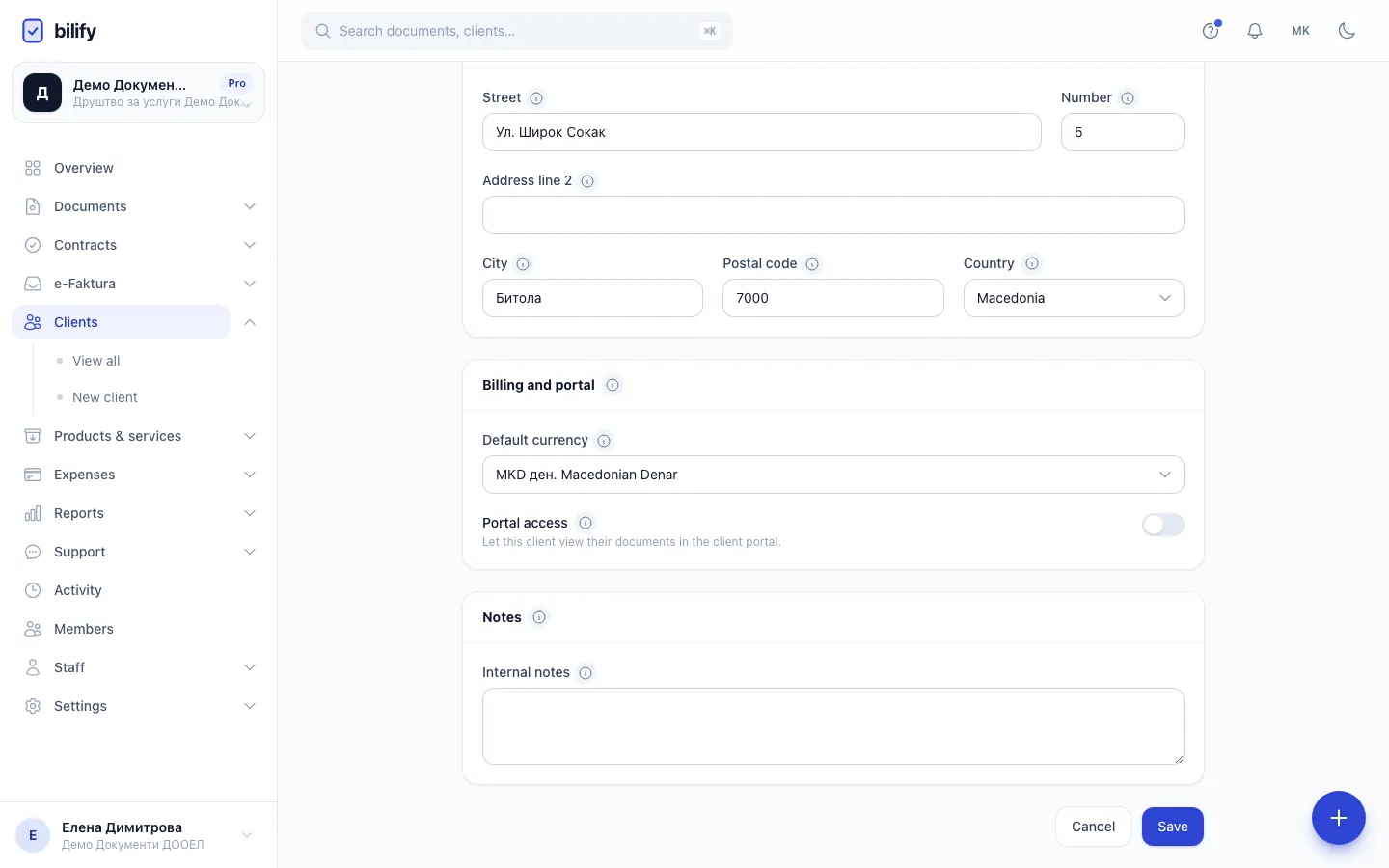
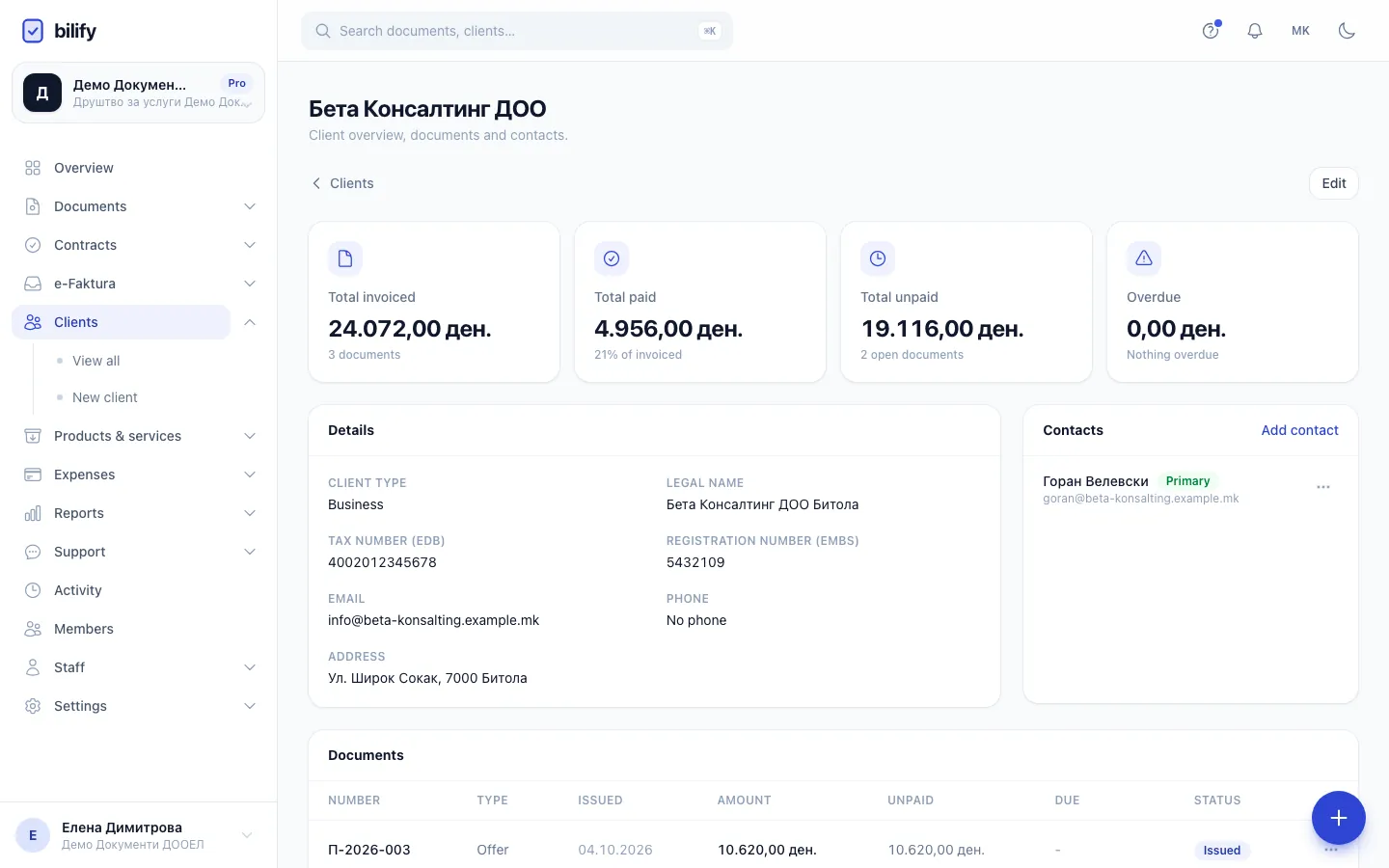
- Step 1: On the client's edit page, scroll to Billing and portal.
- Step 2: Switch on Portal access so this client's contacts can sign in.
- Step 3: Click Save to apply the change.
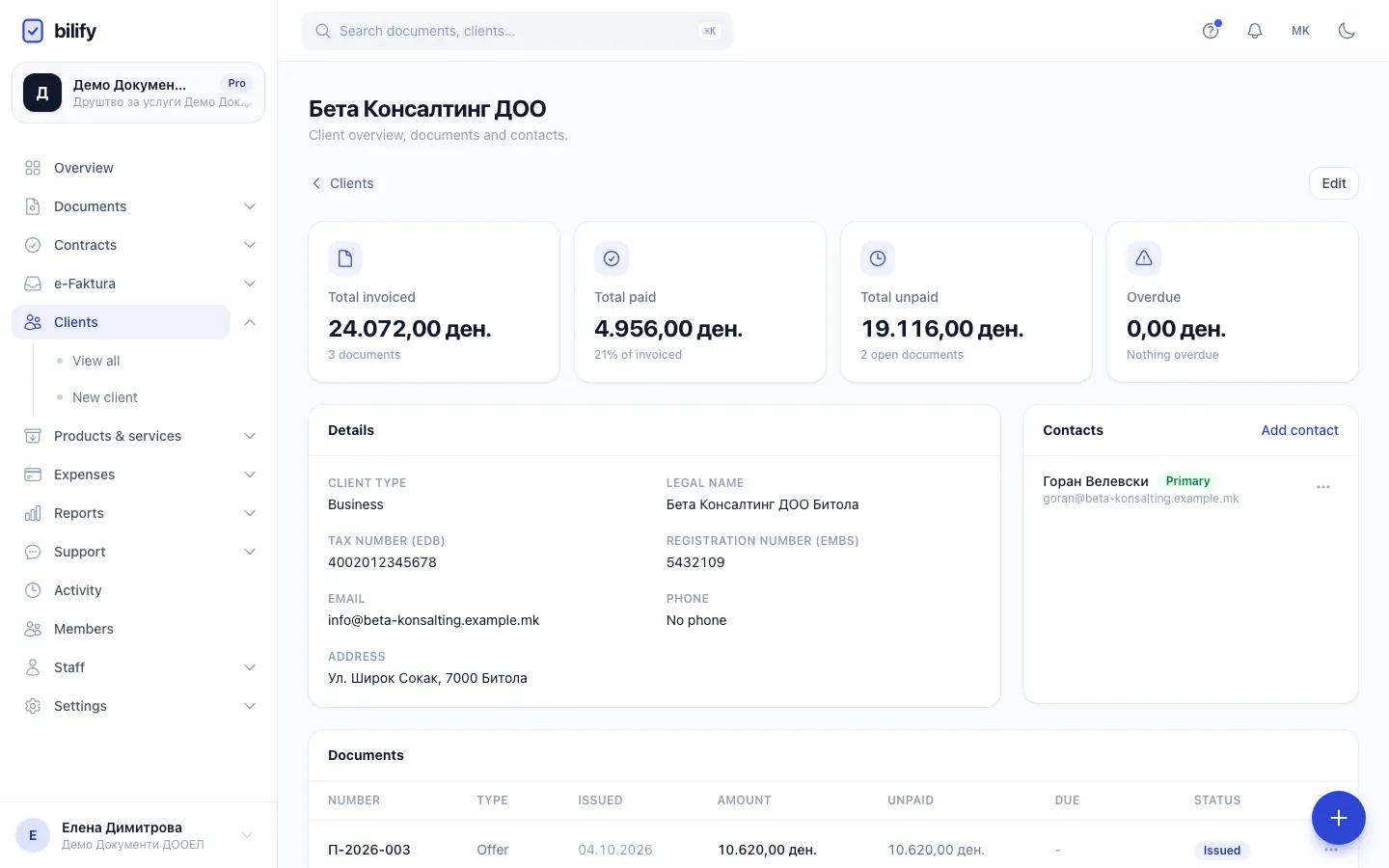
- Step 4: Sign-in works with contact emails only, so check that everyone who needs access is listed here.
- Step 5: Click Add contact to add a person with their own email address.
- Open the client and click Edit.
- Under Billing and portal, switch on Portal access.
- Click Save.
- On the client's profile, check Contacts. Every person who should sign in needs a contact with their own email. Click Add contact if the list is empty.
- Send the client your portal address.
The client's own email is not a login
Portal sign-in only matches the email of a contact. The Email field on the client record is used for document emails, but it does not let anyone sign in. If a client says the sign-in link never arrives, check that their address is listed under Contacts.
How your client signs in
- They open your portal address and enter their email.
- Bilify emails a sign-in link to that address if it belongs to a contact of a client with portal access. The page always says a link is on its way, whether or not the address matched, so nobody can probe which emails are your clients.
- The link works once and expires after 15 minutes. After five requests in an hour from the same address, further requests are paused for a while.
The client-side steps are explained in Sign in to the portal, which you can send to your clients.
What the client can see
Once signed in, a contact sees only their own client's issued documents (never drafts): invoices, offers they can accept, payments, and contracts if you use them. See What your clients see.
Document emails you send when issuing include a View invoice button. That link opens the single document even without portal access, unless you switched on Require login to view documents under Settings > Portal. It stays valid for 30 days.
Switch access off
Edit the client, switch off Portal access and click Save. Their contacts can no longer request new sign-in links. Removing a contact under Contacts has the same effect for that one person.
Existing sessions
Switching access off also signs out any contact who is still signed in: their next page in the portal sends them to the sign-in page. The same happens when you delete the client.
Was this page helpful?
Related articles
Still stuck?
Write to us and we will get back to you within one working day.