Create a contract
Draft a contract for a client from a template or from scratch, fill it with merge fields, add signers and save it as a draft.
A contract in Bilify is a document your client (and, if you want, people from your own company) signs electronically. You prepare it as a draft, which you can change as often as you like, and send it for signature when it is ready. This article covers the draft; Send for signature covers the rest.
Create the draft
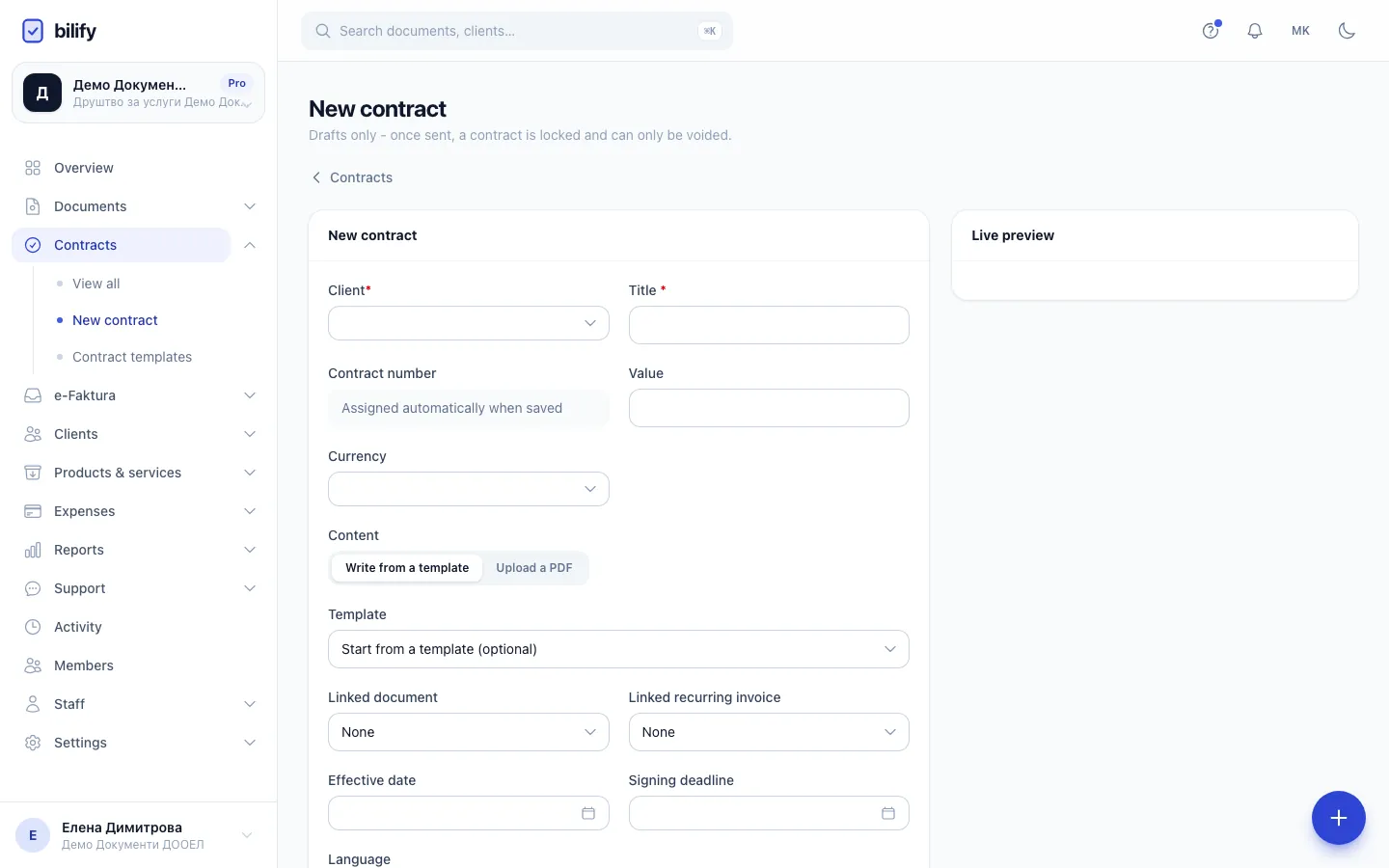
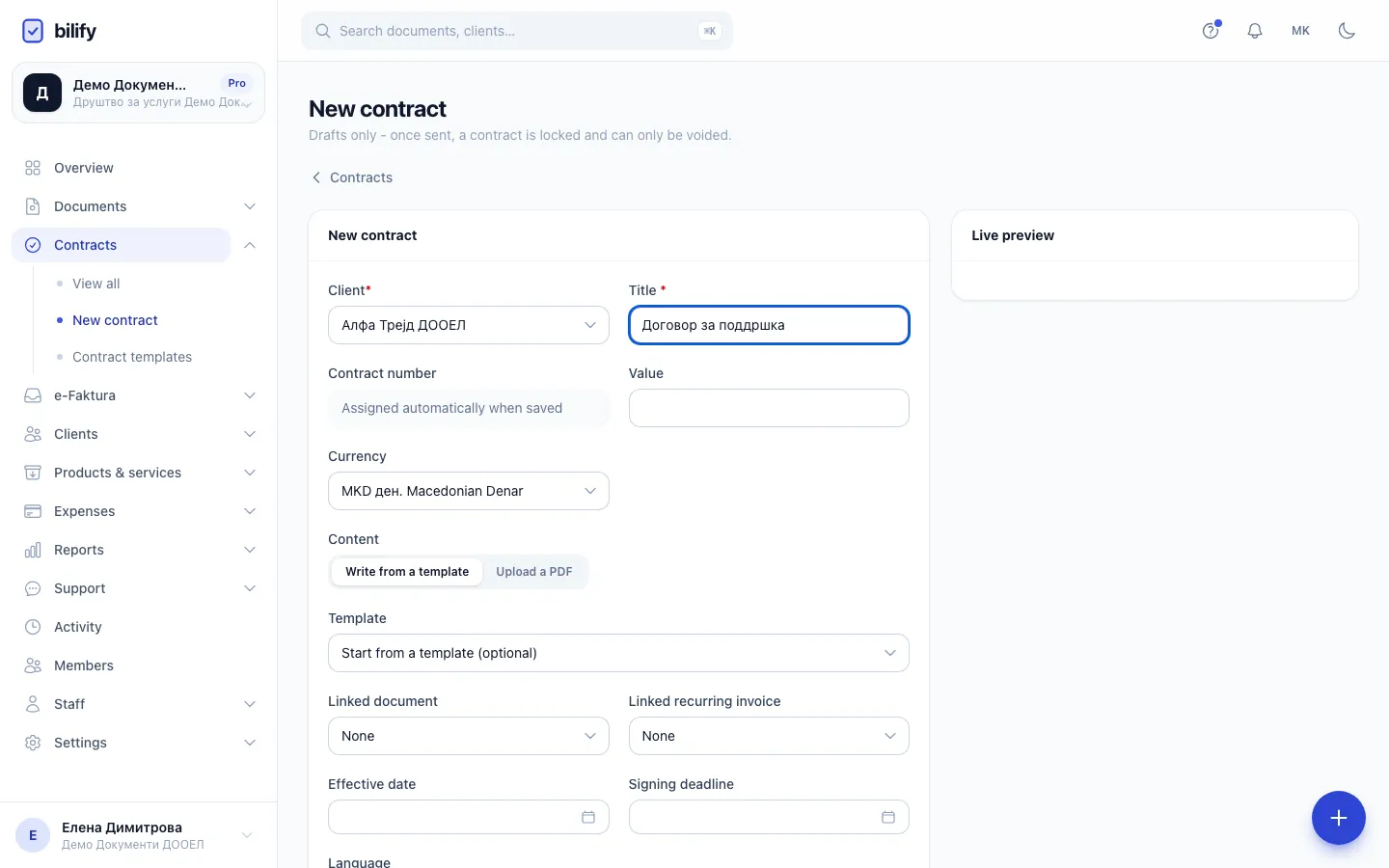
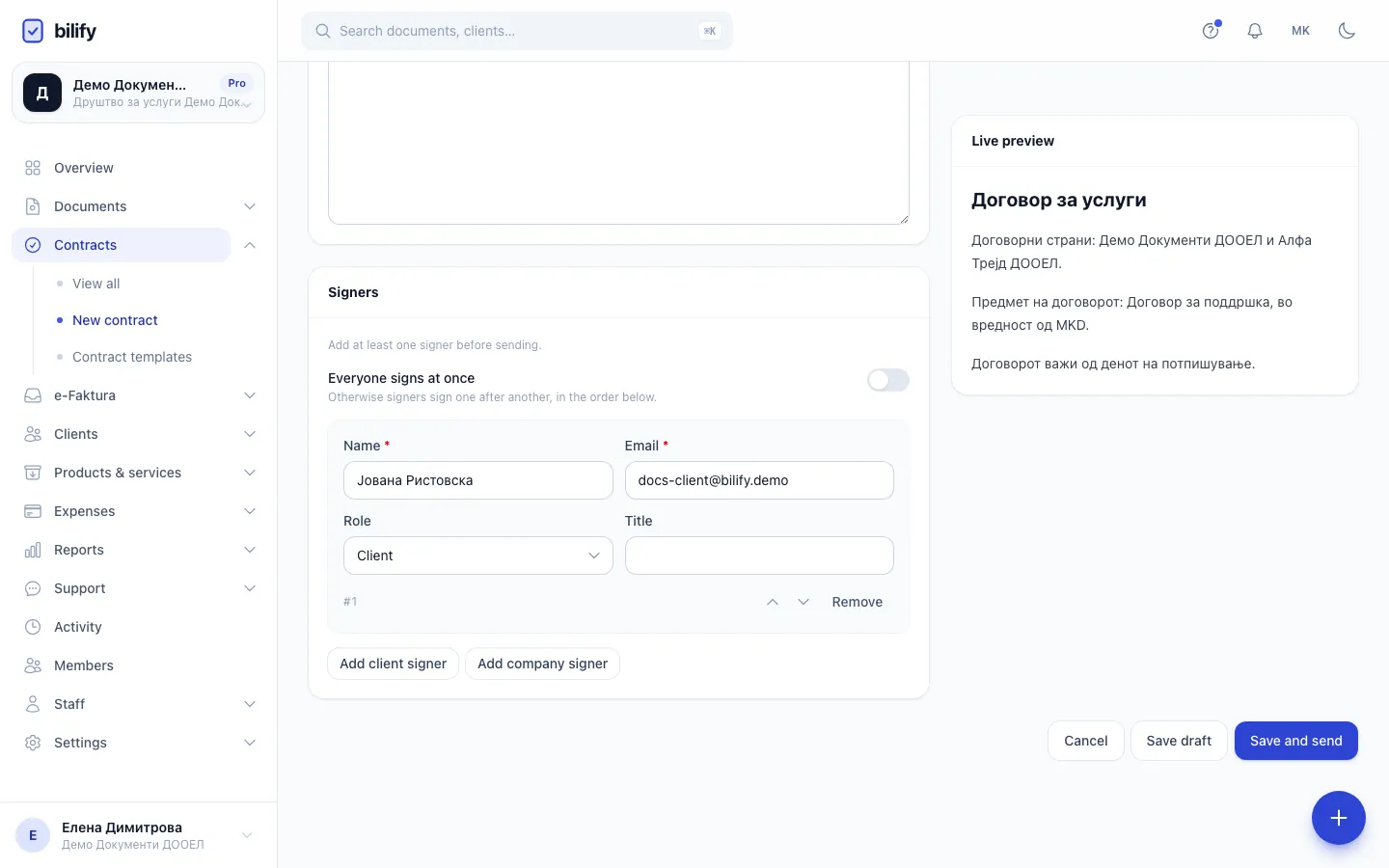
- Step 1: Start with the client. Picking one fills in the currency and adds their contact person as a signer.
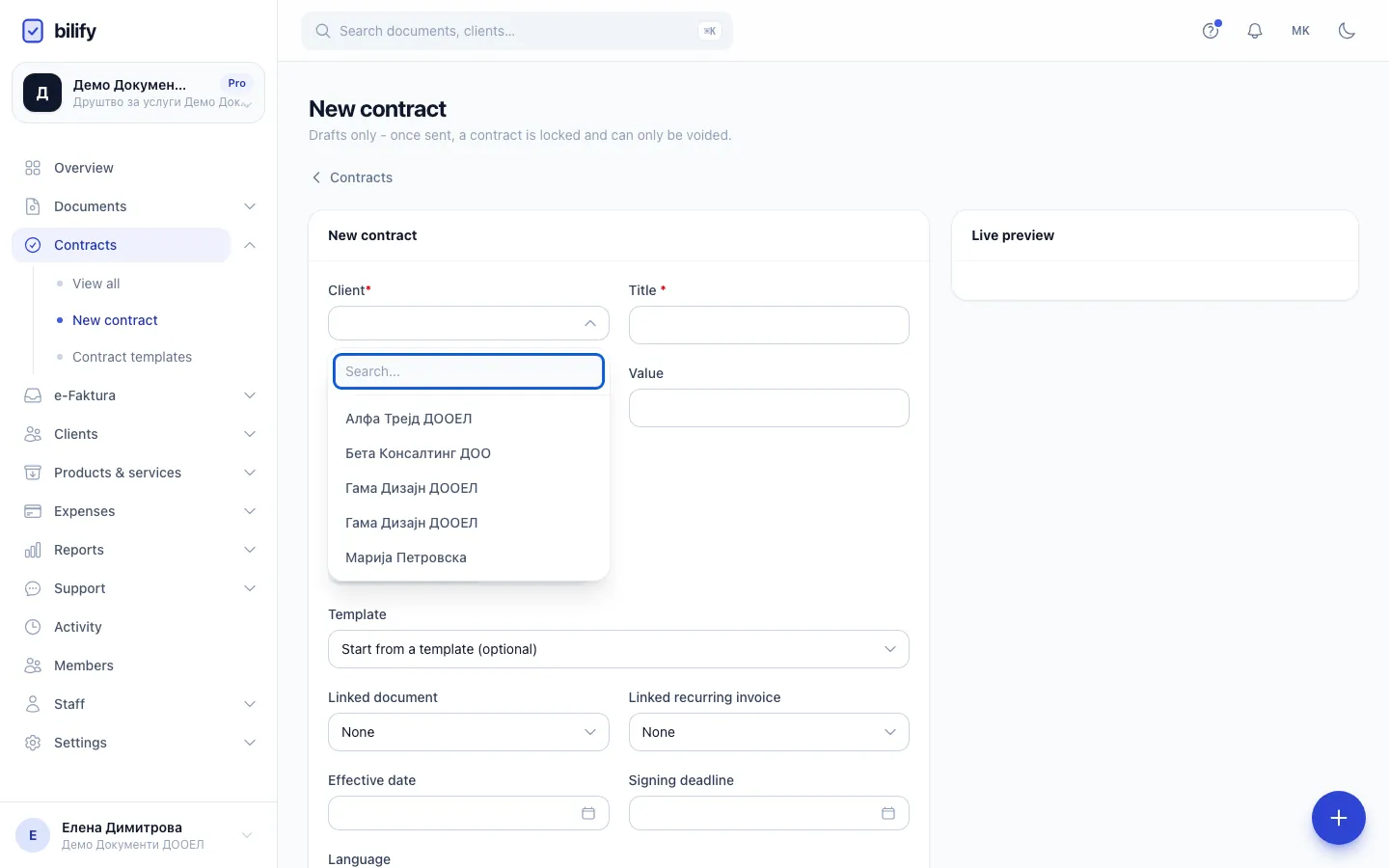
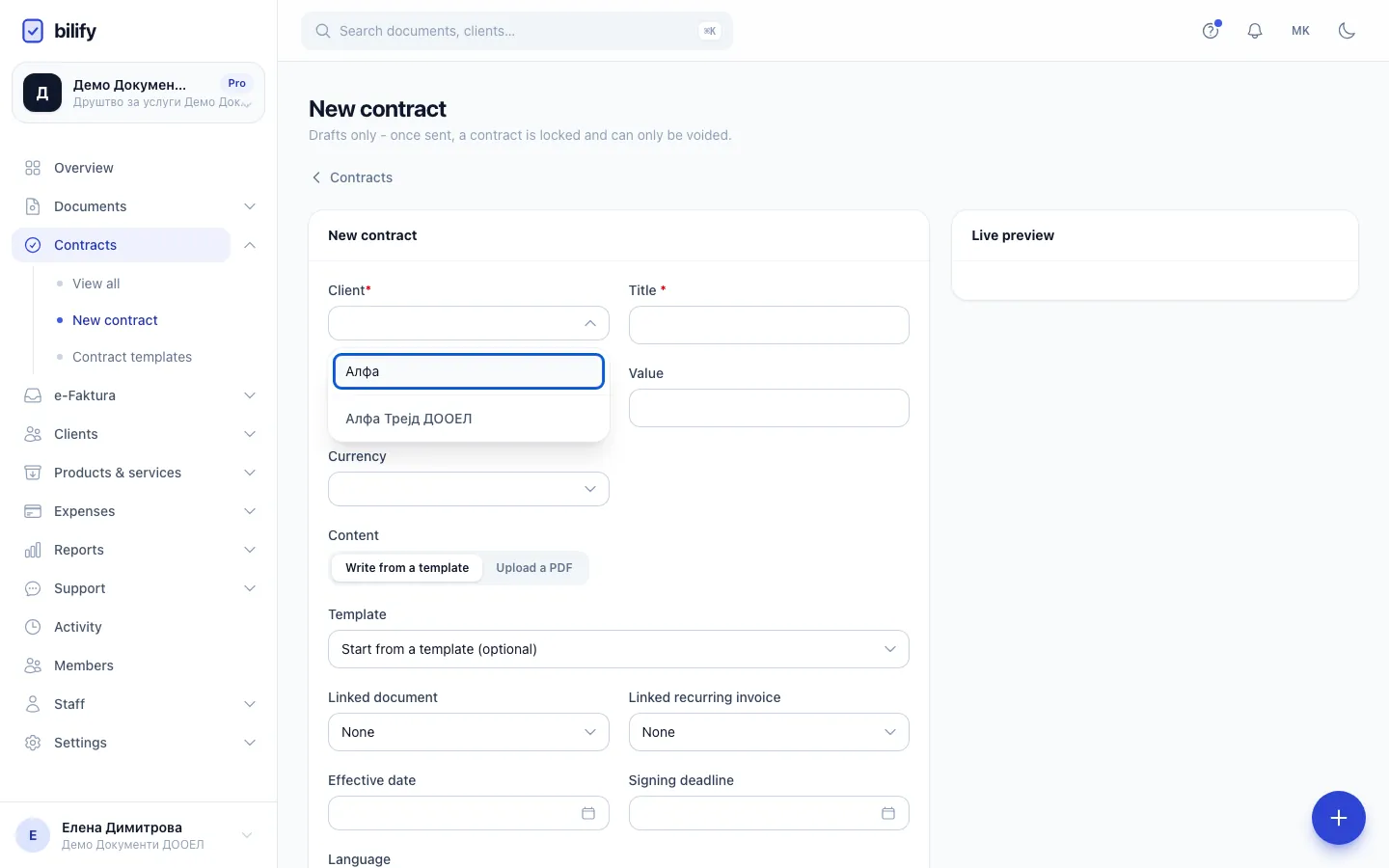
- Step 2: Type part of the name to find the client.
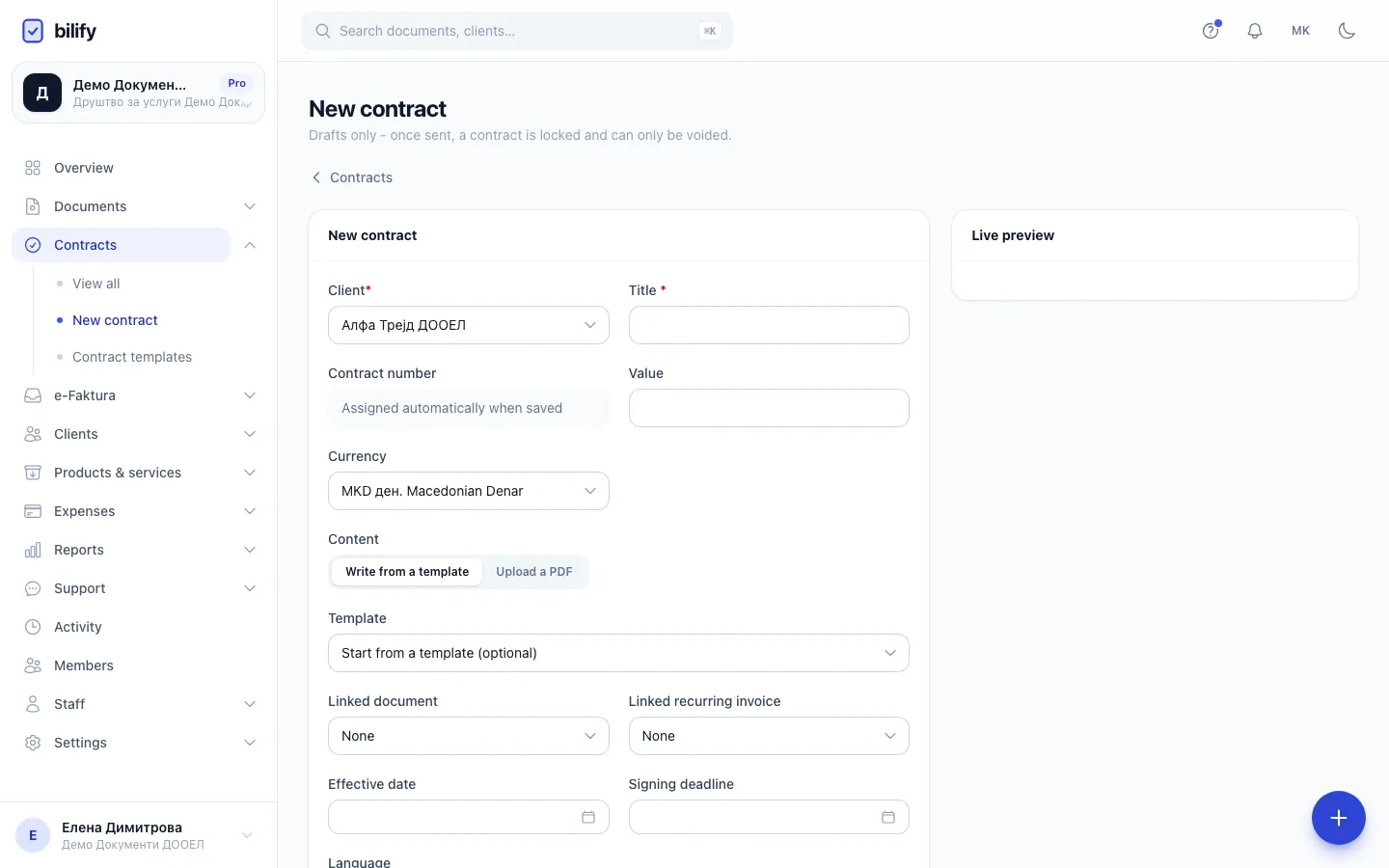
- Step 3: Choose the client from the list.
- Step 4: Give the contract a title. It appears on the contract and in the signers' email.
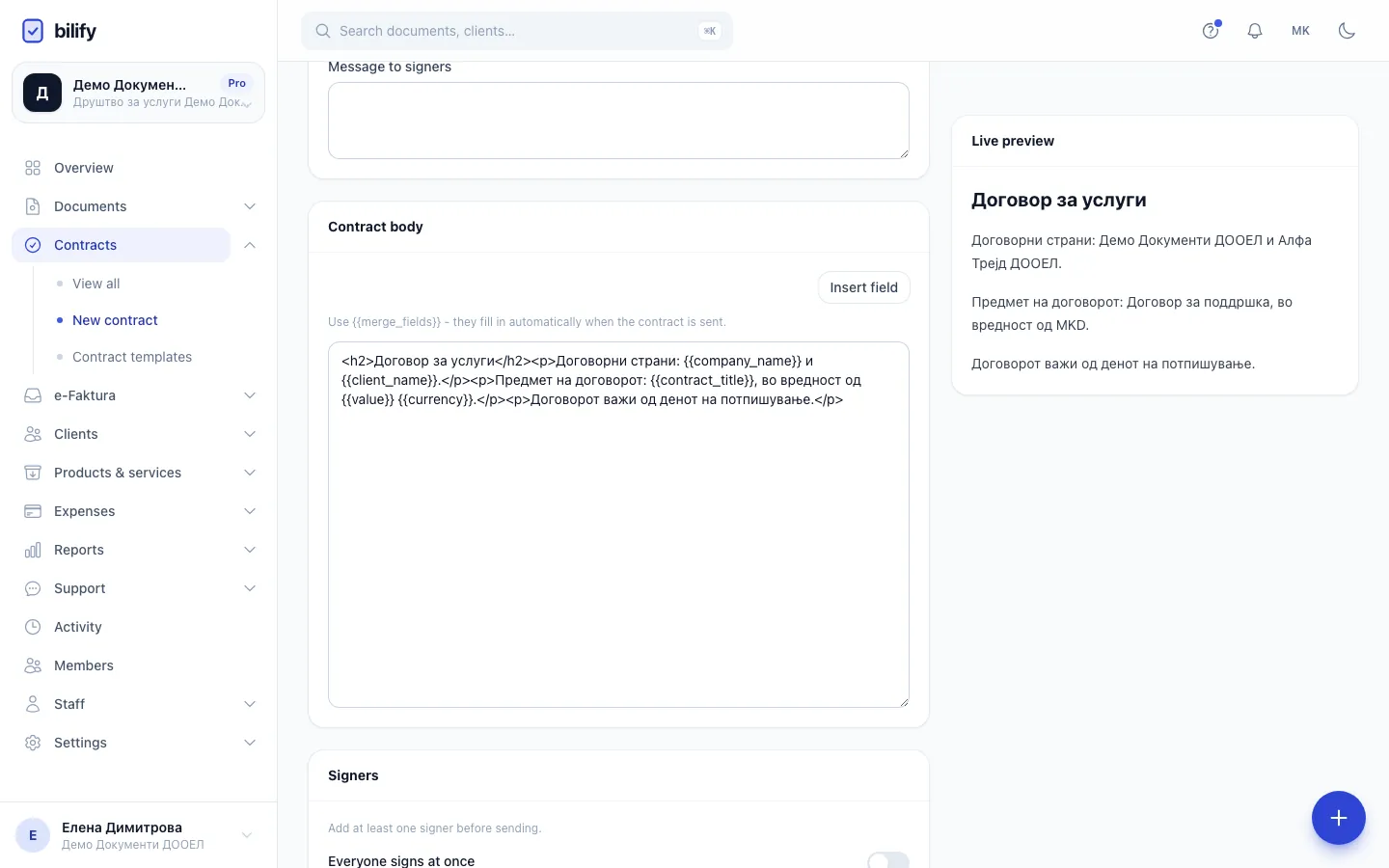
- Step 5: Pick a template. Its text, language and default signing deadline are filled in.
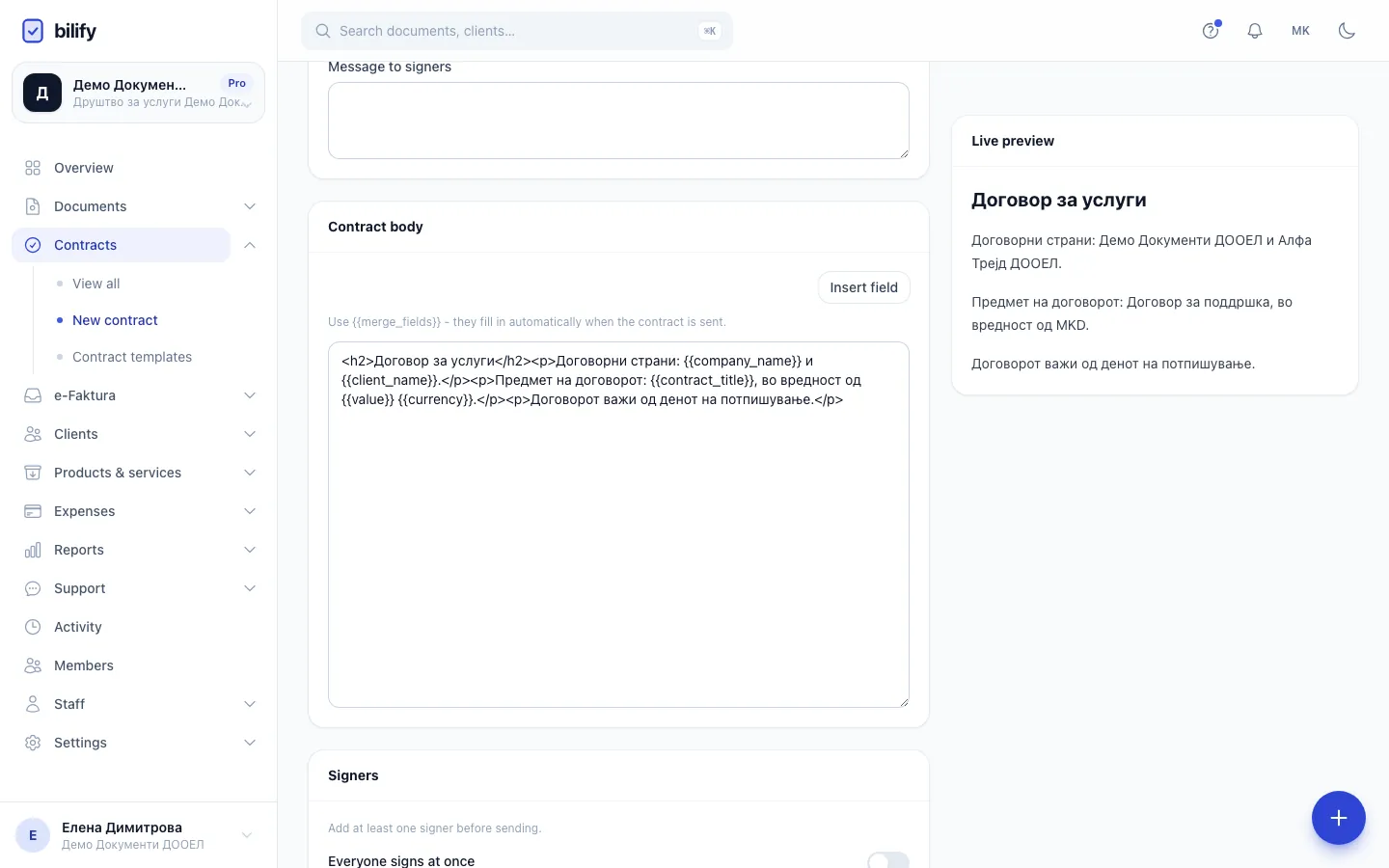
- Step 6: Adjust the body if needed. Insert field adds merge fields that are filled in when you send.
- Step 7: The live preview shows the text with this client's real details.
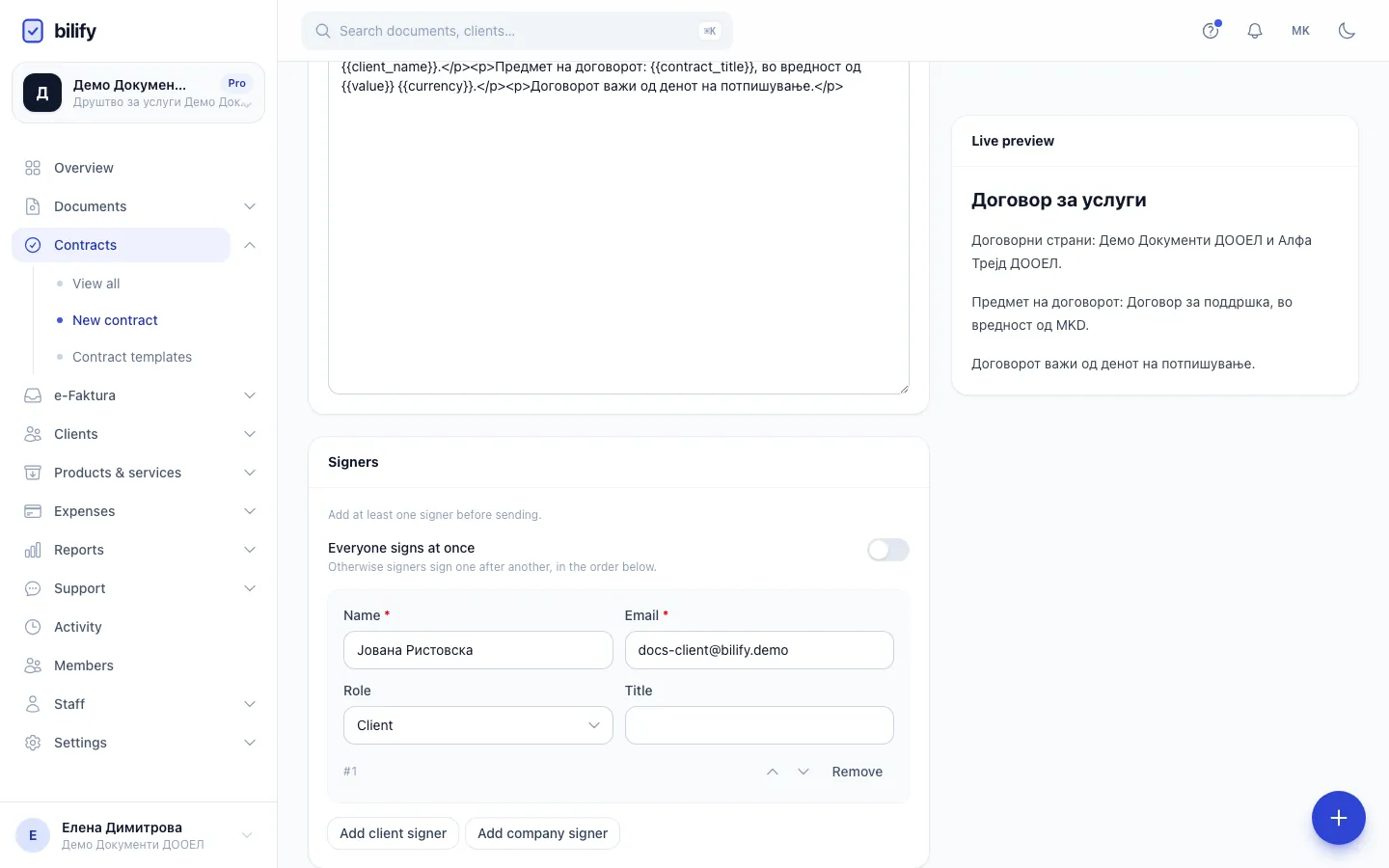
- Step 8: Check who signs and in which order. Every signer needs an email address.
- Step 9: Save draft keeps the contract as a draft with its own number. Nothing is sent yet.
- Go to Contracts in the main menu and click New contract. You can also start from a client's or a document's page; the client (and the document) are then filled in for you.
- Choose the Client. Bilify fills in the client's currency and, if the client has a contact person (or at least an email), adds that person as the first signer.
- Enter a Title, for example "Website maintenance agreement".
- Optionally enter the Value and Currency. They are shown on the contract and are available as merge fields.
- Under Content, keep Write from a template. (The other option, Upload a PDF, is described in Upload a PDF contract.)
- Pick a Template, or leave Start from a template (optional) and write the text yourself. A template fills the Contract body, the Language and, if the template has one, the Signing deadline.
- Review the Contract body and the Live preview next to it.
- Check the Signers card (see below).
- Click Save draft.
The draft gets a Contract number when you first save it, in the form CON-2026-0001 (a separate sequence per year, independent of invoice numbering).
Picking a template only fills an empty body
If you have already typed something in the body, choosing a template does not overwrite it. Clear the body first if you want to switch templates.
The other fields
| Field | What it does |
|---|---|
| Linked document | Connect an invoice, offer or other document of this client. Its total and currency fill Value and Currency, and its number, total and due date become available as merge fields. If the document is issued, the client and company details in the contract come from the issued document. |
| Effective date | When the contract takes effect. Shown on the contract and available as a merge field. |
| Signing deadline | After this date the contract can no longer be signed and becomes Expired. See Reminders and expiry. |
| Language | Macedonian or English: the language of the signing page and of the emails the signers receive. |
| Send automatic reminders | On by default. Lets Bilify remind signers who have not signed yet. |
| Message to signers | A short note shown in the signature request email. |
Write the body with merge fields
Merge fields are placeholders in double curly braces, such as {{client_name}} or {{contract_number}}. Bilify replaces them with real values when the contract is sent.
- Place the cursor in the Contract body where the value should go.
- Click Insert field and pick the field from the list (grouped into Contract, Client, Company, Linked document and Signers).
The full list of fields is in Contract templates. If you type a field that does not exist, a warning lists it under the body, and it would be printed literally, braces included.
The Live preview shows the body with the real values for this client. It refreshes whenever the page talks to the server, for example when you pick a client or template, add a signer or save; typing in the body alone does not refresh it.
Add signers
The Signers card lists who must sign, in order.
- Add client signer: pick one of the client's contacts, the client's own email (shown as the client name with "(client email)"), or Enter name and email manually.
- Add company signer: pick a member of your team, or enter someone by hand.
- For each signer you can edit Name, Email, Role (Client or Company) and Title (for example "Managing director"). The first client signer and the first company signer fill the signer merge fields.
- Use the arrows to change the order and Remove to take someone off.
- Everyone signs at once lets all signers sign in parallel instead of one after another. See Send for signature.
A draft can be saved without signers, but it cannot be sent until it has at least one, and every signer needs an email address.
Edit or delete a draft
Open the draft from the Contracts list; drafts open straight in the editor. Change anything and click Save draft again.
To delete drafts, tick them in the list and click Delete selected. Only drafts are deleted. Sent and signed contracts are legal records and can only be voided (see Void a contract). Deleted drafts can be shown with Show deleted drafts and brought back with Restore selected.
Drafts are free
Saving drafts does not count towards your package's monthly contract limit. Only sending does.
Was this page helpful?
Related articles
Still stuck?
Write to us and we will get back to you within one working day.